Applies to: SharePoint Online and SharePoint On-Premises
NITRO Products: NITRO Forms, NITRO Custom Actions, and NITRO Workflows
Description
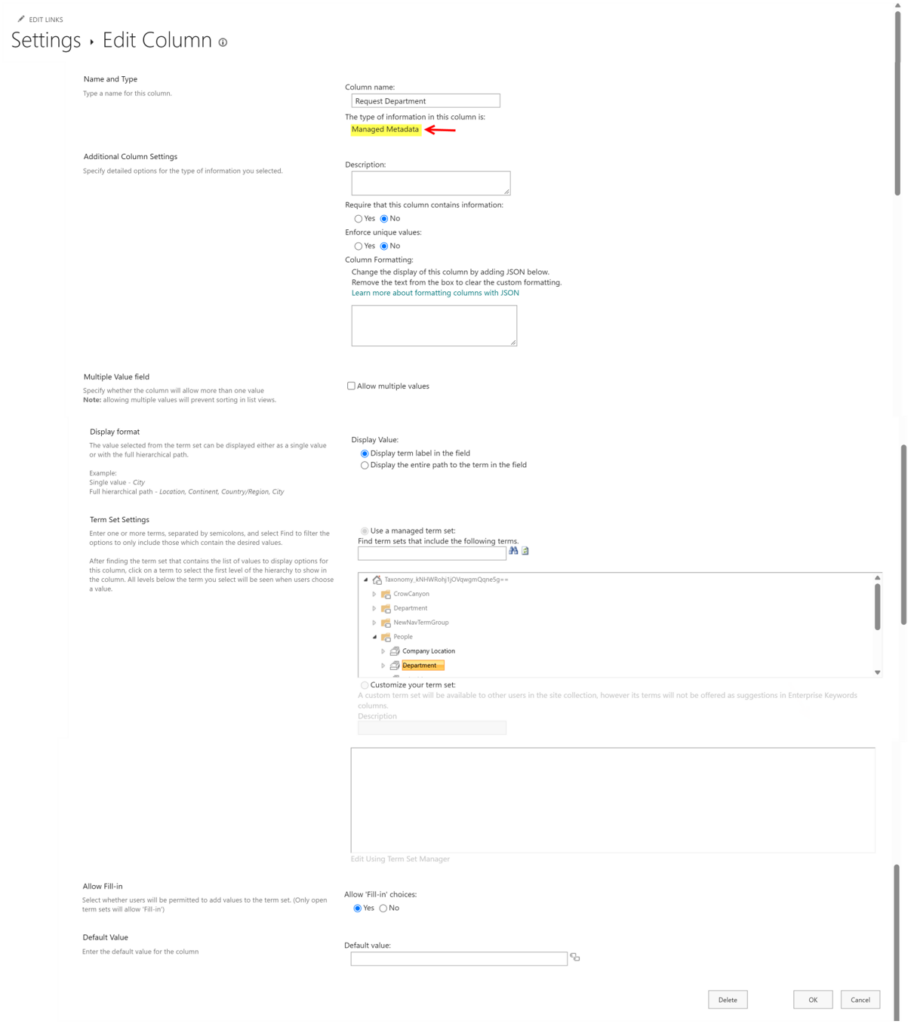
A Managed Metadata column is a SharePoint column that stores values from the SharePoint Term Store.
Unlike a standard Choice column, Managed Metadata uses a centralized taxonomy. This allows the same approved terms to be reused across multiple lists, sites, forms, and business processes.
NITRO Studio provides functionality for working with Managed Metadata columns in:
- NITRO Forms
- NITRO Workflows
- NITRO Custom Actions
This article introduces Managed Metadata, explains when to use it instead of a Lookup column, describes the equivalent functionality available with Managed Metadata, and provides a sample business scenario.
Managed Metadata column in SharePoint
Why Use Managed Metadata Instead of a Lookup Column?
Managed Metadata and Lookup columns can both be used to provide standardized values, but they serve different purposes.
A Lookup column retrieves values from items stored in another SharePoint list.
A Managed Metadata column retrieves terms from the SharePoint Term Store.
Lookup
A Lookup is useful when the values are maintained as SharePoint list items and the application needs to reference those items.
For example:
Roles List
| Role Name | Department |
| Accountant | Finance |
| Financial Analyst | Finance |
| Network Engineer | IT |
A request can use a Lookup column to select a Role from the Roles list.
Managed Metadata
Managed Metadata is useful when the values represent a controlled organizational taxonomy that should be centrally managed and reused.
For example:
Department Term Set
- Finance
- Human Resources
- IT
- Marketing
- Sales
The same Department terms can then be used by multiple lists and applications.
Choosing Between Them
Use Managed Metadata when the value is part of a centrally managed taxonomy.
Use a Lookup when the value represents a relationship to another SharePoint list item.
For example:
Department → Managed Metadata
Employee → Lookup to Employee List
Role → Lookup to Roles List
Sample Business Scenario
The examples in this article use a Request Management scenario.
A user creates a request and selects the department or departments associated with the request.
The selected department information can then be used to:
- Automatically populate additional fields
- Filter related values
- Retrieve related records
- Build conditions
- Route requests
- Populate workflow data
- Generate documents
- Send notifications
Sample Lists and Columns
Requests List
| Display Name | Internal Name | Data Type |
| Title | Title | Single line of text |
| Request Department | RequestDepartment | Managed Metadata (Single) |
| Request Departments | RequestDepartments | Managed Metadata (Multiple) |
| Department Code | DepartmentCode | Single line of text |
| Department Created Date | DepartmentCreatedDate | Date and Time |
| Department Number | DepartmentNumber | Number |
| Department Active | DepartmentIsActive | Yes/No |
| Department Subcategories | DepartmentSubCategories | Choice |
| Description | Description | Multiple lines of text |
| Primary Target Department | PrimaryTargetDepartment | Managed Metadata (Single) |
| Primary Target Departments | PrimaryTargetDepartments | Managed Metadata (Multiple) |
| Secondary Target Department | SecondaryTargetDepartment | Managed Metadata (Single) |
| Secondary Target Departments | SecondaryTargetDepartments | Managed Metadata (Multiple) |
| Assigned Role | AssignedRole | Lookup (Single) |
| Assigned Roles | AssignedRoles | Lookup (Multiple) |
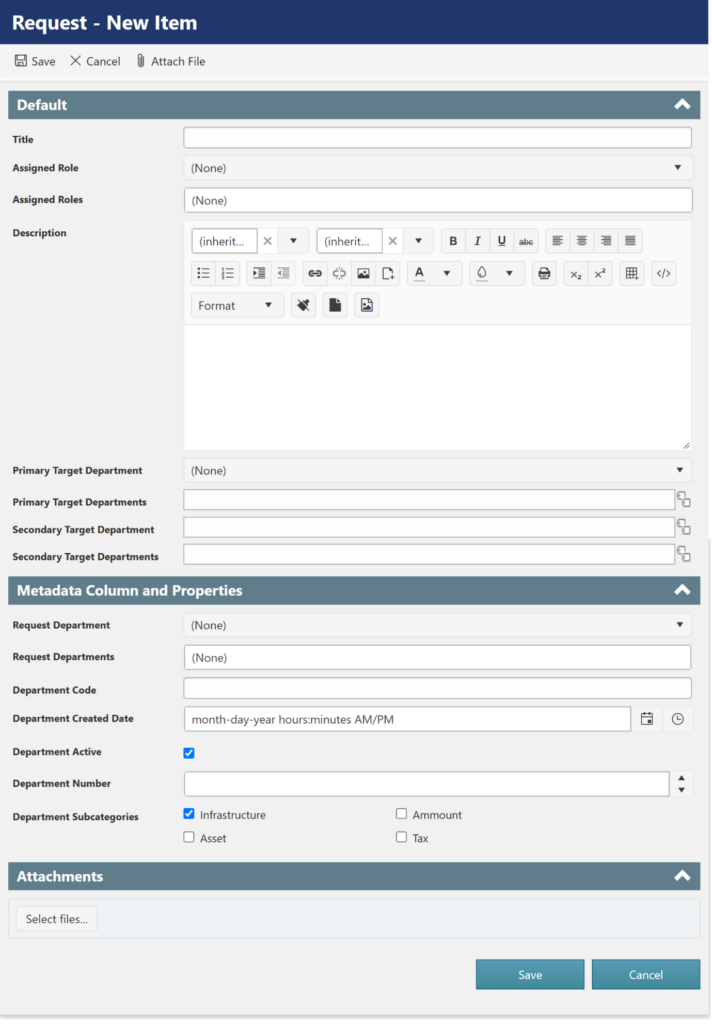
Requests list columns
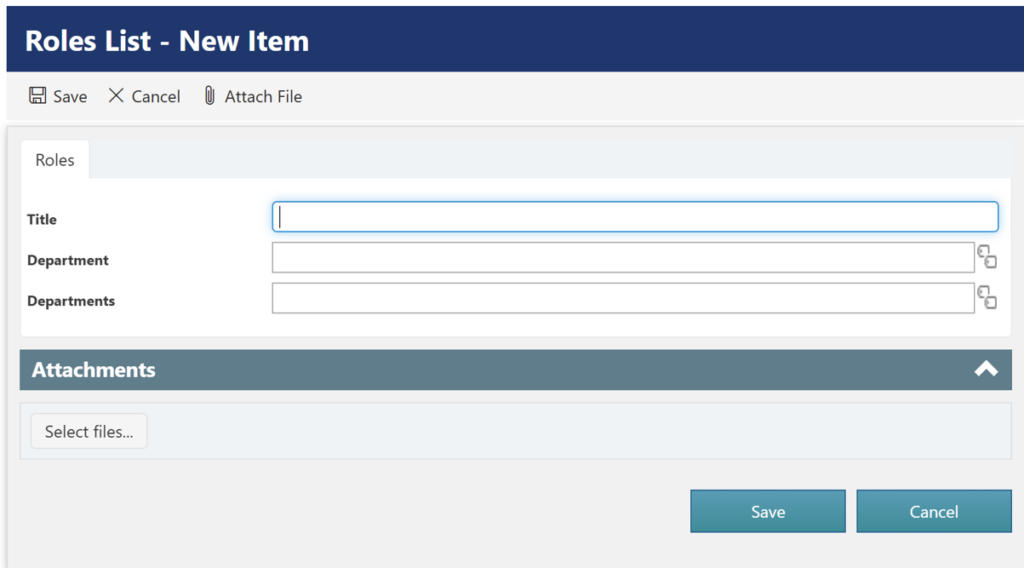
Roles List
| Display Name | Internal Name | Data Type |
| Role Name | RoleName | Single line of text |
| Department | Department | Managed Metadata (Single) |
| Departments | Departments | Managed Metadata (Multiple) |
Single-Value and Multi-Value Managed Metadata
Single-Value Managed Metadata
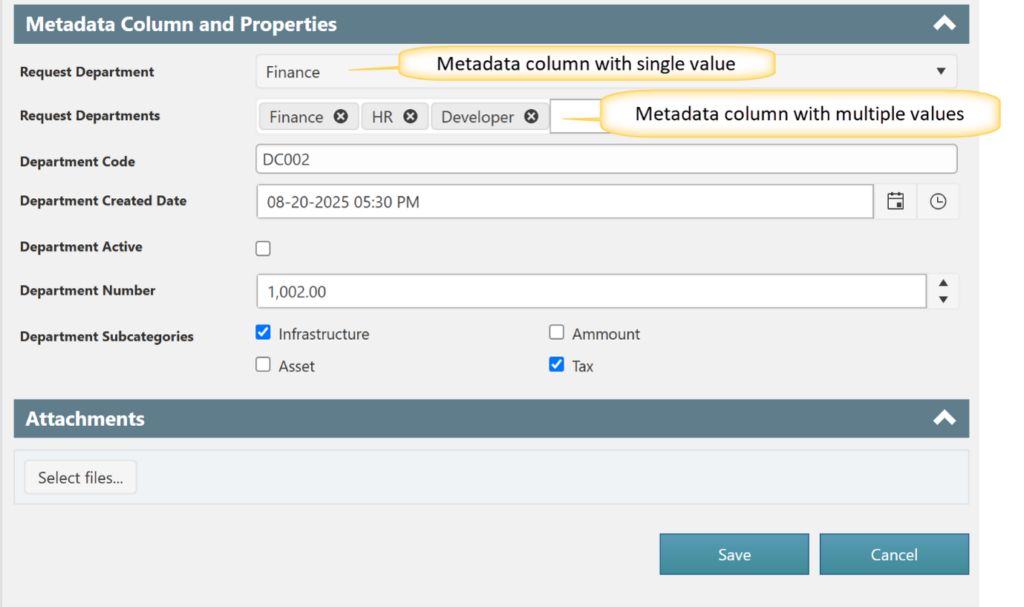
A single-value Managed Metadata column allows the user to select one term.
Example:
Request Department = Finance
Only one Department can be selected.
Multi-Value Managed Metadata
A multi-value Managed Metadata column allows the user to select multiple terms.
Example:
Request Departments = Finance; IT; Sales
Multiple departments can be selected for the same request.
Managed Metadata Term Store
The Term Store provides the centralized location where terms are created and maintained.
Example:
Department Term Set
- Finance
- Human Resources
- IT
- Marketing
- Sales
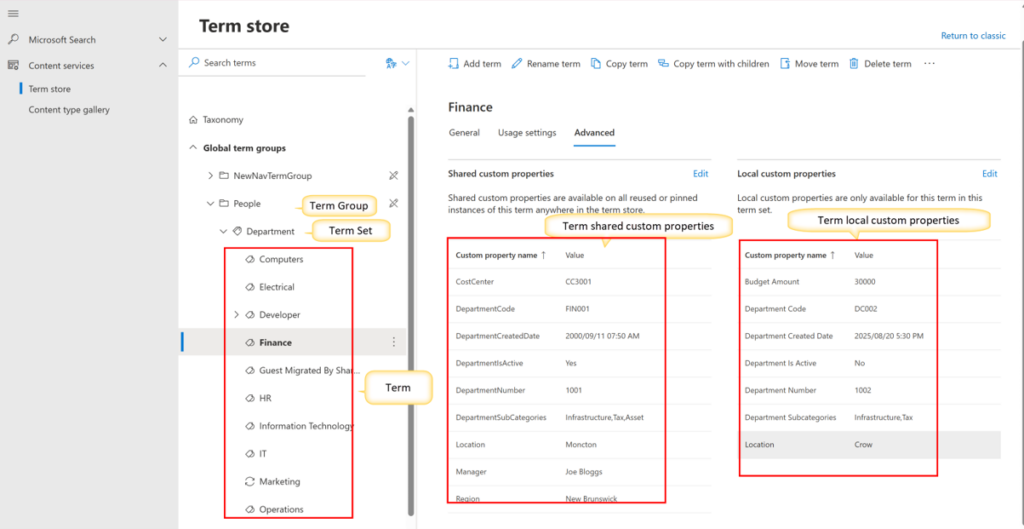
A Managed Metadata column is associated with a Term Set, allowing users to select terms from that controlled taxonomy.
Term Custom Properties
Managed Metadata terms can contain additional business information called Custom Properties.
These properties can later be used inside NITRO Forms for automatic field population.
Example:
Department Term – Custom Properties
Department = Finance
| Property Name | Value |
| Department Code | DC002 |
| Department Created Date | 2025/08/20 5:30 PM |
| Department Number | 1002 |
| Department Subcategories | Infrastructure, Tax |
| Department Is Active | No |
Shared and Local Custom Properties
Managed Metadata supports different types of term properties.
Shared Custom Property
A shared property is information that belongs to the term and can be used wherever the term is reused.
Example:
Term: Finance
Shared Property:
DepartmentCode = FIN001
If the Finance term is reused in another location, DepartmentCode = FIN001 can still be available.
Shared = information shared by the term wherever it is reused.
Local Custom Property
A local property is information that applies to the term only in its current context.
Example:
Term: Finance
Local Property:
Department Code = DC002
The same Finance term could have a different local Department Code when used in another term set.
Local = information specific to where the term is being used.
Easy way to remember
| Type | Finance Example | Meaning |
| Shared | DepartmentCode = FIN001 | Belongs to Finance wherever it is reused |
| Local | Department Code = DC002 | Applies to Finance in this specific context |
Shared = follows the term.
Local = stays with the context.
Configuring Custom Properties in SharePoint Online
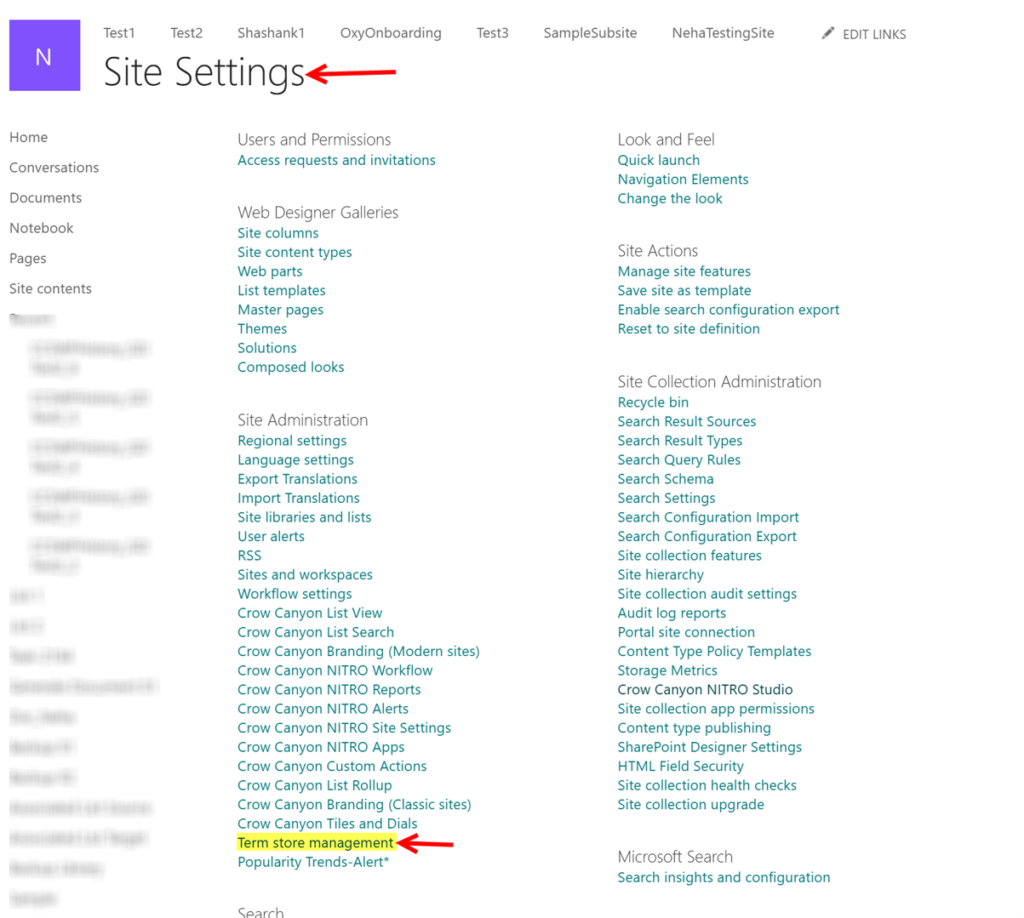
- Navigate to Root Site Collection -> Site Contents -> Site Settings -> Term store management
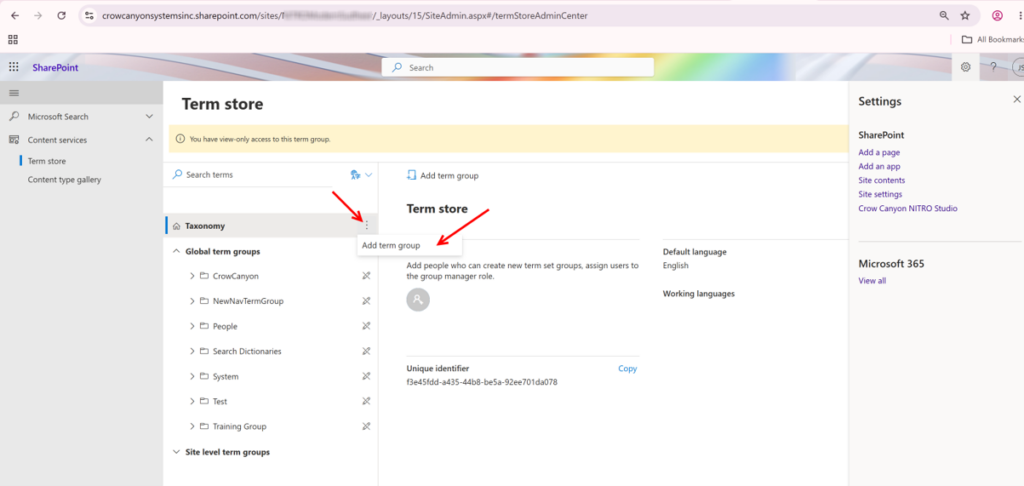
You can either create a new Term Group and Term Set, as shown below, or configure the custom properties for an existing Term Set.
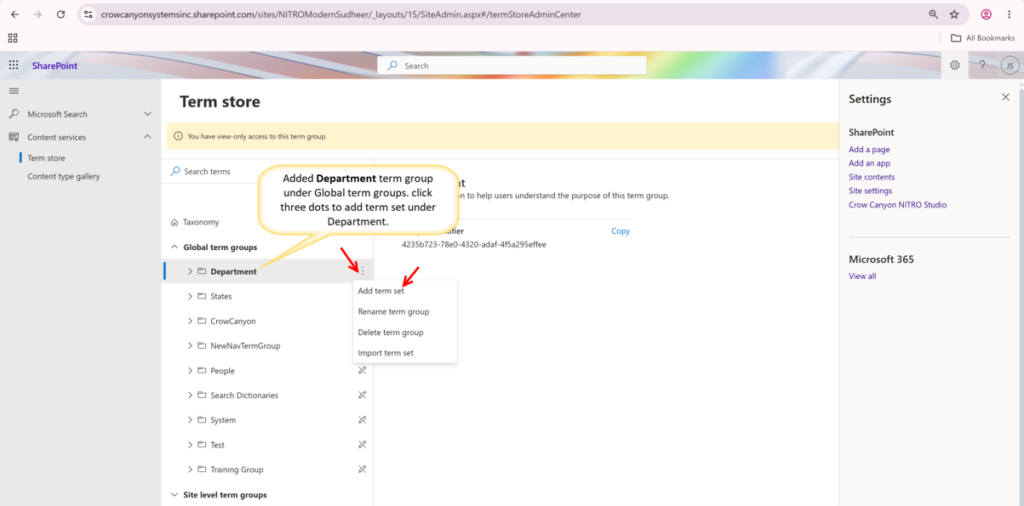
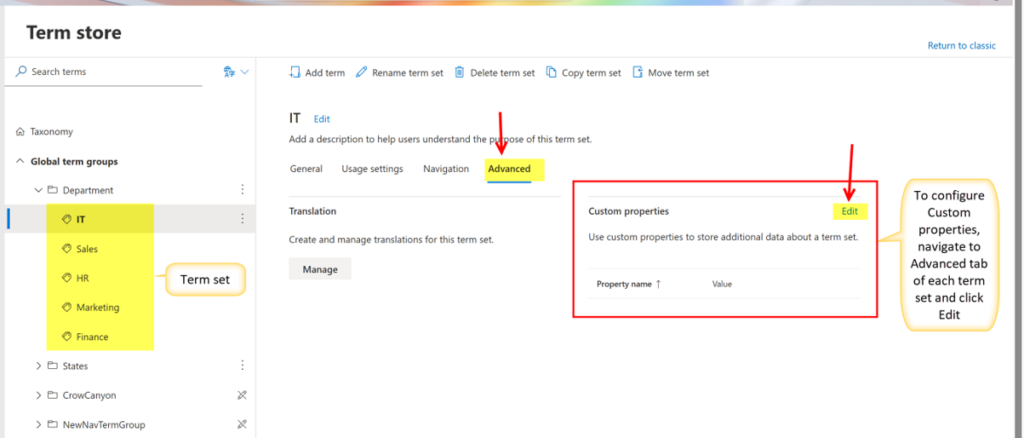
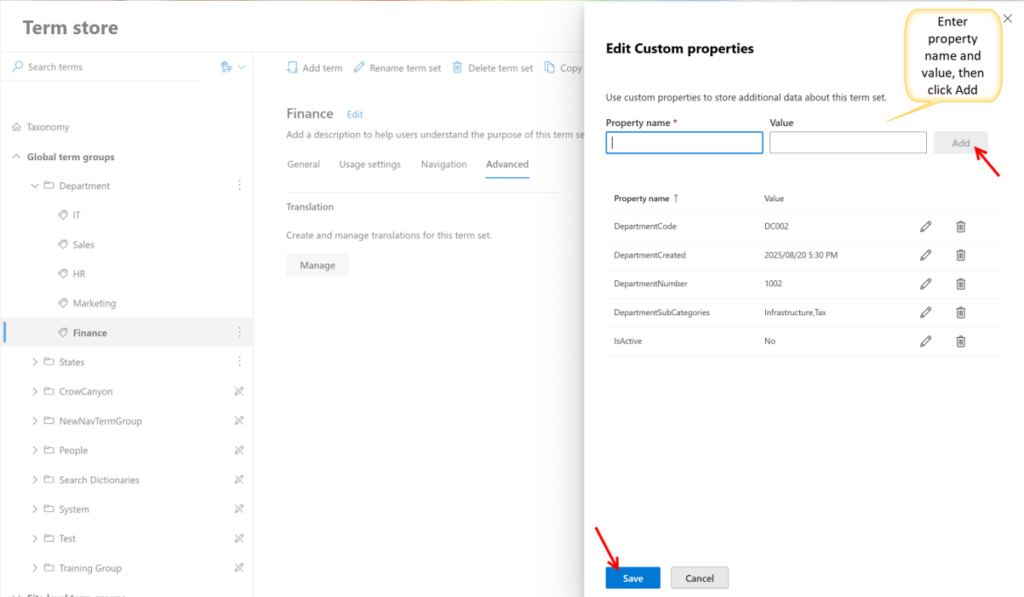
SharePoint Online Term Store Custom Properties
Term Set: Finance
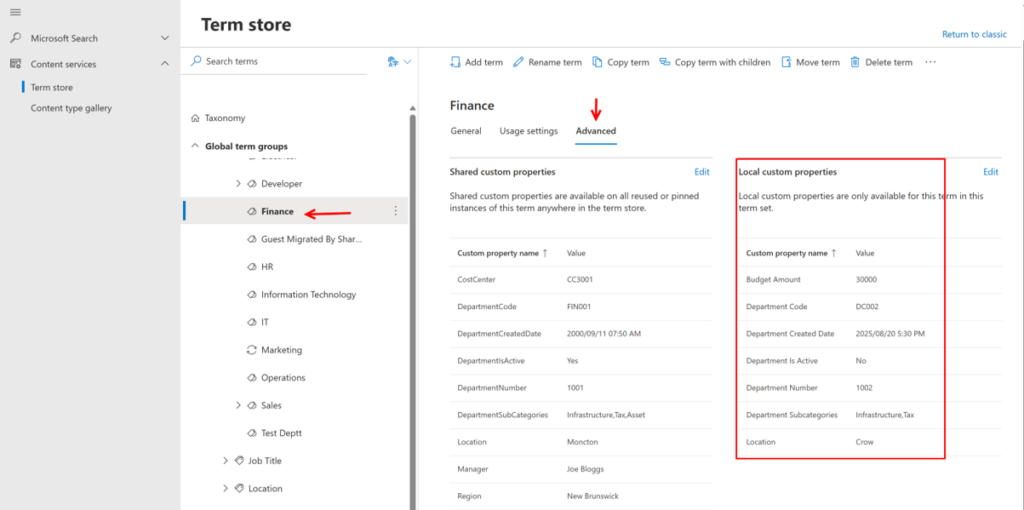
Note: For Managed Metadata column custom properties, date values must be entered in the following format: YYYY/MM/DD HH:MM AM/PM.
Example:
2025/08/20 5:30 PM
Additional points to remember:
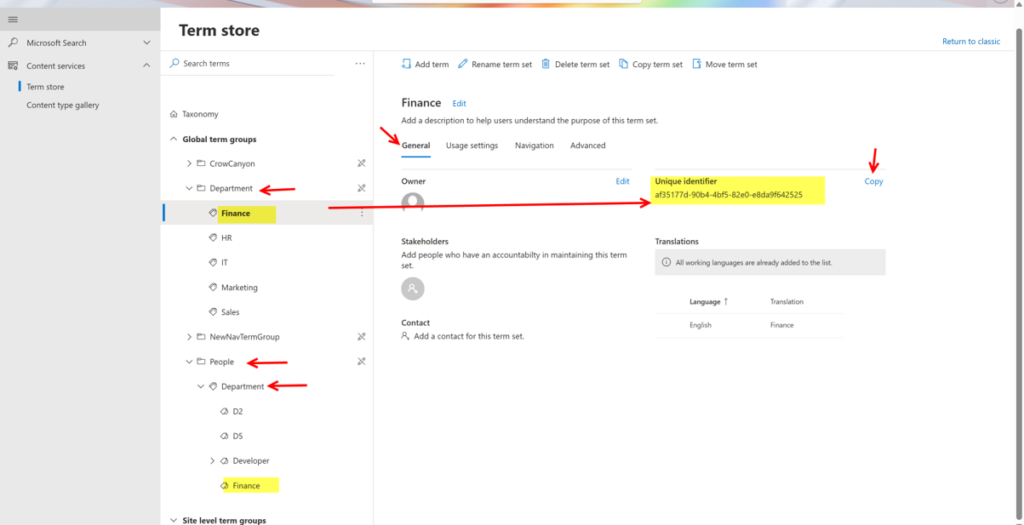
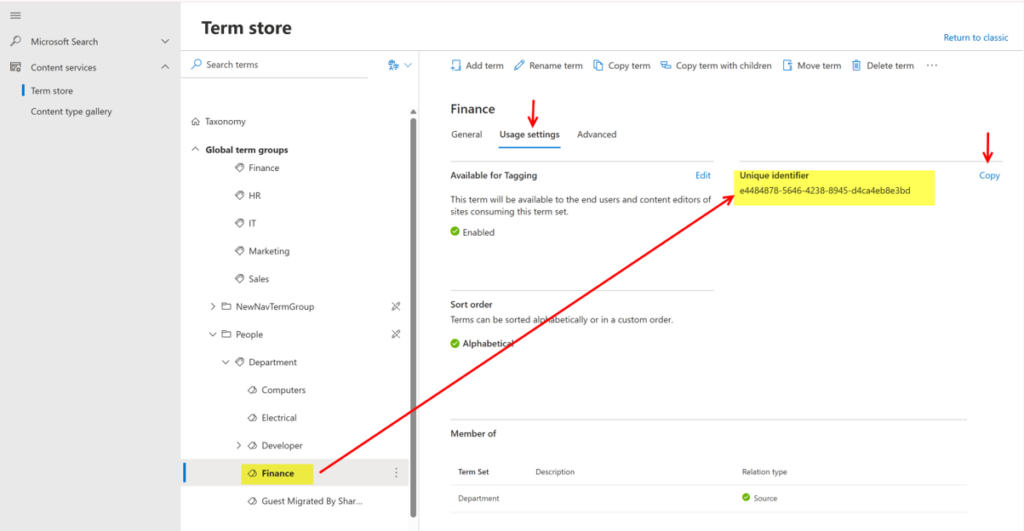
Unique Identifier
Each taxonomy term has a unique identifier. It allows NITRO to identify the exact term being referenced, even when terms with the same name exist in different locations.
Example:
The Term Store can contain Department in more than one location, and both locations can contain a term named Finance. The displayed name Finance is not sufficient to uniquely identify the term. Its unique identifier and taxonomy context distinguish which term is being used.
The Finance term exists in two different locations, as shown in the images below.
This is particularly important when working with:
- Conditions
- Queries
- Column mappings
- Multi-value Managed Metadata
- Workflow actions
Configuring Custom Properties in SharePoint On-Premises
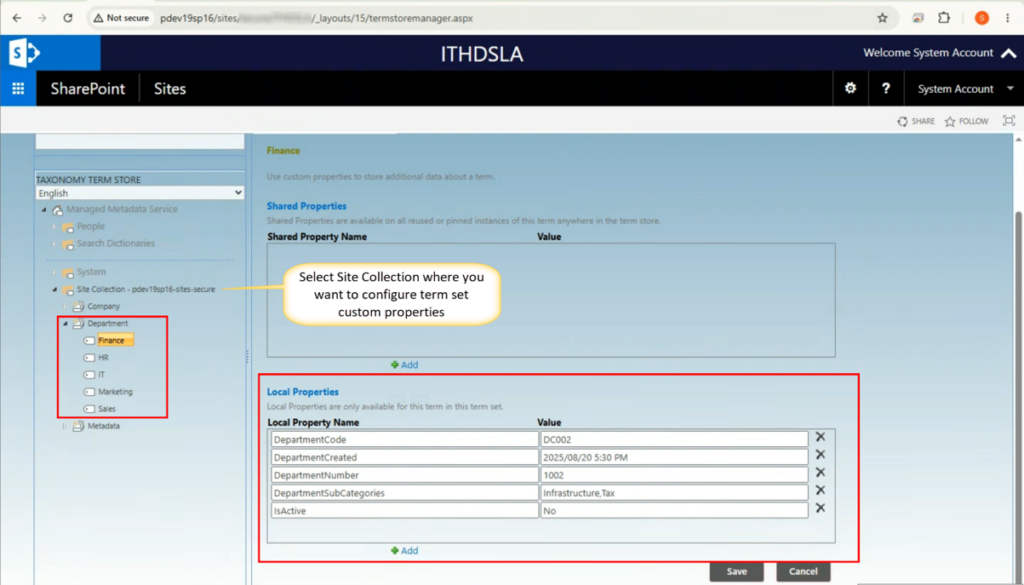
SharePoint On-Premises Custom Properties:
Steps
- Open Site Settings → Term Store Management.
- Select the Site Collection where you want to configure the term properties.
- Navigate to the required term.
In the example shown in below image, select:
Department → Finance
- In the Finance term properties, add custom properties under:
- Shared Properties
- Local Properties
- Enter the Property Name and Value.
- Click Save.
How NITRO Apps work with custom properties
NITRO Apps can treat the selected Metadata term as a source of additional data.
For example, suppose a form contains a Metadata Column named Department and the user selects Marketing.
The form can use the selected term to retrieve:
Department Code → MKT001
Manager → John Smith
Cost Center → CC5001
Region → Alberta
Those values can then be used to:
- Populate other form fields.
- Build conditions.
- Map values to SharePoint columns.
- Construct workflow decisions.
- Query other lists.
- Generate document or print-template content.
- Build email recipients or email content.
- Pass information to other NITRO actions.
- Populate DocuSign-related data.
The key concept is:
The selected Managed Metadata term can act as the starting point for retrieving additional business information.
Creating Managed Metadata Columns in NITRO Forms
NITRO Forms provides several ways to work with Metadata Columns.
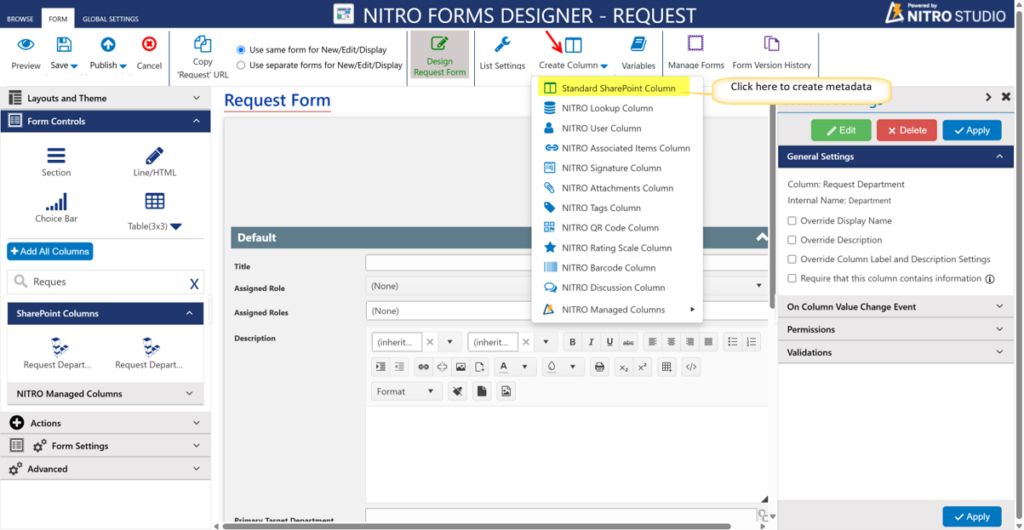
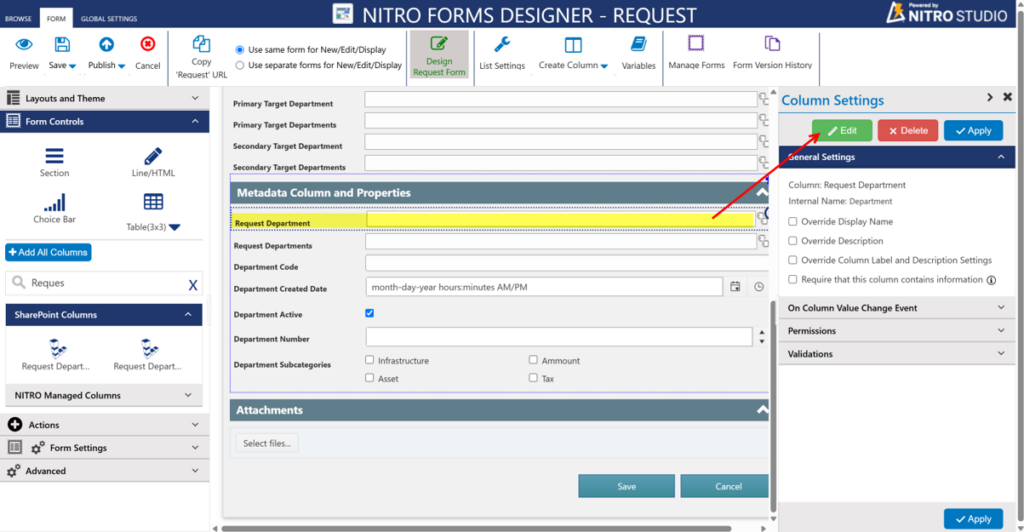
Configure Metadata Column and map custom properties to NITRO Form columns
Navigate to Settings (Gear icon) → Site Contents → Site Settings → Crow Canyon NITRO Apps → NITRO Forms. Select the list, and on the NITRO Form Designer page, click Create Column. Choose Standard SharePoint Column, then create a Managed Metadata column by selecting the appropriate Term Set.
Refer NITRO™ Admin Guide > Accessing the Apps to know how you can navigate to app.
Refer NITRO™ Forms > Custom NITRO Columns to know how to configure columns in NITRO Forms
Online:
Map Custom Properties to other columns of list
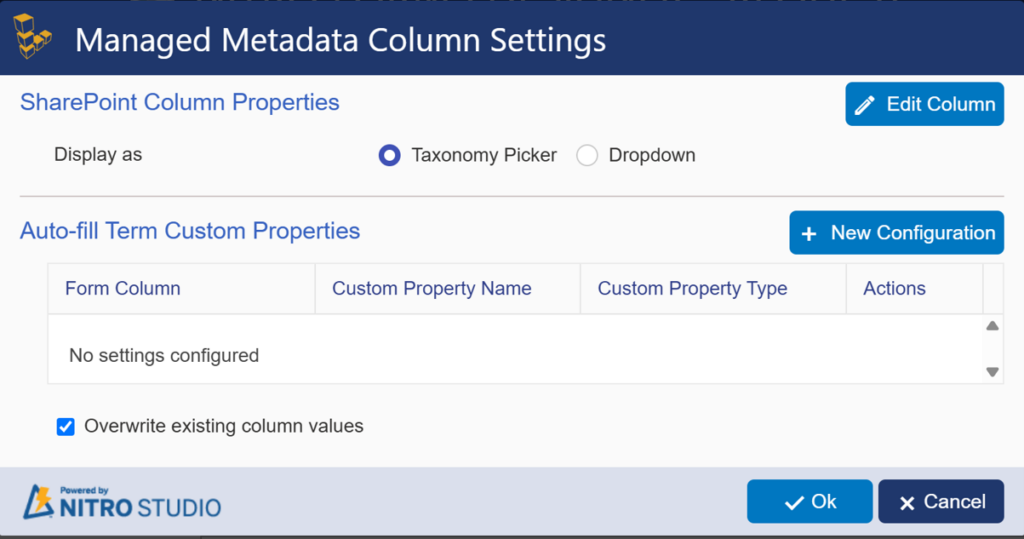
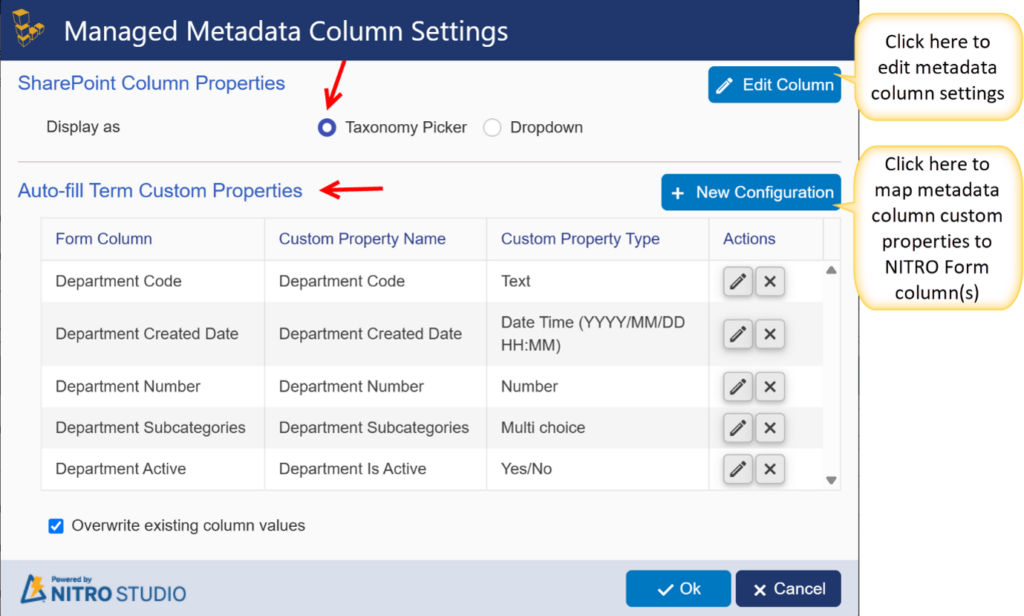
Taxonomy Picker
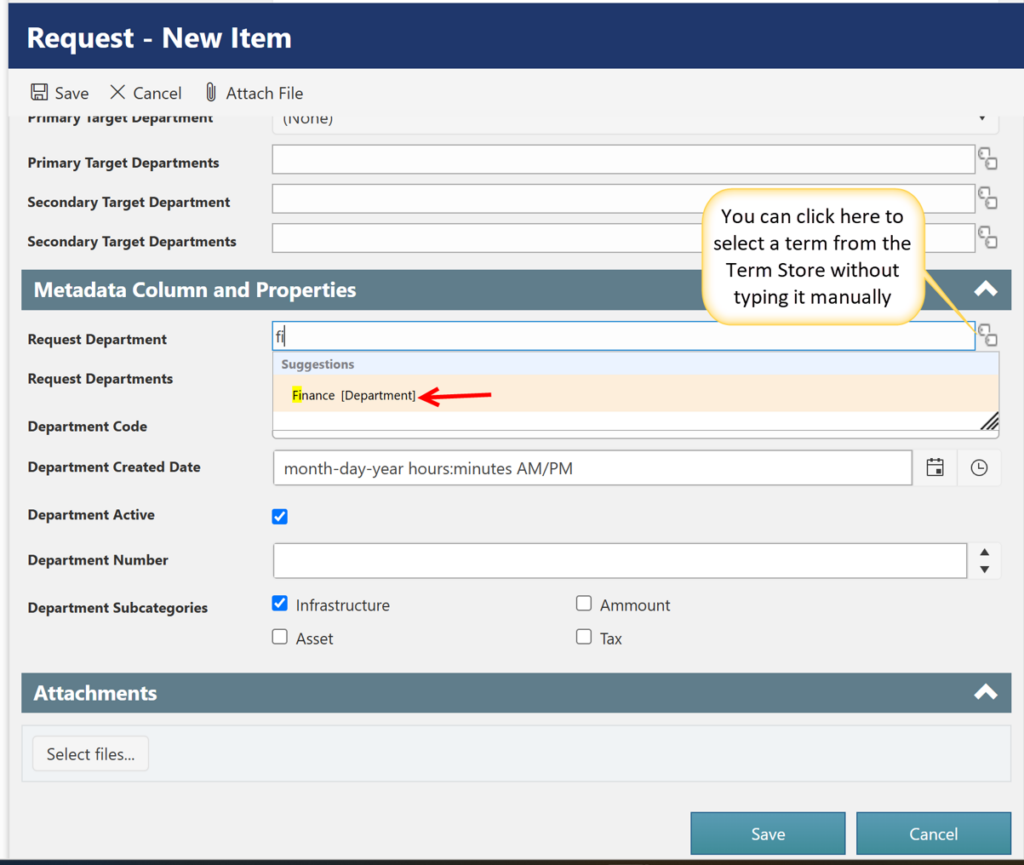
A Taxonomy Picker allows users to select a term from the SharePoint Term Store.
For example:
Request Department
[ Finance ]
When the user starts typing, matching terms are displayed.
Example:
- User enters Fi.
- NITRO displays matching terms.
- User selects Finance.
Why Use a Taxonomy Picker?
The primary benefit is standardized data.
Without Managed Metadata, users may enter:
- Finance
- finance
- FINANCE
With Managed Metadata, users select the predefined Finance term from the Term Store.
This helps maintain consistent terminology across the application.
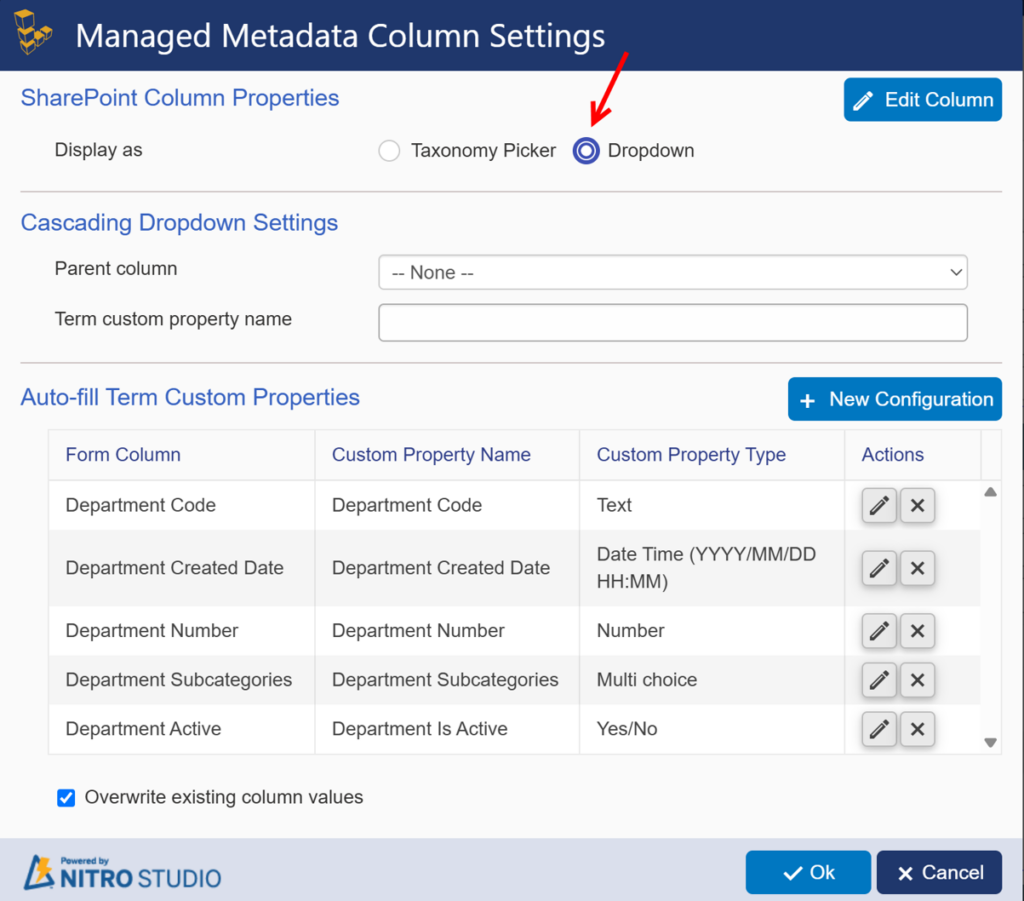
Drop down
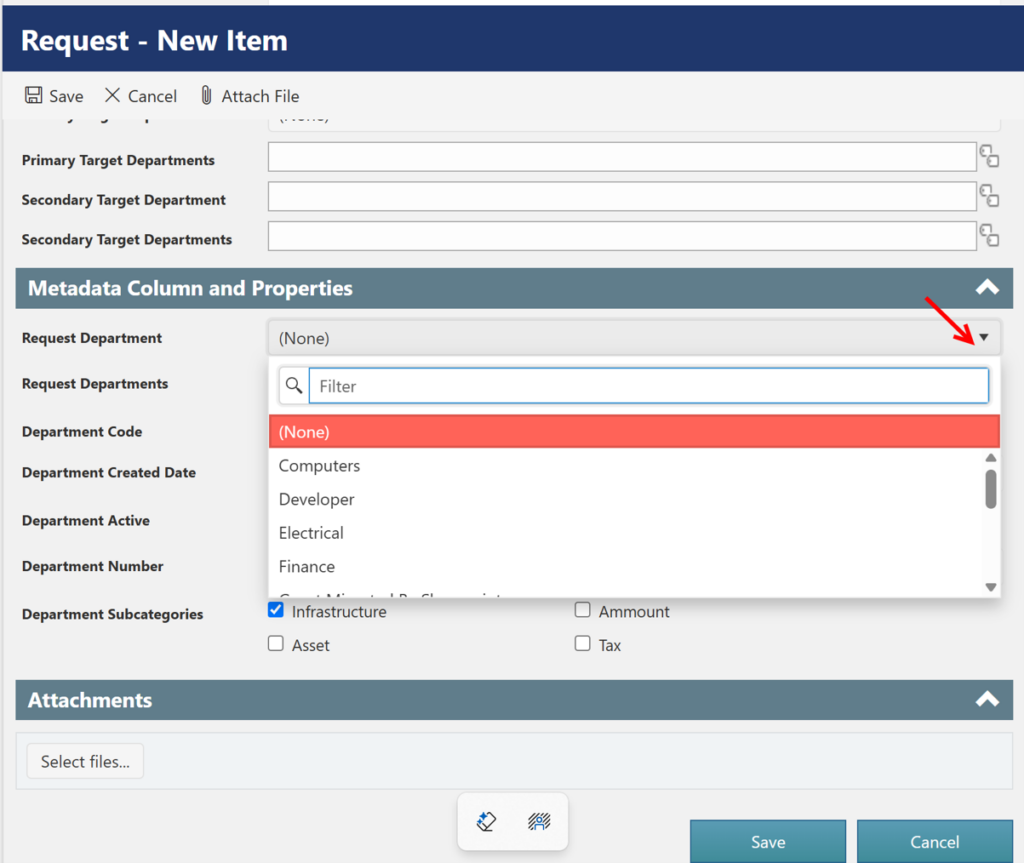
The drop down option provides another way to select a Managed Metadata value.
Instead of typing and searching for a term, the available terms are presented as a drop down.
Example:
Request Department: [ Select Department ▼ ]
Possible values:
- Finance
- Human Resources
- IT
- Marketing
- Sales
Use a Dropdown when the Term Set contains a relatively small number of terms and users can easily select the required value.
Auto-Fill Term Custom Properties
NITRO Forms can use the selected Managed Metadata term to automatically populate other form columns with the term’s custom properties.
For example, your Finance term has below custom properties:
| Custom Property | Value |
| Department Code | DC002 |
| Department Created | 2025/08/20 5:30 PM |
| Department Number | 1002 |
| Department SubCategories | Infrastructure, Tax |
| Department Is Active | No |
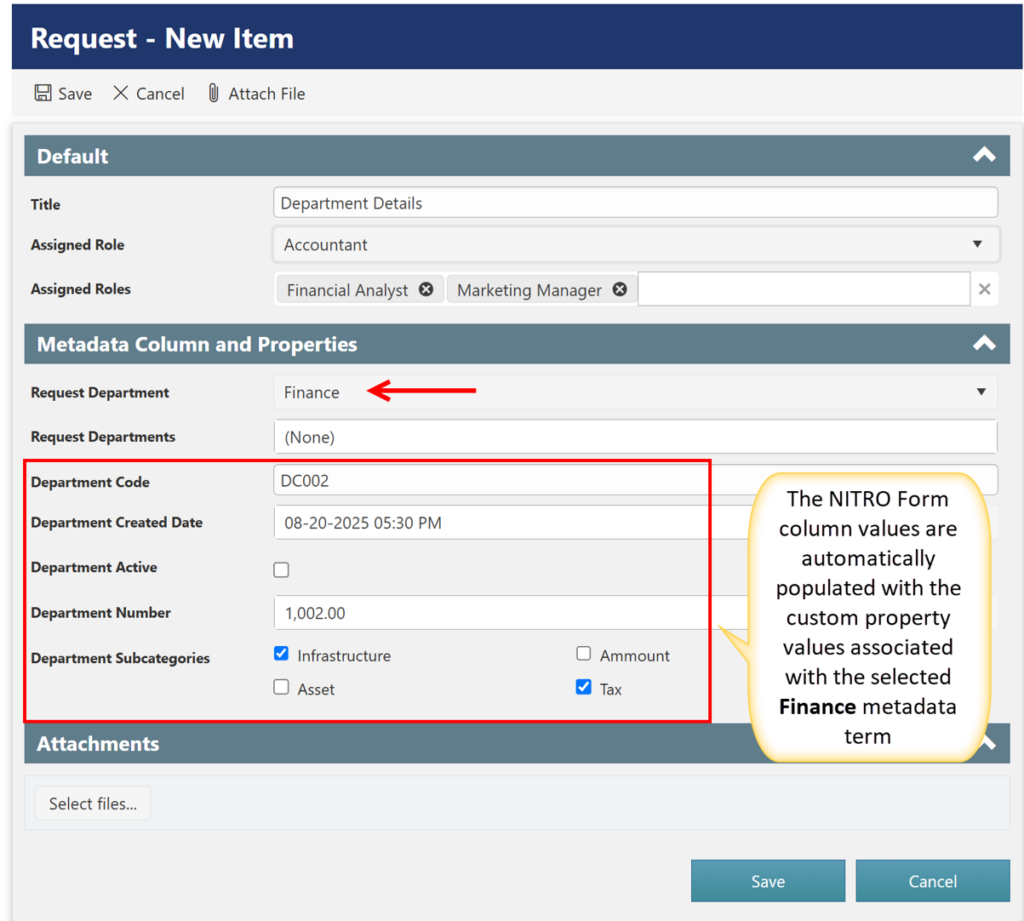
The user only selects:
Department = Finance
NITRO can then automatically retrieve these properties and populate other form columns.
The NITRO Form can automatically populate below columns:
| Form Column | Value |
| Department Code | DC002 |
| Department Created Date | 2025/08/20 5:30 PM |
| Department Number | 1002 |
| Department Subcategories | Infrastructure; Tax |
| Department Active | No |
Configure Auto-Fill Properties
On the NITRO Form Designer:
- Select the Managed Metadata column.
- Locate Auto-fill Term Custom Properties.
- Select New Configuration.
- Map the Term Store custom property to the required form column.
- Save the configuration.
Note: For Managed Metadata column custom properties, date values must be entered in the following format: YYYY/MM/DD HH:MM AM/PM.
Taxonomy Picker
Dropdown
Sample Output:
Cascading Managed Metadata
Cascading Dropdown Settings
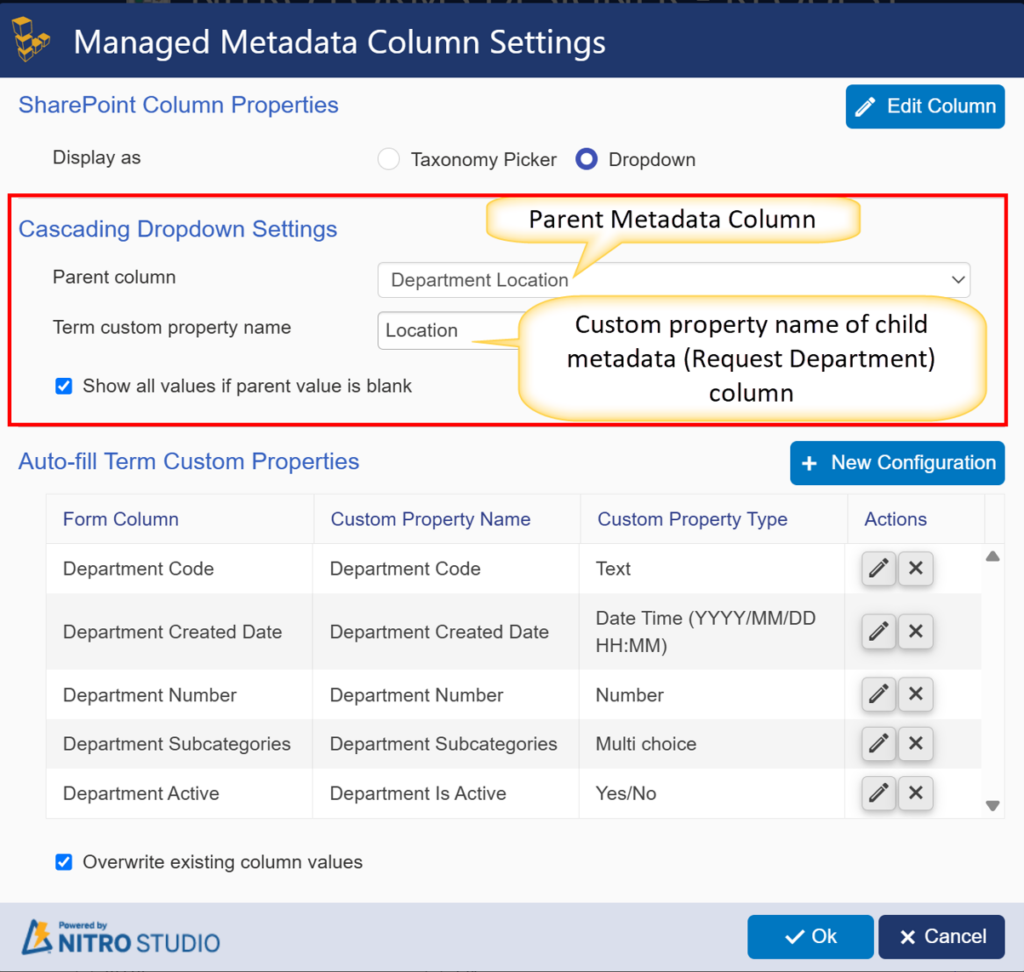
The Cascading Dropdown feature allows the values available in one Metadata Column to be filtered based on the value selected in another Metadata Column.
In this example, the Department Location column is used as the parent column, and the Request Department Metadata Column is filtered based on the selected location.
Configuration
The cascading configuration is set as follows:
- Parent Column: Department Location
- Parent Term Set: Company Location
- Child Metadata Column: Request Department
- Child Term Set: Department
- Department Term Custom Property Name: Location
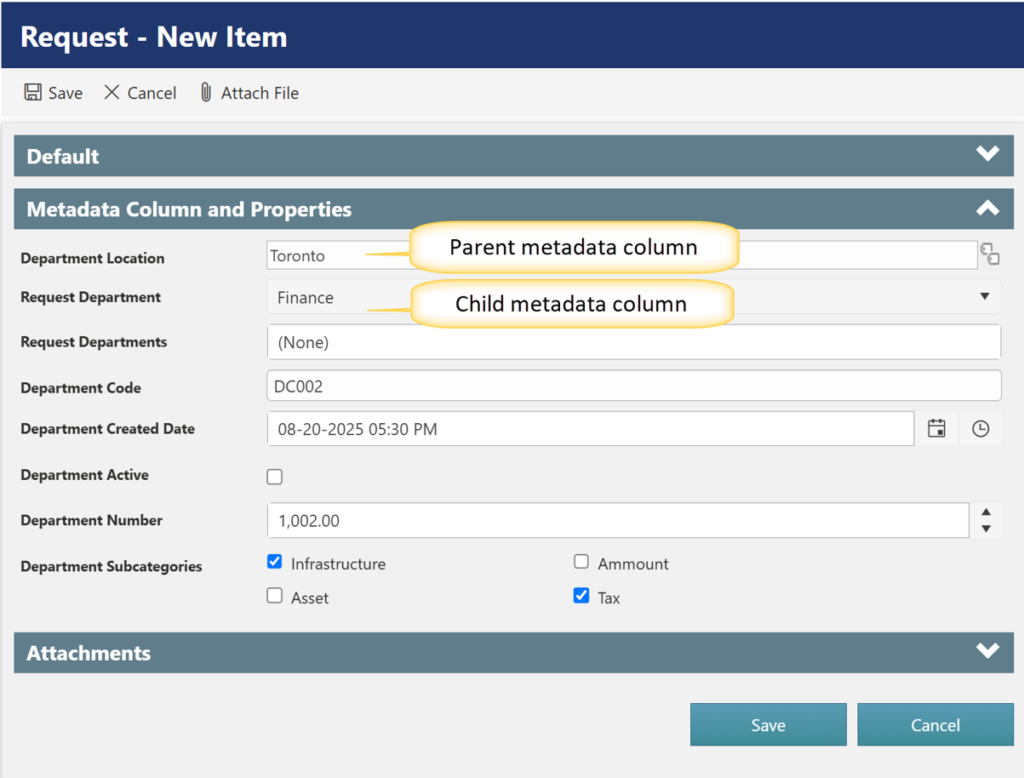
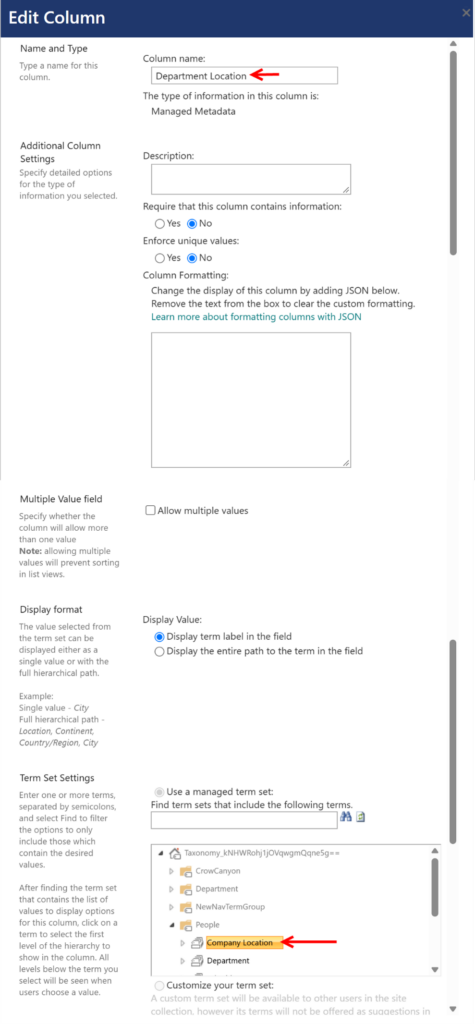
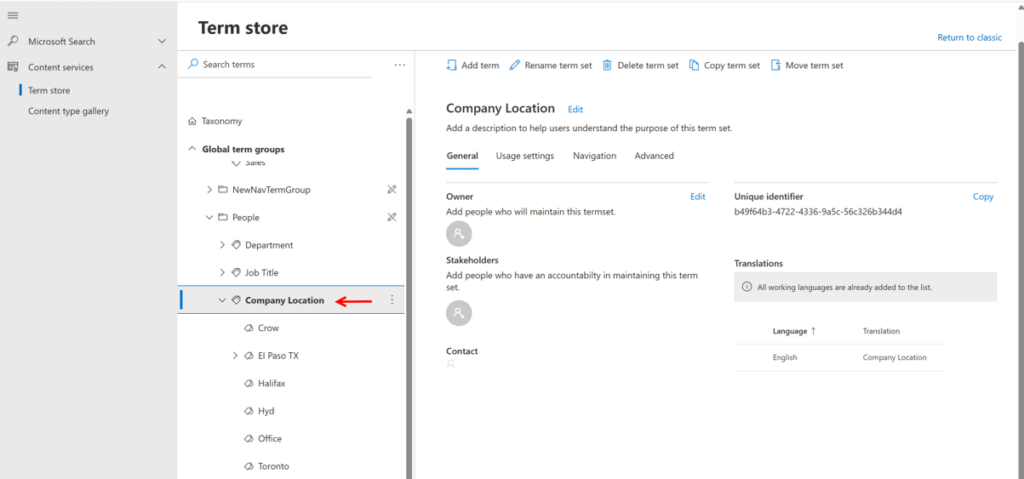
The Department Location column is connected to the Company Location Term Set. The Department terms have a custom property named Location, which is used to determine which departments are associated with each location.
The Finance department has Toronto specified as its Location.
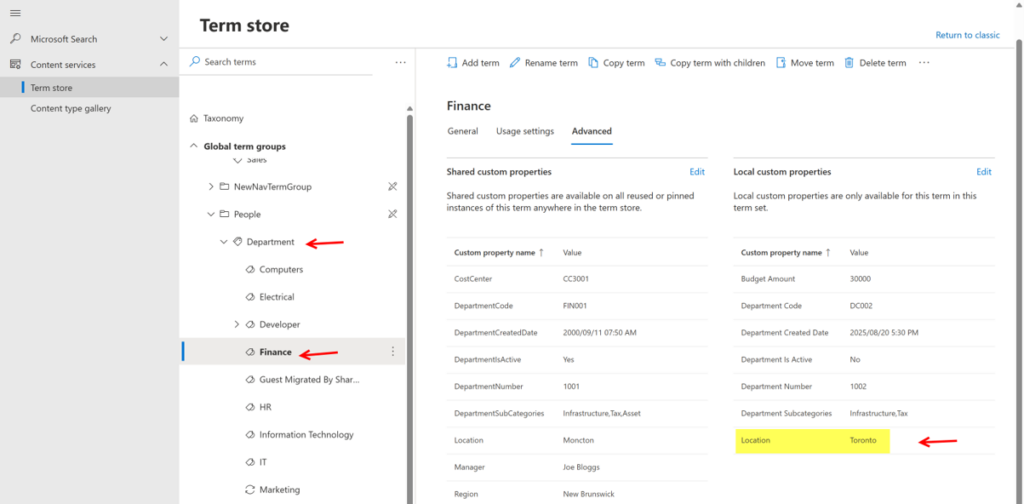
Similarly, the Information Technology, Computers, and Operations departments have Toronto specified as their Location.
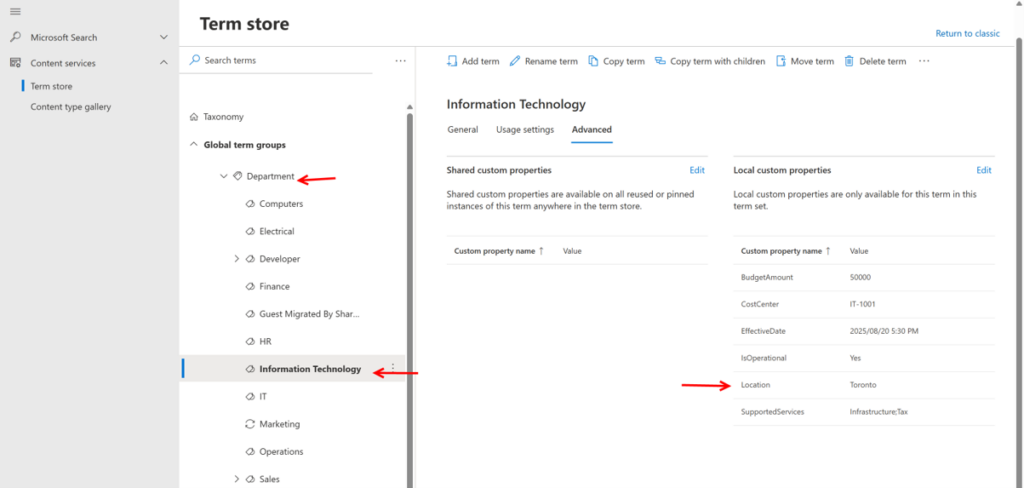
When a value is selected in the Department Location column, NITRO checks the Location custom property of the Department terms and displays the matching Department values.
Example:
Assume the Department terms have the following Location custom property values:
| Department | Location |
| Finance | Toronto |
| Computers | Toronto |
| IT | Halifax |
| Marketing | British Columbia |
| Operations | Toronto |
| Information Technology | Toronto |
If Toronto is selected in the Department Location column:
Department Location → Toronto
↓
NITRO checks the Location property of Department terms
↓
Request Department → Finance, Information Technology, Operations and Computers
Therefore, Finance, Information Technology, Operations and Computers
is displayed in the Department column because its Location custom property contains Toronto.
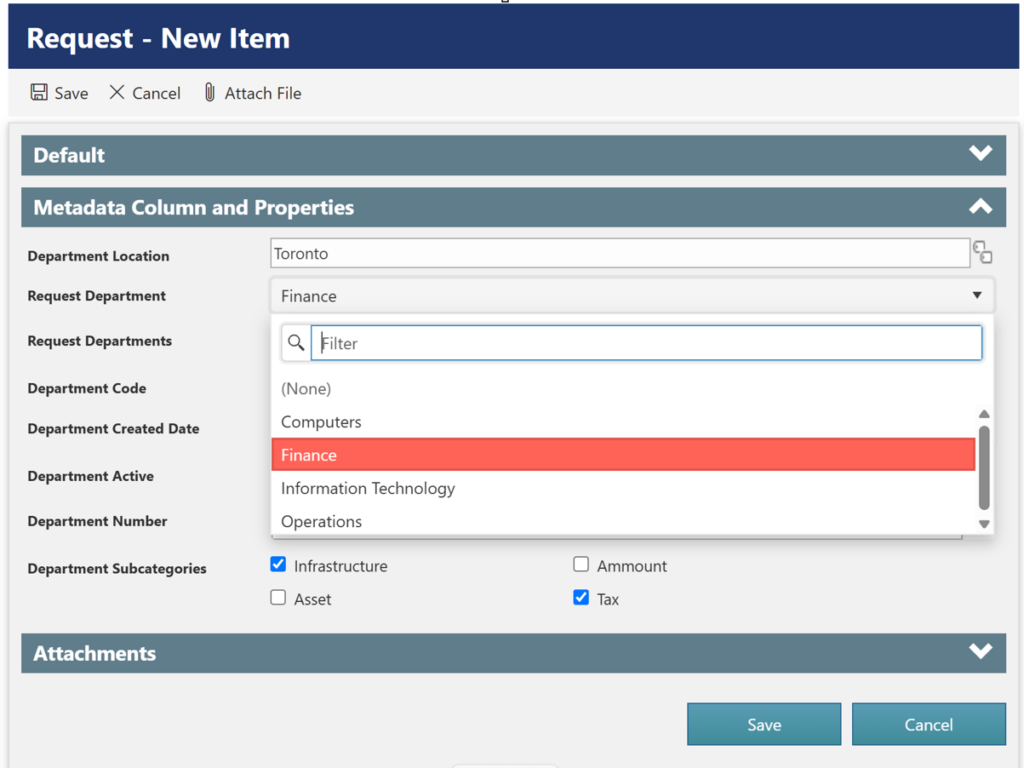
Term Custom Property Name
The Term Custom Property Name specifies the custom property of the child Department terms that NITRO uses to filter the available values.
In this example:
Term Custom Property Name = Location
NITRO checks the Location custom property of each Department term and displays the terms whose property matches the selected value in the Department Location column.
Show All Values if Parent Value Is Blank
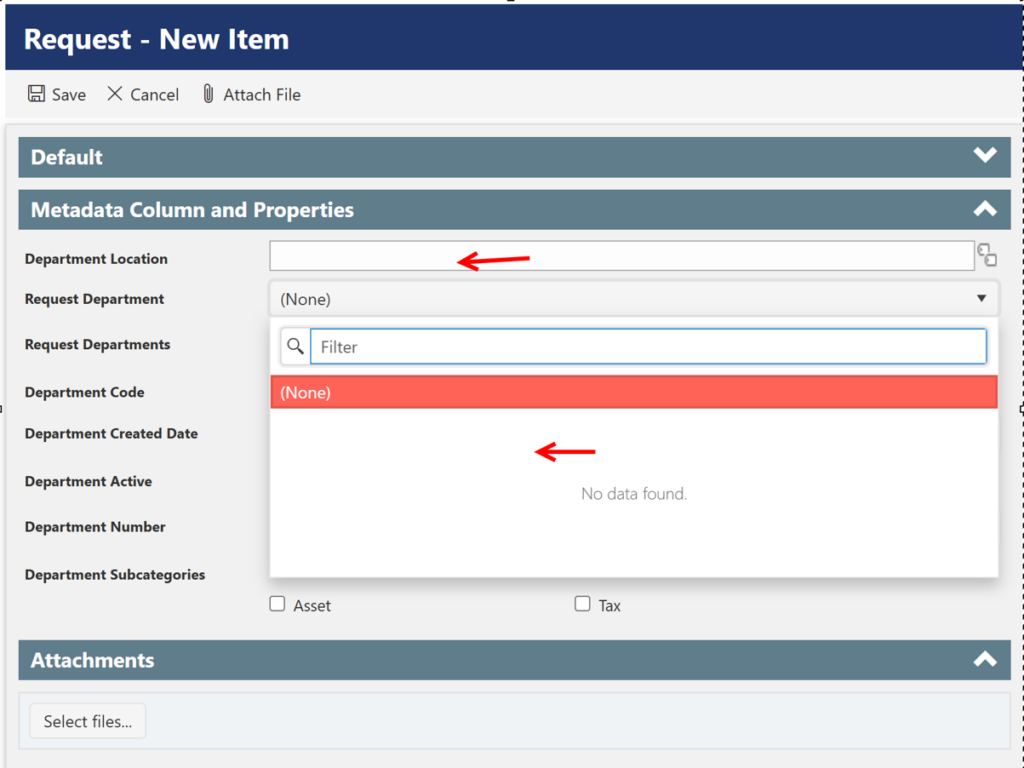
The Show all values if parent value is blank option controls what happens when the Department Location column does not have a value.
- Enabled: All Department values are displayed when Department Location is blank.
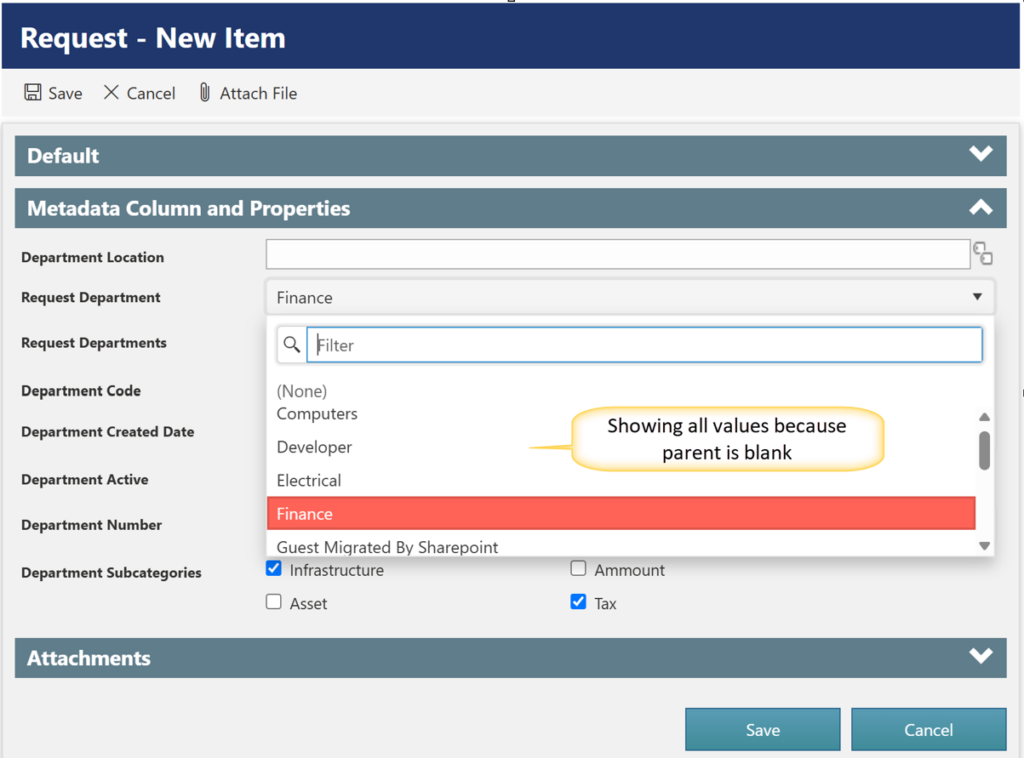
Disabled: No Department values are displayed until a value is selected in Department Location. After a location is selected, only the matching Department values are displayed.
Cascading Dropdown with Multiple Parent Values
If the Department Location column allows multiple values, NITRO checks the Department terms against all selected locations.
For example:
Department Location = Toronto; British Columbia
If the Department terms have:
| Department | Location |
| Finance | Toronto |
| Computers | Toronto |
| IT | Halifax |
| Marketing | British Columbia |
| Operations | Toronto |
| Information Technology | Toronto |
NITRO checks the Location custom property against the selected values Toronto and British Columbia.
The Request Department column displays:
- Marketing — matches British Columbia
- Finance, Information Technology, Operations and Computers — matches Toronto
Multiple Values in the Department Term’s Location Property
A Department term can also have multiple values in its Location custom property.
For example:
| Department | Location |
| Finance | British Columbia |
| HR | Toronto; Halifax |
| IT | British Columbia; Edmonton |
| Marketing | Alberta; Toronto |
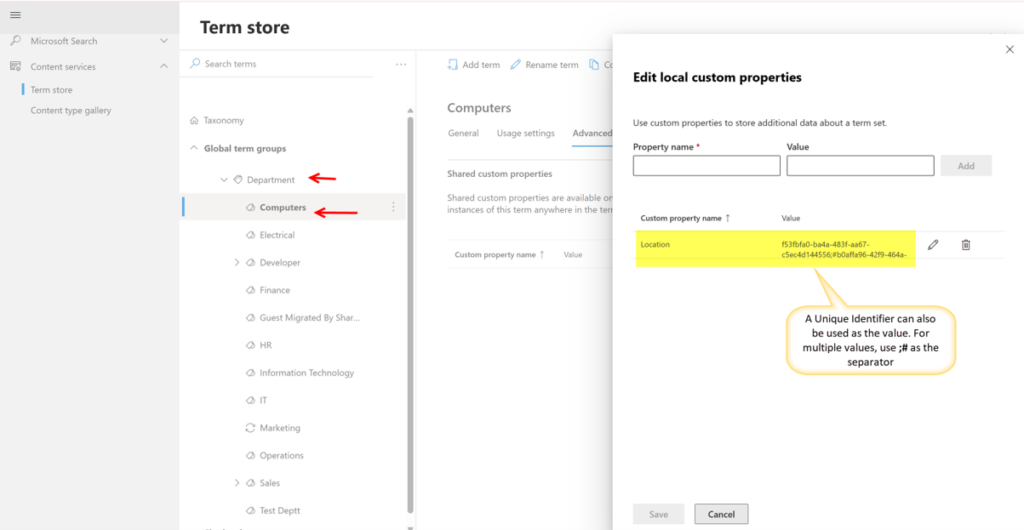
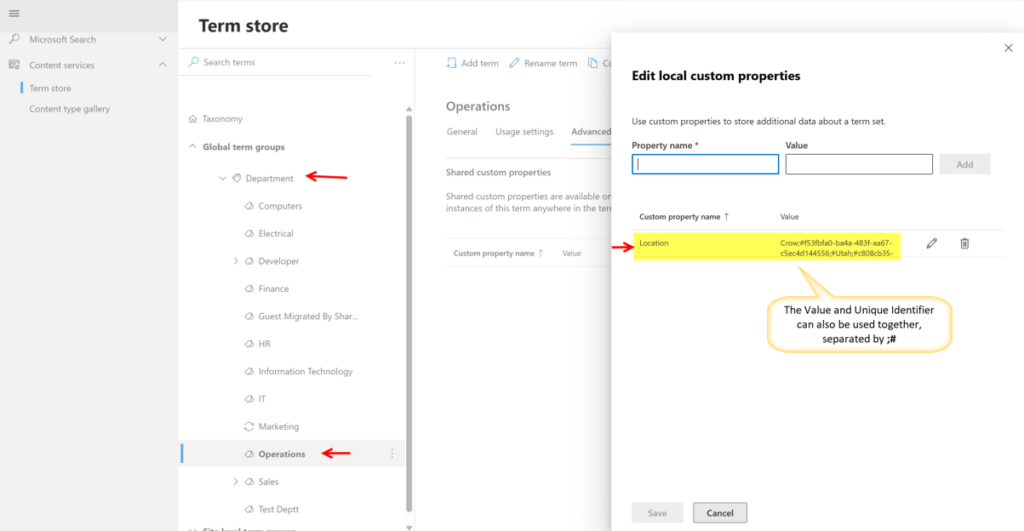
If:
Department Location = Toronto
NITRO checks whether Toronto is present in the Location property of each Department term.
Therefore:
- Finance → British Columbia → No Match
- HR → Toronto; Halifax → Match
- IT → British Columbia; Edmonton → No Match
- Marketing → Alberta; Toronto → Match
The Department column displays:
HR
Marketing
Multi-Value Managed Metadata column
Similarly, you can configure a Multi-Value Managed Metadata column by enabling the “Allow Multiple Value” option while creating the Managed Metadata column and then configure the required custom property mappings.
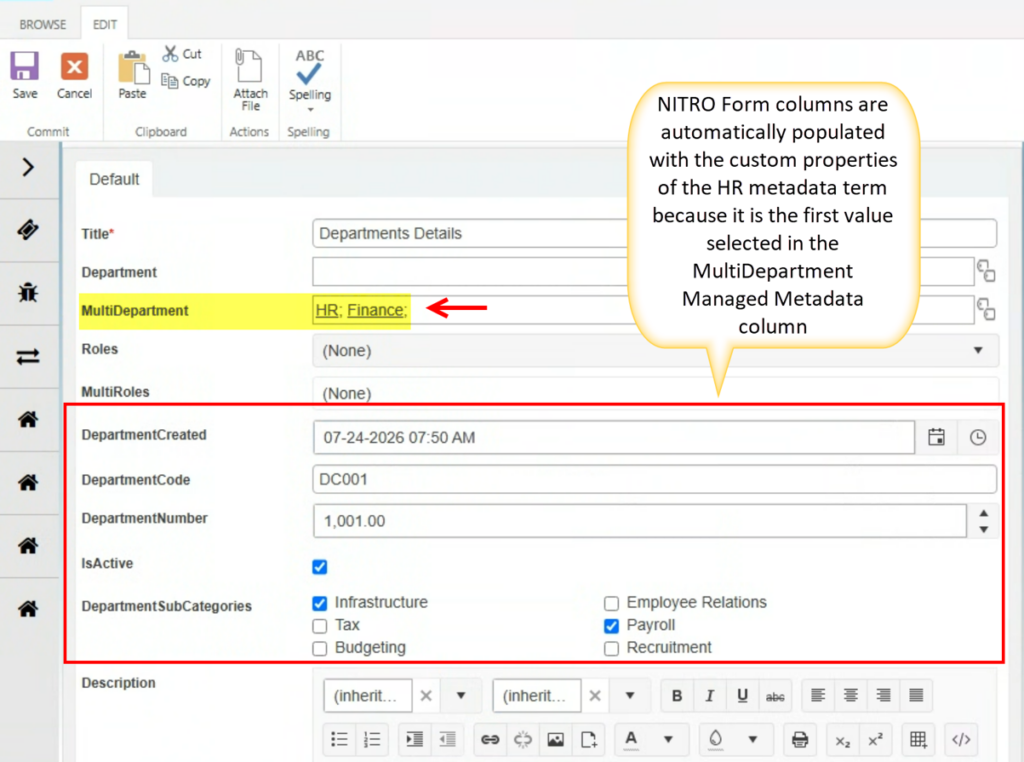
Note: For Multi-Value Managed Metadata columns, the NITRO Form columns are populated using the custom properties of the first selected metadata value. Once the first metadata value is selected, any additional metadata values added to the column will not update or overwrite the mapped NITRO Form columns with their custom properties.
Sample Output: