

Applies to: SharePoint Online and SharePoint On-Premises
NITRO Products: NITRO Forms, NITRO Workflows, and NITRO Custom Actions
Description
NITRO provides several ways to work with SharePoint Managed Metadata values. This article focuses on the core NITRO operations used to retrieve, set, and work with Managed Metadata values.
The examples in this article use the following lists and Managed Metadata columns.
Lists and Columns
Requests List
The Requests list includes the following Managed Metadata columns:
- Request Department – Single-value Managed Metadata
- Request Departments – Multi-value Managed Metadata
Roles List
The Roles list includes the following columns:
- Role Name
- Department – Single-value Managed Metadata
- Departments – Multi-value Managed Metadata
For information about creating lists, configuring Managed Metadata columns, and configuring custom properties, refer to Managed Metadata Column – Crow Canyon Software Support.
Summary of Steps
This article covers the following core operations:
- Getting a Managed Metadata column value
- Setting a Managed Metadata column value
- Fetching list items using Managed Metadata in Form Event Actions
Getting a Managed Metadata column value
NITRO Forms can retrieve the value selected in a Managed Metadata column. The retrieved value can then be used as an input in another action, condition, mapping, or workflow.
How It Works
- The user selects a term from the Term Store.
- NITRO Forms retrieves the selected term as the column value.
- The retrieved value can be used for further processing.
Example:
If the user selects:
Request Department = Finance
NITRO Forms retrieves:
Finance
Where the Value Can Be Used
The retrieved Managed Metadata value can be used to:
- Populate another column
Example: Use Finance to populate the Department Name column. - Set another Managed Metadata column
Use the retrieved value with $parsemetadatavalue(). - Configure conditions
Example: If Request Department = Finance, perform a specific action. - Query list items
Example: Use Finance in a Query List action to retrieve items associated with the Finance department. - Pass the value to another action or workflow
Use the retrieved value as an input for further processing.
Syntax
Use the following syntax to retrieve the value of a Managed Metadata column:
%%[ColumnDisplayName|ColumnInternalName]%%
Single-Value Managed Metadata
Example:
%%[Request Department|RequestDepartment]%%
If Request Department = IT, the expression returns:
IT
Multi-Value Managed Metadata
The same syntax can be used for a Multi-Value Managed Metadata column when the action supports multiple values.
Example:
%%[Request Departments|RequestDepartments]%%
If the user selects:
Request Departments = IT; Finance
the expression returns:
IT; Finance
Example: Using the Value in a Query
Suppose the form contains:
- Request Department – Managed Metadata
- Department Manager – Person or Group
If the user selects Finance in Request Department, use:
%%[Request Department|RequestDepartment]%%
This returns:
Finance
The returned value can then be used in a Query List action to find the Manager associated with the Finance department and populate the Department Manager column.
When a Lookup ID Is Required
The syntax above retrieves the Managed Metadata column value, such as Finance.
If an action requires the Term Store lookup ID instead of the displayed value, use the appropriate lookupid or multiid syntax described later in this article.
Setting a Managed Metadata column value
NITRO Forms provides two ways to set a Managed Metadata column value when using Form Event Actions:
- Using the $parsemetadatavalue() function
- Using Column Mapping with placeholders
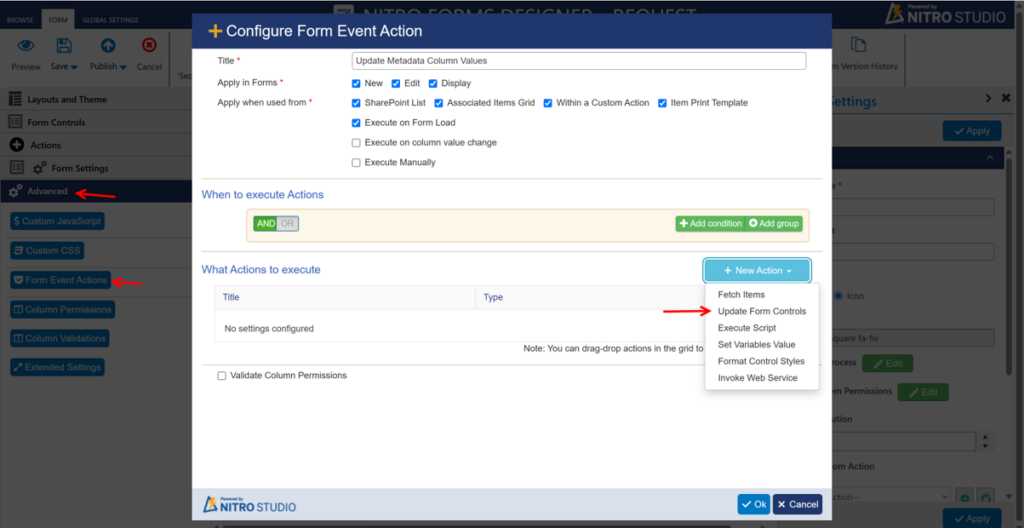
Navigate to Form Event Actions
Navigate to list settings -> Crow Canyon NITRO Forms -> Advanced in left panel -> Form Event Actions -> New Action dropdown -> Update Form Controls
Method 1: Using the $parsemetadatavalue() Function
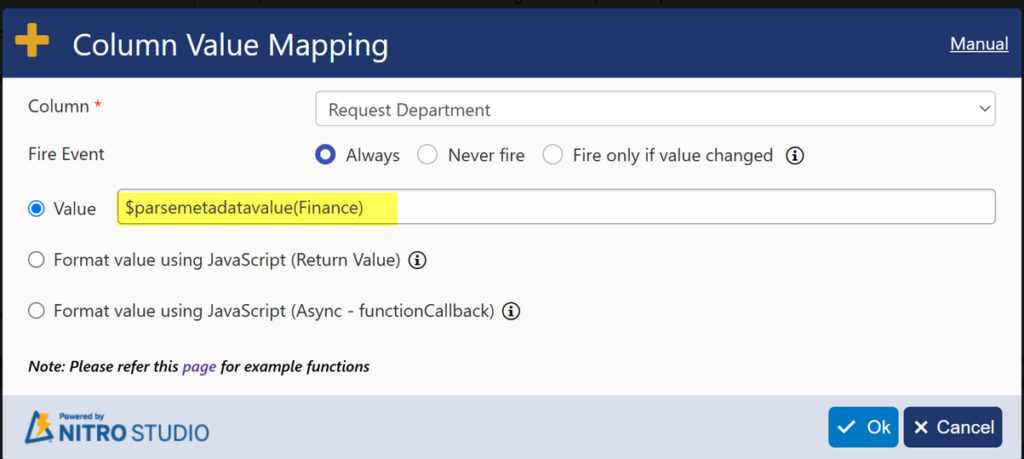
The $parsemetadatavalue() function is used to convert a text value into a Managed Metadata value and assign it to the target Managed Metadata column.
How It Works
When you provide a value to the function:
- NITRO Forms uses the specified value to search for a matching term in the configured Term Store.
- The matching Managed Metadata term is returned.
- The returned term is assigned to the target Managed Metadata column.
For example:
$parsemetadatavalue(Finance)
If Finance is an existing term in the configured Term Store, the function returns the Finance Managed Metadata value.
Syntax
The function supports the following formats:
- Using a fixed value
$parsemetadatavalue(MetadataValue)
- Using a column value
$parsemetadatavalue([ColumnDisplayName|ColumnInternalName])
- Using a Query List result
$parsemetadatavalue(QuerylistActionName##ColumnInternalName)
- Using a variable
$parsemetadatavalue(VariableName##value)
Example
To set a Managed Metadata column to the Finance term:
$parsemetadatavalue(Finance)
Result:
Finance is assigned to the target Managed Metadata column.
Important
- Use $parsemetadatavalue() in field mappings when setting a Managed Metadata column value.
- The target column must be a Managed Metadata column.
- The specified value should match an existing term in the configured Term Store.
- The function can be used when creating or updating an item, depending on the action being configured.
Method 2: Using Column Mapping with Placeholders
A Managed Metadata value can also be set by using a placeholder in the column mapping.
This method is useful when the value to be assigned comes from another column, action result, or variable.
Example:
If the source column contains the value Finance, the placeholder can be used in the mapping to pass that value to the target Managed Metadata column.
This allows the Managed Metadata column to be populated dynamically based on values available during the Form Event Action.
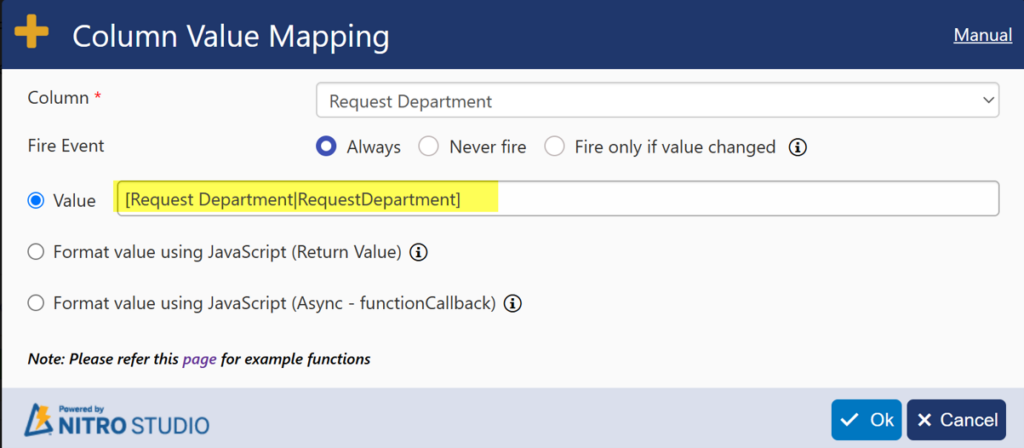
- Single Metadata Column Mapping
Single Metadata column = [MetadataColumnDisplayName|MetadataColumnInternalName]
Example:
Request Department = [Request Department|RequestDepartment]
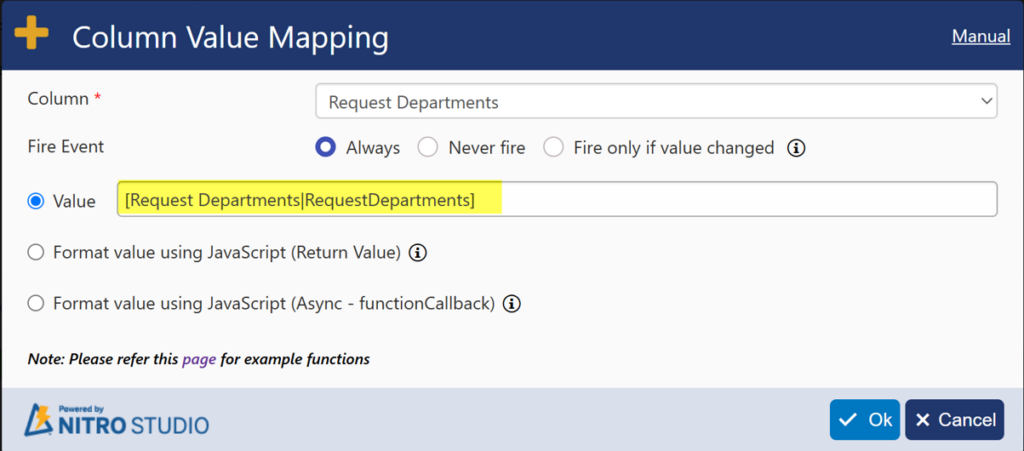
- Multi Managed Metadata Column Mapping
Metadata column (Multi -Value) = [MetadataColumnDisplayName|MetadataColumnInternalName]
Example:
Request Departments = [Request Departments|RequestDepartments]
Fetching Items Using Managed Metadata
Managed Metadata columns can be used in Fetch Items conditions in NITRO Forms Form Event Actions. This allows you to retrieve list items based on the Managed Metadata value selected on the current form.
There are several ways to use Managed Metadata in Fetch Items conditions, depending on the requirement:
- Column Placeholder Syntax – Compare a Managed Metadata column with a value from the current form.
- $lookupid() Function – Compare Managed Metadata columns using their Term Store lookup IDs.
- Multi-Value Metadata with multiid – Compare Multi-Value Managed Metadata columns using multiple term IDs.
- Multi-Value Metadata with multivalue– Compare Multi-Value Managed Metadata columns using their displayed values.
Using Column Placeholder Syntax
The Column Placeholder Syntax can be used when you want to fetch items based on the Managed Metadata value selected in the current form.
Syntax:
%%[ColumnDisplayName|ColumnInternalName]%%
Example Scenario
Suppose you have the following lists:
Requests List
- Request Department – Managed Metadata
Roles List
- Role Name
- Department – Managed Metadata
The requirement is to retrieve the Roles list items where the Department matches the Request Department selected on the current Request form.
Configure the Fetch Items Condition
Configure the following condition in the Fetch Items Query Builder:
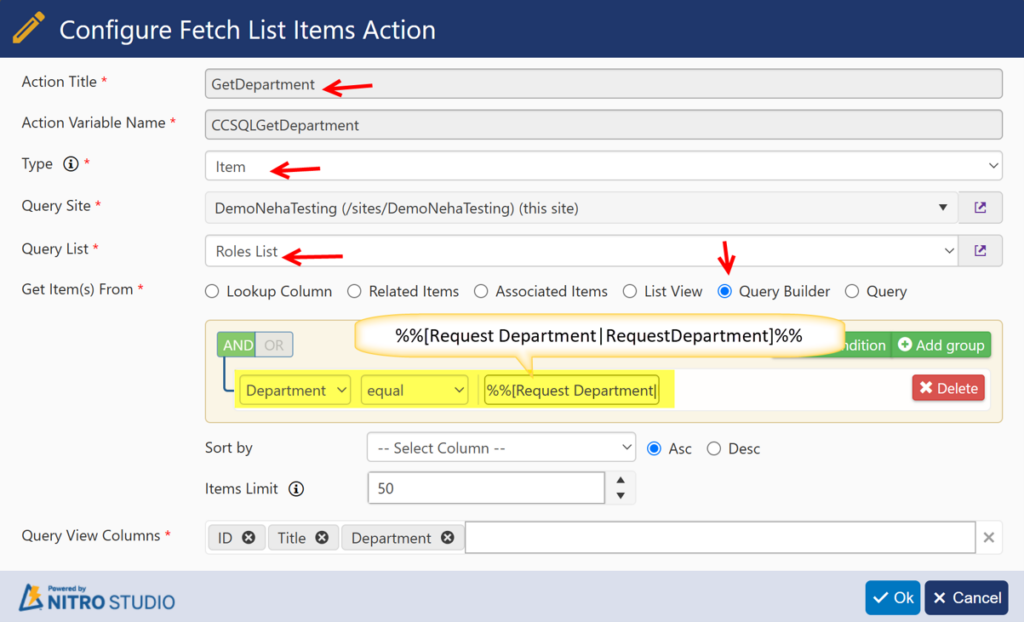
Department = %%[Request Department|RequestDepartment]%%
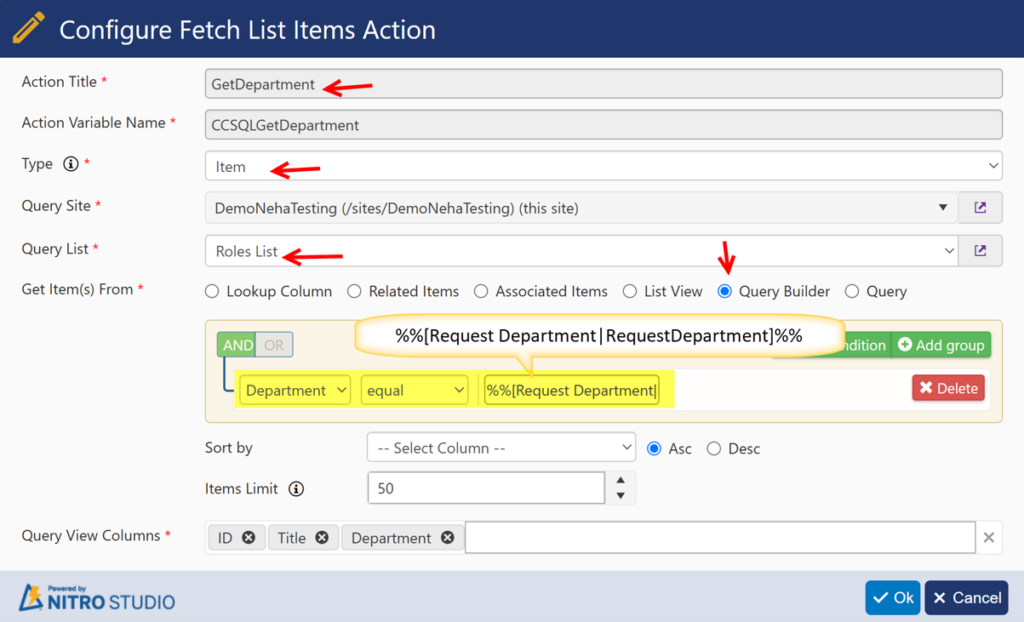
The condition consists of two parts:
- Department – The Managed Metadata column in the Roles list. This is the column being searched.
- %%[Request Department|RequestDepartment]%% – A NITRO Forms placeholder that retrieves the current value of the Request Department column from the Requests form.
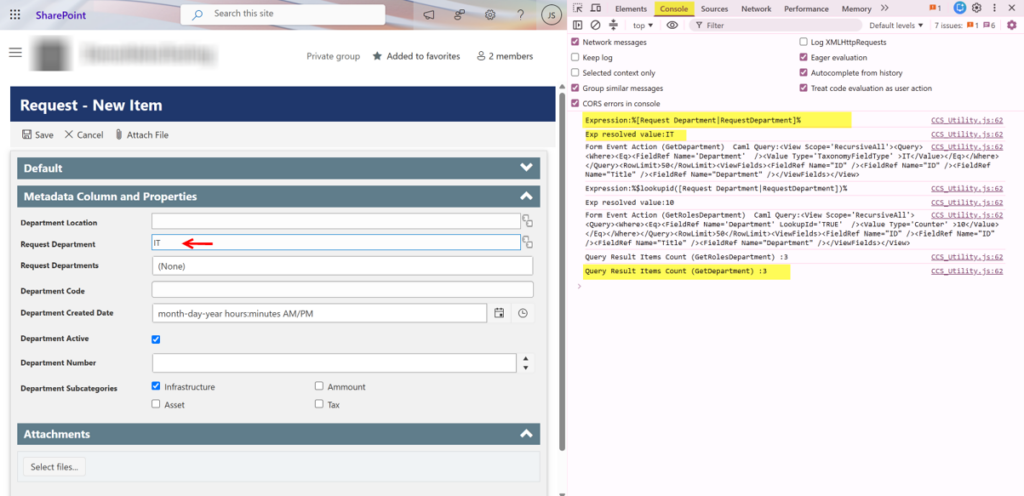
For example, if the user selects:
Request Department = IT
NITRO Forms evaluates the condition as:
Department = IT
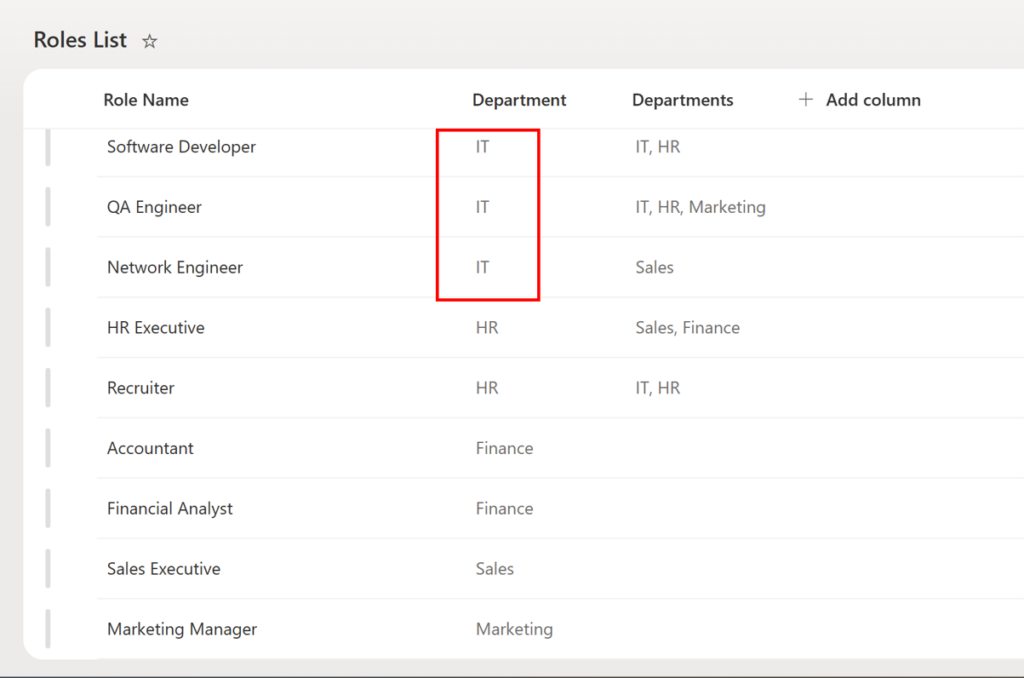
The Fetch Items action then returns the items from the Roles list where:
Department = IT
Roles List:
Sample Output:
Configure the Form Event Actions
Configure below two actions in form event actions
- GetDepartment – Fetch Items
Set Department – Update Form Controls
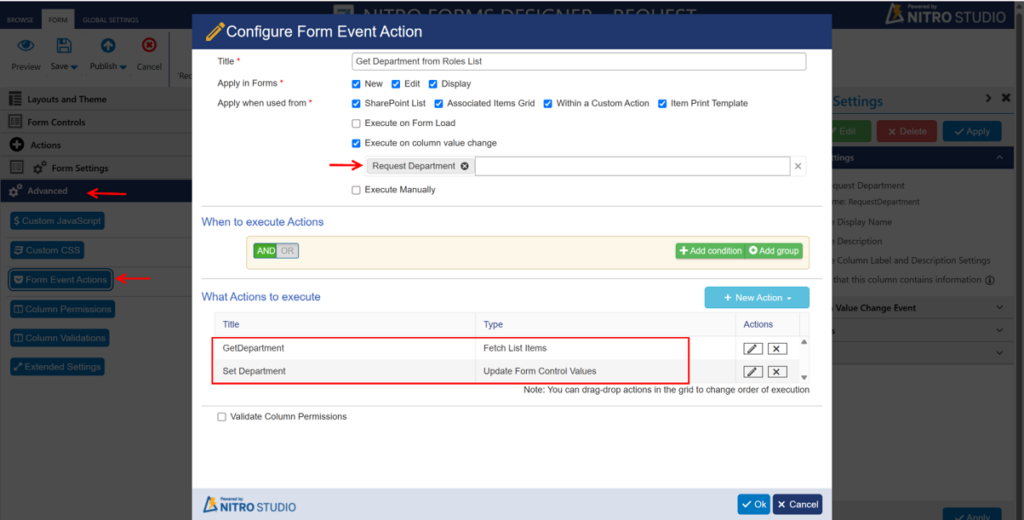
1. GetDepartment – Fetch Items
Create a Fetch Items action named GetDepartment.
- Query List: Roles List
- Condition:
Department = %%[Request Department|RequestDepartment]%% - The action retrieves the Department value from the Roles list that is matching with selected value in Request Department column in Requests list
2. Set Department – Update Form Controls
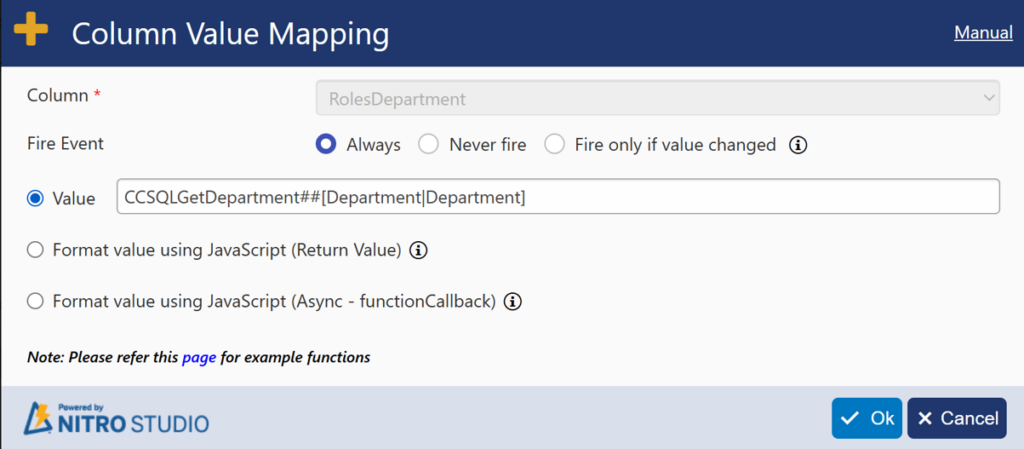
Create an Update Form Controls action named Set Department.
Use the value returned by the GetDepartment action to populate the required column on the Requests form.
- Action: Update Form Controls
- Target Column: RolesDepartment
- Value: Department value returned by GetDepartment
Result
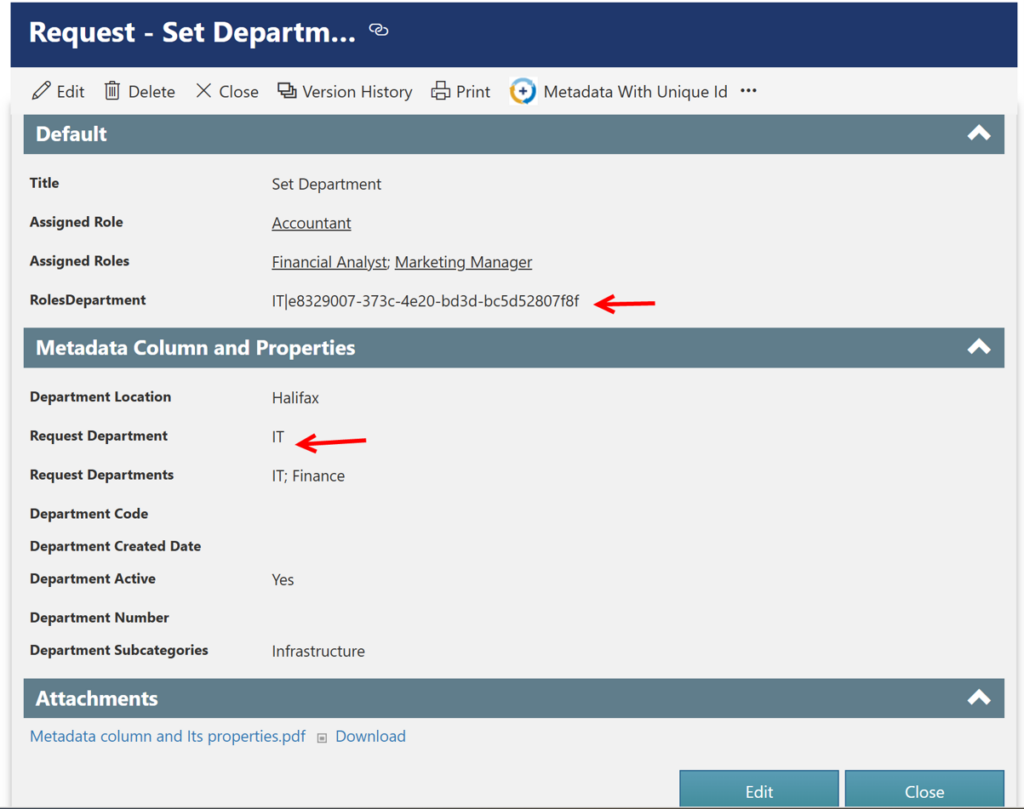
User selects Request Department → Fetch Items searches Roles list → Matching Department is retrieved → Update Form Controls populates RolesDepartment
For example:
Request Department = IT
→ GetDepartment finds Roles where Department = IT
→ Set Department updates RolesDepartment = IT
This allows the Managed Metadata value selected on the Request form to be used to dynamically retrieve related information from another SharePoint list.
Using the $lookupid() Function
The $lookupid() function is used when a Managed Metadata comparison needs to be performed using the Term Store lookup ID instead of the displayed metadata value.
This is useful when you want to match the exact Managed Metadata term selected on the current form.
Syntax
Use the following syntax:
lookupid:%%$lookupid([ColumnDisplayName|ColumnInternalName])%%
Example Scenario
Suppose you have the following lists:
Requests List
- Request Department – Managed Metadata
Roles List
- Role Name
- Department – Managed Metadata
The requirement is to retrieve items from the Roles list where the Department term has the same lookup ID as the Request Department selected on the current Request form.
Configure the Fetch Items Condition
Configure the following condition in the Fetch Items Query Builder:
Department = lookupid:%%$lookupid([Request Department|RequestDepartment])%%
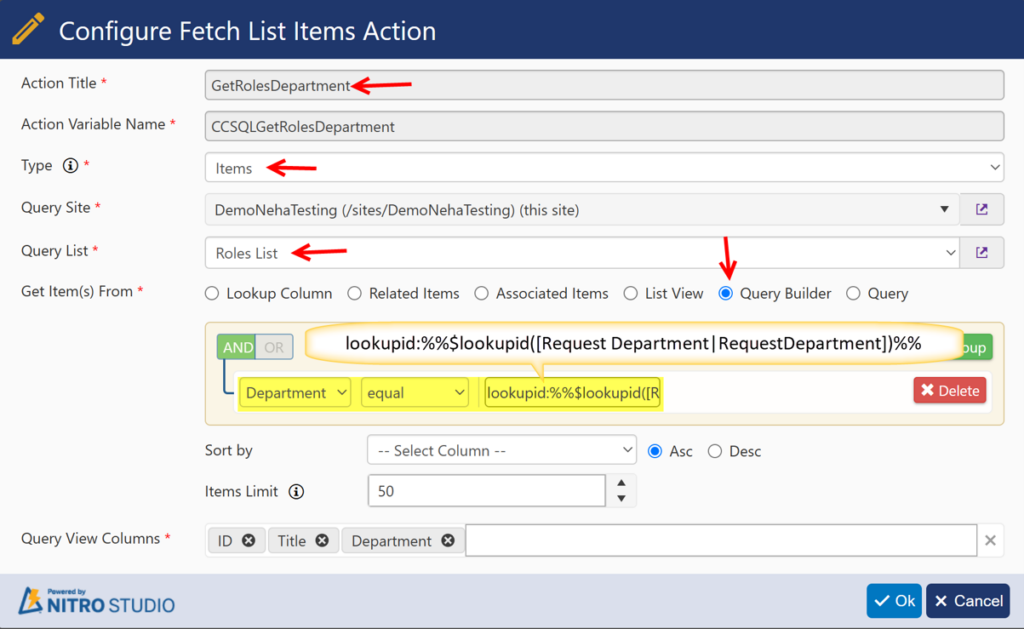
The condition consists of two parts:
- Department – The Managed Metadata column in the Roles list being searched.
- lookupid:%%$lookupid([Request Department|RequestDepartment])%% – Retrieves the lookup ID of the Request Department selected on the current Request form.
For example, suppose the user selects:
Request Department = IT
and the IT term has a Term Store lookup ID of 10.
NITRO Forms retrieves the lookup ID of the selected IT term and evaluates the condition as:
Department = lookupid:10
The Fetch Items action then returns only the items from the Roles list where the Department Managed Metadata column has the same lookup ID.
Image: Request Department selected as IT
Image: IT term showing its lookup ID
Result
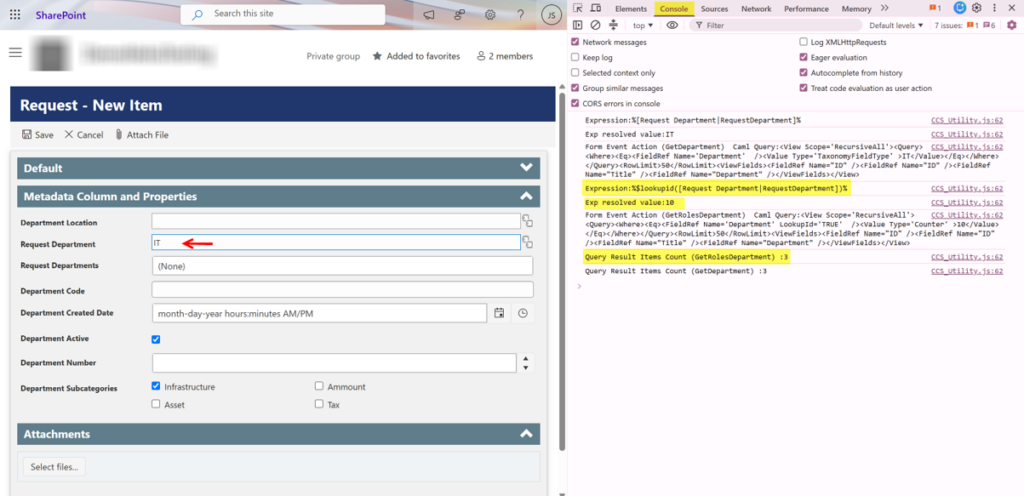
The process works as follows:
User selects IT → $lookupid() retrieves the lookup ID 10 → Fetch Items compares Department with lookupid:10 → Matching Roles items are returned
This approach compares the Term Store lookup ID rather than the displayed text. It is useful when the comparison needs to identify the exact Managed Metadata term.
Column Value vs. Lookup ID
- Column Placeholder Syntax
Department = %%[Request Department|RequestDepartment]%%
Compares the Managed Metadata value.
- $lookupid() Function
Department = lookupid:%%$lookupid([Request Department|RequestDepartment])%%
Compares the Managed Metadata lookup ID.
Using Multi-Value Managed Metadata with multiid
The multiid syntax is used when the Managed Metadata column contains multiple values, and the comparison needs to use the Term Store lookup IDs of those values.
This allows NITRO Forms to retrieve items where a Multi-Value Managed Metadata column contains any of the terms selected on the current form.
Syntax
Use the following syntax:
multiid:%%$lookupid([ColumnDisplayName|ColumnInternalName])%%
Example Scenario
Suppose you have the following lists:
Requests List
- Request Departments – Multi-Value Managed Metadata
Roles List
- Role Name
- Departments – Multi-Value Managed Metadata
The requirement is to retrieve items from the Roles list where the Departments column contains any of the departments selected in the Request Departments column on the current Request form.
Configure the Fetch Items Condition
Configure the following condition in the Fetch Items Query Builder:
Departments contains multiid:%%$lookupid([Request Departments|RequestDepartments])%%
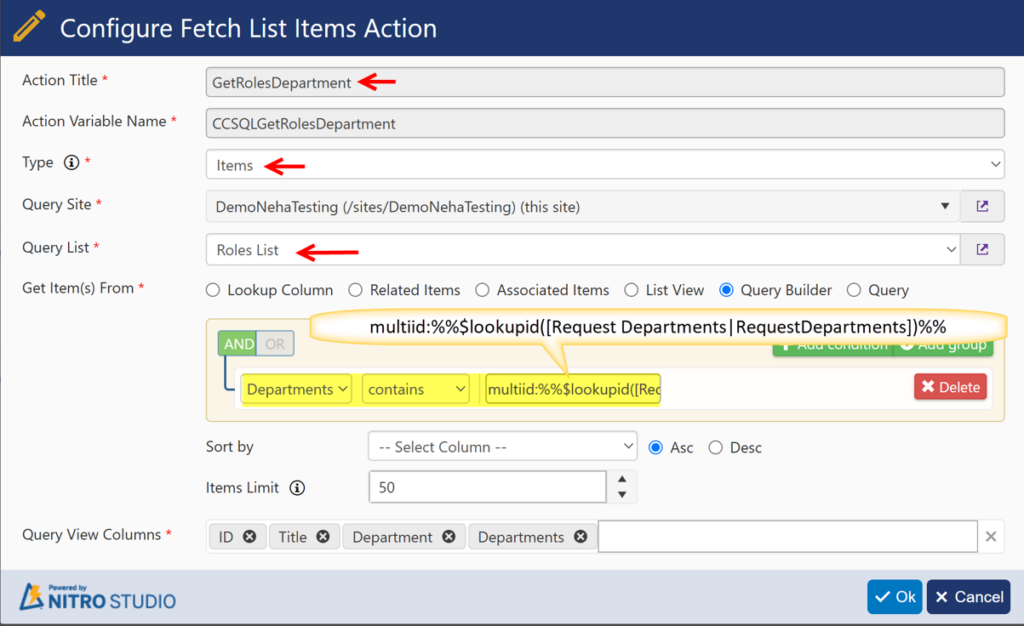
The condition consists of two parts:
- Departments – The Multi-Value Managed Metadata column in the Roles list being searched.
- multiid:%%$lookupid([Request Departments|RequestDepartments])%% – Retrieves the lookup IDs of all terms selected in the Request Departments column on the current Request form.
How the Condition Works
For example, suppose the user selects:
Request Departments = Finance; Sales
NITRO Forms retrieves the Term Store lookup IDs for both Finance and Sales.
For example:
- Finance → Lookup ID 10
- Sales → Lookup ID 20
The condition is evaluated using these lookup IDs:
Departments contains multiid:10;20
The Fetch Items action then returns Roles list items where the Departments column contains Finance, Sales, or both.
Roles List:
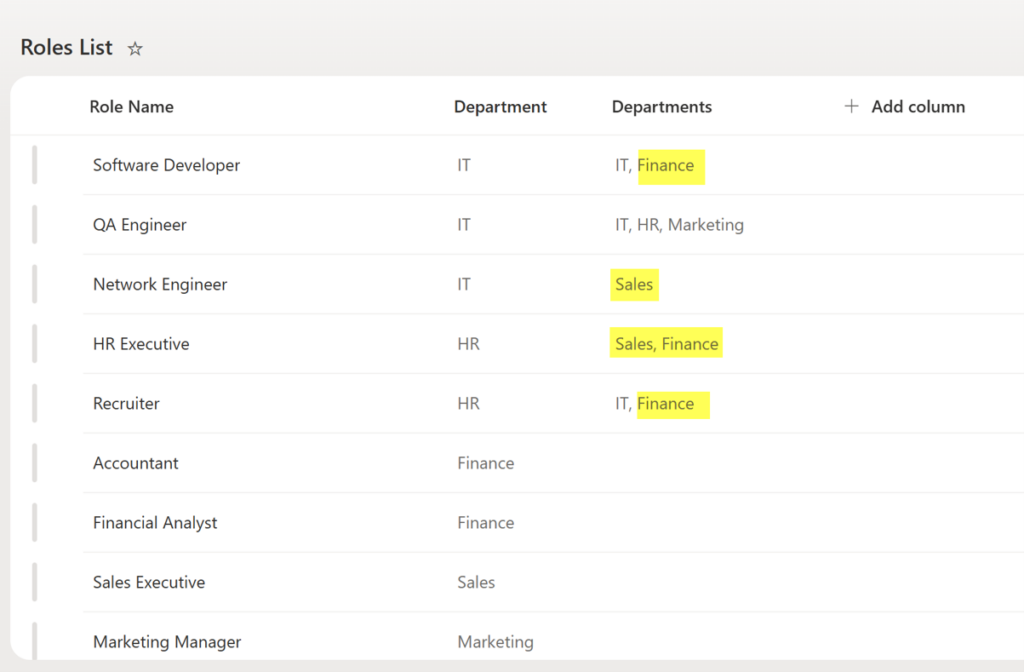
Result:
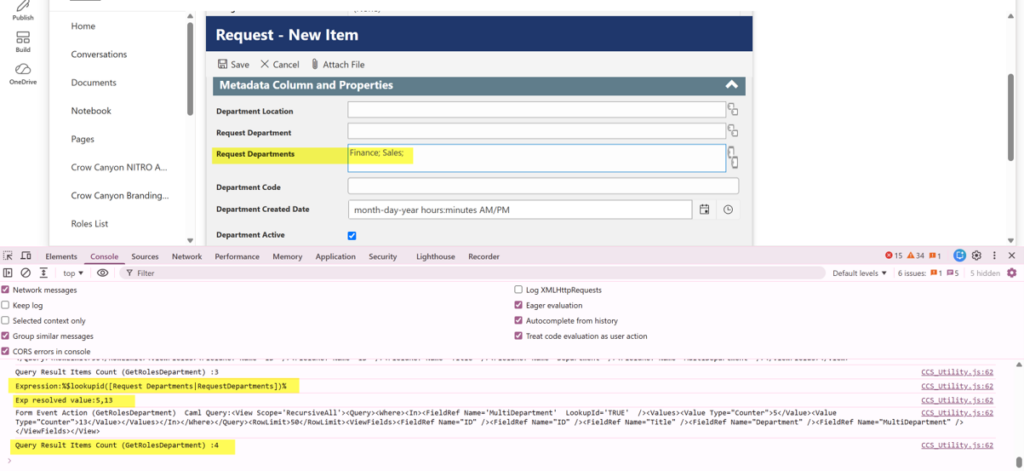
The process works as follows:
User selects multiple departments → multiid retrieves their lookup IDs → Fetch Items compares the IDs → Matching Roles items are returned
For example, if the user selects Finance and Sales, the Fetch Items action can return:
- Roles associated with Finance
- Roles associated with Sales
- Roles associated with Finance and Sales
When to Use multiid
Use multiid when:
- The source column contains multiple Managed Metadata values.
- The value being compared comes from a Multi-Value Managed Metadata column on the current form.
- The comparison needs to use the Term Store lookup IDs rather than the displayed term names.
Multi-Value Metadata with multivalue
The multivalue syntax is used when you want to compare a Multi-Value Managed Metadata column using the display values of the selected terms instead of their Term Store lookup IDs.
This is useful when the comparison should be based on the displayed metadata values, such as Finance or Sales.
Syntax
Use the following syntax:
multivalue:%%[ColumnDisplayName|ColumnInternalName]%%
Example Scenario
Suppose you have the following lists:
Requests List
- Request Departments – Multi-Value Managed Metadata
Roles List
- Role Name
- Departments – Multi-Value Managed Metadata
The requirement is to retrieve items from the Roles list where the Departments column contains any of the departments selected in the Request Departments column on the current Request form.
Configure the Fetch Items Condition
Configure the following condition in the Fetch Items Query Builder:
Departments contains multivalue:%%[Request Departments|RequestDepartments]%%
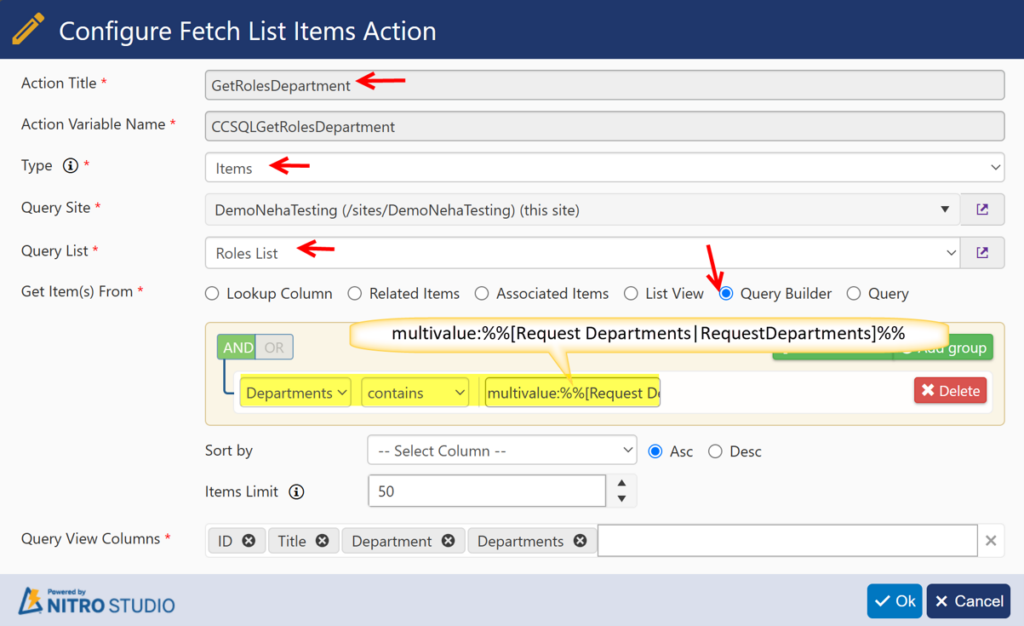
The condition consists of two parts:
- Departments – The Multi-Value Managed Metadata column in the Roles list being searched.
- %%[Request Departments|RequestDepartments]%% – Retrieves the selected metadata values from the Request Departments column on the current Request form.
- multivalue: – Specifies that the comparison should use the display values of the selected metadata terms.
For example, suppose the user selects:
Request Departments = Finance; Sales
NITRO Forms retrieves the selected display values:
Finance; Sales
The condition is then evaluated as:
Departments contains multivalue:Finance;Sales
The Fetch Items action returns items from the Roles list where the Departments column contains Finance, Sales, or both.
Roles List:
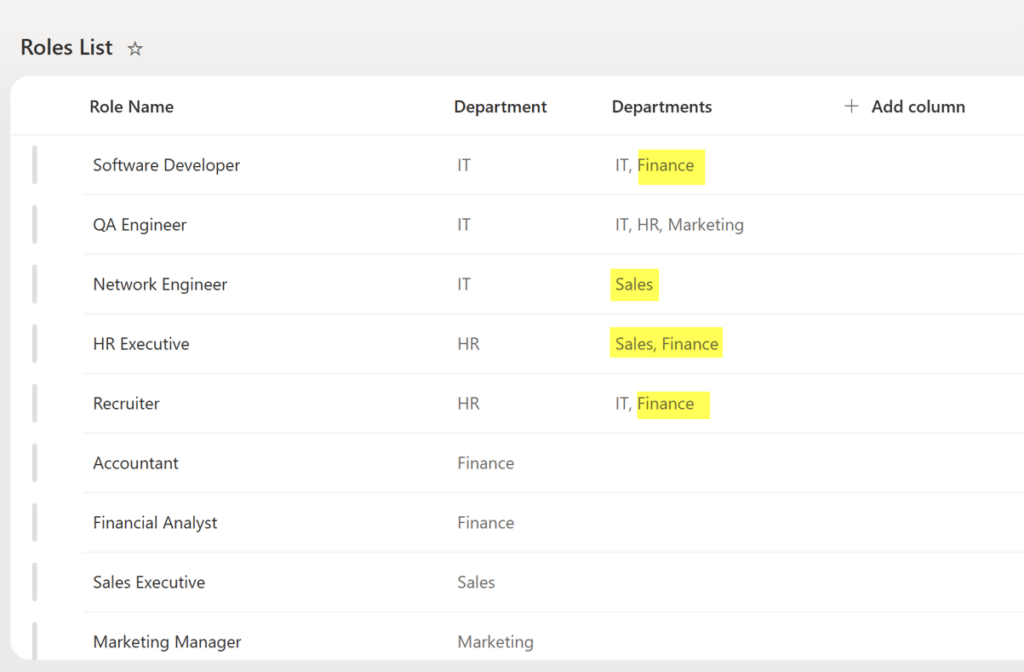
Result:
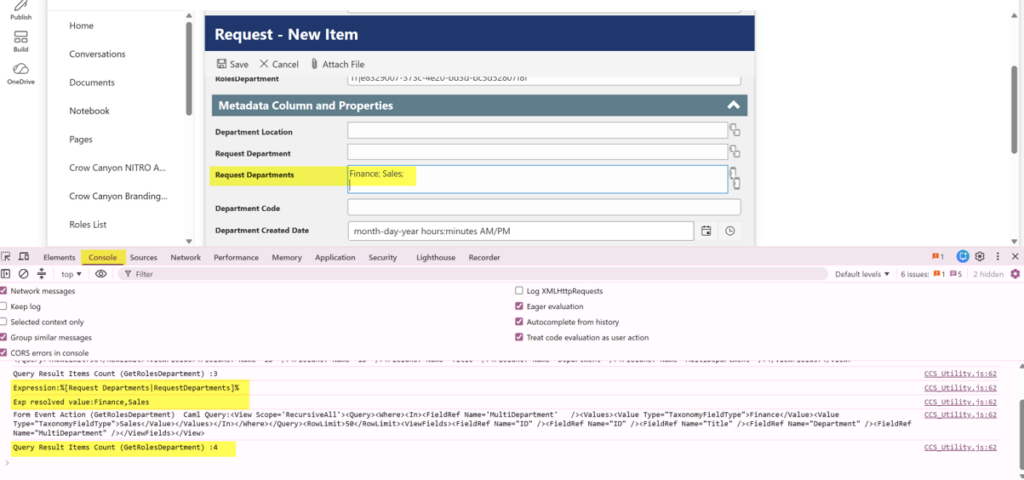
The process works as follows:
User selects multiple departments → NITRO Forms retrieves their display values → multivalue compares the values → Matching Roles items are returned
For example, if the user selects Finance and Sales, the results can include:
- Roles associated with Finance
- Roles associated with Sales
- Roles associated with Finance and Sales
When to Use multivalue
Use multivalue when:
- The target/source list column contains multiple Managed Metadata values.
- The value being used for the comparison comes from a Multi-Value Managed Metadata column on the current form.
- The comparison should use the displayed term values, such as Finance or Sales, rather than their Term Store lookup IDs.
multiid vs. multivalue
- multiid → Compares the Term Store lookup IDs of the selected terms.
- multivalue → Compares the display values of the selected terms.
