Applies to: SharePoint Online and On-Premises
Description
This document describes how SharePoint Managed Metadata (Metadata) columns can be used in NITRO Custom Actions (CA) and NITRO Workflows.
The objective is to provide Metadata Column support in standard NITRO scenarios where Lookup columns are commonly used and to support Metadata-specific functionality such as:
- Reading the selected Metadata term value
- Reading the Term ID
- Handling single-value and multi-value Metadata columns
- Retrieving Term Custom Properties
- Using Metadata values in Conditions
- Using Metadata values in Column Mapping
- Using Metadata values in Query List
- Using Metadata values in Send Mail
- Using Metadata values in DocuSign
- Using Metadata values as placeholders
- Using MultiID and MultiValue functionality
2. Metadata Column Example
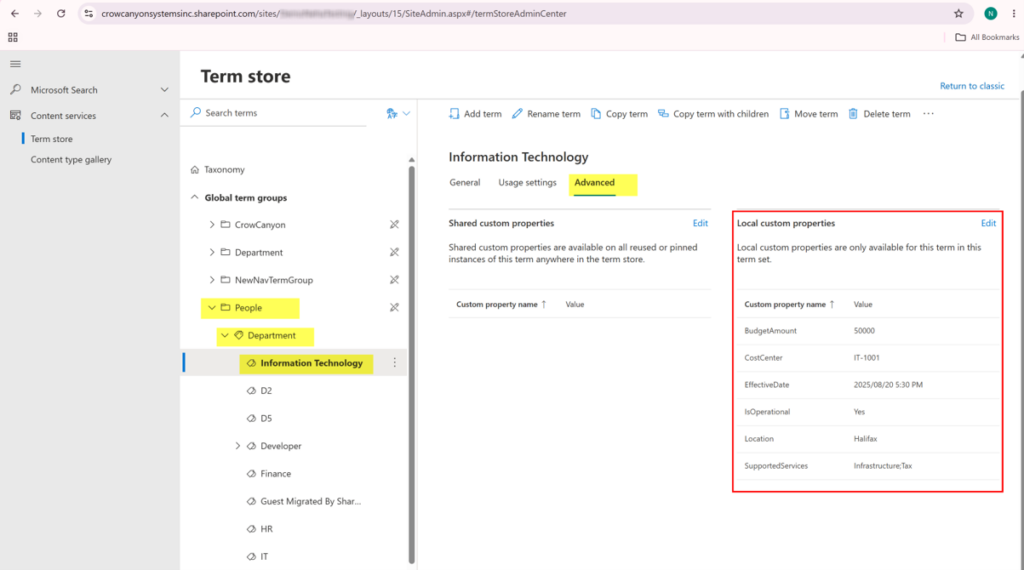
For the scenarios in this document, the following Metadata configuration is used.
Term Group: People
Term Set: Department
Term: Information Technology
Term Custom Properties
| Custom Property | Example Value |
| CostCenter | IT-1001 |
| EffectiveDate | 01/01/2026 |
| IsOperational | Yes |
| BudgetAmount | 50000 |
| SupportedServices | Hardware; Software; Network Support |
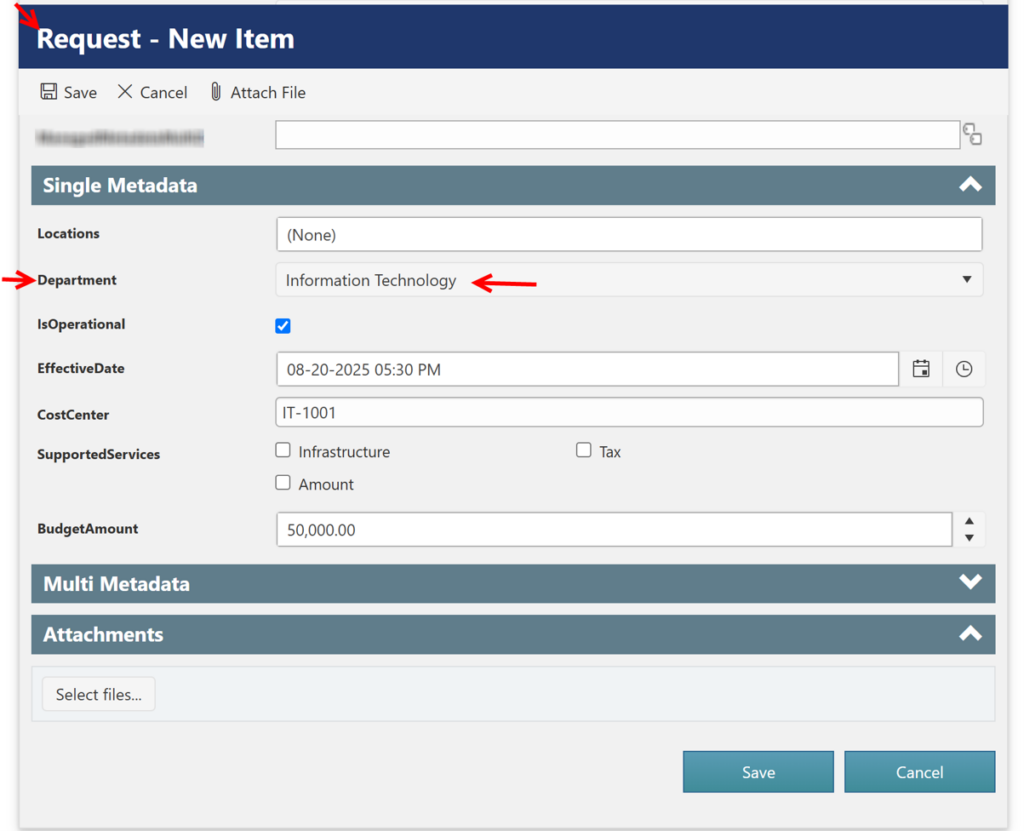
The SharePoint list contains a Metadata column named:
Department
The selected value is:
Information Technology
3. Single-Value and Multi-Value Metadata
A SharePoint Metadata column can be configured as either single-value or multi-value.
3.1 Single-Value Metadata
Only one term can be selected.
Example:
Location = Information Technology
3.2 Multi-Value Metadata
Multiple terms can be selected.
Example:
Location = Information Technology; Finance
The implementation must distinguish between single-value and multi-value Metadata because different operations may require different processing.
Refer this article to create Metadata column: Managed Metadata Column – Crow Canyon Software Support
Metadata in Workflow Conditions
Conditions are one of the most important places where Metadata can be used.
Single Metadata Column in Conditions
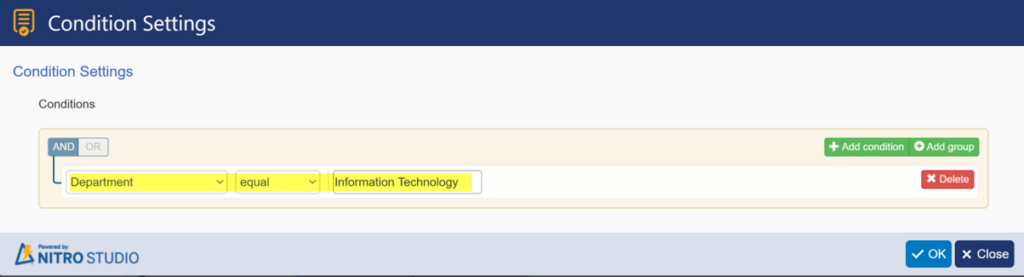
The Department column can be directly used in a condition.
Example
Department is equal to Information Technology
If:
Department = Information Technology
the condition evaluates to true.
Other examples
Department is not equal to Information Technology
Department is empty
Department is not empty
Multi Metadata Column in Conditions
The Multidepartment column can contain multiple Terms.
Example:
Multidepartment =
Information Technology;
Finance; Marketing
A condition can check whether a particular Term is included.
Example
Multidepartment contains Information Technology
The condition is true because Information Technology is one of the selected Terms.
Other examples
Multidepartment contains Finance
Multidepartment is empty
Multidepartment is not empty
Important
For a Multi Metadata column, the business rule should be based on whether a particular Term is selected rather than treating the entire serialized Metadata value as one ordinary text string.
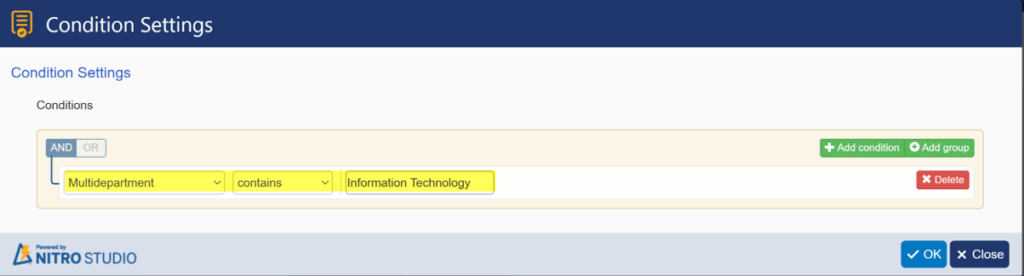
Metadata in Gateway Conditions
Metadata can be used to determine which outgoing link of a Gateway should be followed.
Example
Condition:
Department = Information Technology
Gateway name:
Department-Based Routing
Outgoing links:
- Information Technology
- Other Departments
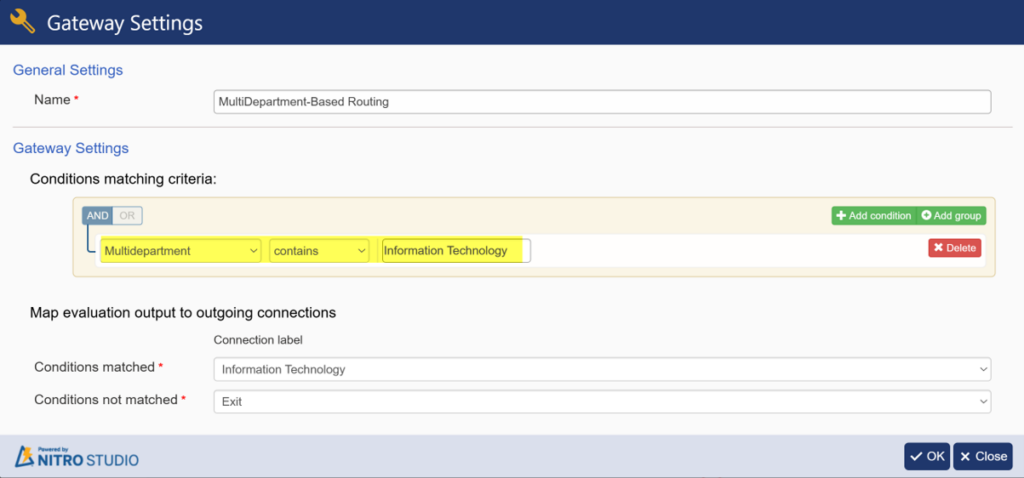
For Multi Metadata:
Multidepartment contains Information Technology
the workflow can route through the Information Technology branch.
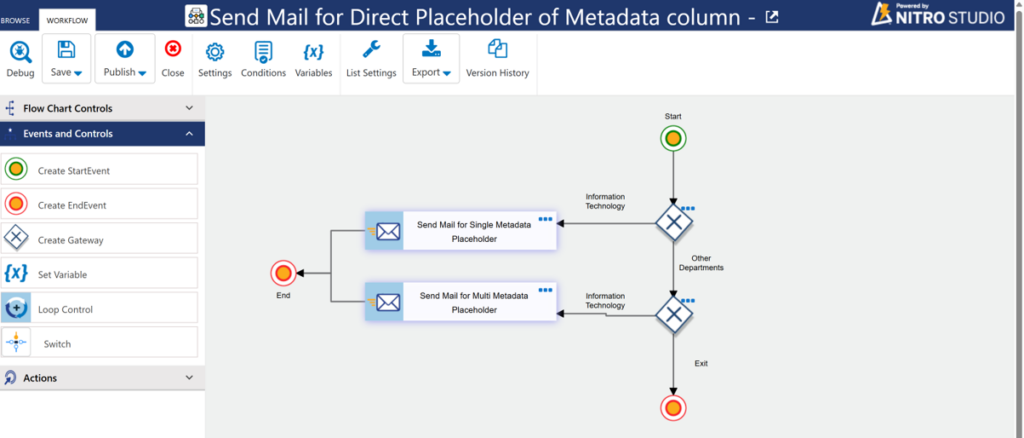
Gateway: Department-Based Routing
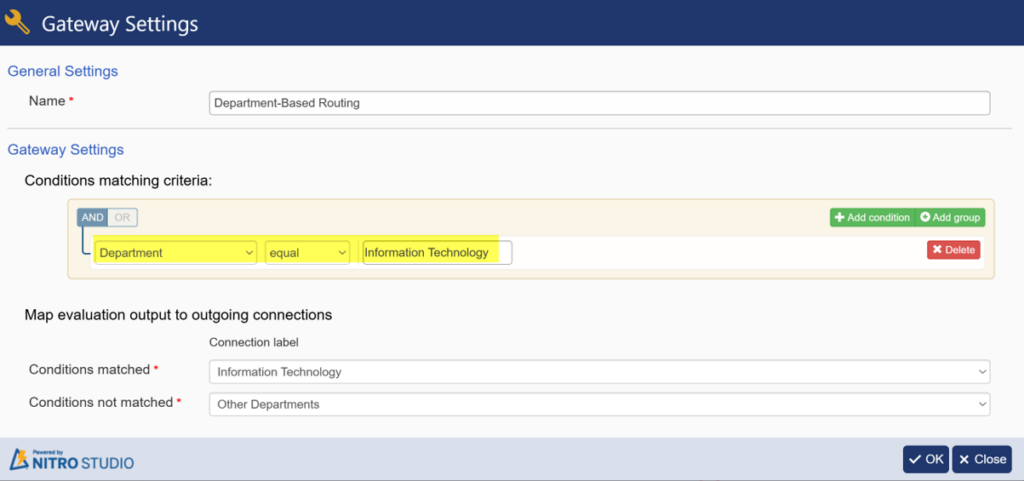
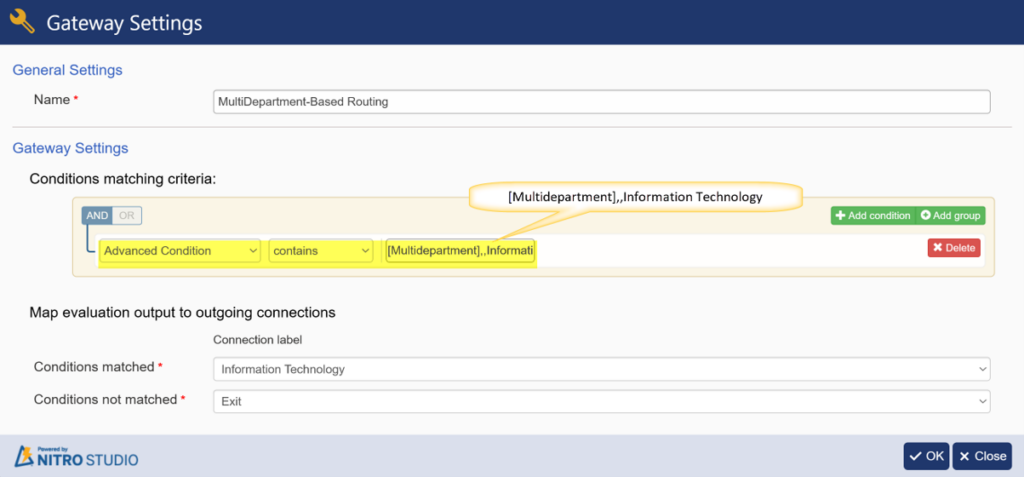
Example: Advanced Condition in Gateway
Advanced Condition Contains [ColumnInternalName],,Value
Example: Advanced Condition equal to [Department],,Information Technology
Gateway: MultiDepartment-Based Routing
Advanced Condition Contains [ColumnInternalName],,Value
Example:Advanced Condition Contains [Multidepartment],,Information Technology
Example: Advanced Condition in Gateway
Metadata in Column Mapping
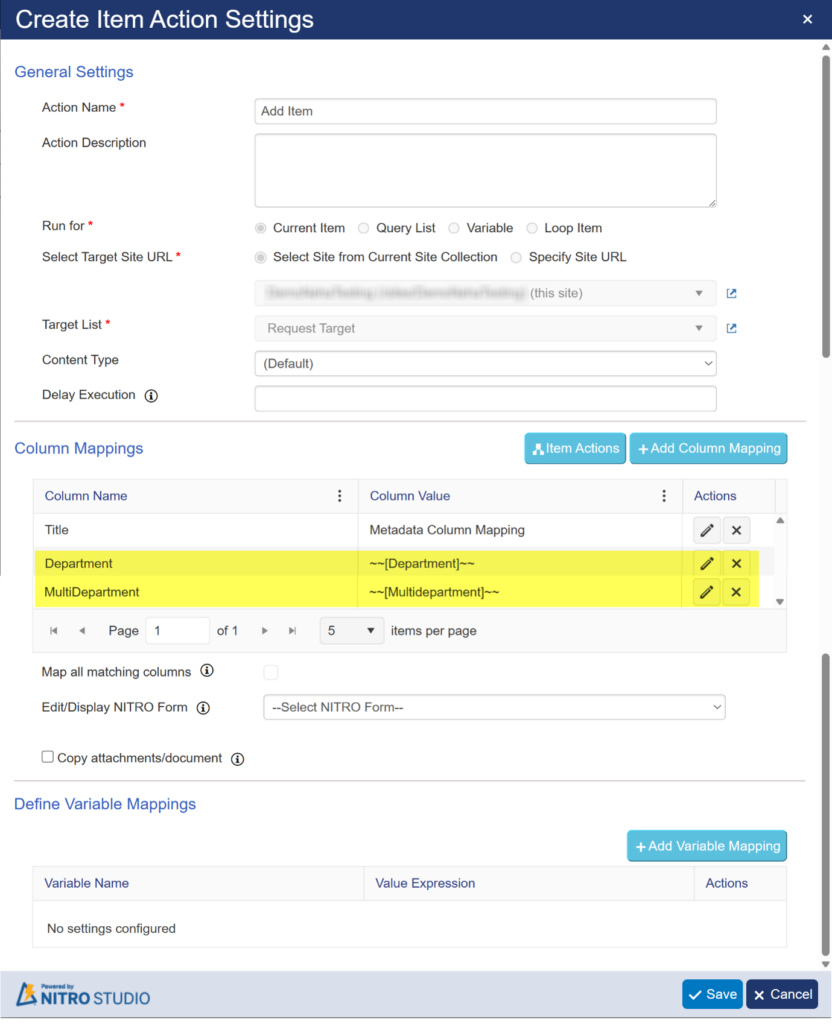
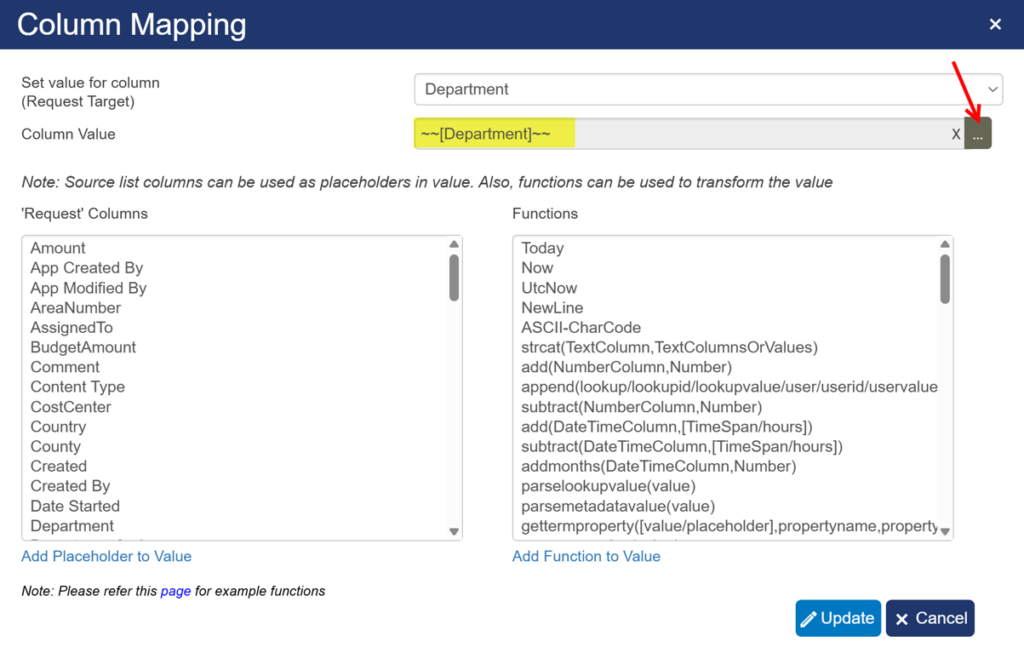
Metadata can be used in Column Mapping when creating or updating an item.
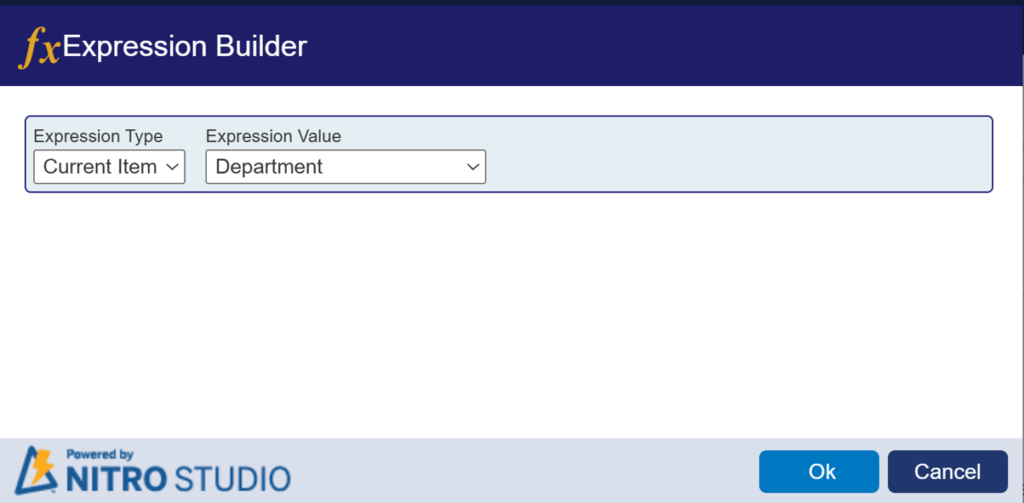
Metadata to Metadata
Example:
Source: Department
Target: Department
The selected Term is mapped to another Metadata column.
This is useful when information needs to be transferred from one item/list to another while retaining the Metadata value.
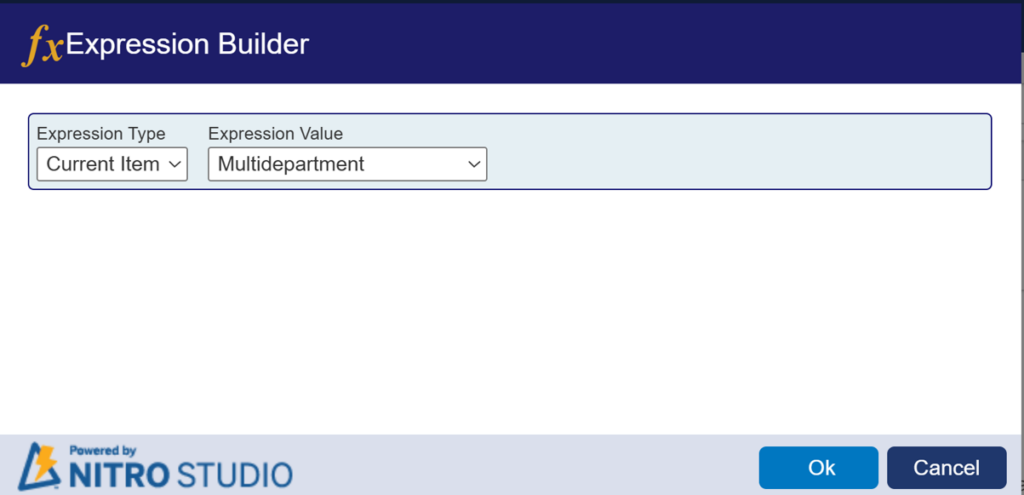
Multi Metadata to Multi Metadata
Example:
Source: Multidepartment
Target: Multidepartment
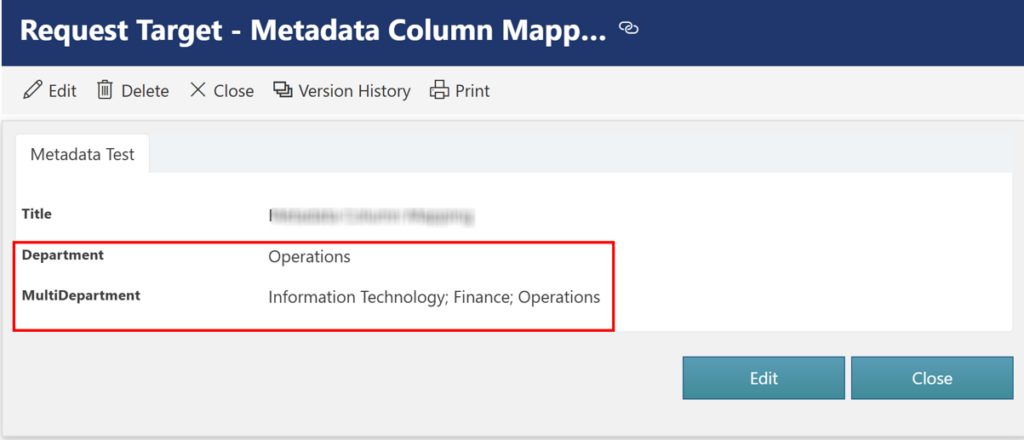
If the source contains:
Information Technology;
Finance;
Operations
the target Multi Metadata column can receive the corresponding selected Terms.
This is useful when multiple Terms must be preserved.
Sample output of Metadata and Multi Metadata column mapping
Metadata and Multi Metadata Mapping to Text Columns
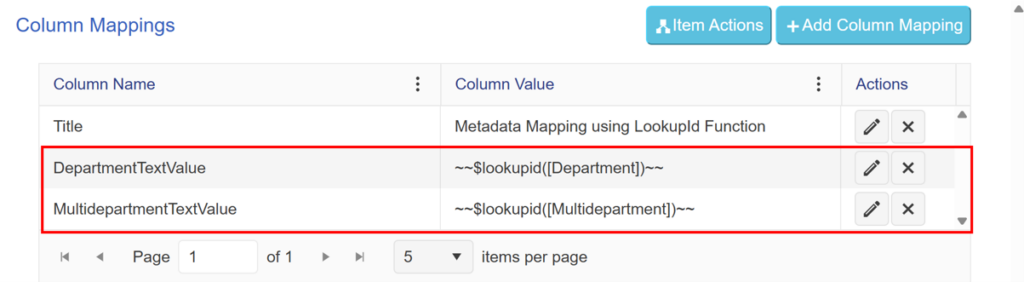
Metadata and Multi Metadata columns can be mapped to Text columns in NITRO Workflows and Custom Actions.
This document explains the different values returned when Metadata columns are mapped using:
- LookupId Function
- ParseFieldValue Function
- Direct Column Mapping
The same methods can be tested for both Single Metadata and Multi Metadata columns.
Source and Target Columns
| Column Type | Source Metadata Column | Target Text Column |
| Single Metadata | Department | DepartmentTextValue |
| Multi Metadata | Multidepartment | MultiDepartmentTextValue |
Example Values
| Source Column | Selected Value(s) |
| Department | Information Technology |
| Multidepartment | Information Technology; Marketing; Operations |
Mapping Methods
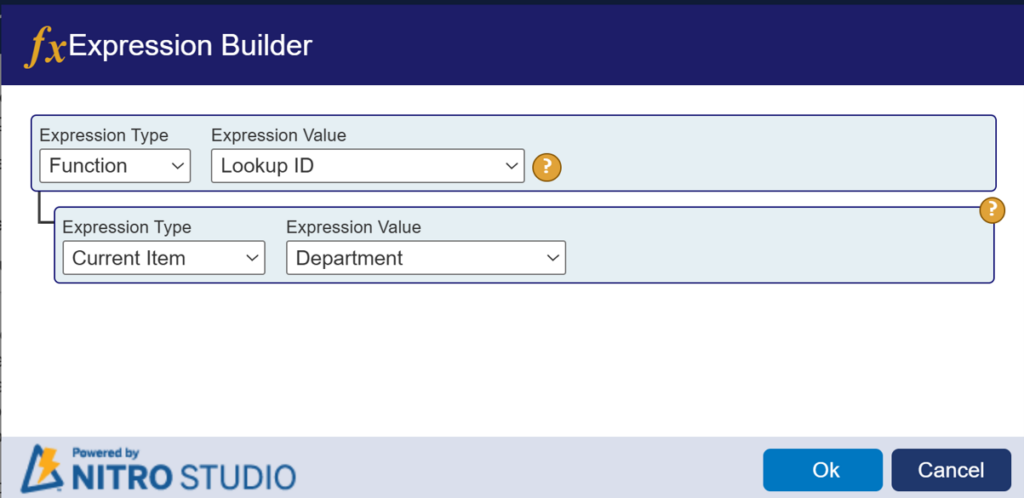
LookupId Function
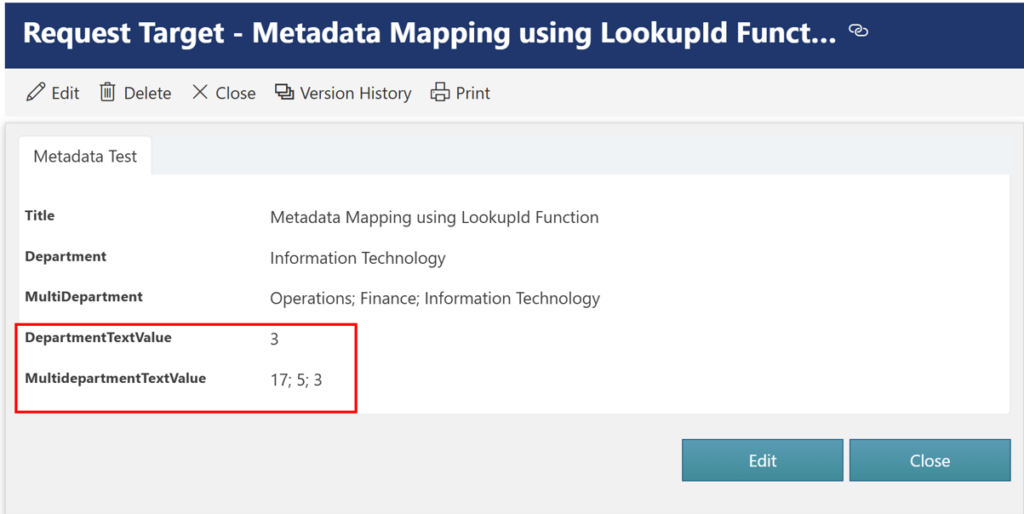
The LookupId function returns the internal Metadata ID.
Important: LookupId returns the internal Metadata ID. It does not return the Metadata Term Unique Identifier.
| Source Column | Target Column | Returned Value |
| Department | DepartmentTextValue | Internal Metadata ID |
| Multidepartment | MultiDepartmentTextValue | Internal Metadata ID(s) |
Example
Department → LookupId → DepartmentTextValue
Result:
12
For Multi Metadata:
Multidepartment → LookupId → MultiDepartmentTextValue
Example:
12;18;25
The actual IDs depend on the selected Terms and environment.
When to Use
Use LookupId when an internal Metadata ID is required.
Do not use it when:
- The displayed Term value is required.
- The Metadata Term Unique Identifier is required.
Sample Output:
ParseFieldValue Function
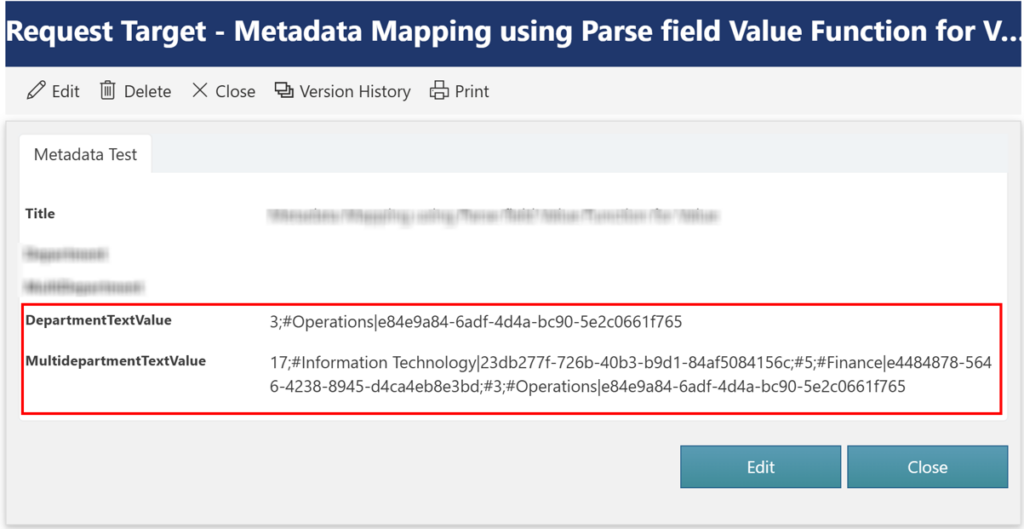
The ParseFieldValue function is used to parse the Metadata field value.
When configured using both ID and Value, the resulting value contains:
Internal ID;#Value|Unique Identifier
This includes:
- Internal Metadata ID
- Metadata Value
- Metadata Term Unique Identifier
Expected Behavior
| Source Column | Target Column | Returned Value |
| Department | DepartmentTextValue | Internal ID;#Value|Unique Identifier |
| Multidepartment | MultiDepartmentTextValue | Internal ID;#Value|Unique Identifier for selected Terms |
Single Metadata Example
Source:
Department = Information Technology
Using ParseFieldValue with both ID and Value, the result follows this format:
3;#Information Technology|<Unique Identifier>
Where:
3 is the Internal Metadata ID.
Information Technology is the Metadata Value.
<Unique Identifier> is the Metadata Term Unique Identifier.
Multi Metadata Example
Source:Multidepartment =Operations; Finance; Information Technology
The resulting value contains the Internal ID, Value, and Unique Identifier for the selected Terms.
Conceptually:
17;#Operations|<Unique Identifier>;
5;#Finance|<Unique Identifier>;
3;#Information Technology|<Unique Identifier>
The actual format and separators should match the value generated by NITRO.
When to Use
Use ParseFieldValue when the complete Metadata information is required, including:
- Internal Metadata ID.
- Metadata Value.
- Metadata Term Unique Identifier.
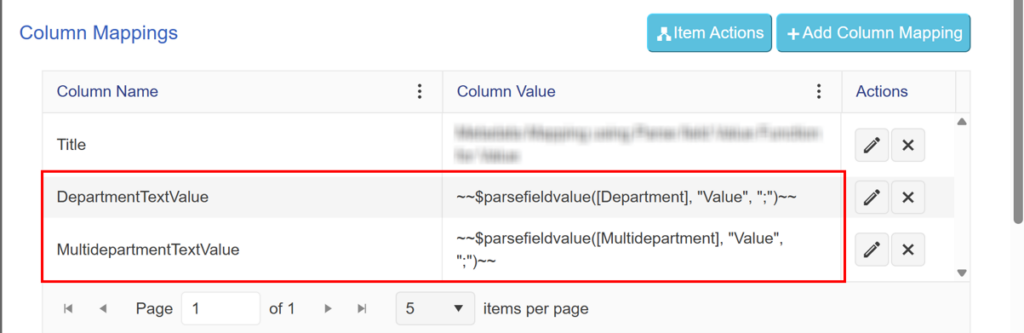
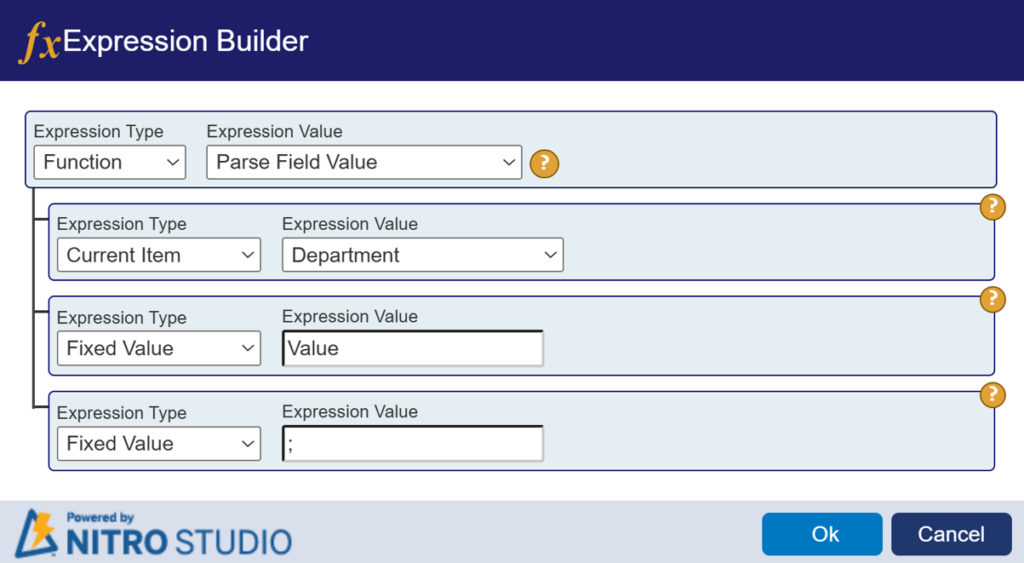
Sample Output:
4. Direct Column Mapping
Metadata can also be directly mapped to a Text column.
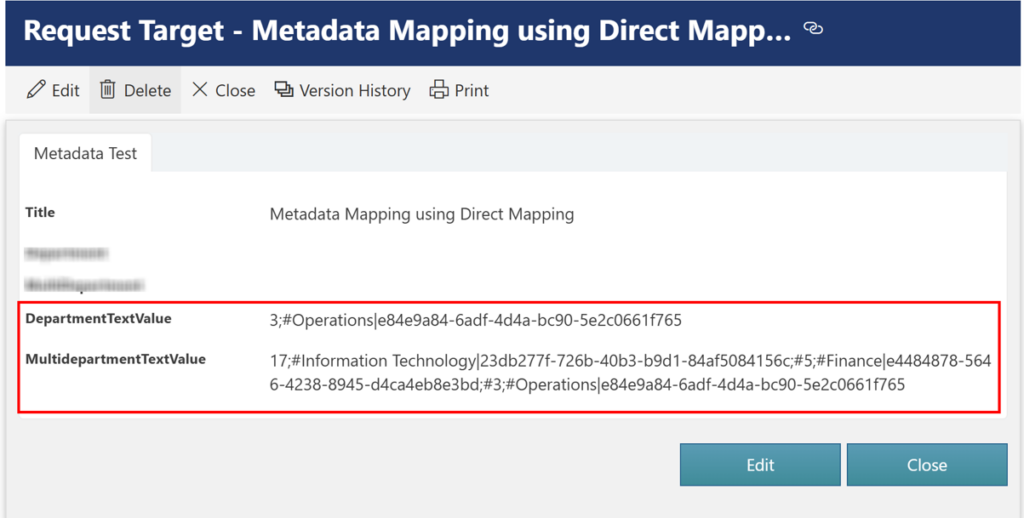
Based on the test results, Direct Column Mapping also returns the complete Metadata representation.
The format is:
Internal ID;#Value|Unique Identifier
Therefore, Direct Mapping includes:
- Internal Metadata ID
- Metadata Value
- Metadata Term Unique Identifier
Expected Behavior
| Source Column | Target Column | Returned Value |
| Department | DepartmentTextValue | Internal ID;#Value|Unique Identifier |
| Multidepartment | MultiDepartmentTextValue | Internal ID;#Value|Unique Identifier for selected Terms |
Single Metadata Example
Source:Department = Information Technology
Direct mapping:Department → DepartmentTextValue
Result:
12;#Information Technology|<Unique Identifier>
Multi Metadata Example
Source: Multidepartment = Operations; Finance; Information Technology
Direct mapping:
Multidepartment → MultiDepartmentTextValue
Conceptual result:
17;#Operations|<Unique Identifier>;
5;#Finance|<Unique Identifier>;
3;#Information Technology|<Unique Identifier>
The exact formatting should be verified based on the output generated by NITRO.
When to Use
Use Direct Column Mapping when the complete Metadata representation needs to be copied to a Text column.
This preserves:
- Internal Metadata ID.
- Metadata Value.
- Unique Identifier.
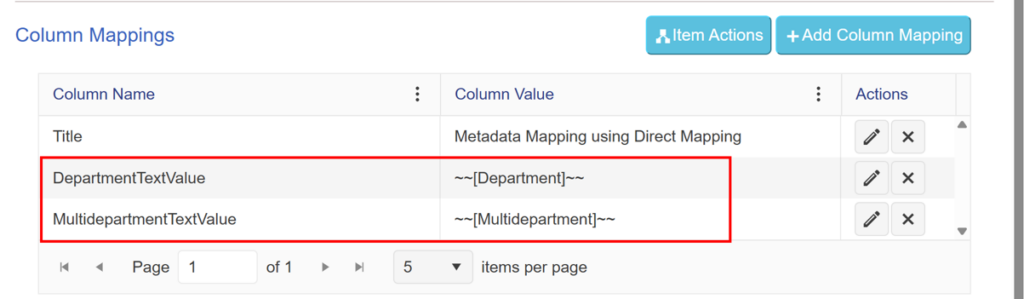
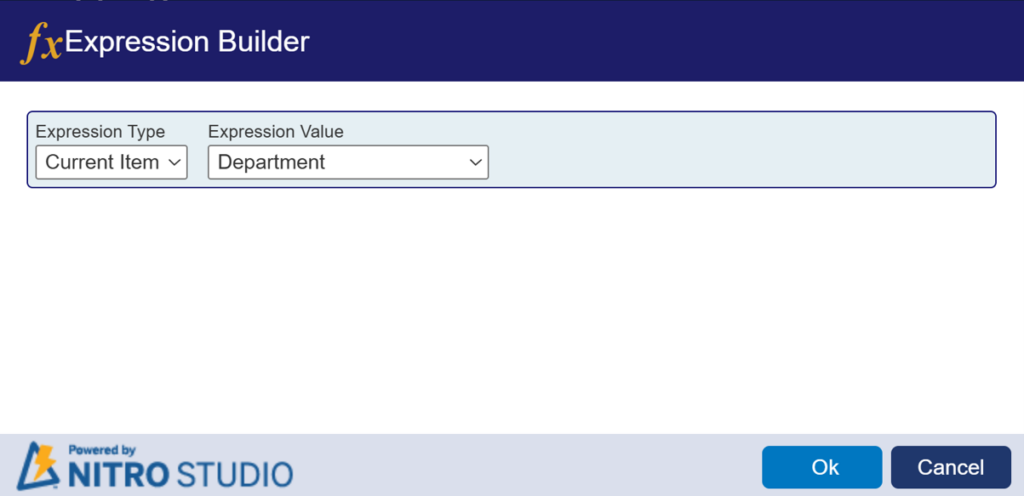
Sample Output:
Metadata in Create and Update Item Actions
Refer NITRO™ Workflows > Configuring Workflows > Workflow Actions to configure actions in NITRO Workflows
Refer Custom Actions > Action Types to configure actions in Custom Actions
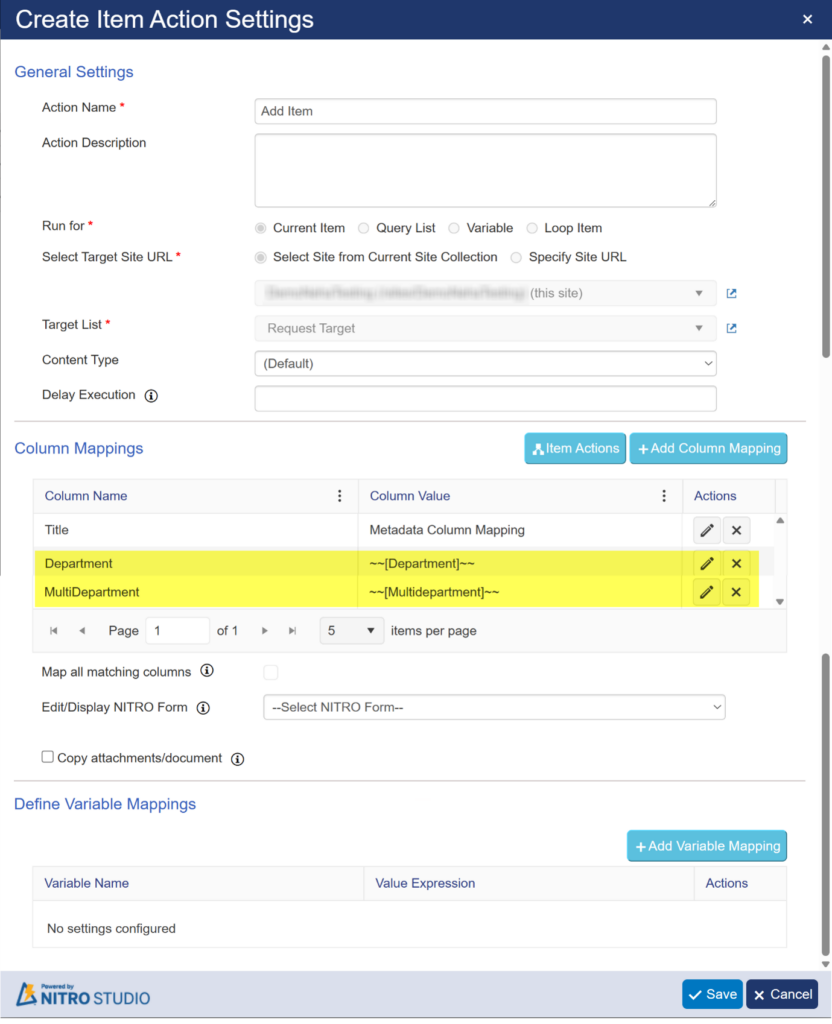
Metadata and Multi Metadata columns can be used in Create Item / Create List Item and Update Item actions to copy or update selected Terms.
| Source Column | Target Column | Example Result |
| Department | Department | Information Technology |
| Multidepartment | Multidepartment | Information Technology; Finance; Operations |
Example
The action can map:
Department → Department
Multidepartment → Multidepartment
The selected Metadata Terms are preserved in the target item.
For Create Item, the values are added to the newly created item.
For Update Item, the values are applied to the existing item.
This can be used to create or update related items while preserving Single and Multi Metadata selections.
Using Metadata Columns in Query List Action
1. Overview
The Query List action can be used to query list items based on values selected in Single Metadata and Multi Metadata columns.
This is useful when a workflow needs to:
- Find matching items in another list.
- Match Metadata values between two lists.
- Match Metadata using internal Metadata IDs.
- Check whether a term selected in one Metadata column exists in a Multi Metadata column.
- Use the queried items in subsequent actions such as Add Item or Update Item.
NITRO Query List supports column placeholders from the current workflow item in query conditions.
Example scenario:
- Workflow is configured on the Request list.
- The Roles list contains Department and MultiDepartment Metadata columns.
- The Request list contains Department and Multidepartment Metadata columns.
2. Query List Using Metadata Value
Metadata values can be passed directly using a column placeholder.
Single Metadata → Single Metadata
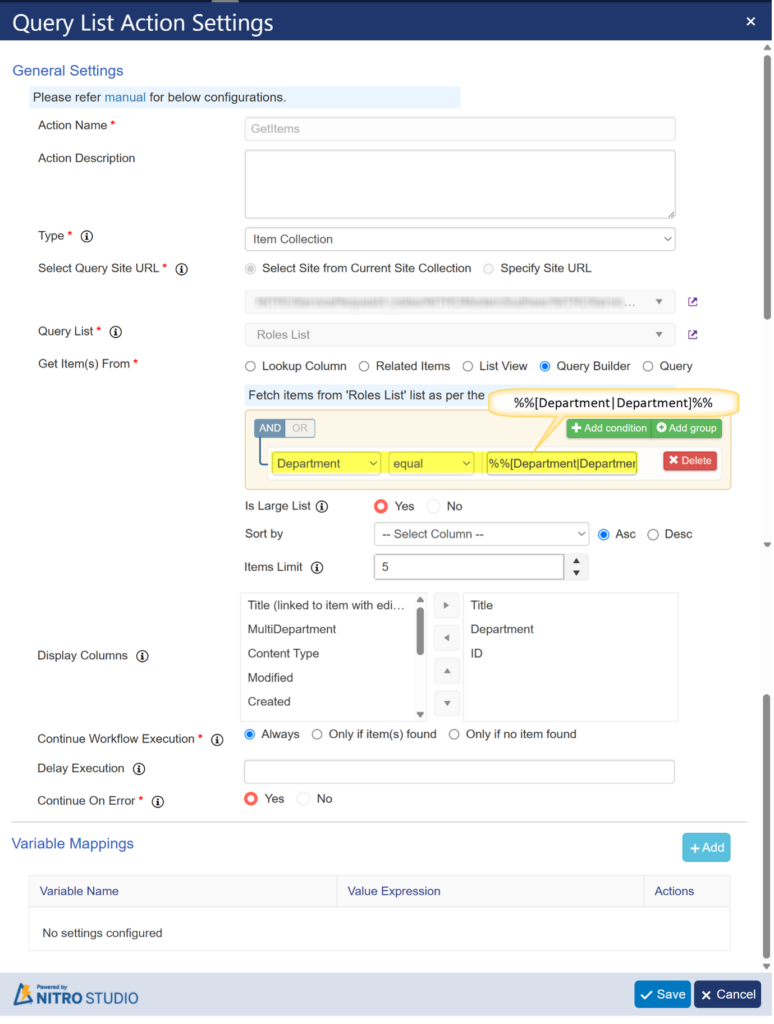
Department = %%[Department|Department]%%
Here:
- Department on the left is the column in the Roles list being queried.
- %%[Department|Department]%% gets the selected Department term from the current Request item.
Example
If the Request item has:
Department = Information Technology
the query effectively searches for Roles items where:
Department = Information Technology
Use when: the comparison should be based on the selected Metadata term value.
3. Multi Metadata Using multivalue
For Multi Metadata columns, the multivalue: prefix can be used with the selected Metadata values.
Query:
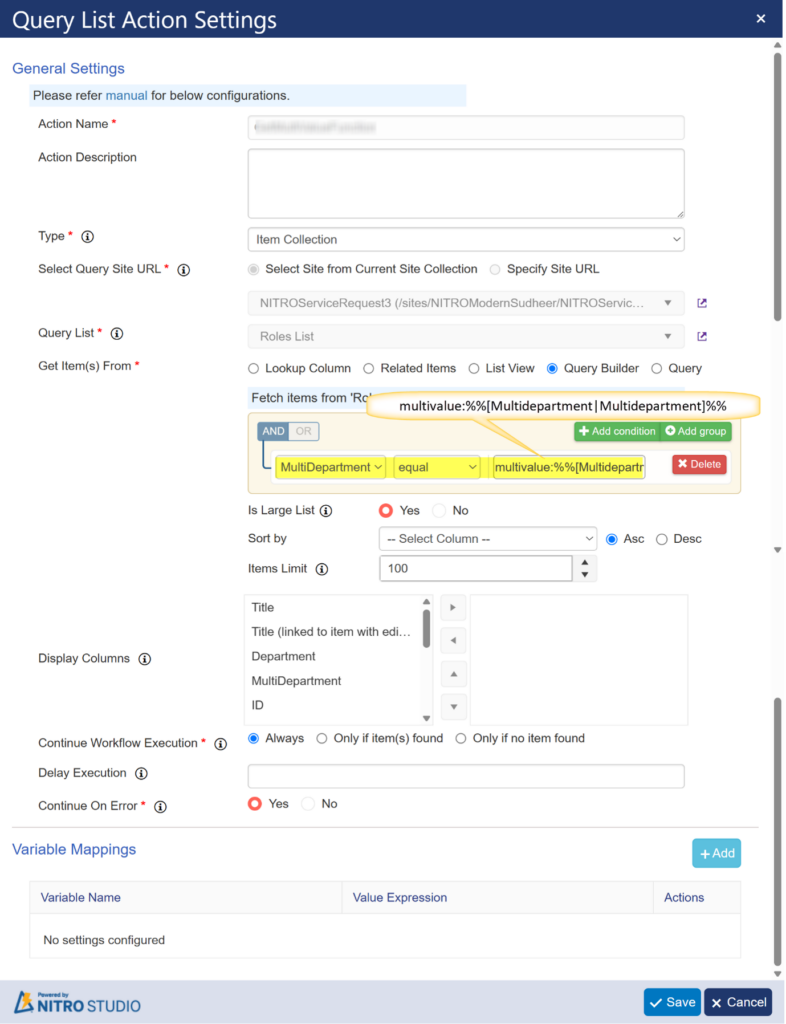
MultiDepartment is equal to multivalue:%%[Multidepartment|Multidepartment]%%
Here:
- %%[Multidepartment|Multidepartment]%% gets the selected Metadata values from the current Request item.
- multivalue: tells the Query List action to compare the query against multiple Metadata values.
- The Roles list is searched based on the selected values in the Request’s Multidepartment.
For example, if the Request contains:
Information Technology; Human Resources; Operations
the query uses those selected terms to find matching Roles items.
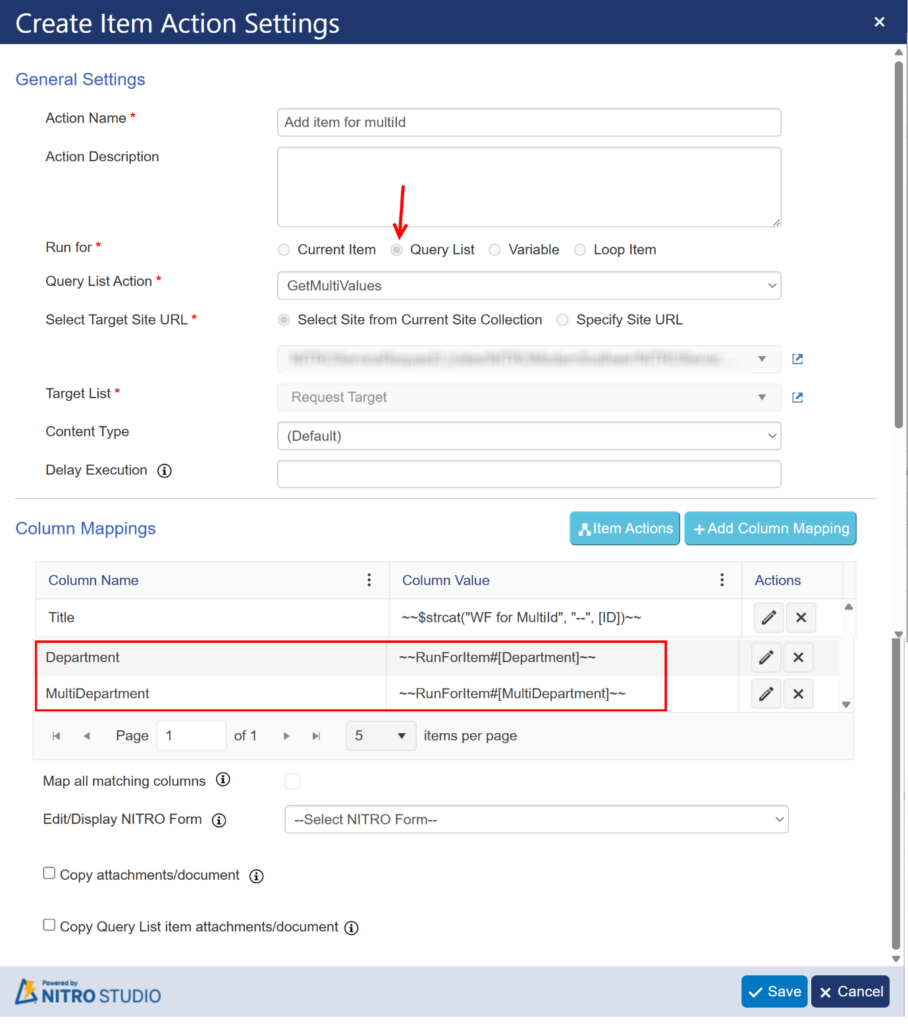
After the Query List returns the matching Roles items, the Add Item action can run for each returned item.
The Metadata values can then be mapped using the Expression Builder:
| Target Column | Expression |
| Department | ~~RunForItem#[Department]~~ |
| MultiDepartment | ~~RunForItem#[MultiDepartment]~~ |
RunForItem refers to the current item returned by Query List, not the original Request item.
Use this when: you want to work with the term values selected in a Multi Metadata column.
4. Query List Using Metadata ID
Metadata can also be queried using its internal Metadata ID.
Single Metadata → Metadata ID
Query:
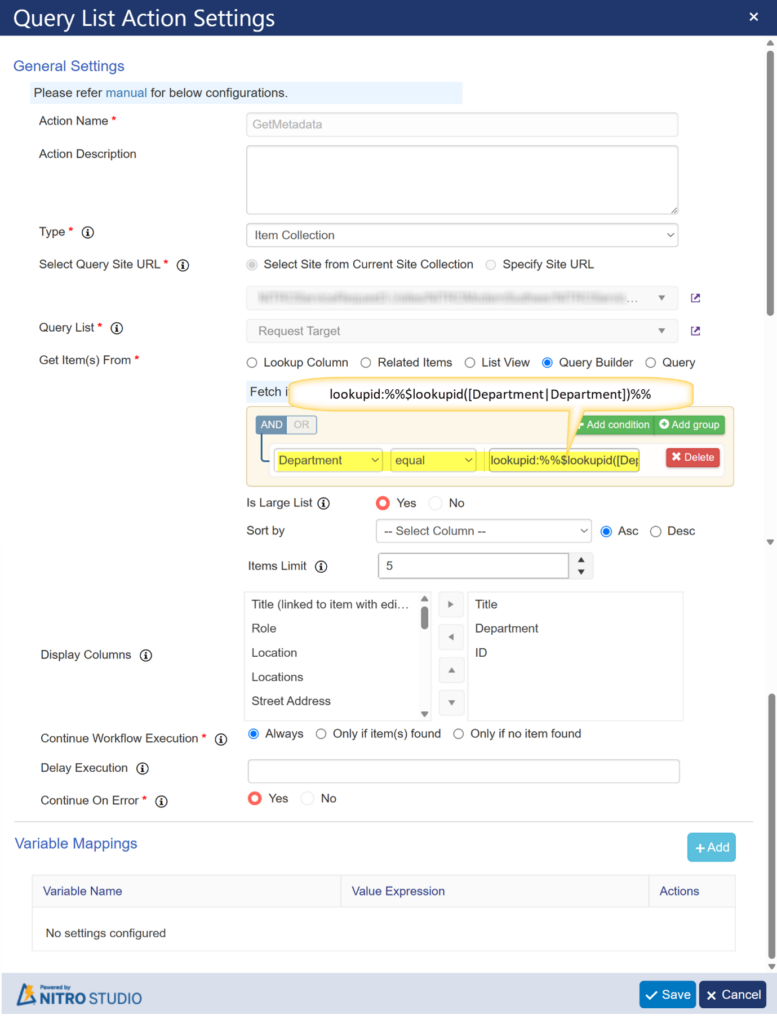
Department = lookupid:%%$lookupid([Department|Department])%%
Here:
$lookupid([Department|Department])
gets the Internal Metadata ID of the selected Department term.
The lookupid: prefix tells Query List to compare using that ID.
For example:
Department = lookupid:12
This matches the Roles item’s Department based on the Metadata internal ID.
Use this when: you want an ID-based comparison for a Single Metadata column.
Use when: the comparison should be based on the internal Metadata ID instead of the displayed term value.
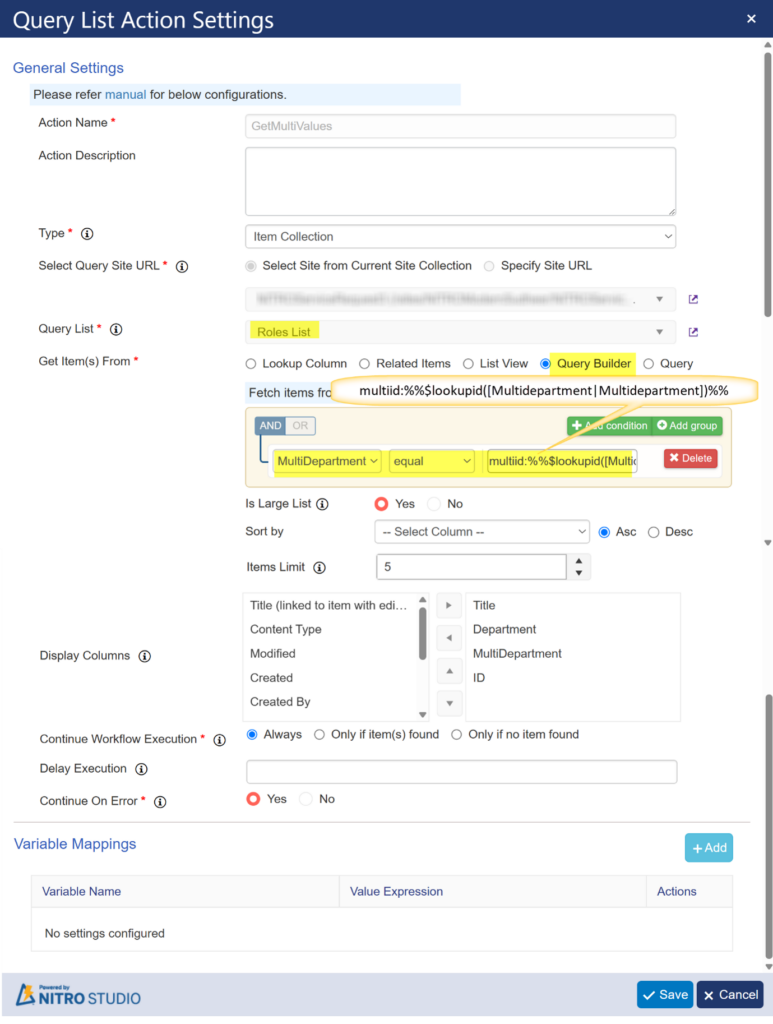
5. Multi Metadata Using multiid
For Multi Metadata, multiple Metadata IDs can be passed using the multiid: prefix.
Query:
MultiDepartment is equal to multiid:%%$lookupid([Multidepartment|Multidepartment])%%
This is similar to the previous scenario, but instead of comparing the Metadata values, it uses the Metadata internal IDs.
$lookupid([Multidepartment|Multidepartment])
returns the internal Metadata ID(s) for the selected terms.
The multiid: prefix tells Query List to perform the comparison using multiple Metadata IDs.
Use this when: you want to match the exact Metadata terms by ID rather than their displayed values.
This is generally more reliable than value-based matching when terms may have similar names or when you specifically want ID-based matching.
6. Metadata Relationship Matching Using contains
A Multi Metadata column can also be queried to determine whether it contains a specific Metadata value.
Query
Multidepartment contains %%[Department|Department]%%
In this example:
- Multidepartment is a Multi Metadata column.
- Department is a Single Metadata column.
- The selected Department term from the current Request is checked against the terms selected in Multidepartment.
Example
Request:
Department = Information Technology
and:
Multidepartment =
Information Technology; Finance; Operations
The query checks whether:
Multidepartment contains Information Technology
and returns the matching item.
Use when: one Metadata column contains multiple terms and you need to determine whether it contains a specific term.
7. Query List → Add Item Using Metadata
Query List results can be used in subsequent actions such as Add Item. NITRO documents Query List as an action that generates an item or item collection for use by other actions. (Crow Canyon Info)
For example:
Request
↓
Query Roles List
↓
Matching Roles items
↓
Add Item
When Add Item is configured to run for the Query List results, the Metadata values of the returned Roles item can be mapped to the target list.
Mapping
| Target Column | Expression |
| Department | ~~RunForItem#[Department]~~ |
| MultiDepartment | ~~RunForItem#[MultiDepartment]~~ |
RunForItem refers to the item currently being processed from the Query List result.
Example
If the Query List returns a Roles item containing:
Department = Information Technology
and:
MultiDepartment =
Information Technology; Finance; Operations
the Add Item action maps those values to the corresponding Metadata columns in the target list.
8. Common Metadata Query Scenarios
The following table summarizes the main scenarios.
| Scenario | Example | Purpose |
| Single Metadata by value | Department = %%[Department|Department]%% | Match a Single Metadata term by value |
| Single Metadata by ID | Department = lookupid:%%$lookupid([Department|Department])%% | Match a Single Metadata term by internal ID |
| Multi Metadata by value | MultiDepartment = multivalue:%%[Multidepartment|Multidepartment]%% | Match using multiple Metadata values |
| Multi Metadata by ID | MultiDepartment = multiid:%%$lookupid([Multidepartment|Multidepartment])%% | Match using multiple Metadata IDs |
| Multi Metadata contains value | Multidepartment contains %%[Department|Department]%% | Check whether a Multi Metadata column contains a selected term |
| Empty Metadata | Department is empty | Find items where Metadata is not selected |
| Non-empty Metadata | Department is not empty | Find items where Metadata has a selected term |
9. When to Use Each Method
Use Metadata Value
Use:
%%[Department|Department]%%
or:
multivalue:%%[Multidepartment|Multidepartment]%%
when the query should work with the selected Metadata values.
Use Metadata ID
Use:
lookupid:%%$lookupid([Department|Department])%%
or:
multiid:%%$lookupid([Multidepartment|Multidepartment])%%
when the query should work with the internal Metadata IDs.
Use contains
Use:
Multidepartment contains %%[Department|Department]%%
when a Single Metadata term needs to be checked against a Multi Metadata column.
Metadata in Send Mail Action
Metadata values and Term custom properties can be included in the Send Mail action.
| Metadata Type | Example Placeholder | Example Output |
| Single Metadata | {Department} | Information Technology |
| Multi Metadata | {Multidepartment} | Information Technology; Human Resources; Operations |
Example Email Body
The request has been submitted.
Department: Information Technology
Departments: Information Technology; Finance; Operations
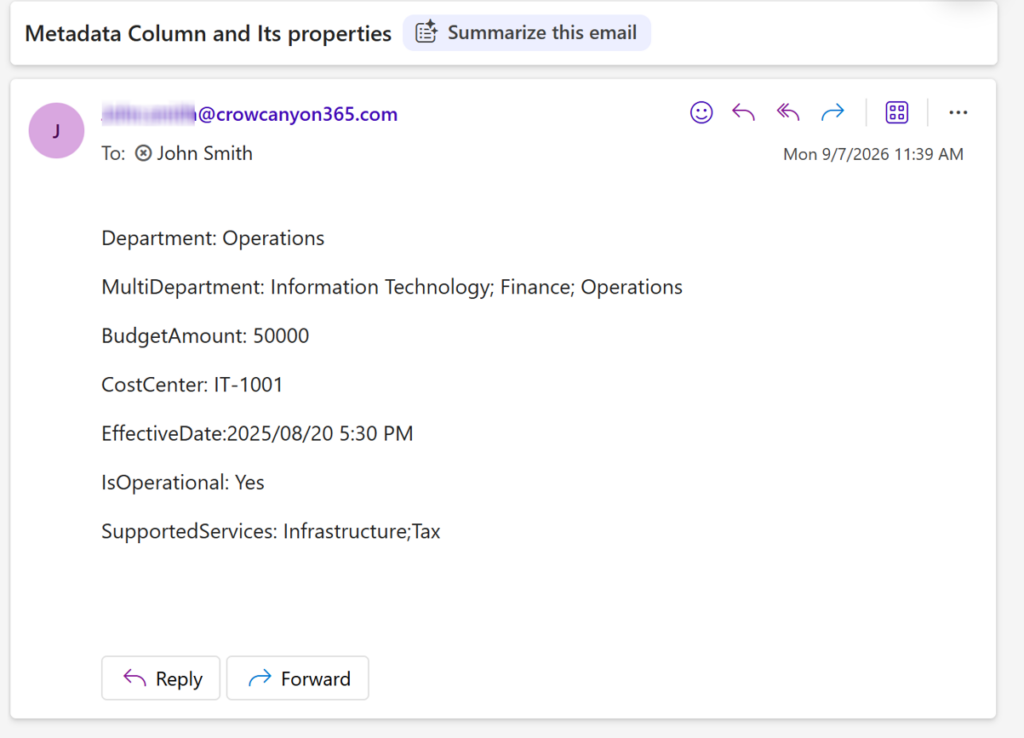
The selected Term’s custom properties can also be retrieved and included in the email. For example, if:
Department = Information Technology
the email can include values such as:
Cost Center: CC1001
Effective Date: 01/01/2026
Operational: Yes
Budget Amount: 50000
Supported Services: Hardware; Software; Network Support
This is useful when Metadata Terms and their custom properties are used as a centralized source of information for email notifications.
Refer NITRO™ Workflows > Configuring Workflows > Workflow Actions > Send Mail to configure send mail action in NITRO Workflows.
Mail Template Image:
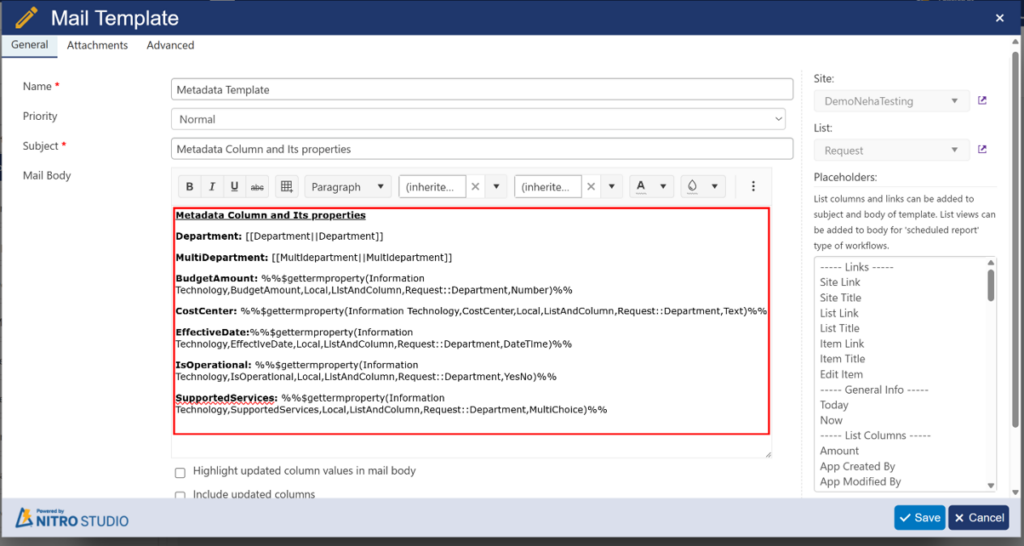
Similarly, you can include $gettermproperty() function with other configurations as per requirement to get Term property values
Sample Output:
Metadata in Generate Document and DocuSign Actions
Generate Document:
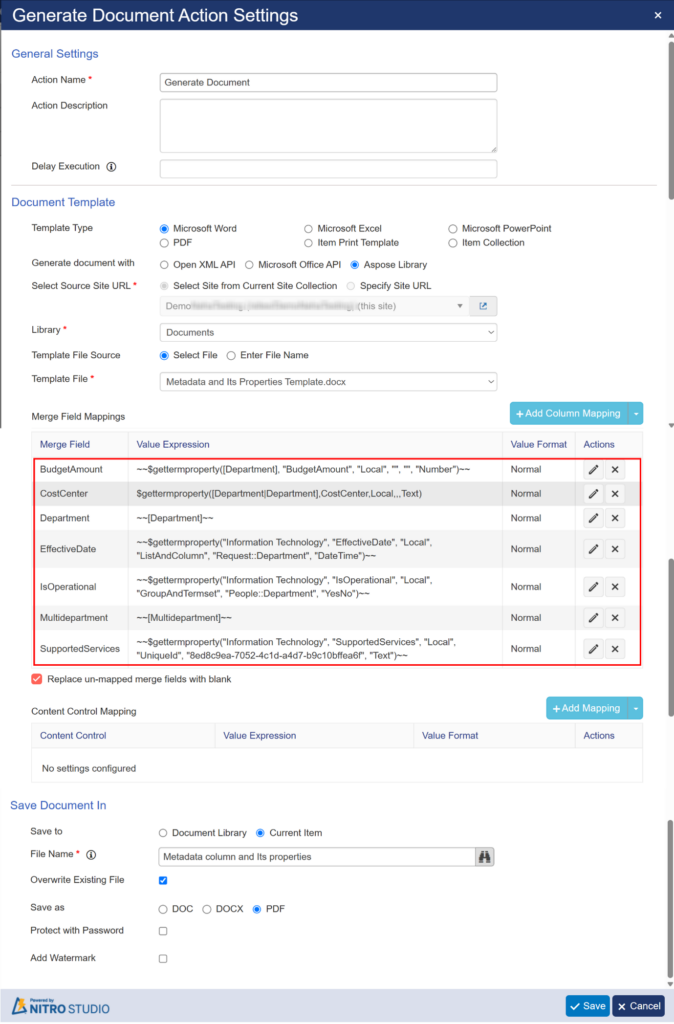
Metadata columns can be used in Column Mappings to populate Word/Excel merge fields with selected Metadata values. Column placeholders and supported functions can also be used in the mapping.
Refer NITRO™ Workflows > Configuring Workflows > Workflow Actions > Generate Document to configure Generate document action
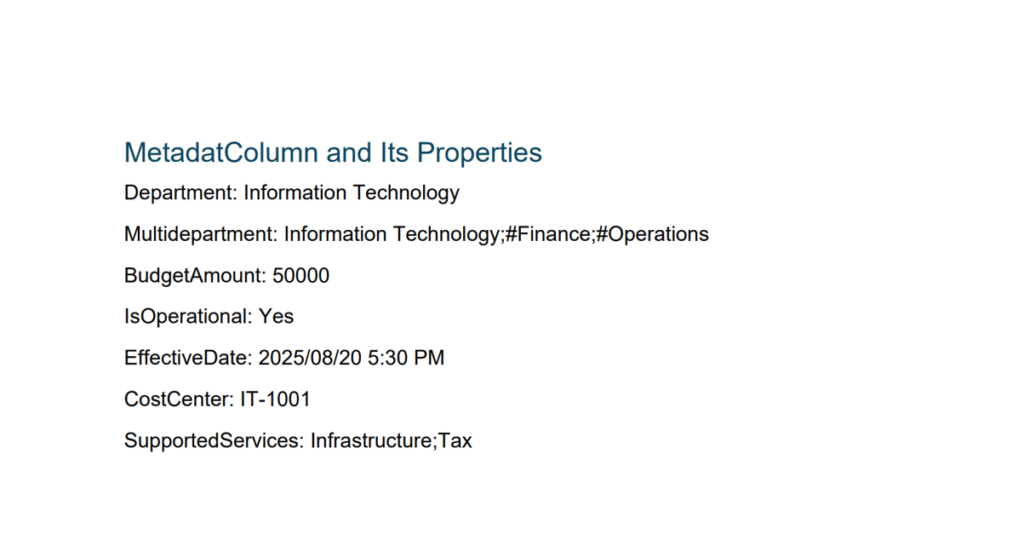
Use Case: Populate a generated document with values such as:
Department: Information Technology
Multidepartment: Information Technology; Human Resources; Operations
Term custom properties can be used through GetTermProperty if the function is available in the mapping’s Expression Builder.
Sample Output:
DocuSign:
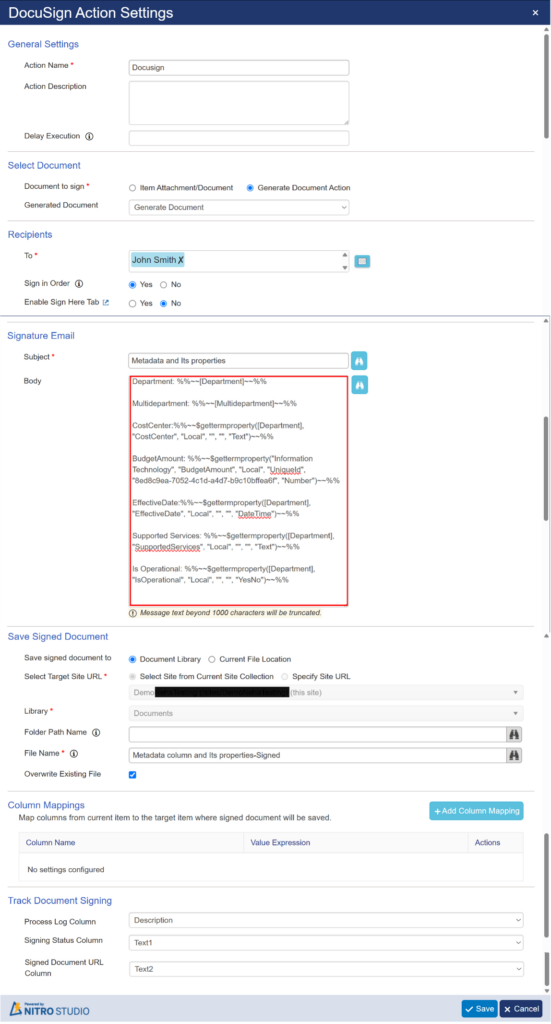
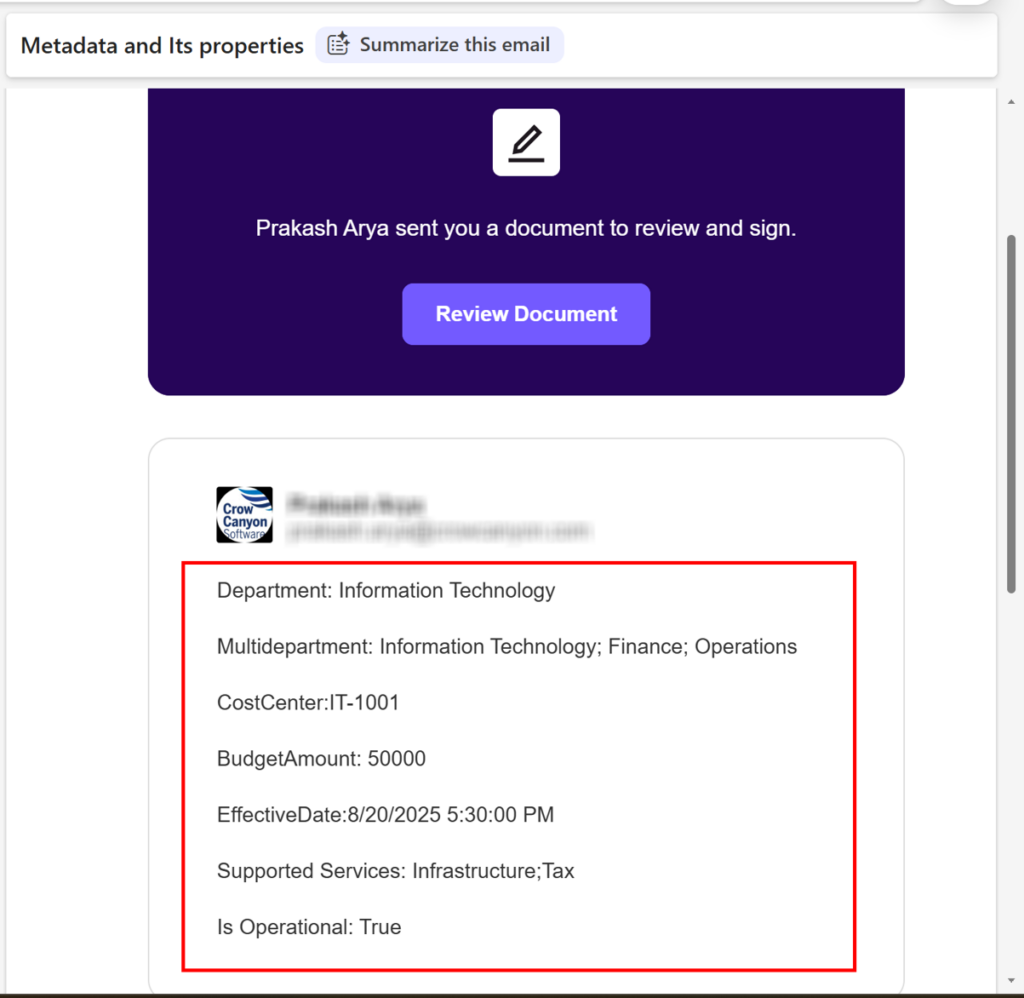
Metadata values can be used where the DocuSign action provides a supported column mapping or placeholder field. GetTermProperty support should be verified in the specific DocuSign mapping field before use.
Refer Manual for DocuSign Action – Crow Canyon Software Support to configure Docusign action
Use Case: Populate a document/signing request with Metadata-based information such as Department.
Sample Output:
Metadata in Post an Adaptive Card Action
Metadata columns can be used in the Post an Adaptive Card action by selecting the Metadata column from the Columns field.
Examples:
- Department – Single Metadata
- Multidepartment – Multi Metadata
Refer NITRO™ Workflows > Configuring Workflows > Workflow Actions > Microsoft Teams > Post an adaptive card to configure Post an Adaptive Card action.
Use Case
Display the selected Department or multiple Departments in the Adaptive Card and also display Department custom properties
Department: Information Technology
Departments: Information Technology; Human Resources; Operations
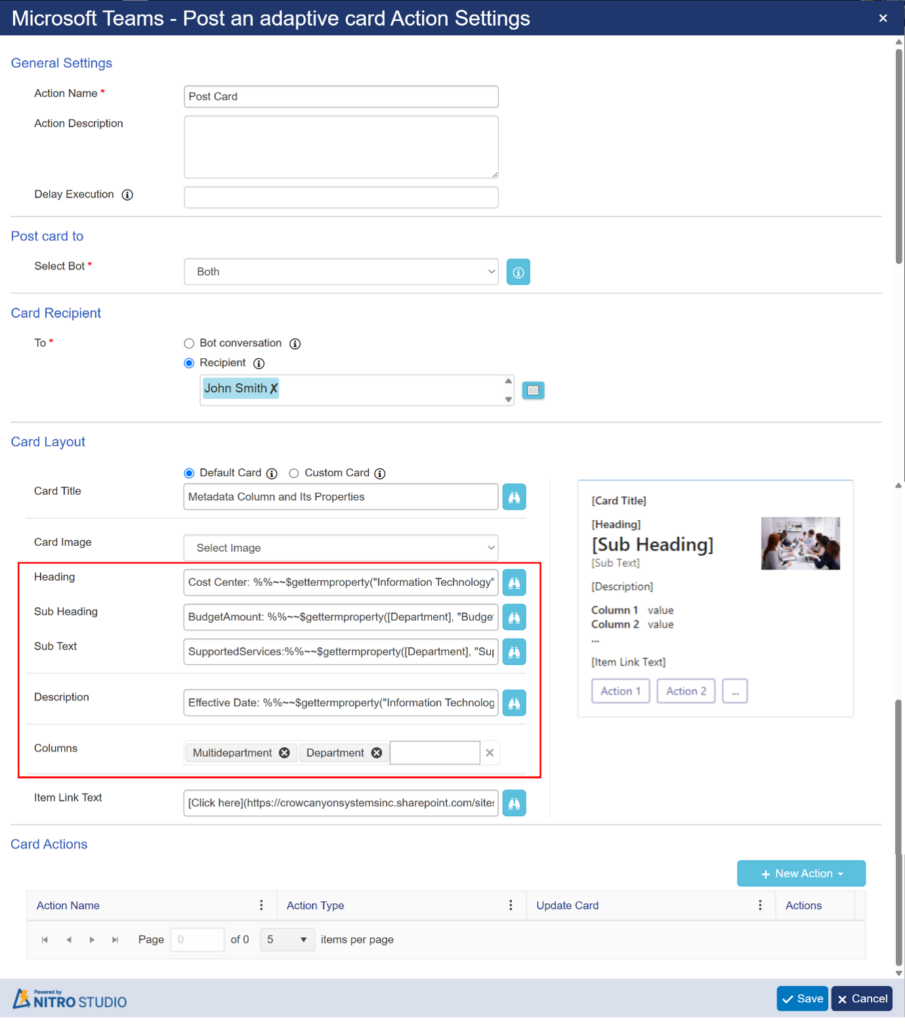
Sample Output: