

Introduction
Microsoft rolled out Content Security Policy (CSP) enforcement for SharePoint Online starting March 1, 2026. Tenants had the option to delay enforcement by 90 days using PowerShell, but that delay option expired on June 1, 2026, after which CSP enforcement applies to all tenants with no further postponement available.
CSP is a set of rules that a website sends to your browser. It defines what resources are allowed to load and run. These rules govern resources such as JavaScript, CSS, images, frames, and connections to external services. Crow Canyon NITRO Studio is fully compliant with Microsoft CSP rules. Ensure the following so that NITRO Studio works without CSP errors in your tenant:
- NITRO Studio should be up to date in your site collections. This includes NITRO Studio Modern UI components.
- Add the Crow Canyon CDN URLs to trusted script sources in your tenant. Crow Canyon CDN hosts the JavaScript, image, and CSS files used in the NITRO Studio. If these sources are not marked as trusted, then NITRO UI does not function properly as NITRO Studio scripts are not trusted by the SharePoint Online pages.
Refer to CSP Verification Checklist at the end of this article. If issue persists, then contact Crow Canyon support
Update NITRO Studio in your SharePoint tenant
NITRO Studio Modern UI components and NITRO Studio should be updated in the sites. There are several CSP related changes in latest code.
NITRO Studio update does not cause any down-time in the site. Please follow the steps in this article:
Update NITRO Studio in activated sites.
Add NITRO Studio CDN to trusted sources
There are two ways to make this change:
- Using NITRO Studio: This is possible only if NITRO API permissions are granted during NITRO installation. If NITRO Site API permissions are not granted, then follow the second method.
- Use the SharePoint admin center. These steps require SharePoint admin role in Office 365 tenant.
Using NITRO Studio
- Navigate to https://crowcanyonnitro.azurewebsites.net/
- It will auto-navigate to https://crowcanyonnitro.azurewebsites.net/NITRO page if NITRO API permissions are granted.
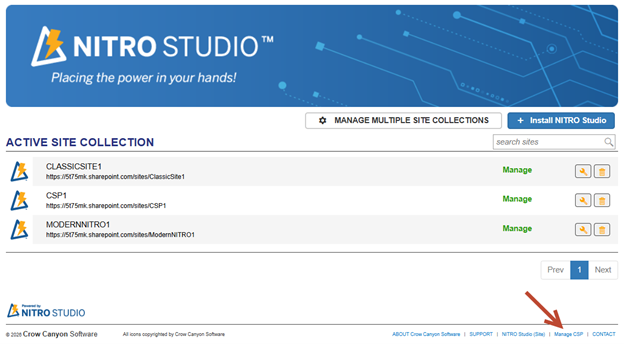
- Check if ‘Manage CSP’ link is available in the page footer. Else, follow the steps in next section.
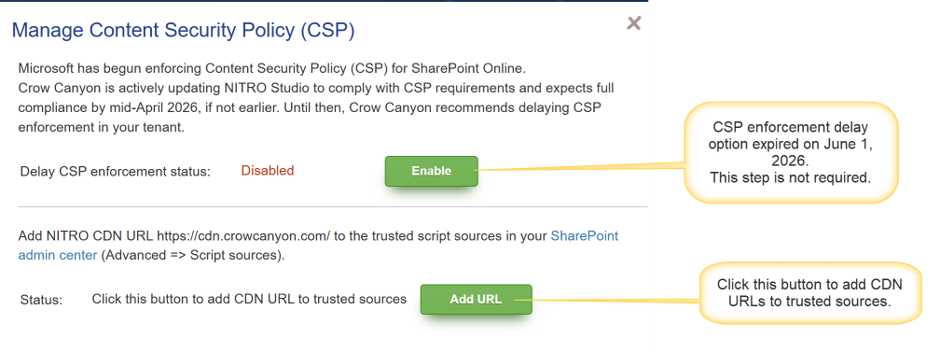
- Click ‘Manage CSP’ link. In the pop-up click ‘Add URL’ to add NITRO Studio CDN URLs to trusted sources.
If NITRO API permissions are not granted, then follow the below steps.
Using SharePoint admin portal
- Navigate to SharePoint admin portal.
- https://yourtenantname-admin.sharepoint.com/_layouts/15/online/AdminHome.aspx#/contentSecurityPolicy
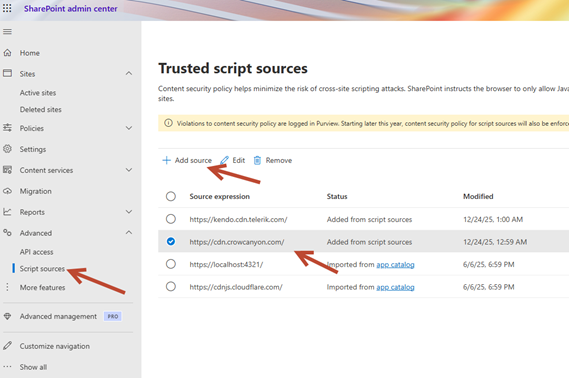
- In left panel, expand the ‘Advanced’ section and click ‘Script sources’
- Click ‘Add Source’ and add below URLs as trusted source:
- NITRO CDN: https://cdn.crowcanyon.com/
- NITRO CDN (legacy): https://crowcanyon.azureedge.net/
- NITRO CDN (dev): https://appscdn.azurewebsites.net/
- NITRO API: https://nitrowebapi.azurewebsites.net/
- Azure maps (Geolocation fields): https://atlas.microsoft.com/
- Note that for GCC/dedicated NITRO Studio customers, add the URLs as per the CDN and NITRO API configured in your setup. You can cantact Crow Canyon support to assist with the upgrade.
- Clear browser cache before accessing NITRO Studio site pages.
CSP Verification Checklist
Use this checklist to diagnose and resolve issues caused by SharePoint Online’s Content Security Policy (CSP) enforcement.
- Republish NITRO Apps: Publish the NITRO forms or Custom Actions, or save the settings of other NITRO components. Clear the browser cache and try again.
- Clear the Portal site cache: If the application is being accessed through the NITRO Portal site, reset the Portal site cache and try again.
- Review custom scripts for external resource calls: If any custom scripts are configured, check whether they make calls to external APIs or user scripts/resources outside of the approved CDN URLs. Such calls will be blocked by CSP unless those URLs are added to the trusted sources list.
- Check HTML Web Parts on affected pages: If a specific page is not loading or functioning correctly, check whether it contains an HTML Web Part. Ensure all URLs referenced within it are included in the trusted sources list in the SharePoint admin center.
- Ensure NITRO and SPFx packages are up to date: Verify that the site is running the latest version of NITRO Studio and that all installed SPFx apps and packages are updated. Older versions may not be fully CSP-compliant.
- Avoid inline event handlers in custom scripts: If any custom script dynamically adds HTML to the page, ensure it does not use inline event handlers such as onclick, onchange, or onload. These are blocked by CSP. Instead, register event listeners dynamically using addEventListener() in JavaScript.
- Clear browser cache: After any of the changes, please verify after clearing the browser cache.
