

Applies To: NITRO Forms
Description
The AI Process Action in NITRO Forms allows you to integrate AI into your business processes. You can configure actions such as AI Summaries, AI Assistance, Auto Classification, or Customized Responses, directly within NITRO Forms.
When users run these actions, the system sends selected list data (ticket details, conversation logs, work notes, etc.) to AI, and the AI response is displayed back in the form. This enables faster decision-making, better productivity, and smarter ticket handling.
In this example, we configure an AI Action called “Summary by Copilot” that generates a ticket summary using interaction history and work logs, and displays the results directly on the ticket form.
Steps to Configure AI Process Action
1. Create a New AI Action
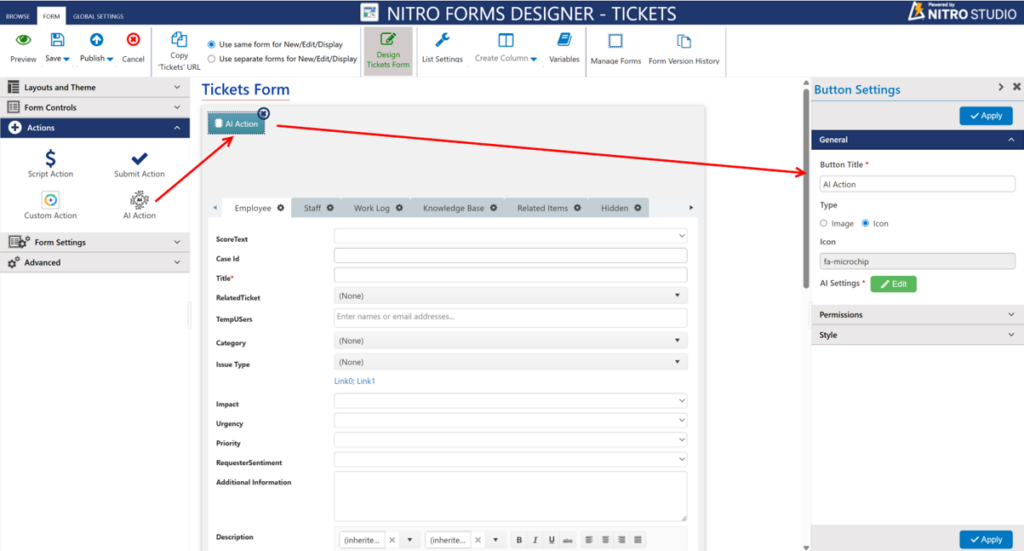
- Navigate to NITRO Forms Designer → Actions → Add AI Action.
- Set Action Type to AI Process.
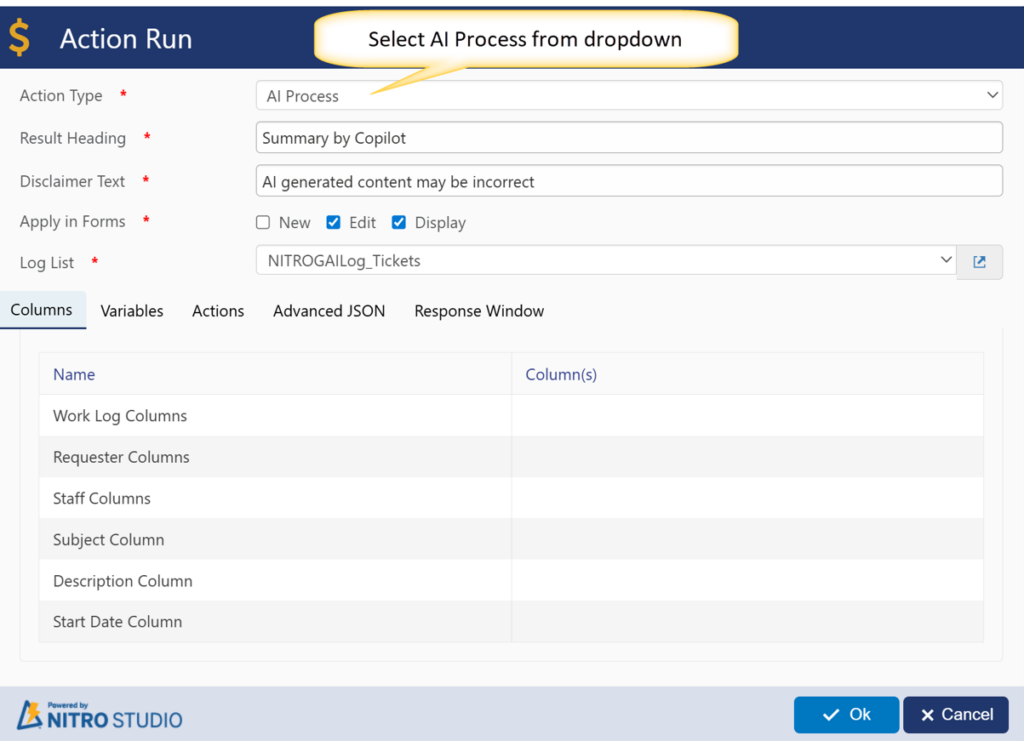
- Enter:
- Result Heading: Summary by Copilot
- Disclaimer Text: AI generated content may be incorrect
- Apply in Forms: Edit, Display (select as needed)
- Log List: Select your AI Log list (e.g., NITROGAILog_Tickets)
2. Configure Columns
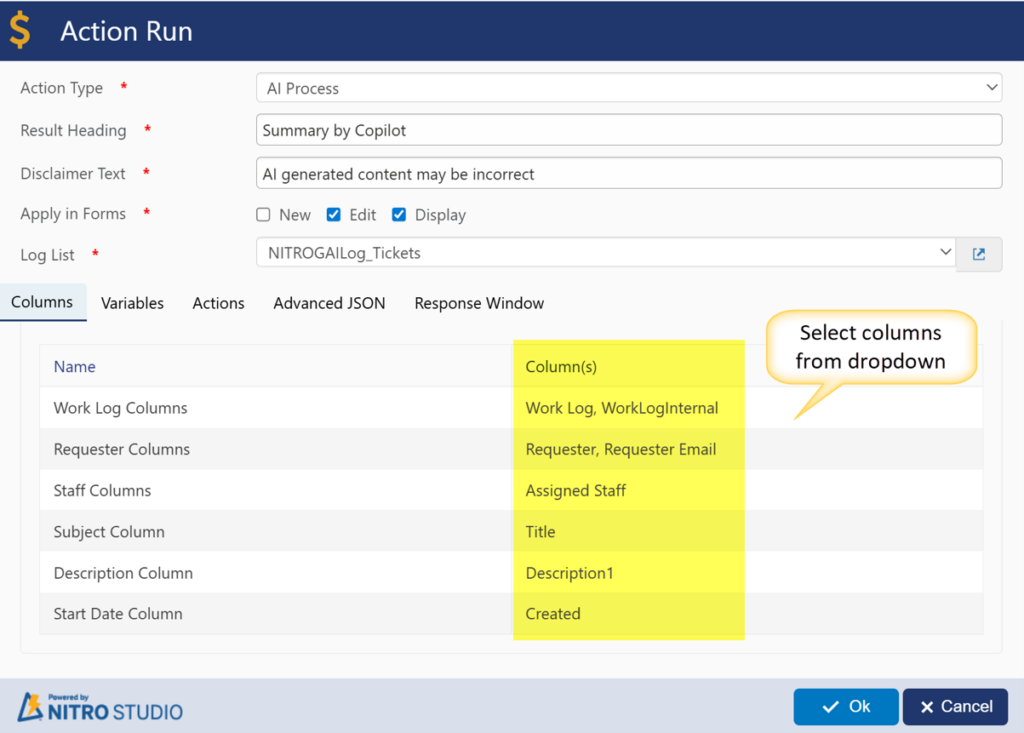
Define which ticket columns should be passed to AI for context:
- Work Log Columns → Work Log, WorkLogInternal
- Requester Columns → Requester, Requester Email
- Staff Columns → Assigned Staff
- Subject Column → Title
- Description Column → Description
- Start Date Column → Created
3. Configure Variables
Variables act as placeholders for both input (sent to AI) and output (received from AI).
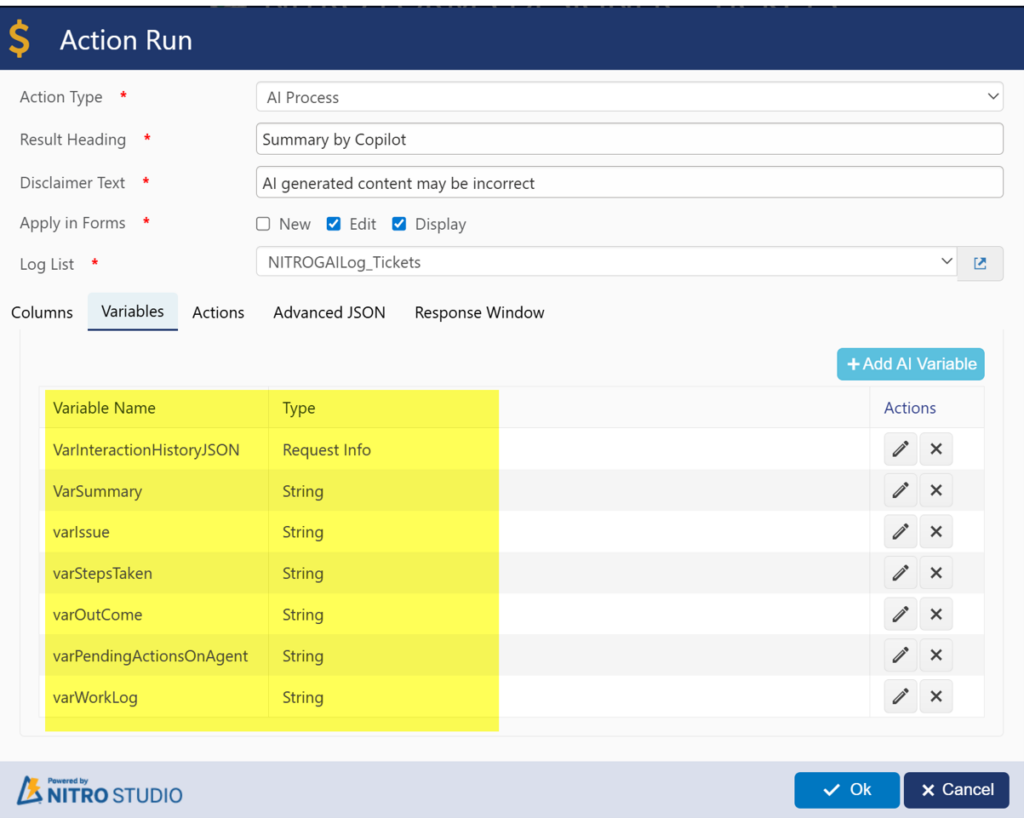
Example variables:
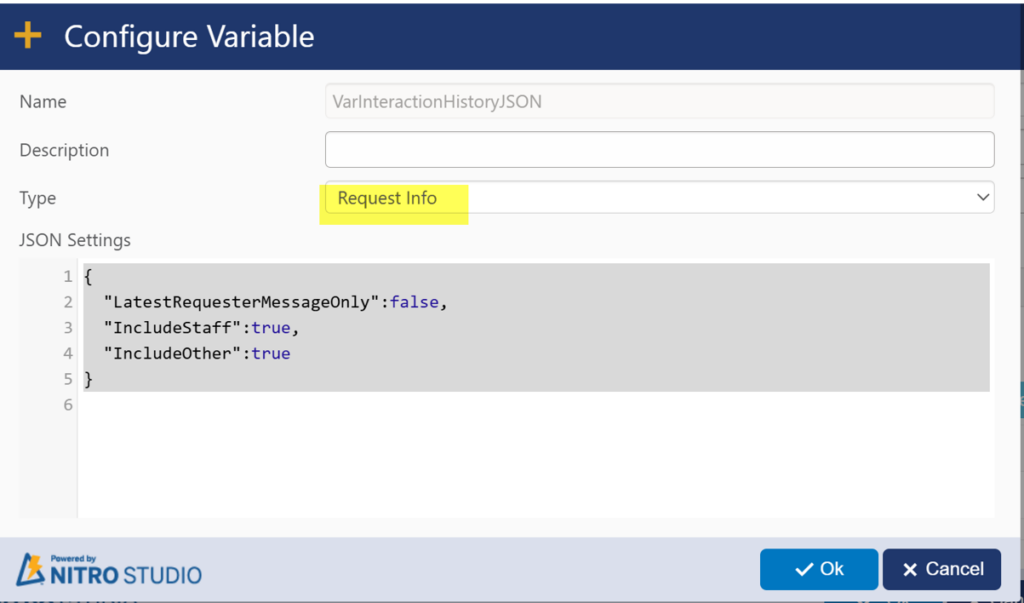
- VarInteractionHistoryJSON (Request Info) → Stores interaction history
- varWorkLog (String from Work Log column)
- varIssue, varStepsTaken, varOutCome, varPendingActionsOnAgent (Output values from AI)
- VarSummary (Formatted summary for display)
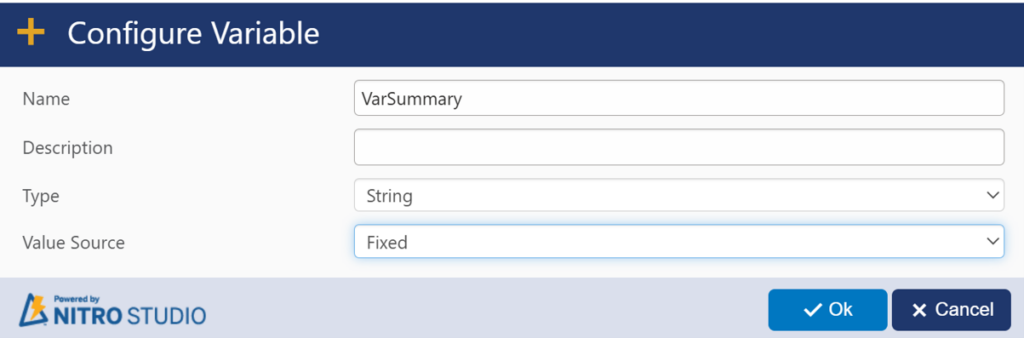
Like VarSummary, create the remaining variables with type set to String and Value Source set to Fixed.
4. Configure Actions
Actions define how AI is called and how results are processed.
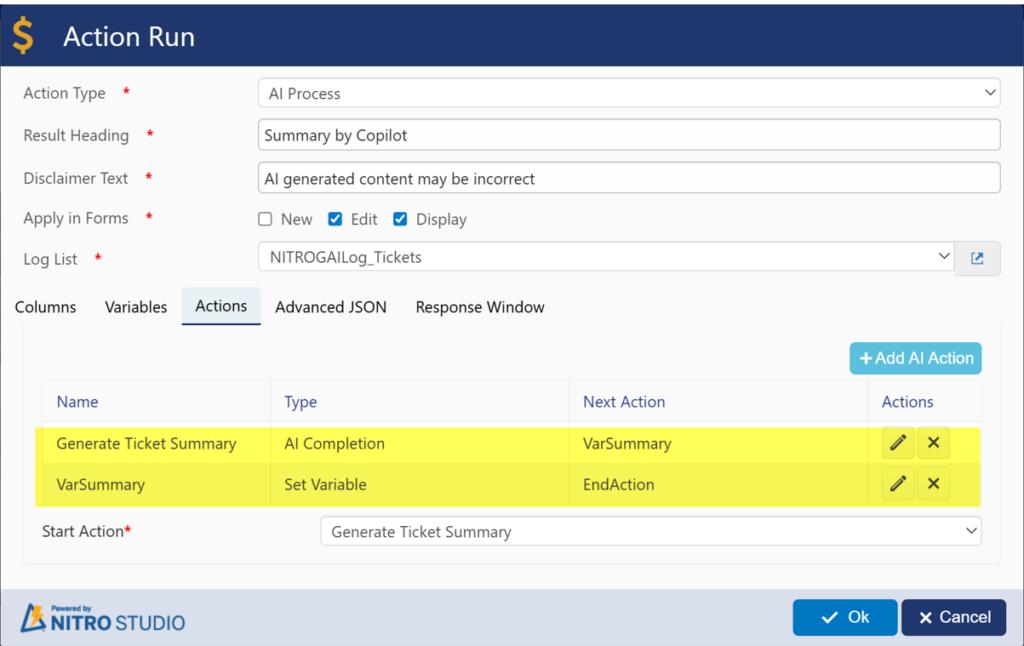
Example setup:
- Generate Ticket Summary (AI Completion)
- Passes interaction history and work logs to AI
- AI generates structured output (Issue, Steps Taken, Outcome, Pending Actions)
- Output mapped to variables
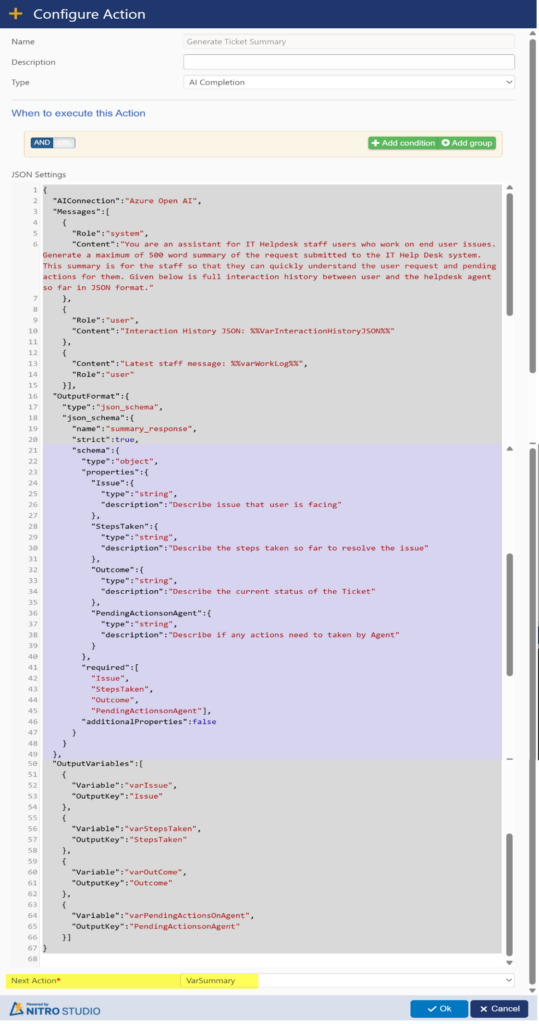
JSON Used above:
{
  "AIConnection":"Azure Open AI",
  "Messages":[
    {
      "Role":"system",
      "Content":"You are an assistant for IT Helpdesk staff users who work on end user issues. Generate a maximum of 500 word summary of the request submitted to the IT Help Desk system. This summary is for the staff so that they can quickly understand the user request and pending actions for them. Given below is full interaction history between user and the helpdesk agent so far in JSON format."
    },
    {
      "Role":"user",
      "Content":"Interaction History JSON: %%VarInteractionHistoryJSON%%"
    },
    {
      "Content":"Latest staff message: %%varWorkLog%%",
      "Role":"user"
    }],
  "OutputFormat":{
    "type":"json_schema",
    "json_schema":{
      "name":"summary_response",
      "strict":true,
      "schema":{
        "type":"object",
        "properties":{
          "Issue":{
            "type":"string",
            "description":"Describe issue that user is facing"
          },
          "StepsTaken":{
            "type":"string",
            "description":"Describe the steps taken so far to resolve the issue"
          },
          "Outcome":{
            "type":"string",
            "description":"Describe the current status of the Ticket"
          },
          "PendingActionsonAgent":{
            "type":"string",
            "description":"Describe if any actions need to taken by Agent"
          }
        },
        "required":[
          "Issue",
          "StepsTaken",
          "Outcome",
          "PendingActionsonAgent"],
        "additionalProperties":false
      }
    }
  },
  "OutputVariables":[
    {
      "Variable":"varIssue",
      "OutputKey":"Issue"
    },
    {
      "Variable":"varStepsTaken",
      "OutputKey":"StepsTaken"
    },
    {
      "Variable":"varOutCome",
      "OutputKey":"Outcome"
    },
    {
      "Variable":"varPendingActionsOnAgent",
      "OutputKey":"PendingActionsonAgent"
    }]
}
2. VarSummary (Set Variable)
- Formats the output into HTML for display
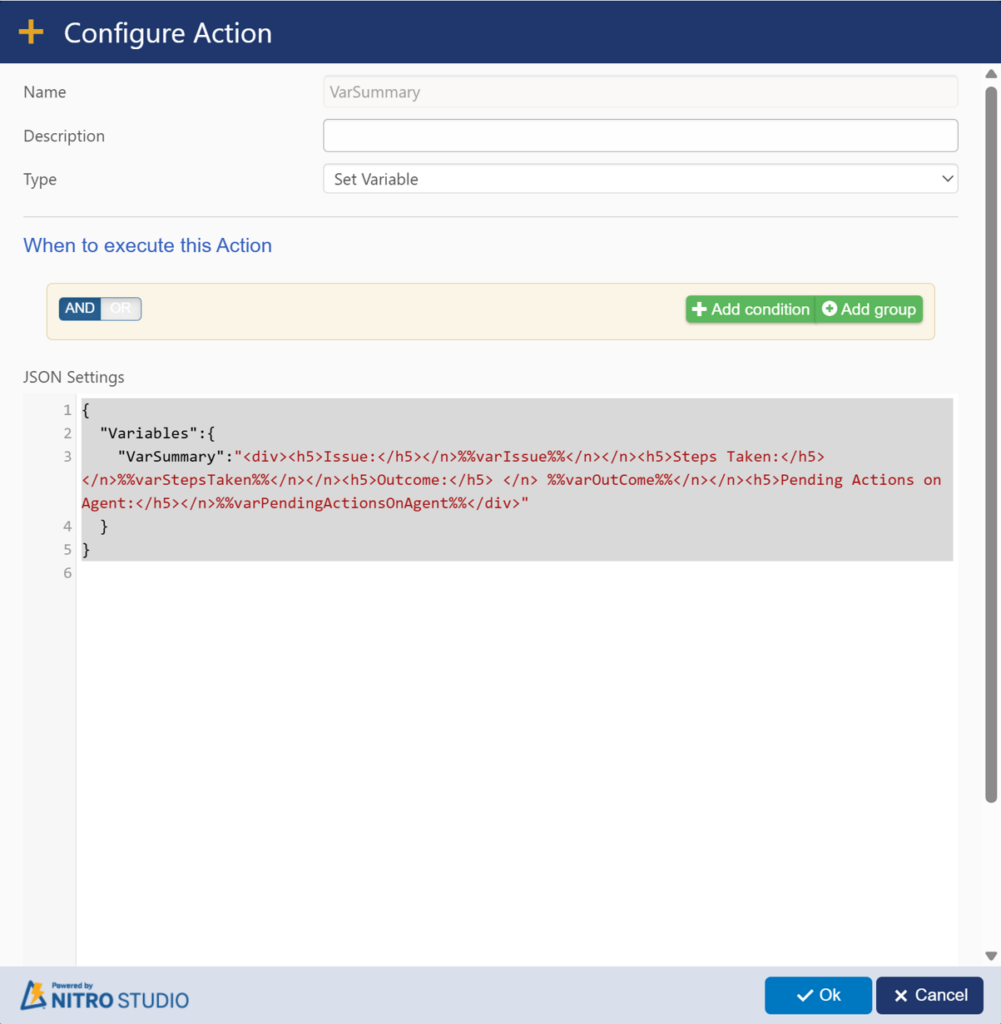
JSON Used above:
{
  "Variables":{
    "VarSummary":"<div><h5>Issue:</h5></n>%%varIssue%%</n></n><h5>Steps Taken:</h5></n>%%varStepsTaken%%</n></n><h5>Outcome:</h5> </n> %%varOutCome%%</n></n><h5>Pending Actions on Agent:</h5></n>%%varPendingActionsOnAgent%%</div>"
  }
}
5. Configure Advanced JSON
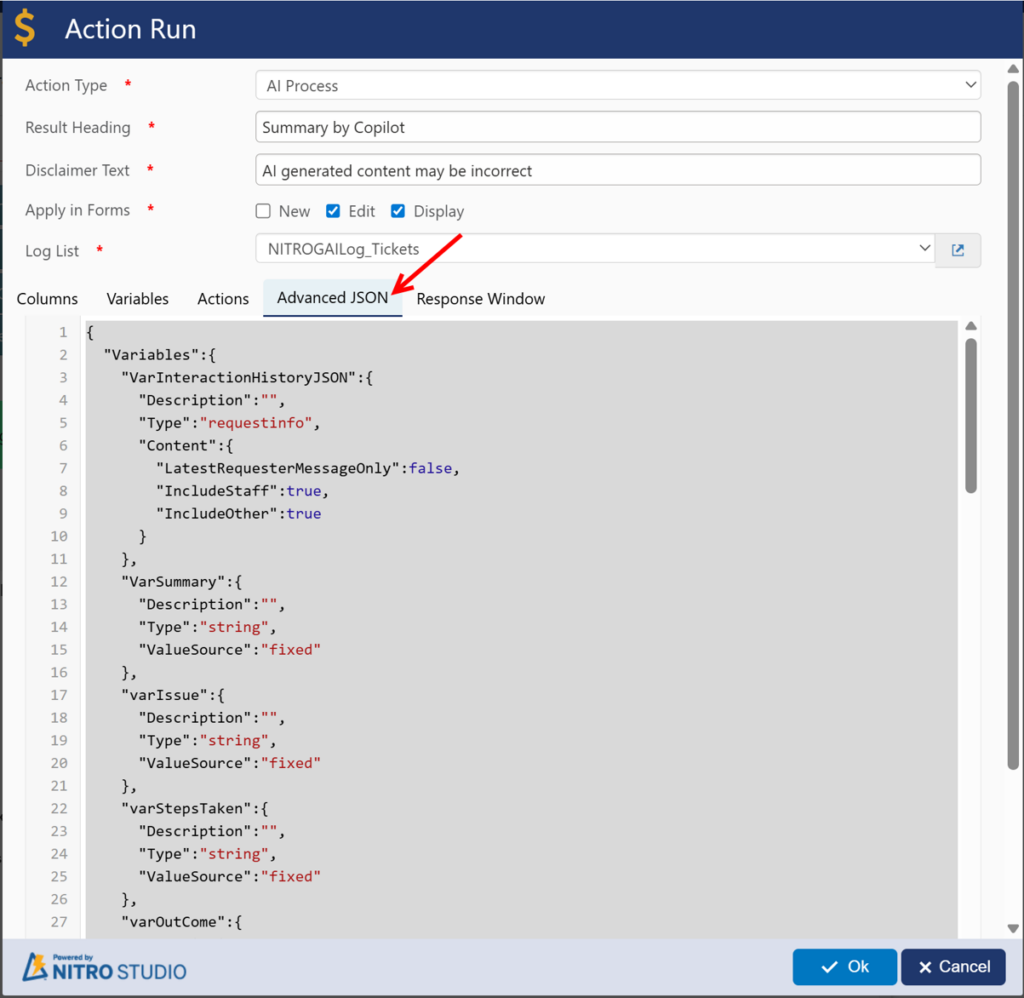
Advanced JSON used above:
{
  "Variables":{
    "VarInteractionHistoryJSON":{
      "Description":"",
      "Type":"requestinfo",
      "Content":{
        "LatestRequesterMessageOnly":false,
        "IncludeStaff":true,
        "IncludeOther":true
      }
    },
    "VarSummary":{
      "Description":"",
      "Type":"string",
      "ValueSource":"fixed"
    },
    "varIssue":{
      "Description":"",
      "Type":"string",
      "ValueSource":"fixed"
    },
    "varStepsTaken":{
      "Description":"",
      "Type":"string",
      "ValueSource":"fixed"
    },
    "varOutCome":{
      "Description":"",
      "Type":"string",
      "ValueSource":"fixed"
    },
    "varPendingActionsOnAgent":{
      "Description":"",
      "Type":"string",
      "ValueSource":"fixed"
    },
    "varWorkLog":{
      "Description":"",
      "Type":"string",
      "ValueSource":"column",
      "ColumnName":"WorkLog"
    }
  },
  "RequestSchema":{
    "Columns":{
      "WorkLogColumns":[
        "WorkLog",
        "WorkLogInternal"],
      "RequesterColumns":[
        "Requester",
        "RequesterEmail"],
      "StaffColumns":[
        "AssignedStaff"],
      "SubjectColumn":"Title",
      "DescriptionColumn":"Description1",
      "StartDateColumn":"Created"
    }
  },
  "ProgressDialogTitle":"Dialog Progress Title",
  "ProgressDialogBody":"<div style='padding:20px;text-align: center;'>Dialog Progress Body <img src='https://cdn.crowcanyon.com/images/progress.gif' /></div>",
  "StartAction":"Generate Ticket Summary",
  "Actions":[
    {
      "AIConnection":"Azure Open AI",
      "Messages":[
        {
          "Role":"system",
          "Content":"You are an assistant for IT Helpdesk staff users who work on end user issues. Generate a maximum of 500 word summary of the request submitted to the IT Help Desk system. This summary is for the staff so that they can quickly understand the user request and pending actions for them. Given below is full interaction history between user and the helpdesk agent so far in JSON format."
        },
        {
          "Role":"user",
          "Content":"Interaction History JSON: %%VarInteractionHistoryJSON%%"
        },
        {
          "Content":"Latest staff message: %%varWorkLog%%",
          "Role":"user"
        }],
      "OutputFormat":{
        "type":"json_schema",
        "json_schema":{
          "name":"summary_response",
          "strict":true,
          "schema":{
            "type":"object",
            "properties":{
              "Issue":{
                "type":"string",
                "description":"Describe issue that user is facing"
              },
              "StepsTaken":{
                "type":"string",
                "description":"Describe the steps taken so far to resolve the issue"
              },
              "Outcome":{
                "type":"string",
                "description":"Describe the current status of the Ticket"
              },
              "PendingActionsonAgent":{
                "type":"string",
                "description":"Describe if any actions need to taken by Agent"
              }
            },
            "required":[
              "Issue",
              "StepsTaken",
              "Outcome",
              "PendingActionsonAgent"],
            "additionalProperties":false
          }
        }
      },
      "OutputVariables":[
        {
          "Variable":"varIssue",
          "OutputKey":"Issue"
        },
        {
          "Variable":"varStepsTaken",
          "OutputKey":"StepsTaken"
        },
        {
          "Variable":"varOutCome",
          "OutputKey":"Outcome"
        },
        {
          "Variable":"varPendingActionsOnAgent",
          "OutputKey":"PendingActionsonAgent"
        }],
      "NextAction":"VarSummary",
      "ActionId":"Generate Ticket Summary",
      "Description":"",
      "Type":"aicompletion",
      "Conditions":{
        "condition":"AND",
        "rules":[
        ]
      }
    },
    {
      "Variables":{
        "VarSummary":"<div><h5>Issue:</h5></n>%%varIssue%%</n></n><h5>Steps Taken:</h5></n>%%varStepsTaken%%</n></n><h5>Outcome:</h5> </n> %%varOutCome%%</n></n><h5>Pending Actions on Agent:</h5></n>%%varPendingActionsOnAgent%%</div>"
      },
      "NextAction":"EndAction",
      "ActionId":"VarSummary",
      "Description":"",
      "Type":"setvariable",
      "Conditions":{
        "condition":"AND",
        "rules":[
        ]
      }
    }],
  "LogListName":"NITROCAAILog_Tickets",
  "LogListId":"041f9d7e-c2f0-44fb-b9e4-420121b63026"
}
6. Configure Response Window
The Response Window displays the AI-generated summary in the ticket form.
Example setting:
{
  "SetResponseColumns":{
  },
  "DisplayResponse":"%%VarSummary%%"
}
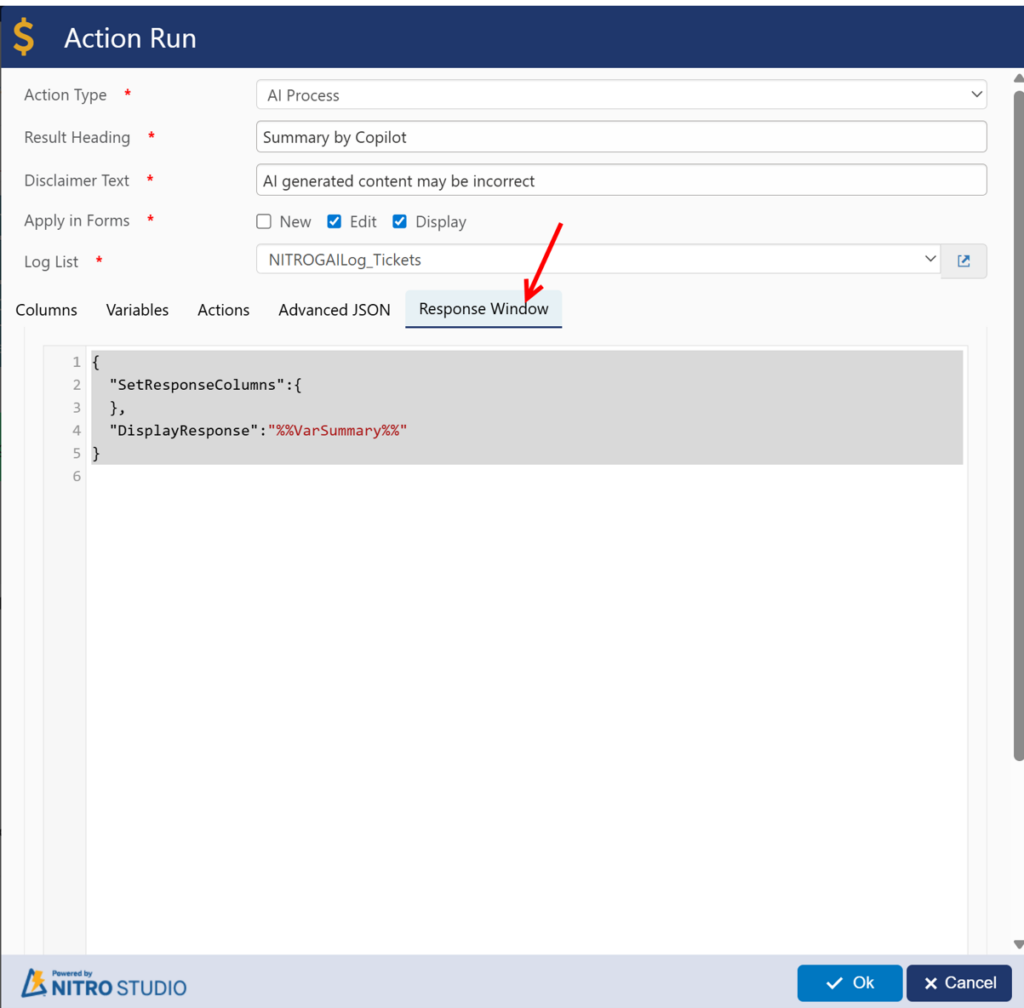
Similarly, you can configure any action using AI process as per requirement.
Example Output
Once configured, when a staff member clicks Summary by Copilot, the AI generates a structured summary:
Issue: Internet connection dropping frequently
Steps Taken: Restarted router, checked cables, escalated to ISP
Outcome: Waiting for ISP confirmation
Pending Actions on Agent: Follow up with ISP within 24 hours
This summary is displayed below the action button in the ticket form, helping staff quickly review ticket history and next steps.
Benefits
- Saves staff time by summarizing long conversations
- Provides structured insights (Issue, Steps, Outcome, Pending Actions)
- Reduces manual effort in reading and analyzing ticket logs
- Helps improve response efficiency and accuracy
