

Applies To: SharePoint Online and On-Premises
Description
An approval process is a defined workflow in which a request is submitted for review and is approved, denied, or sent back for changes by the appropriate person or group. Depending on the business requirement, a request may require a single approver, multiple approvers, sequential approvals, or parallel approvals.
NITRO Forms can be used to implement an approval process by providing the request form, action buttons, status tracking, and permissions. The approval logic can be configured using Form Event Actions, Custom Actions, and NITRO Workflows.
This article describes configuring an approval process using NITRO forms.
In this article, we have explained how to configure and implement the following approval scenarios using NITRO Forms.
- Single-Level Approval
- Sequential Approval
- Parallel Approval
We have used the same Requests list for all the scenarios.
Detailed steps
Single-Level Approval Process
- Submitter creates a request and enters all required information in the NITRO Form.
- Submitter can save the request as a draft or submit it for approval.
- When submitted, the request is routed to the Submitter’s Manager for approval.
- The Manager reviews the submitted request and can take one of the following actions:
- Approve: The request is approved, and the approval process is completed.
- Deny: The request is denied, and the approval process is completed.
- Send Back: The request is returned to the Submitter for corrections or additional information.
- On Send Back:
- Submitter reviews the Manager’s comments and updates the request.
- Submitter re-submits the request for approval.
- The request is routed back to the Manager for review.
- On Approve:
- The request status is updated to Approved.
- The Requestor can view the approved request.
- On Deny:
- The request status is updated to Denied
- The Requestor can view the denied request and any comments provided by the Manager.
Summary of steps:
- List Schema
- NITRO Forms Configuration
- Approval Process Configuration
- Notifications
- Single-Level Approval – Process Flow and Status Changes
List Schema
Create a SharePoint list named Requests with the columns:
| Column Display Name | Column Internal Name | Column Type | Purpose |
| Title | Title | Single line of text | Request title |
| Submitter | Submitter | Person or Group | Auto-populated based on the logged-in user |
| Manager | Manager | Person or Group | Auto-populated based on the selected Submitter’s manager |
| Request Description | RequestDescription | Multiple lines of text | Description of the request |
| Comments | Comments | Multiple lines of text | Comments provided when a request is denied or sent back |
| Process Log | ProcessLog | Multiple lines of text | Used for audit log during Request life cycle. |
| Status | Status | Choice: Options: Pending Submission Pending Manager Approval Approved Denied Sent Back | Used this column to track the Request approval |
| Approved On | ApprovedOn | Date and Time | Used to capture when the Request was approved |
| Submitted On | SubmittedOn | Date and time | Used to capture when the Request was submitted or re-submitted |
| Denied On | DeniedOn | Date and time | Used to capture when the Request was denied |
| Sent Back On | SentBackOn | Date and time | Used to capture when the Request was sent back |
| Submitted By | SubmittedBy | Single line of text | Used to capture the user who submitted or re-submitted the Request |
| Approved By | ApprovedBy | Single line of text | Used to capture the user who approved the Request |
| Denied By | DeniedBy | Single line of text | Used to capture the user who denied the Request |
| Sent Back By | SentBackBy | Single line of text | Used to capture the user who sent the Request back |
NITRO Forms Configuration
- Configure NITRO forms with all the above columns.
Navigate to List -> List Settings -> Crow Canyon NITRO Forms -> Add Columns.
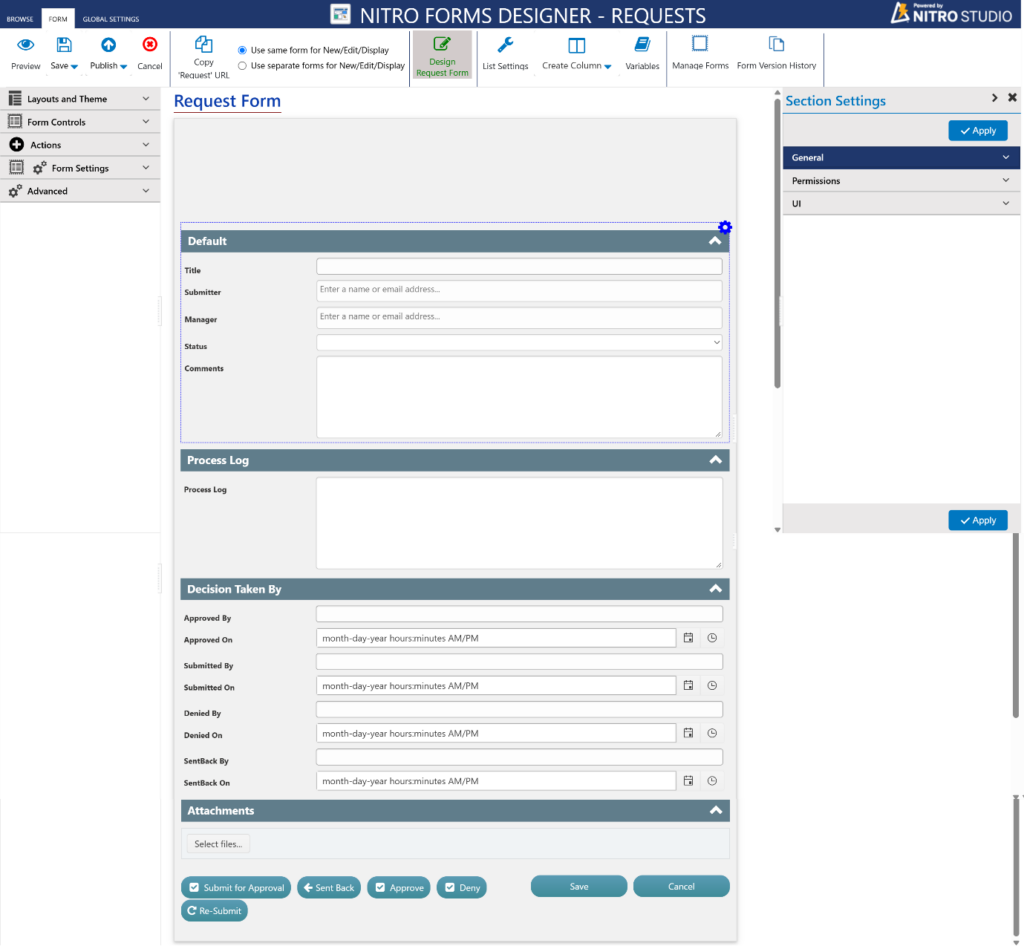
Form Configurations:
- Configure auto-fill user information settings to auto-populate “Submitter” and “Manager” columns.
- Submitter will be auto-populated based on the logged-in user, and Manager is auto-populated with the Submitter’s manager.
To configure Auto-Fill, navigate to NITRO Forms Settings → Auto Fill User Information from the left panel.
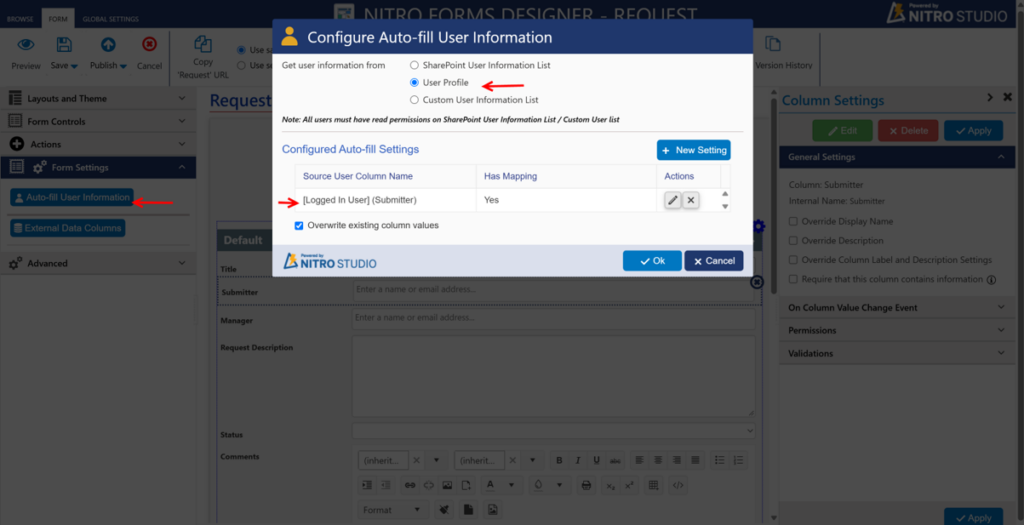
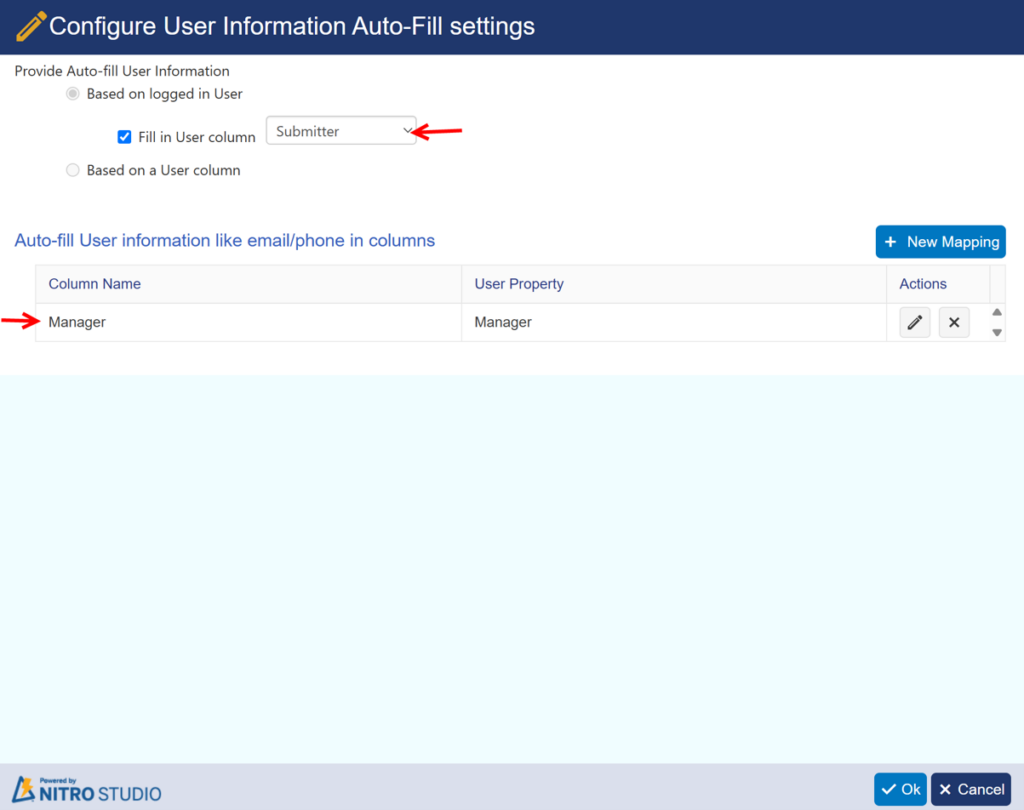
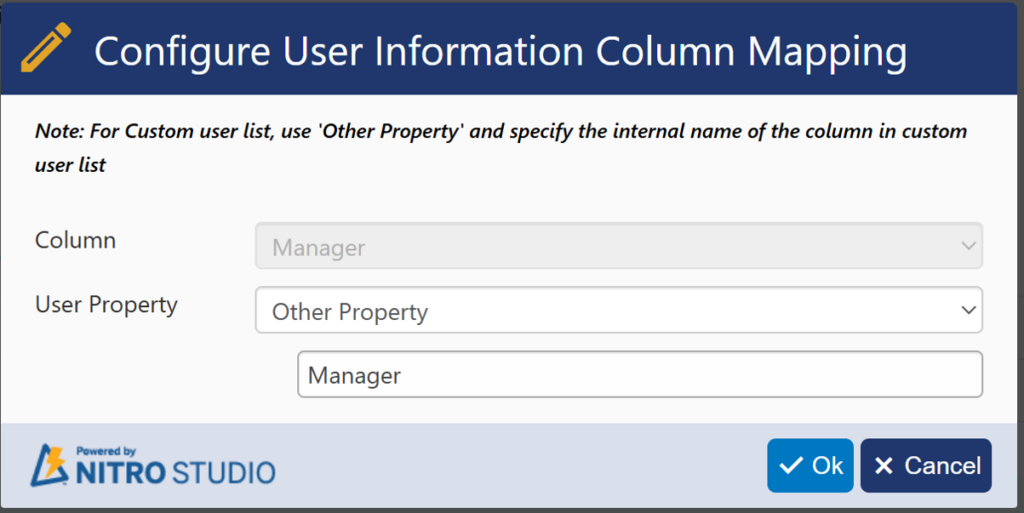
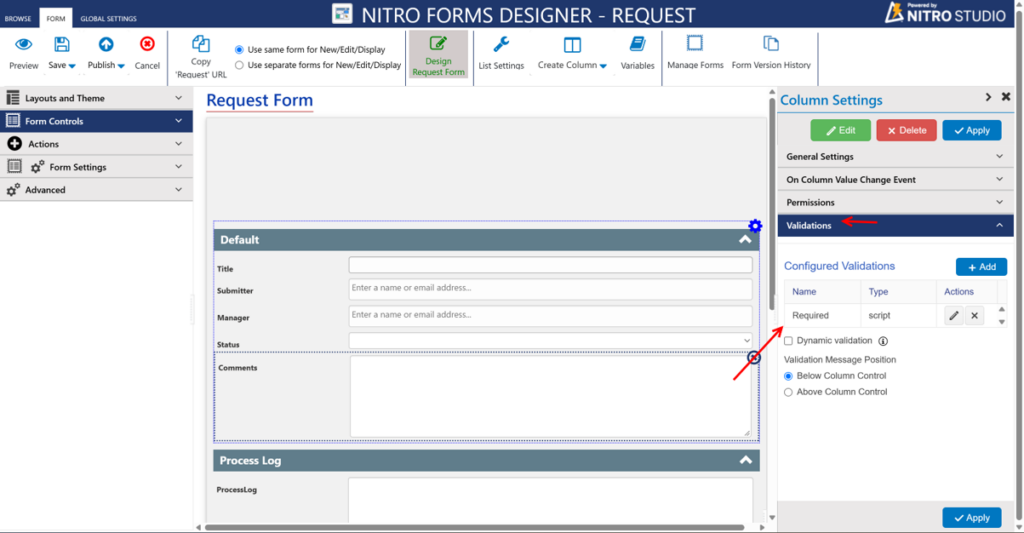
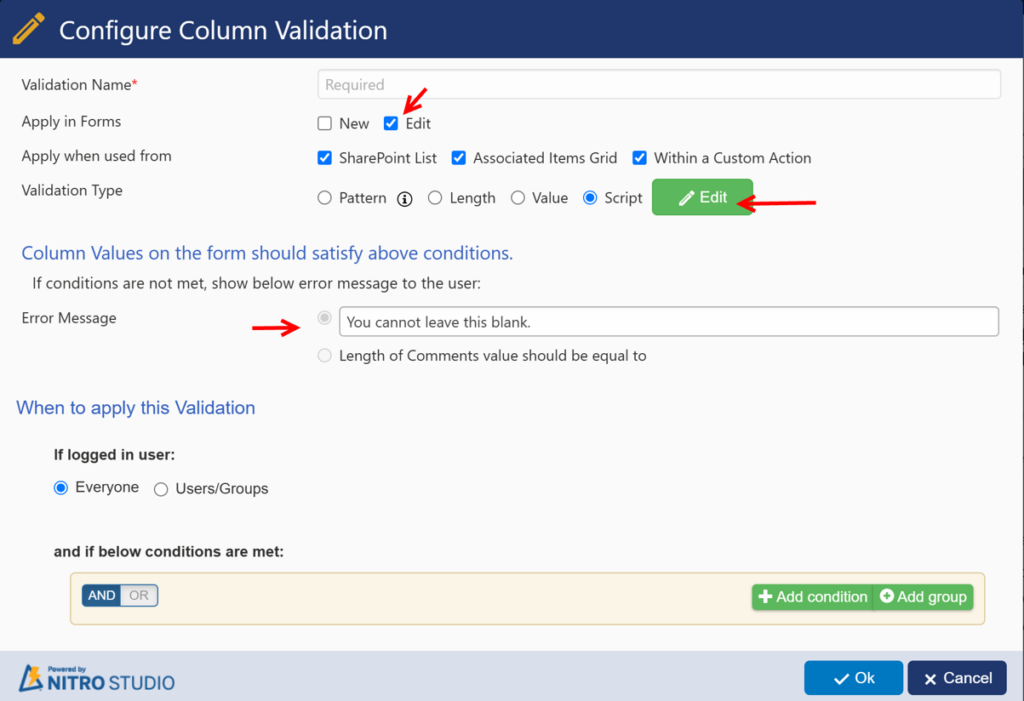
3. Configure column validation on the “Comments” column. Comments are required when a Request is Sent Back or Denied
To configure Comments Validation: Click the Comments column, then in the right panel, select Validation → Add.
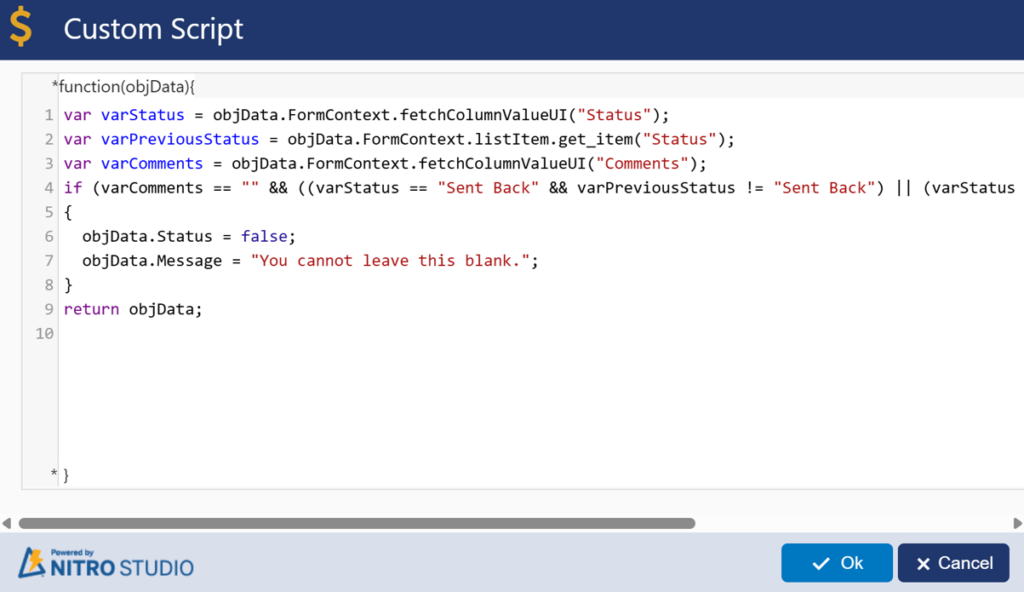
Script Used for Comments Column:
var varStatus = objData.FormContext.fetchColumnValueUI("Status");
var varPreviousStatus = objData.FormContext.listItem.get_item("Status");
var varComments = objData.FormContext.fetchColumnValueUI("Comments");
if (varComments == "" &&((varStatus == "Sent Back" && varPreviousStatus != "Sent Back") ||(varStatus == "Denied" && varPreviousStatus != "Denied")))
{
    objData.Status = false;
    objData.Message = "You cannot leave this blank.";
}
return objData;
| Script Element | Purpose |
| varStatus | Gets the current Status selected on the form |
| varPreviousStatus | Gets the Status saved in the Request item |
| varComments | Gets the Comments entered by the user |
| objData.Status = false | Prevents the form from being saved |
| objData.Message | Displays the validation message |
4. Column Permissions
- Configure column permissions on “Submitted By” and “Submitted On” based on the Request status.
- Hide for all
- Read when status is not equal to “Pending Submission”
Hide permission:
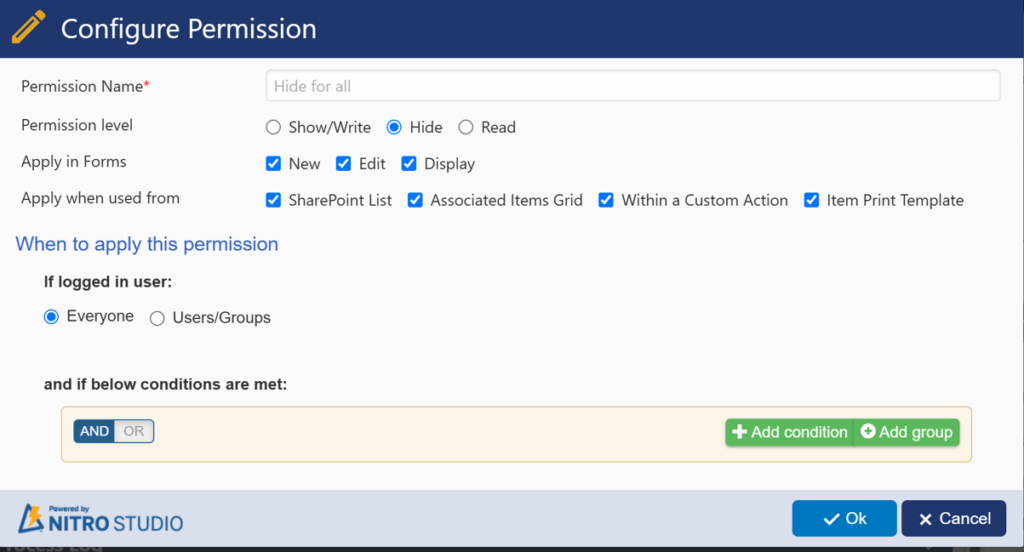
Read Permission:
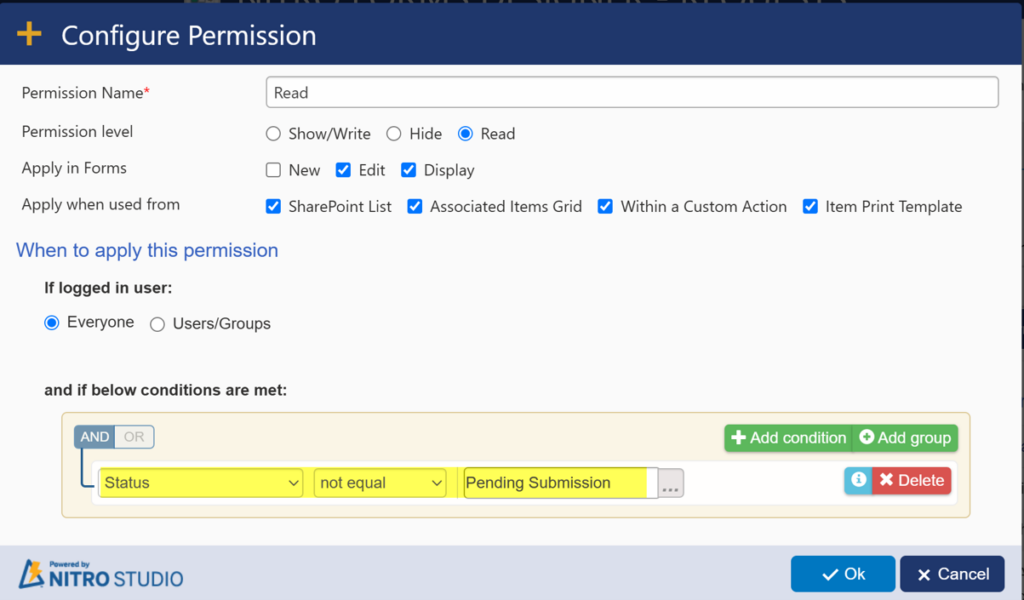
- Similarly, configure permissions on “Approved By” and “Approved On”
- Hide for all
- Read when status is “Approved”
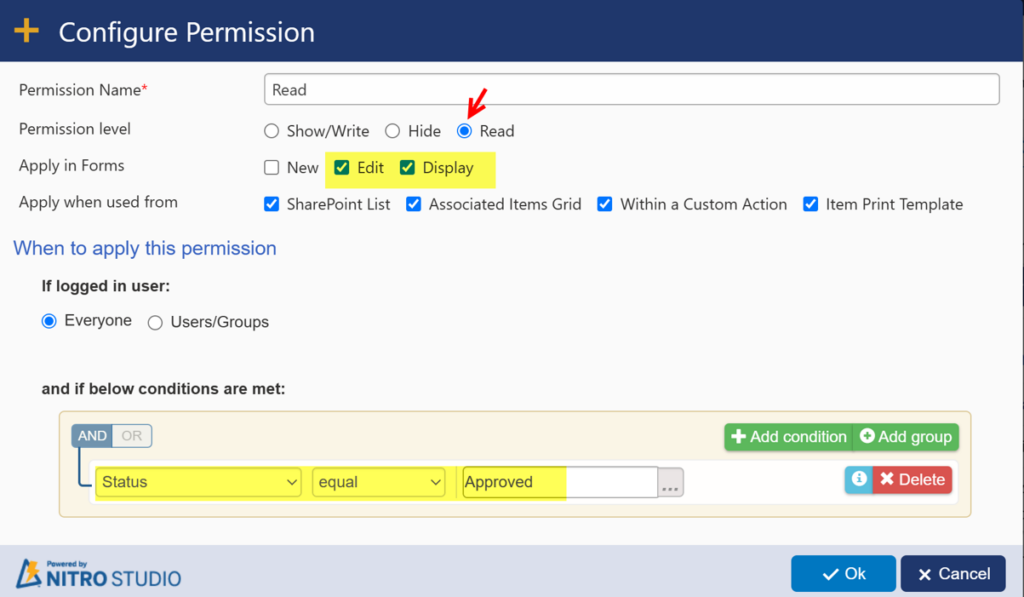
- Denied By and Denied On
- Hide for all
- Read when status is “Denied”
- SentBack By and SentBack On
- Hide for all
- Read when status is “Sent Back”
Approval Process Configuration
The approval process is configured using submit action buttons in NITRO forms. We can drag and drop the submit action buttons on the form.
Below, we have described the action buttons and the script used to update the status of the request.
Action Button: Save
- This is the default save button on the form. This will save the Item in the Requests list.
Action Button: Submit for Approval
- This action button will set the status to “Pending Manager Approval”
- Updates the Process Log
- Captures the “Submitted By” and “Submitted On”
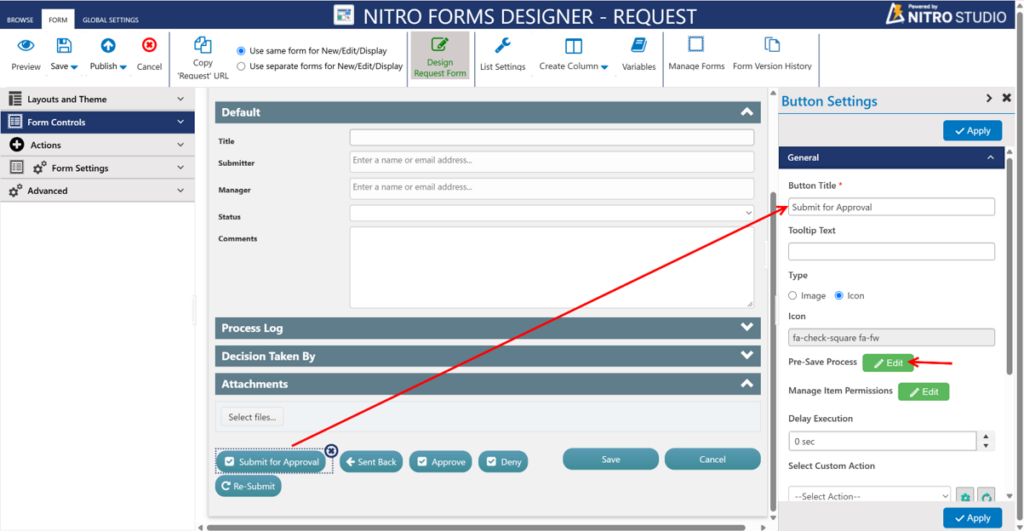
Click “Edit” button in Pre-Save Process and put the given script:
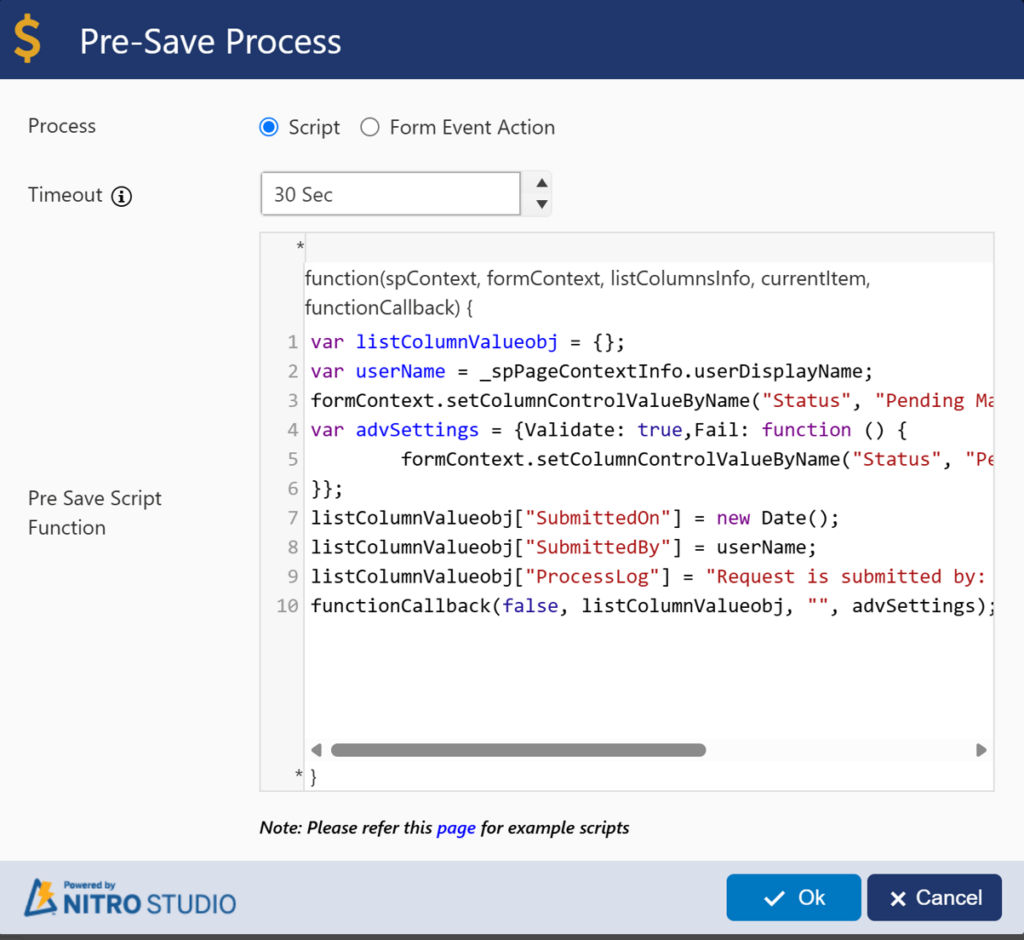
Script used:
var listColumnValueobj = {};
var userName = _spPageContextInfo.userDisplayName;
formContext.setColumnControlValueByName("Status", "Pending Manager Approval");
var advSettings = {Validate: true,Fail: function () {
        formContext.setColumnControlValueByName("Status", "Pending Submission");
}};
listColumnValueobj["SubmittedOn"] = new Date();
listColumnValueobj["SubmittedBy"] = userName;
listColumnValueobj["ProcessLog"] = "Request is submitted by: " + userName + " for Manager approval";
functionCallback(false, listColumnValueobj, "", advSettings);
Script Explanation:
| Script | Description |
| _spPageContextInfo.userDisplayName | Gets the name of the current logged-in user. |
| setColumnControlValueByName(“Status”, “Pending Manager Approval”) | Sets the Request Status to Pending Manager Approval on the form control |
| SubmittedOn | Captures the current date and time when the Request is submitted |
| SubmittedBy | Captures the current user’s display name when Request is submitted |
| ProcessLog | Captures the process log for audit |
| var advSettings | This would reset the status column value on form control to “Pending Submission” if any validation failed. |
| functionCallback(…) | Saves the configured list values and executes the configured validation behaviour. |
Permissions:
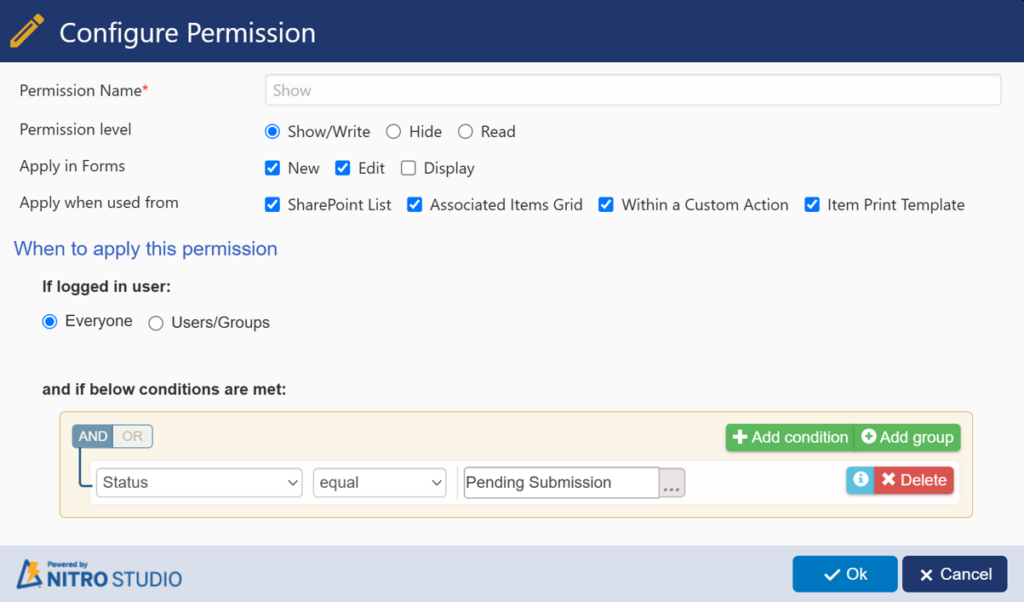
Configure permissions to show this action button only when status is “Pending Submission”
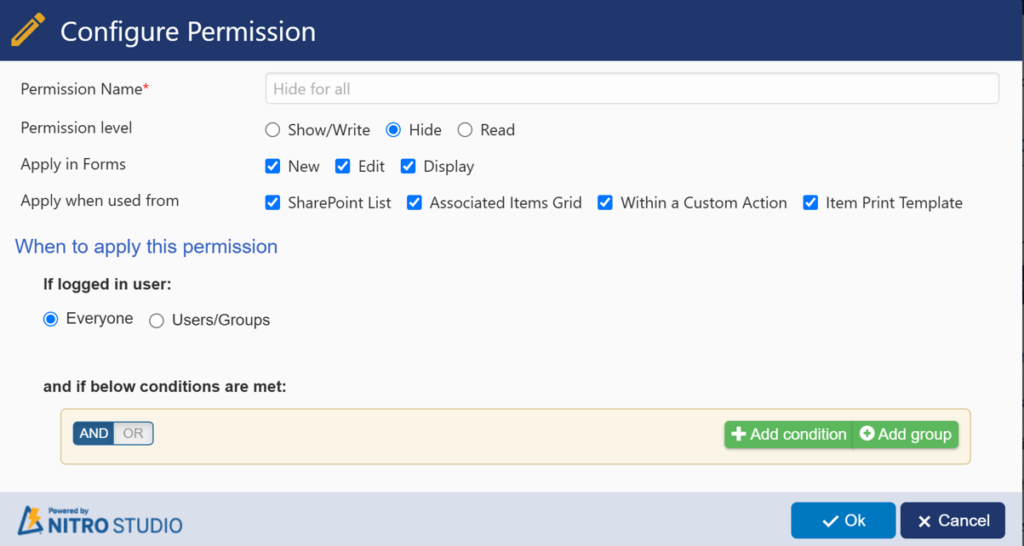
- Hide for all
- Show when status is equal to “Pending Submission” in new and edit forms.
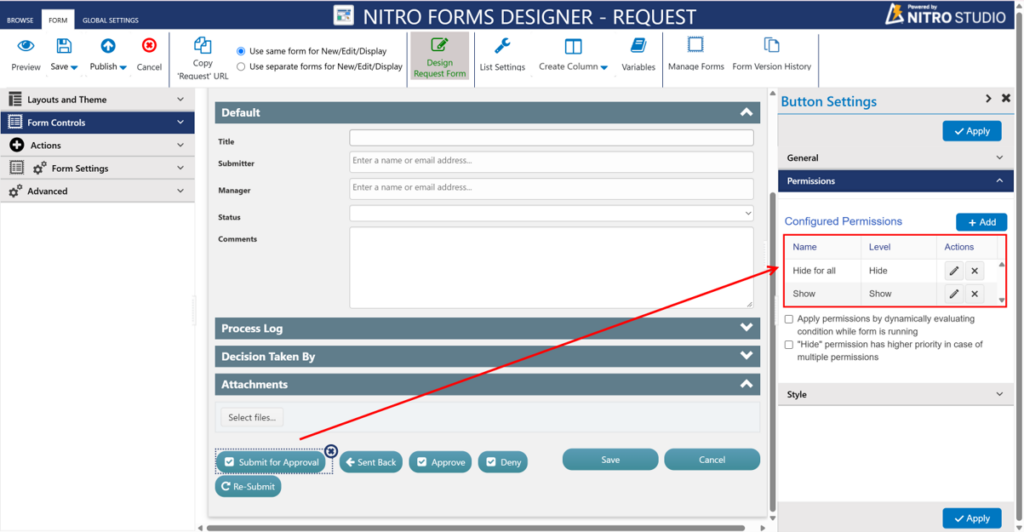
Hide for all:
Note: Configure this permission for all action buttons in the same way as shown below.
Show:
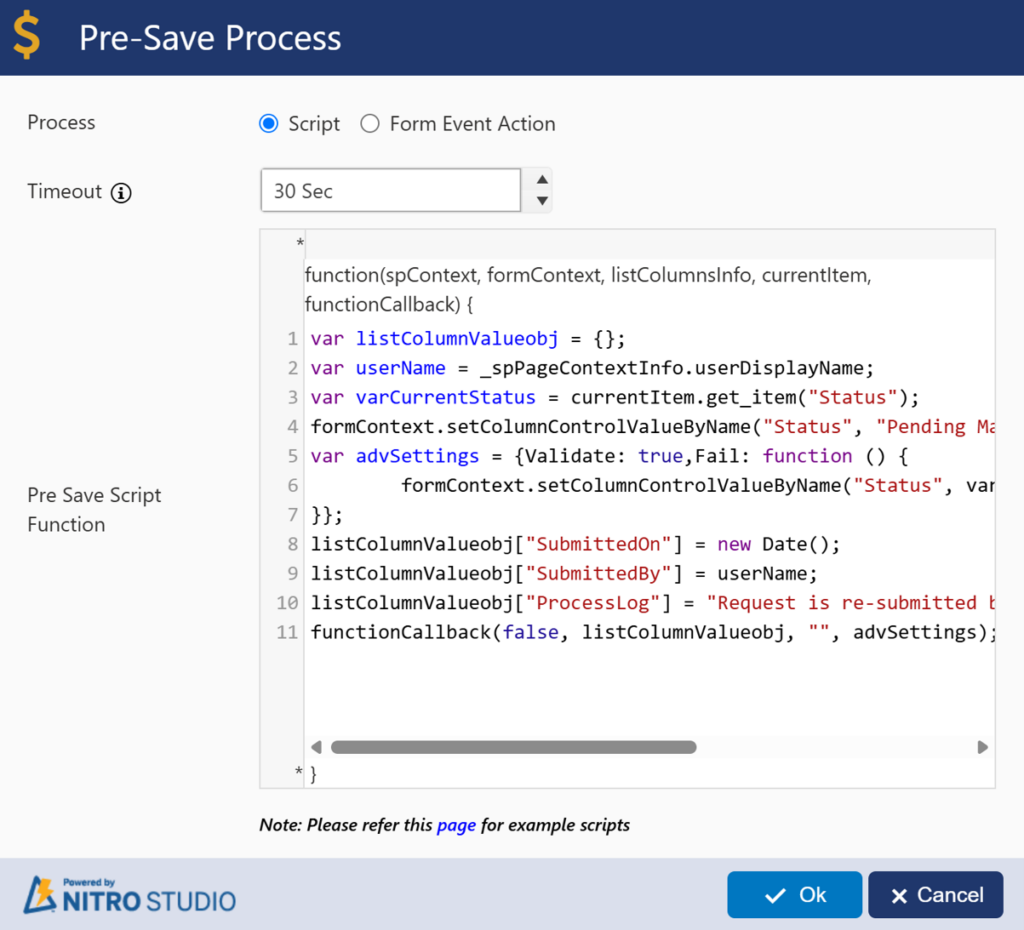
Action Button: Re-Submit
- This action button will be shown to “Submitter” in the edit form when the Request status is “Sent Back”
- This button will set the Status to “Pending Manager Approval”
- A notification will be sent to the Manager for their approval
- Configure the action button permissions like the “Submit for Approval” button.
Script used:
var listColumnValueobj = {};
var userName = _spPageContextInfo.userDisplayName;
var varCurrentStatus = currentItem.get_item("Status");
formContext.setColumnControlValueByName("Status", "Pending Manager Approval");
var advSettings = {Validate: true,Fail: function () {
        formContext.setColumnControlValueByName("Status", varCurrentStatus);
}};
listColumnValueobj["SubmittedOn"] = new Date();
listColumnValueobj["SubmittedBy"] = userName;
listColumnValueobj["ProcessLog"] = "Request is re-submitted by: " + userName + " for Manager approval";
functionCallback(false, listColumnValueobj, "", advSettings);
Action Button: Approve
- This action button will be shown to the Manager when status is “Pending Manager Approval”
- This will set the Request status to “Approved”
- Updates the Process Log
- Captures the approver details like Approved By and Approved On
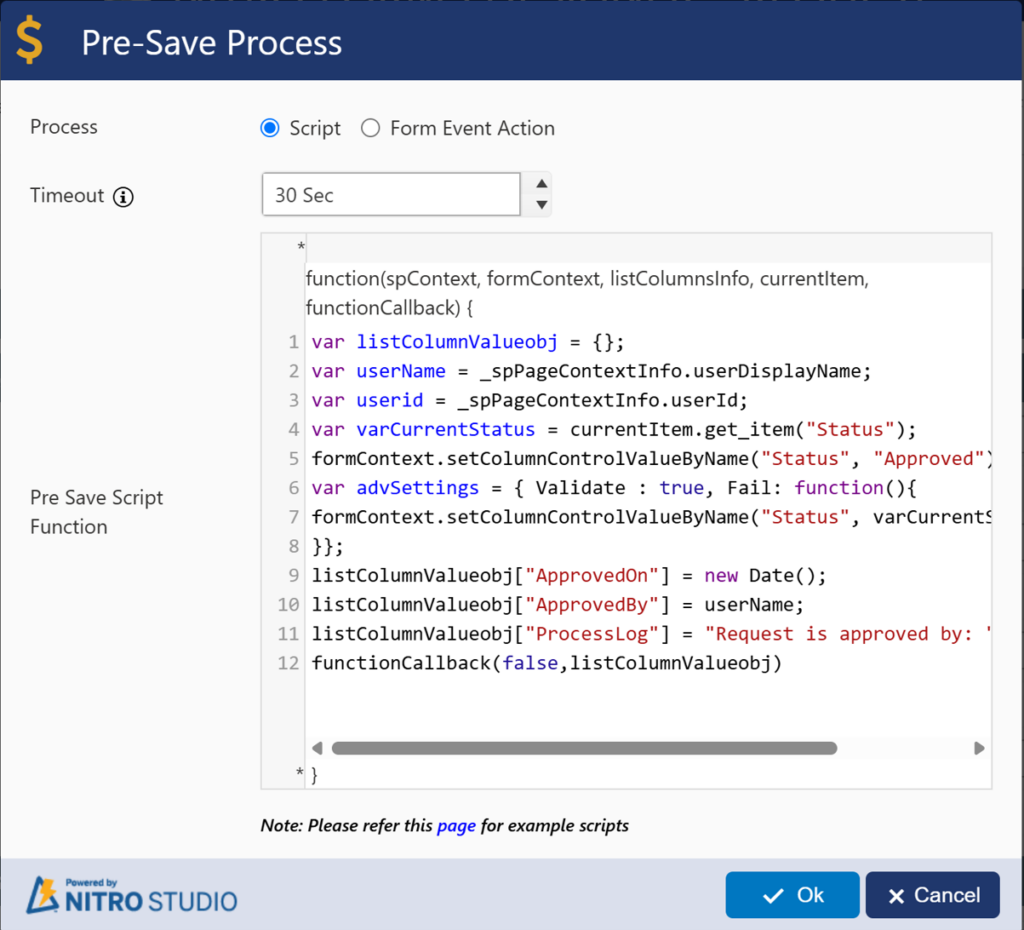
Script used:
var listColumnValueobj = {};
var userName = _spPageContextInfo.userDisplayName;
var userid = _spPageContextInfo.userId;
var varCurrentStatus = currentItem.get_item("Status");
formContext.setColumnControlValueByName("Status", "Approved");
var advSettings = { Validate : true, Fail: function(){
formContext.setColumnControlValueByName("Status", varCurrentStatus);
}};
listColumnValueobj["ApprovedOn"] = new Date();
listColumnValueobj["ApprovedBy"] = userName;
listColumnValueobj["ProcessLog"] = "Request is approved by: " + userName;
functionCallback(false,listColumnValueobj)
Script Explanation
| Script | Description |
| userDisplayName | Gets the name of the user performing the approval. |
| currentItem.get_item(“Status”) | Gets the current Status of Request from the Item |
| setColumnControlValueByName(“Status”, “Approved”) | Set the Status column to Approved on the form control |
| ApprovedOn = new Date() | Captures the date and time of approval. |
| ApprovedBy = userName | Captures the person who approved the Request. |
| ProcessLog | Records the approval action. |
| functionCallback(false, listColumnValueobj) | Saves the updated approval information. |
Permissions:
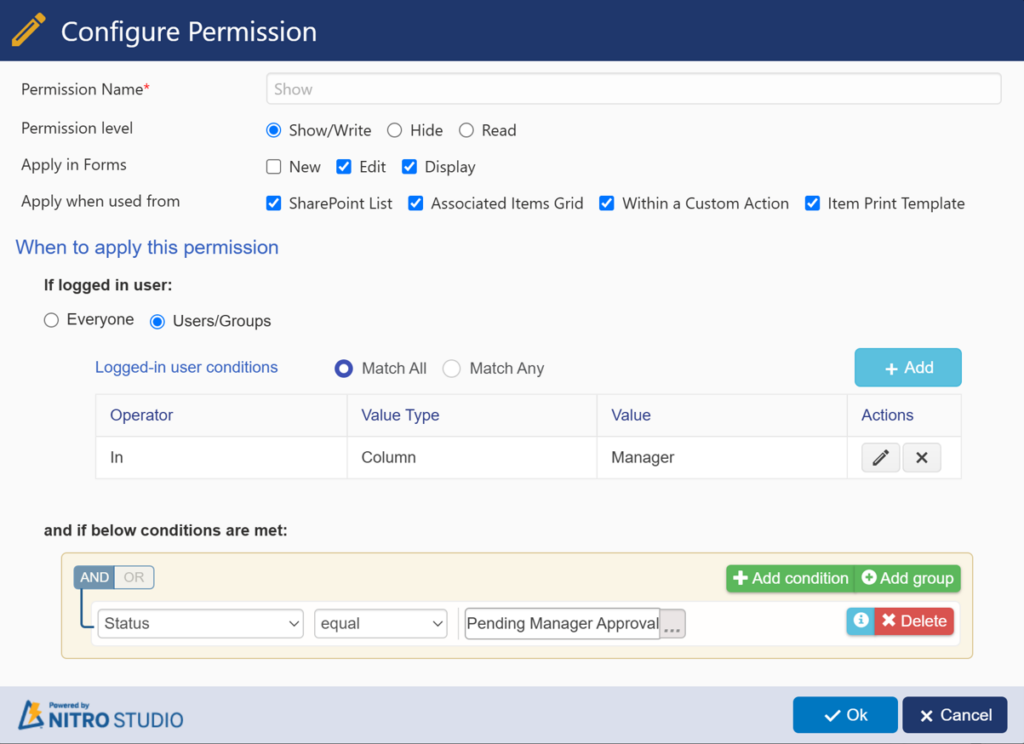
Configure the action button permissions as shown below:
- Hide for all
- Show to Manager when Status is “Pending Manager Approval”
Show Permission:
Action Button: Deny
- This action button will be shown to the Manager when status is “Pending Manager Approval”
- This will set the Request status to “Denied”. This is the terminal state of the Request.
- Captures the approver details like Denied By and Denied On
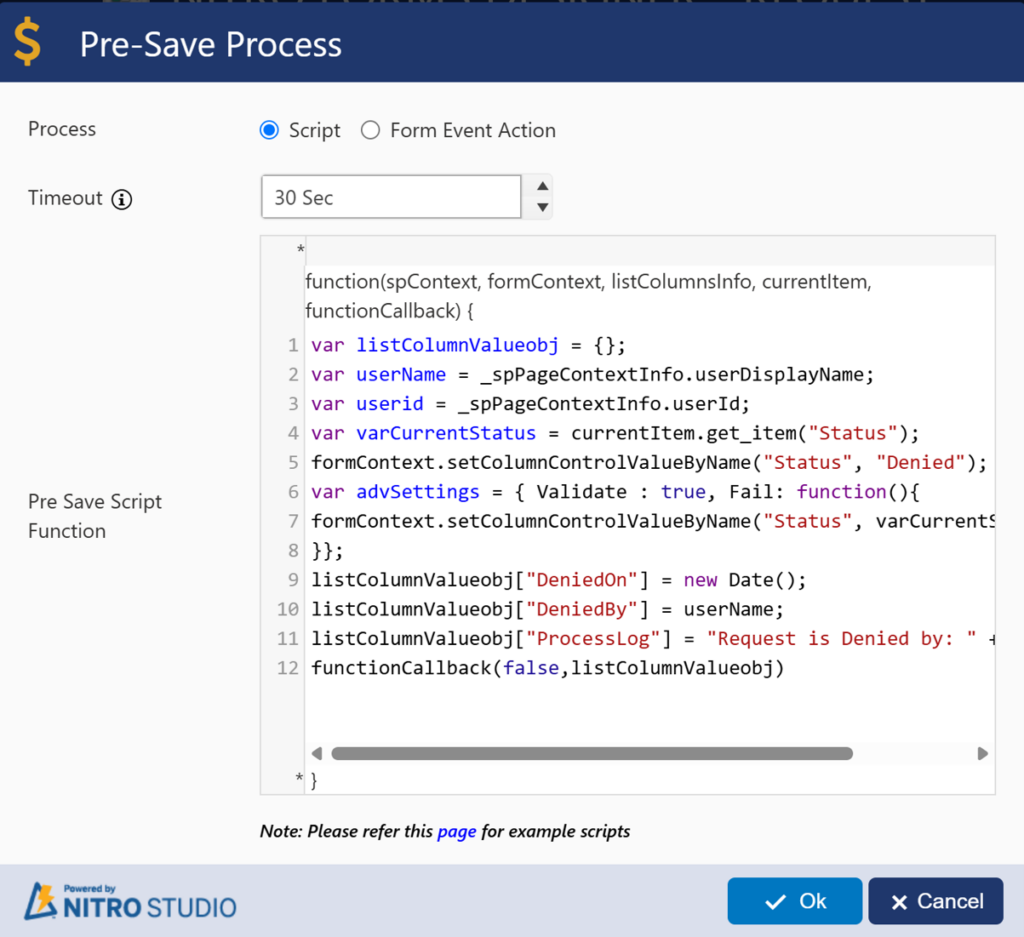
Script used:
var listColumnValueobj = {};
var userName = _spPageContextInfo.userDisplayName;
var userid = _spPageContextInfo.userId;
var varCurrentStatus = currentItem.get_item("Status");
formContext.setColumnControlValueByName("Status", "Denied");
var advSettings = { Validate : true, Fail: function(){
formContext.setColumnControlValueByName("Status", varCurrentStatus);
}};
listColumnValueobj["DeniedOn"] = new Date();
listColumnValueobj["DeniedBy"] = userName;
listColumnValueobj["ProcessLog"] = "Request is Denied by: " + userName;
functionCallback(false,listColumnValueobj)
Action Button: Sent Back
- This action button will be shown to the Manager when status is “Pending Manager Approval”
- This will set the Request status to “Sent Back”. This is the terminal state of the Request.
- Captures the approver details like Sent Back By and Sent Back On
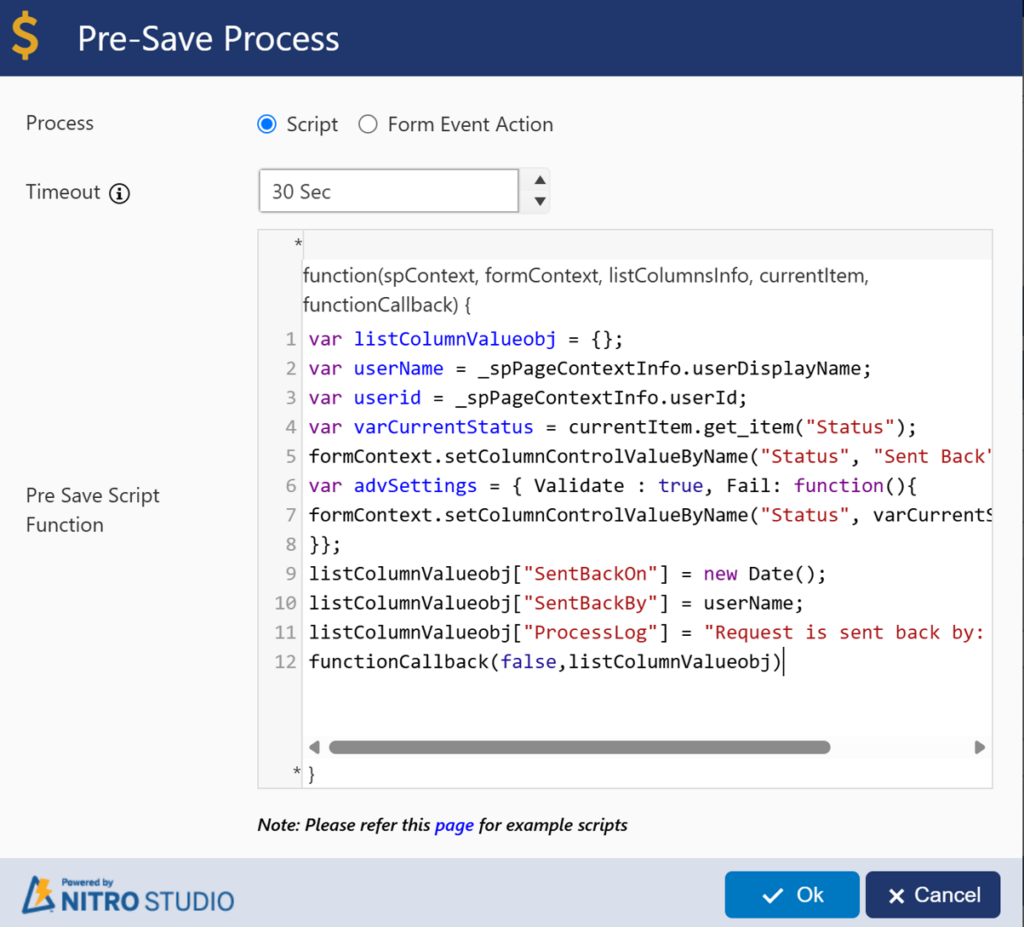
Script used:
var listColumnValueobj = {};
var userName = _spPageContextInfo.userDisplayName;
var userid = _spPageContextInfo.userId;
var varCurrentStatus = currentItem.get_item(“Status”);
formContext.setColumnControlValueByName(“Status”, “Sent Back”);
var advSettings = { Validate : true, Fail: function(){
formContext.setColumnControlValueByName(“Status”, varCurrentStatus);
}};
listColumnValueobj[“SentBackOn”] = new Date();
listColumnValueobj[“SentBackBy”] = userName;
listColumnValueobj[“ProcessLog”] = “Request is sent back by: ” + userName; functionCallback(false,listColumnValueobj)
Notifications
Configure email notifications using NITRO Workflows:
- Workflow 1: Notify Manager when Request is submitted
- Workflow 2: Approval Notifications Workflow 2: Approval Notifications
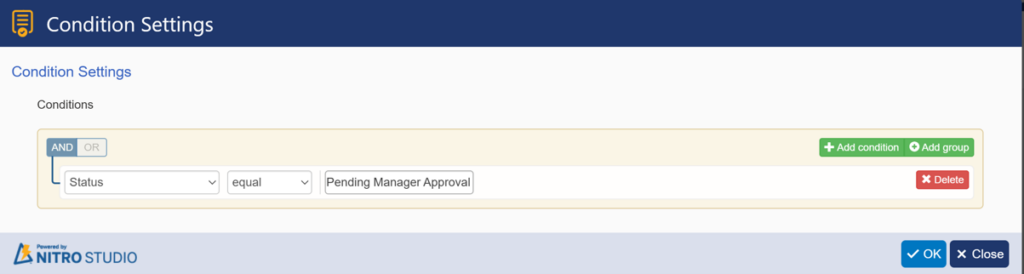
Workflow 1: Notify Manager when Request is submitted
Configure this workflow on the Requests list with the Item Created event.
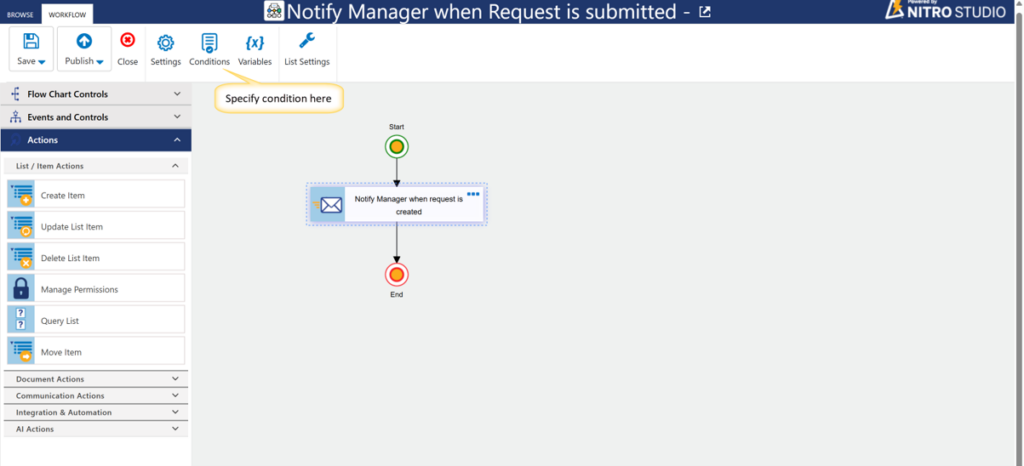
Condition:
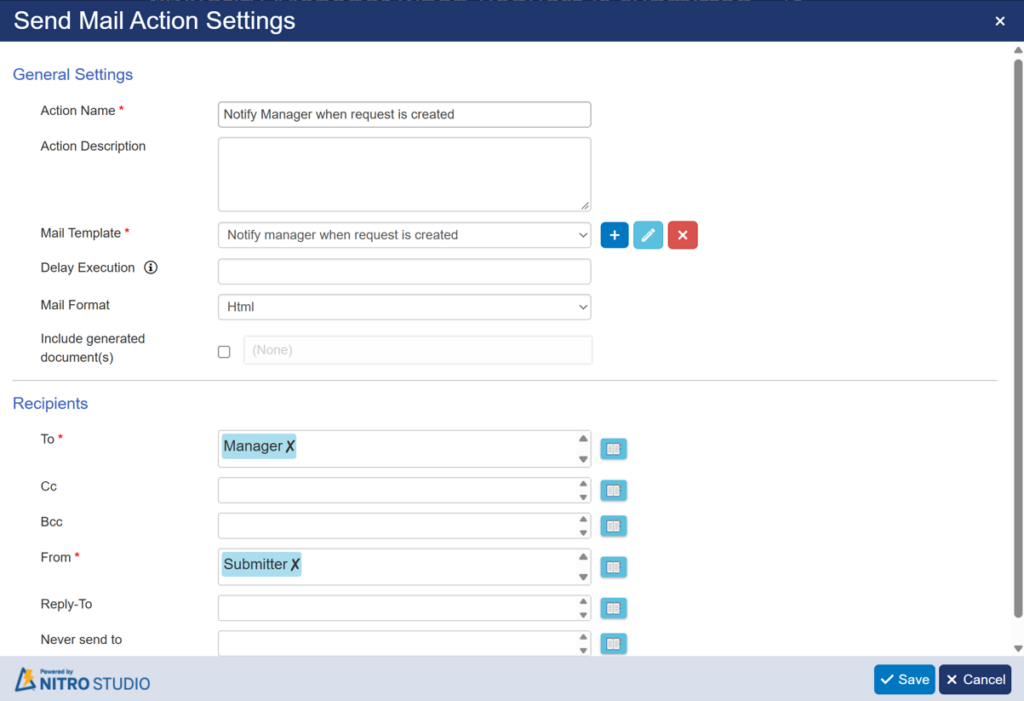
Mail Template:
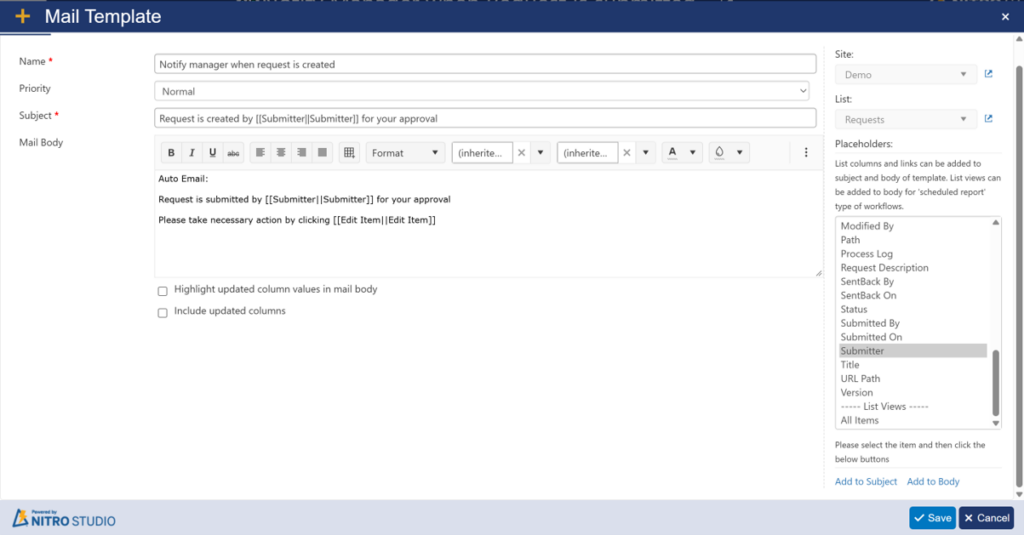
You can change the mail body as per your requirements.
Workflow 2: Approval Notifications
Configure this workflow on the Requests list with the Item Updated event.
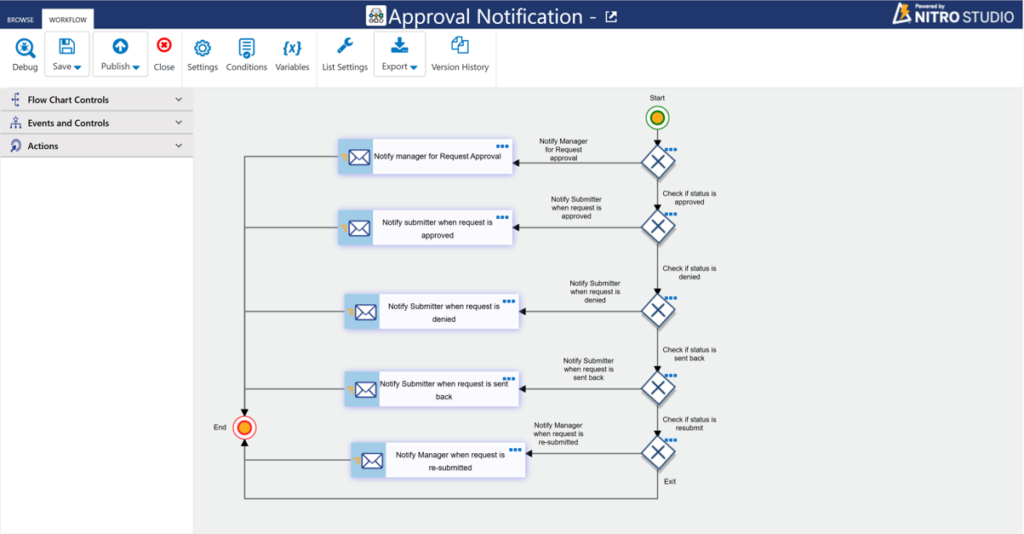
This workflow will send notifications in all scenarios:
Notifications:
| Scenario | Recipient | Conditions in Gateway |
| Request is submitted for Manager approval | Manager | Status = afterchange:Pending Manager Approval |
| Manager approved the Request | Submitter | Status = afterchange:Approved |
| Manager denied the Request | Submitter | Status = afterchange:Denied |
| Manager sent back the Request for modification | Submitter | Status = afterchange:Sent Back |
| Request is re-submitted for Manager approval from Sent Back | Manager | Notify Manager that the request has been resubmitted |
Manager Approval Notification
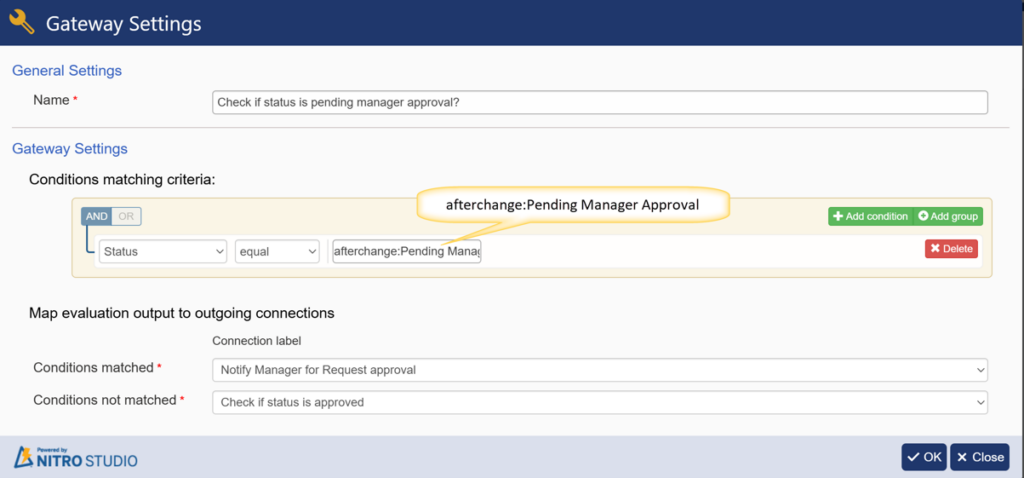
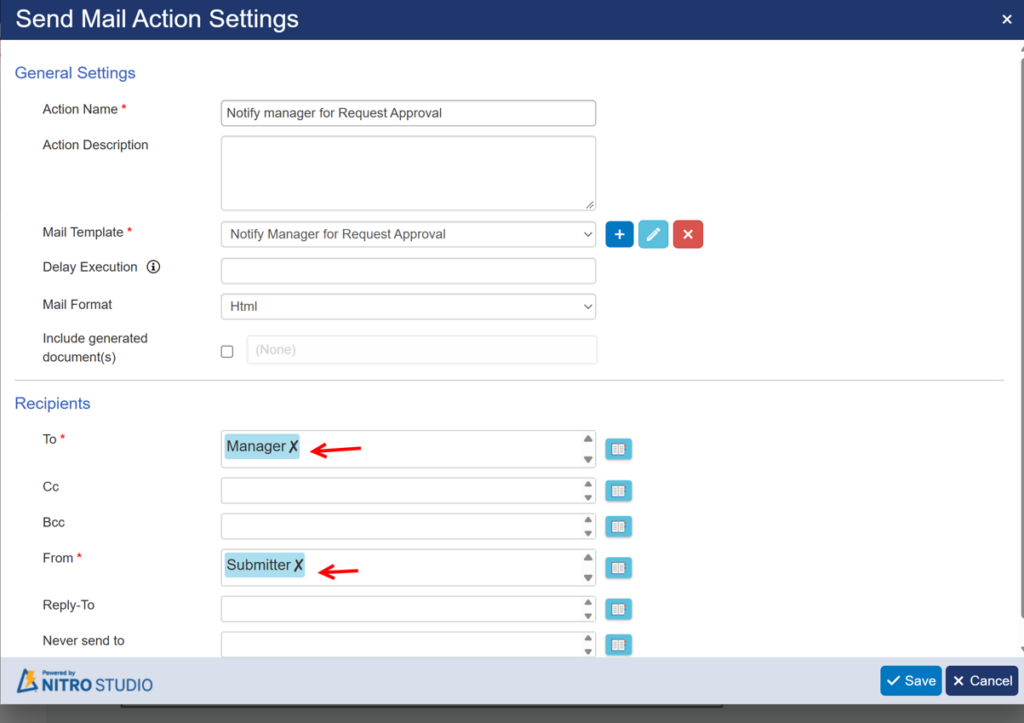
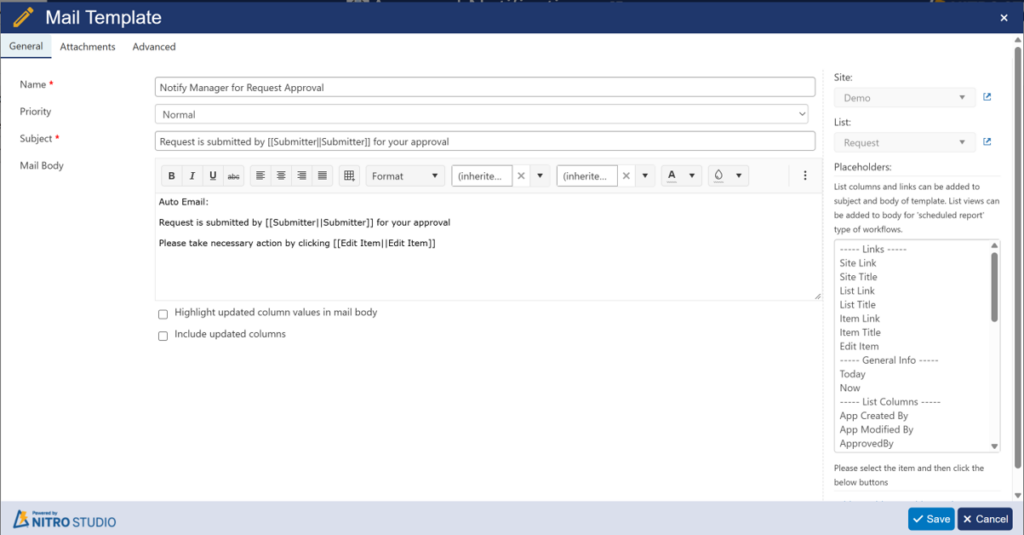
You can change the mail body as per your requirements.
Sample Output:
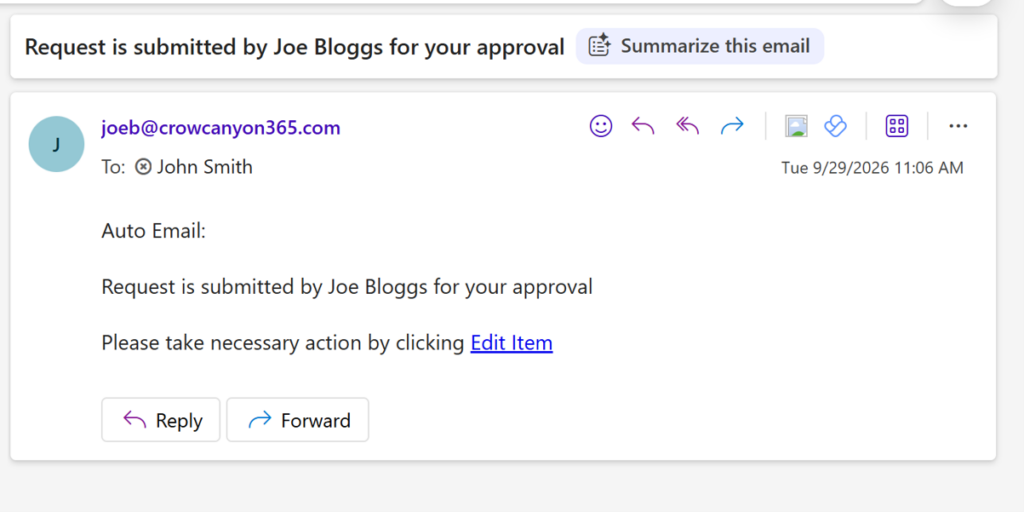
Approved Notification
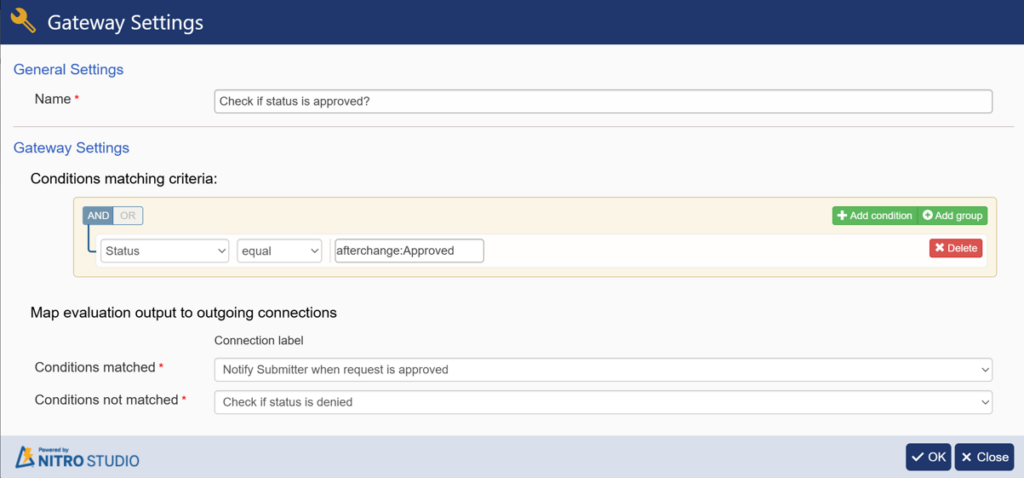
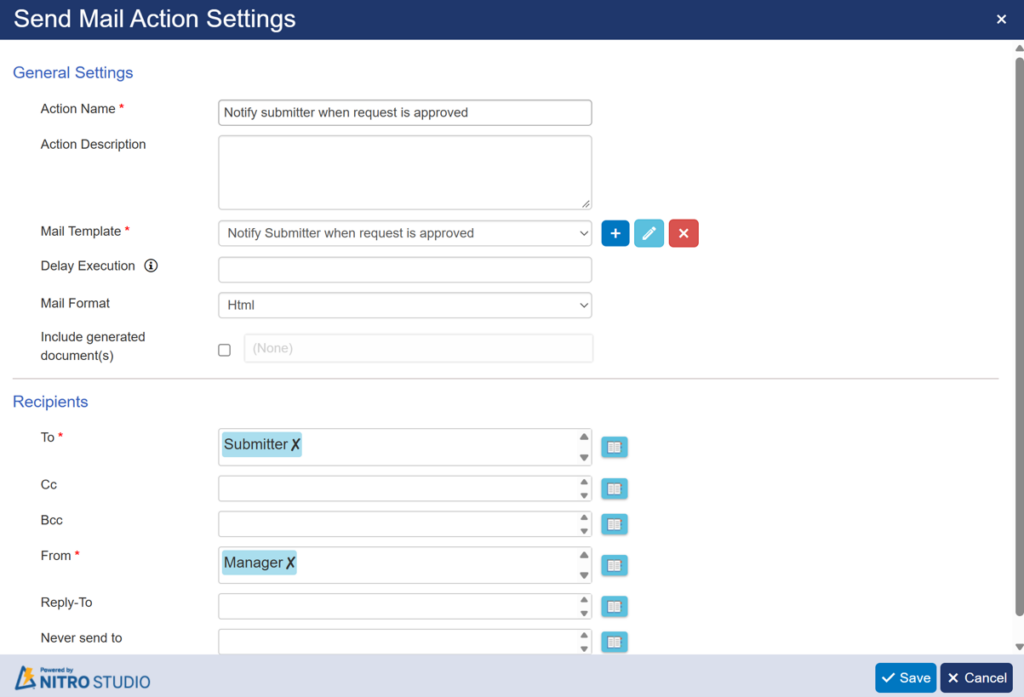
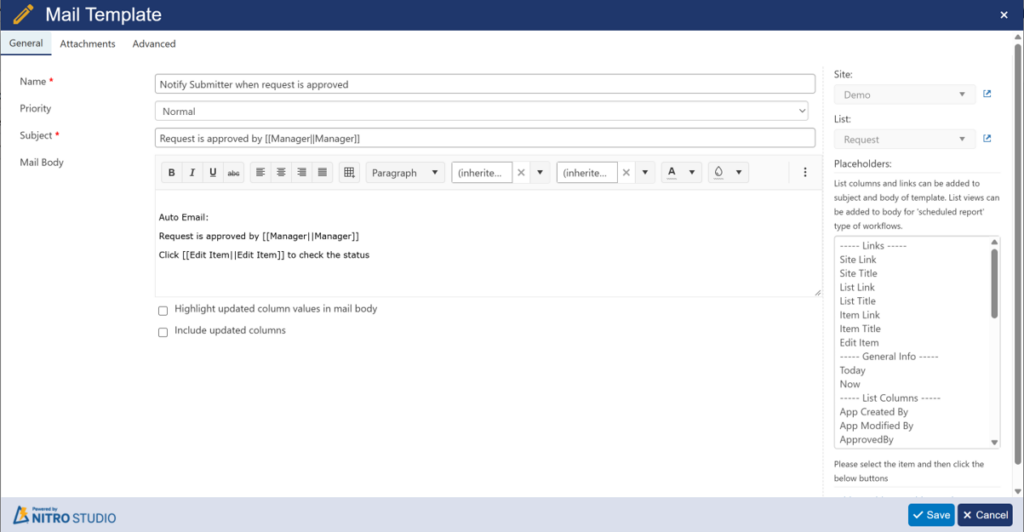
Similarly, you can configure Denied / Sent Back/ Re-Submit Notifications.
Single-Level Approval – Process Flow and Status Changes (Sample Output)
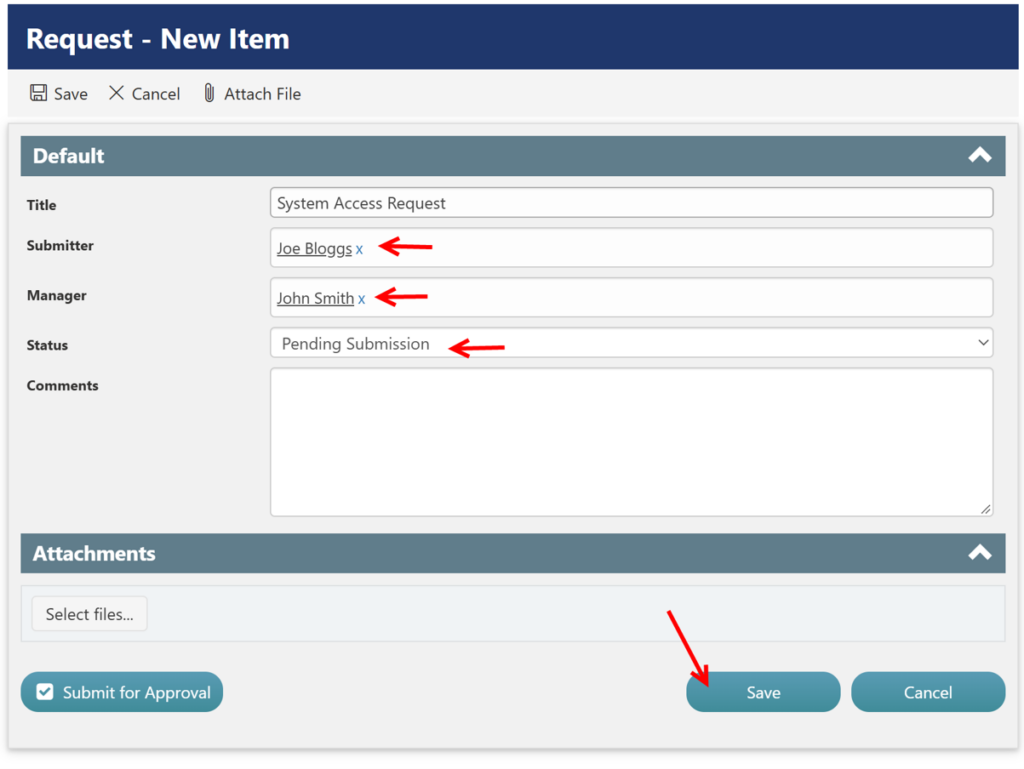
Step 1 – Create Request
Submitter creates and saves the request. Status: Pending Submission
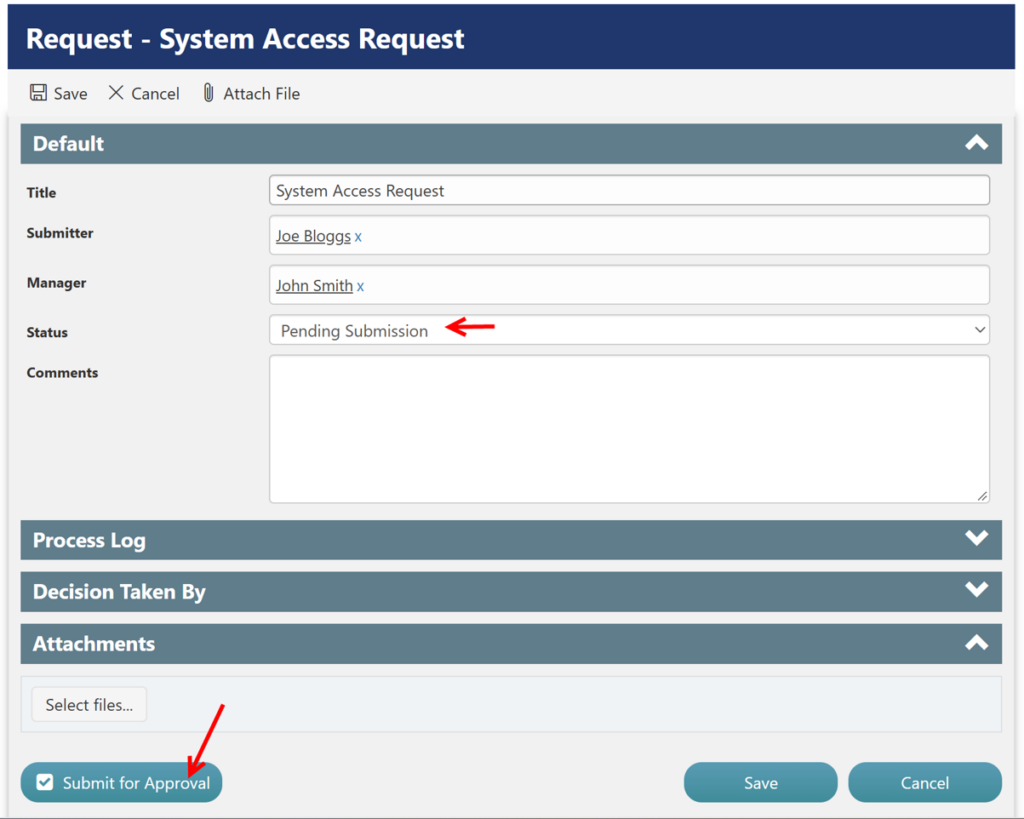
Step 2 – Submit Request
Submitter submits the request for Manager approval. Status: Pending Manager Approval
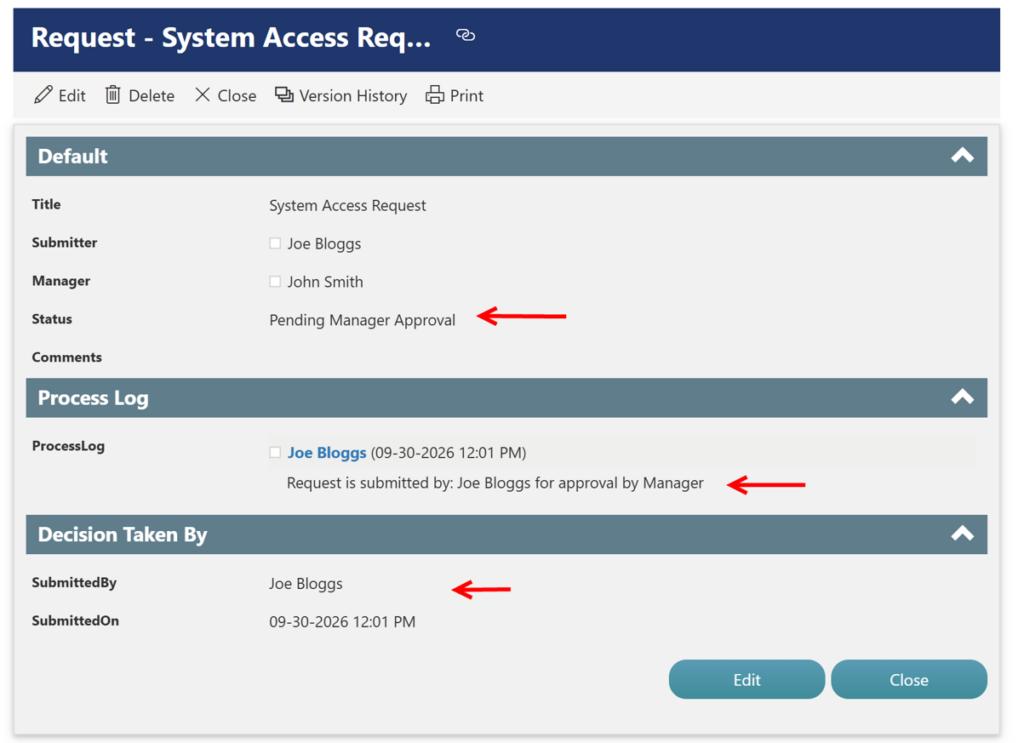
Step 3 – Manager Approval
Manager receives the notification and reviews the request. Status: Pending Manager Approval
Step 4 – Approval Decision
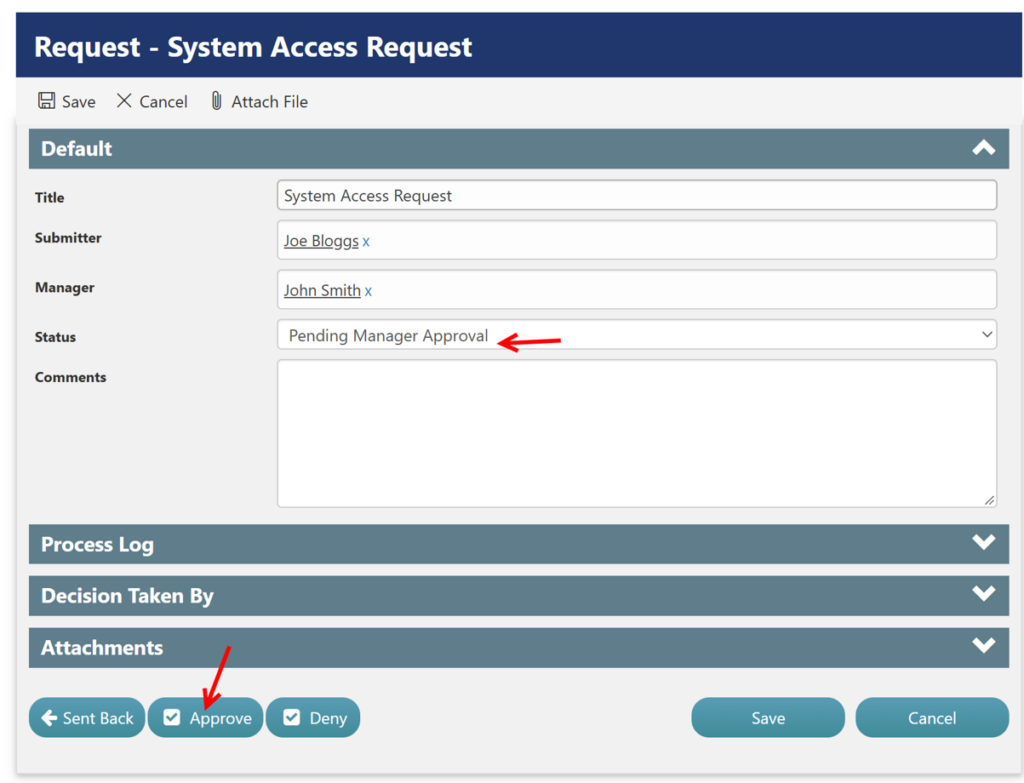
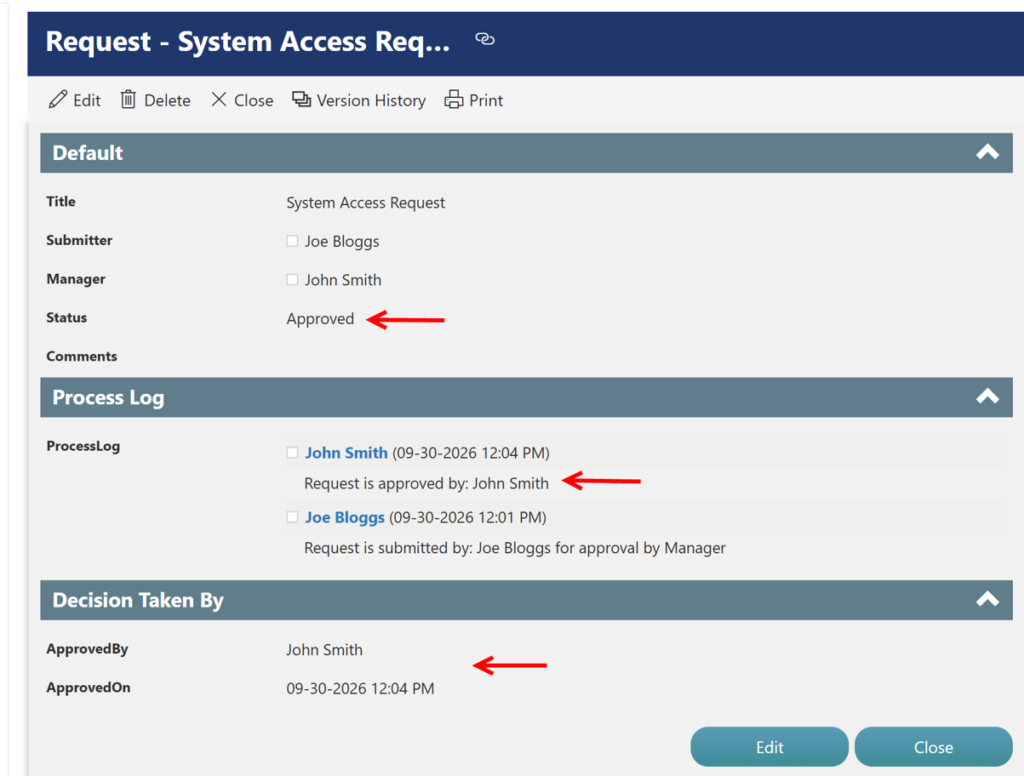
Manager selects Approve, Deny, or Send Back.
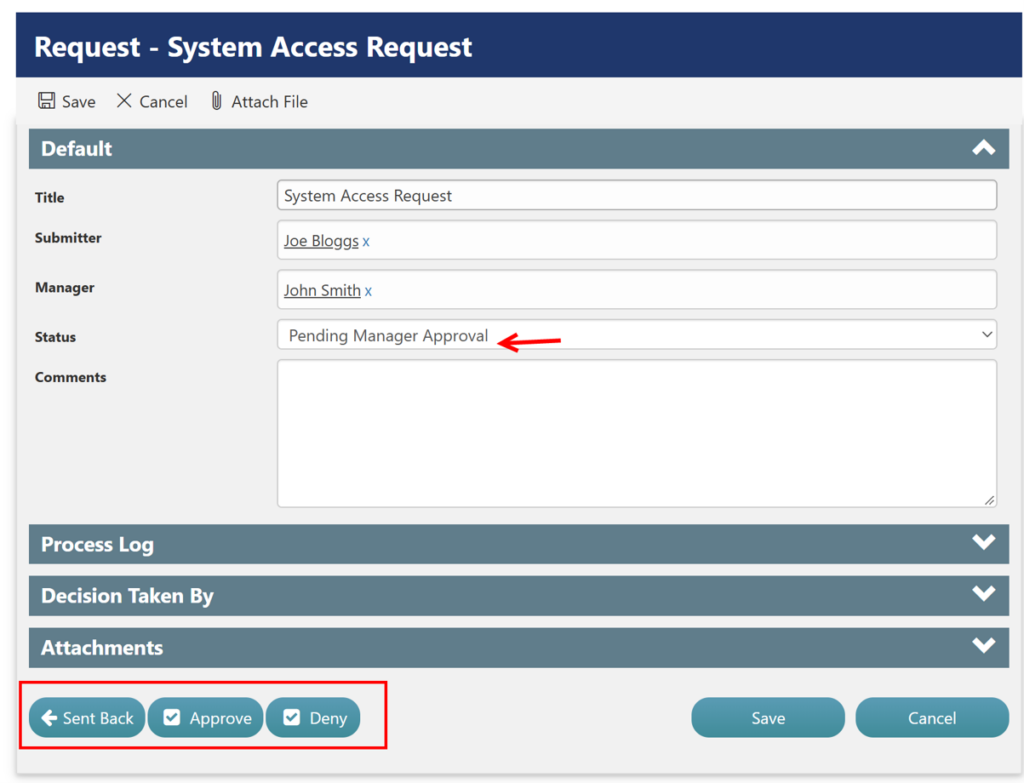
Approve → Status: Approved
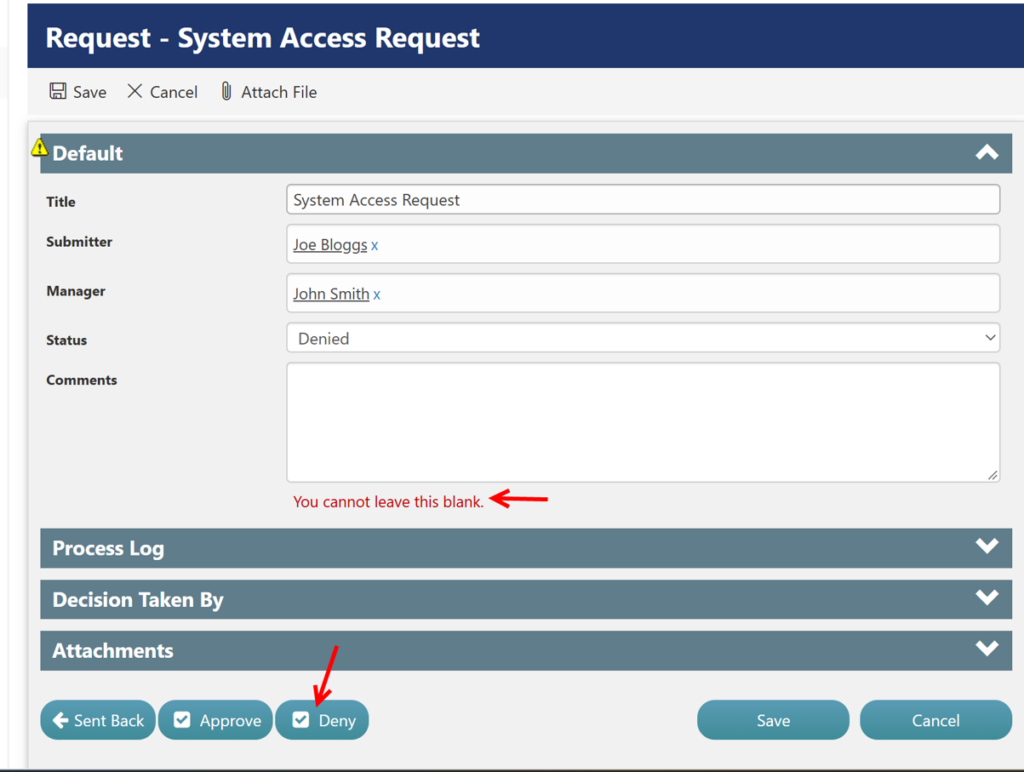
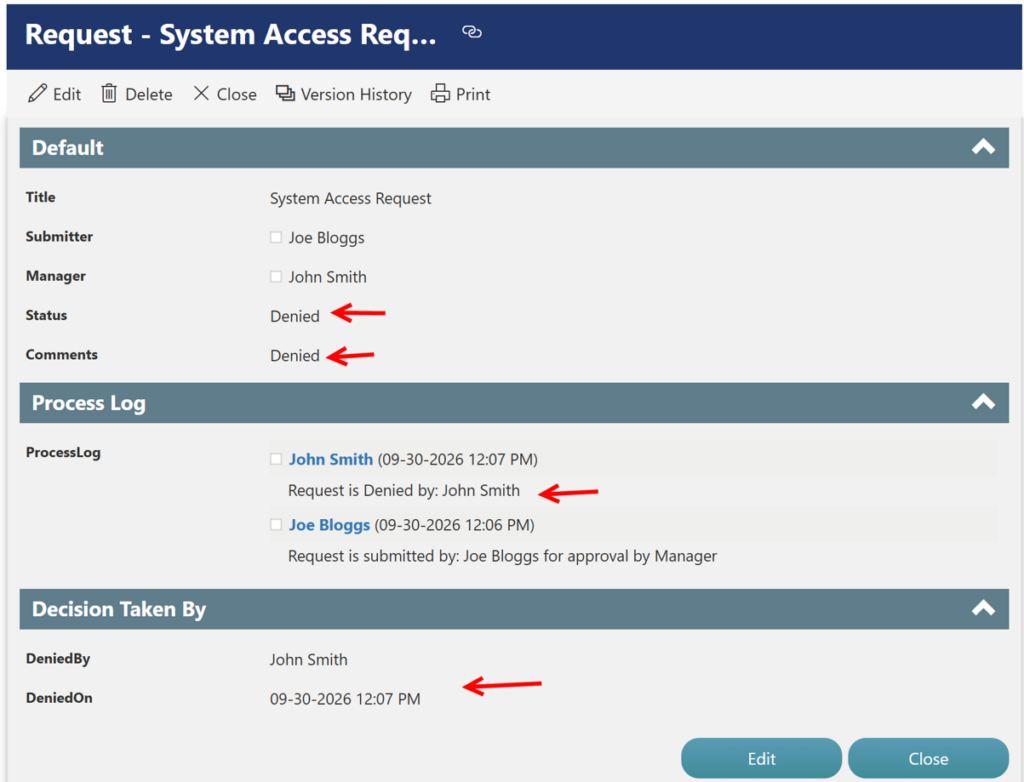
Deny → Status: Denied
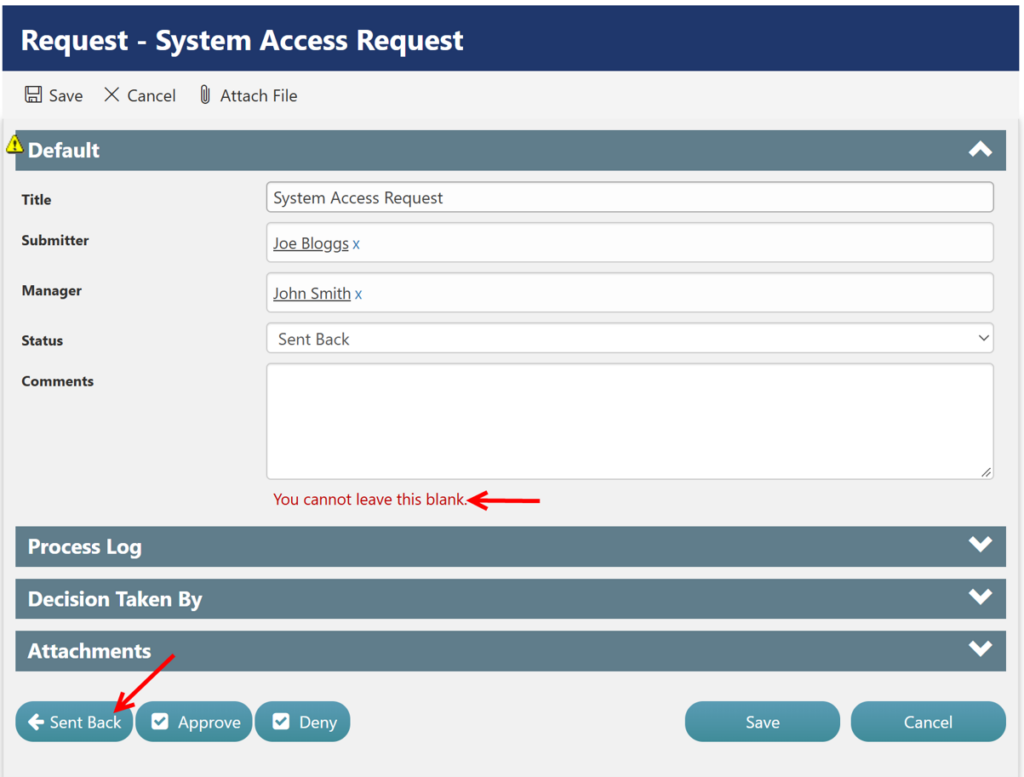
You cannot leave the comments blank if you are denying the request
Send Back → Status: Sent Back → Submitter Resubmits → Status: Pending Manager Approval
You cannot leave the comments blank if you are sending back the request
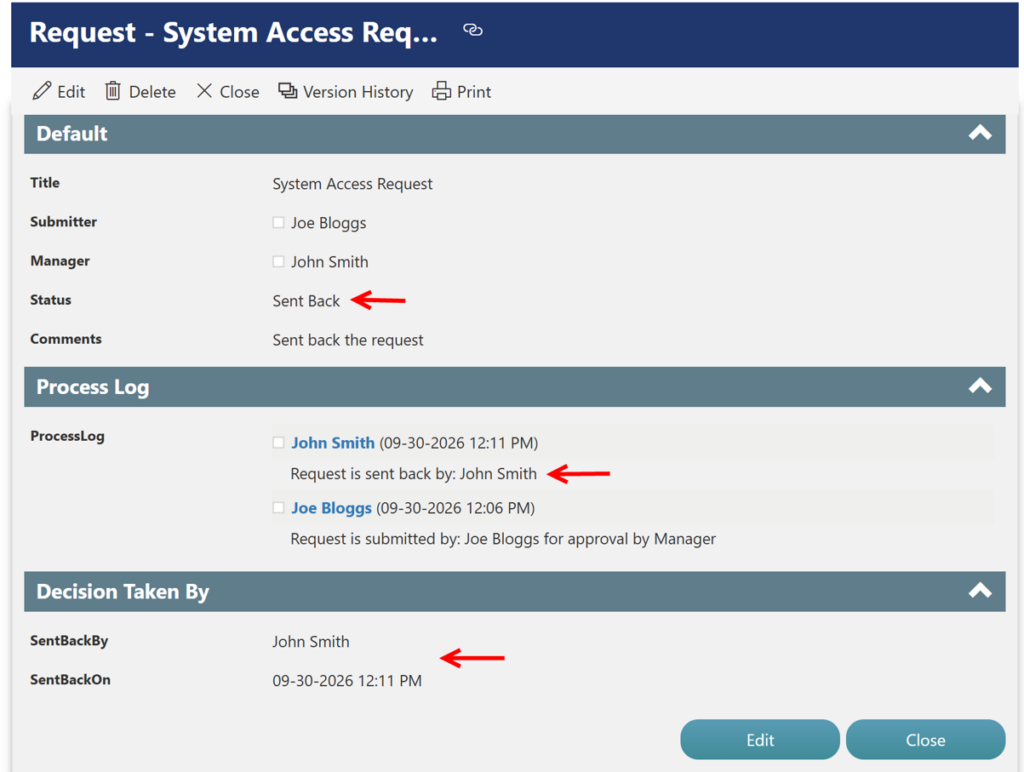
When the request is sent back, the Re-Submit button will be visible to the submitter.
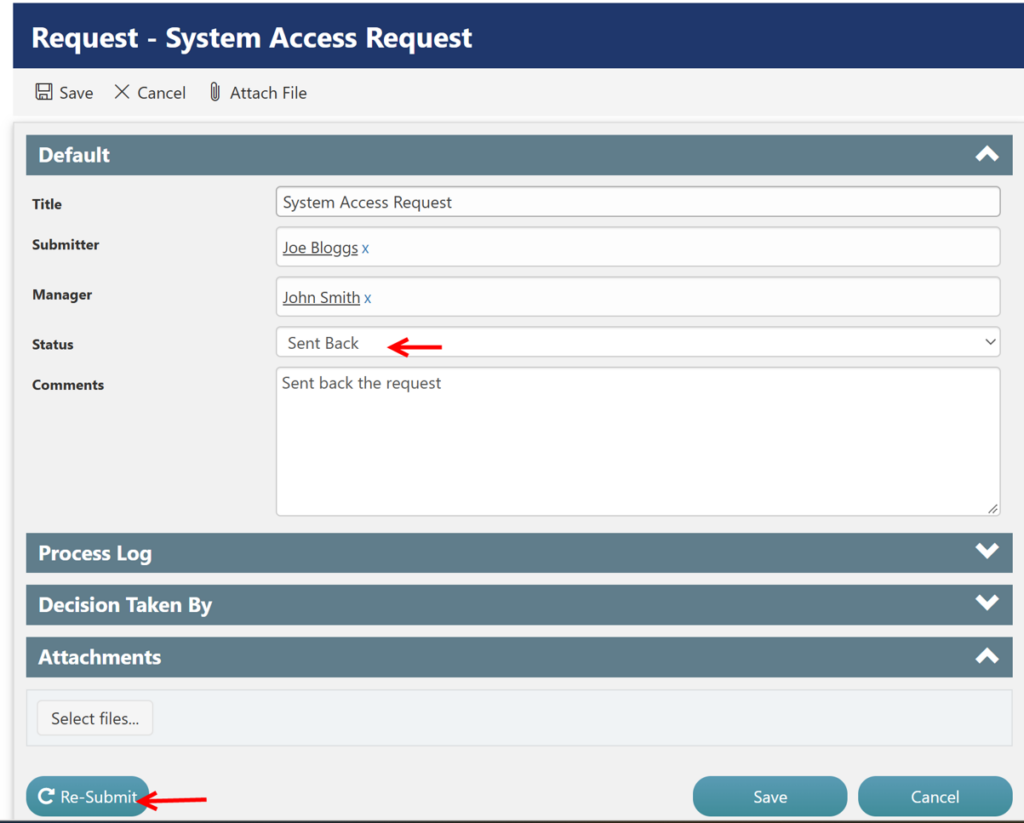
When the Submitter re-submits the request, it is sent back to the Manager for approval, and the Status changes to Pending Manager Approval.
