Applies To: SharePoint Online and On-Premises
Description
In a Sequential Approval process, the request must pass through multiple approval levels in a specific order. The next approval level becomes available only after the previous approver completes their action.
For the Sequential Approval process, the request follows this sequence:
Pending Submission → Pending Manager Approval → Pending Director Approval → Approved
The Manager must complete the approval before the request moves to the Director for approval.
- Submitter creates and submits the request.
- The Submitter enters all required information in the NITRO Form. The Submitter can save the request or submit it for approval.When submitted, the Status changes to Pending Manager Approval.
- The request is routed to the Submitter’s Manager for approval.
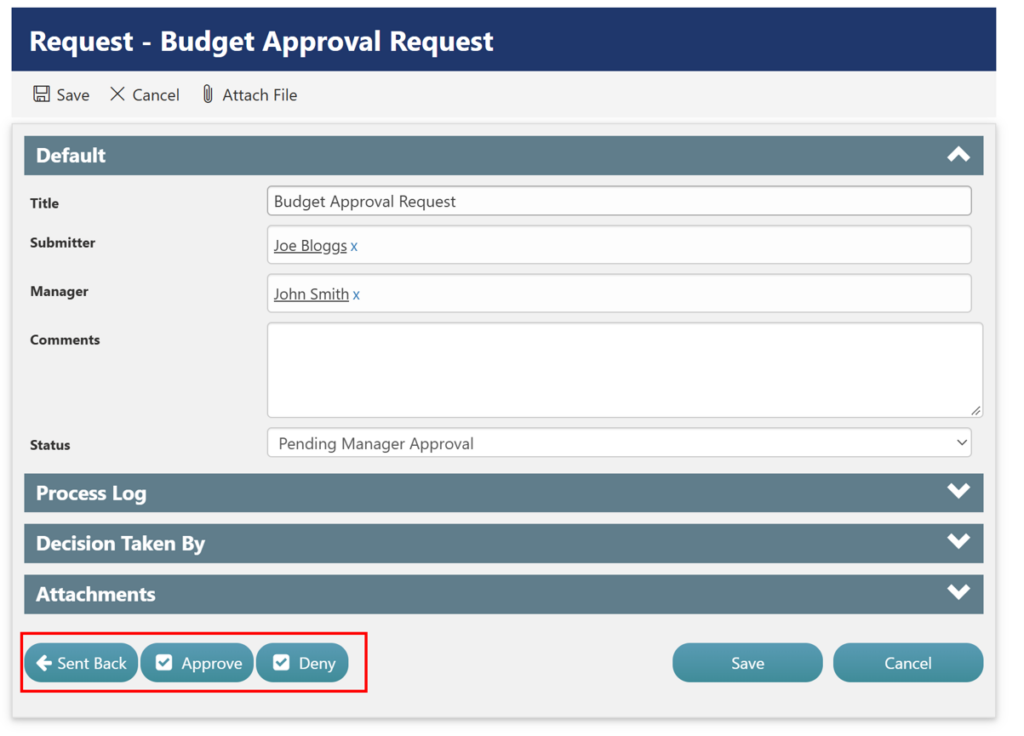
- Manager reviews the submitted request and can take one of the following actions:
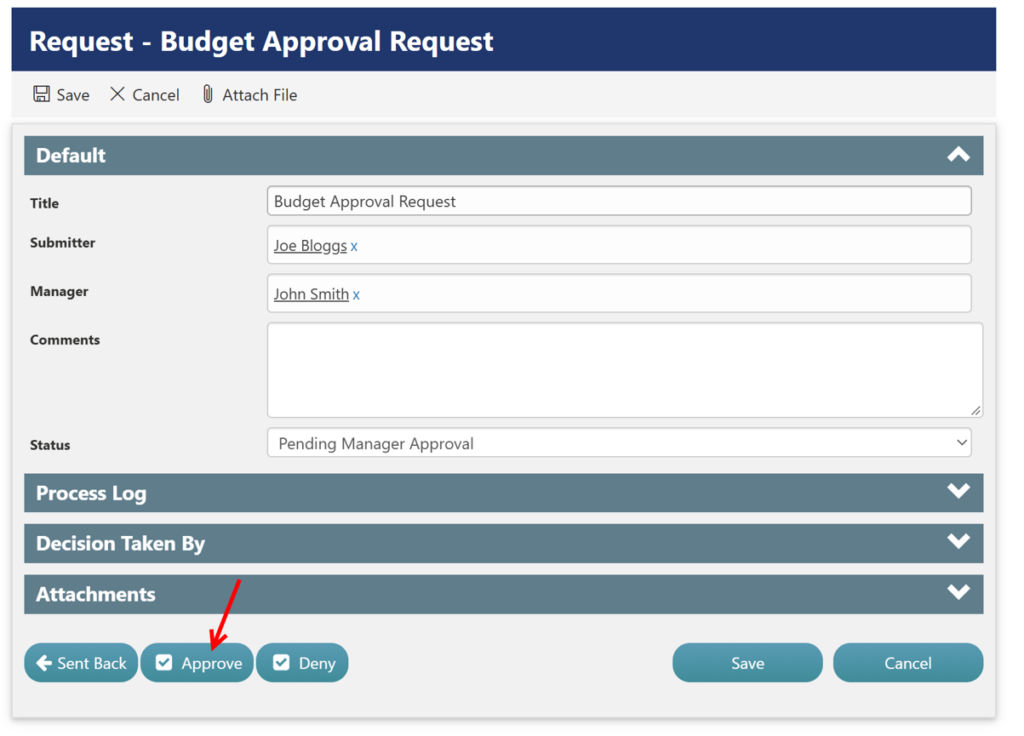
- Approve: The request moves to the Director for approval, and the Status changes to Pending Director Approval.
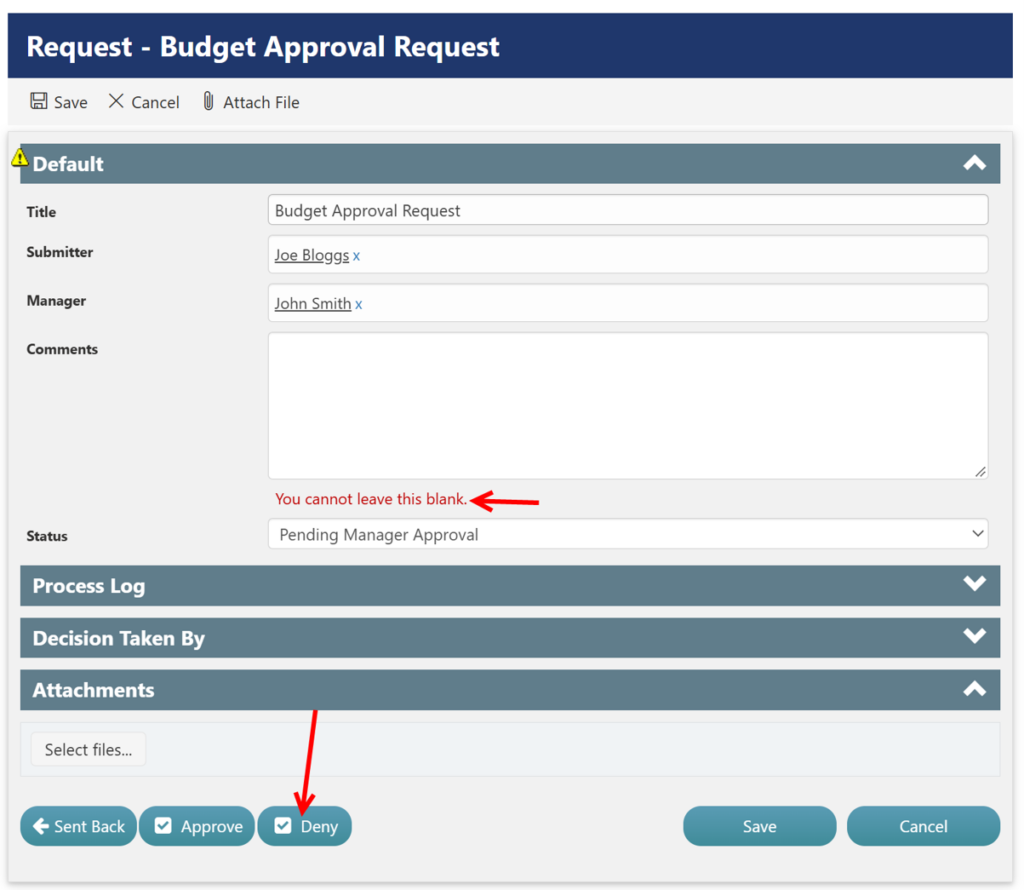
- Deny: The request is denied, and the approval process is completed.
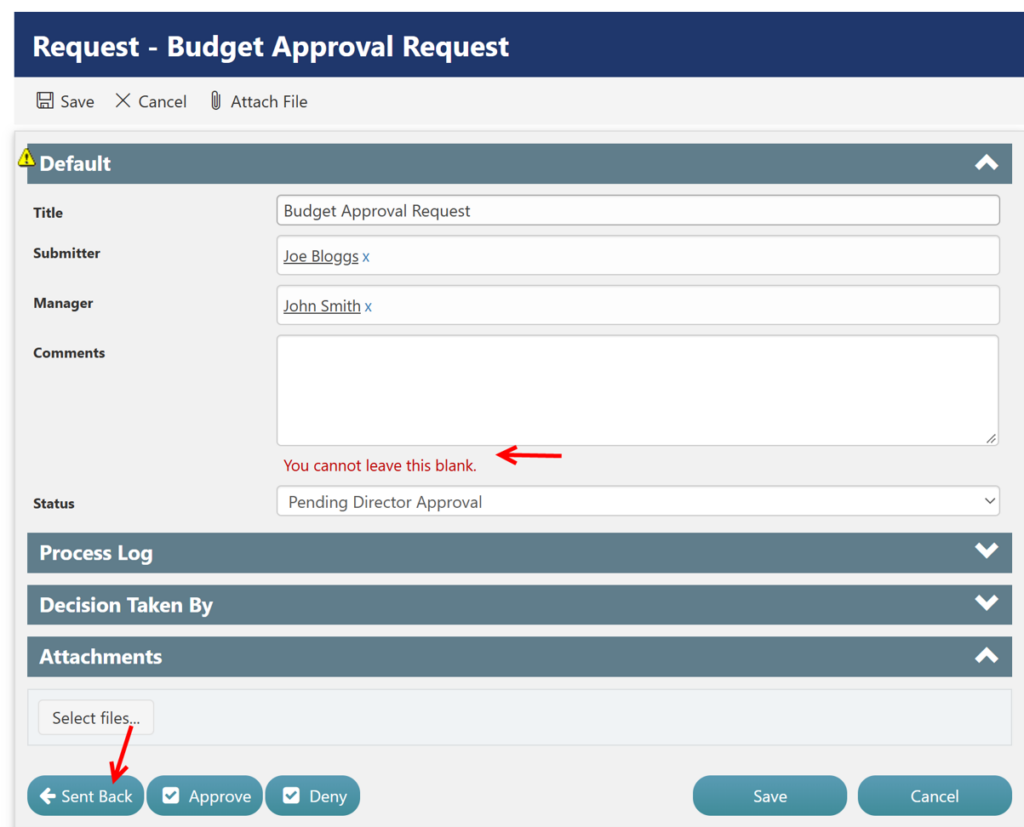
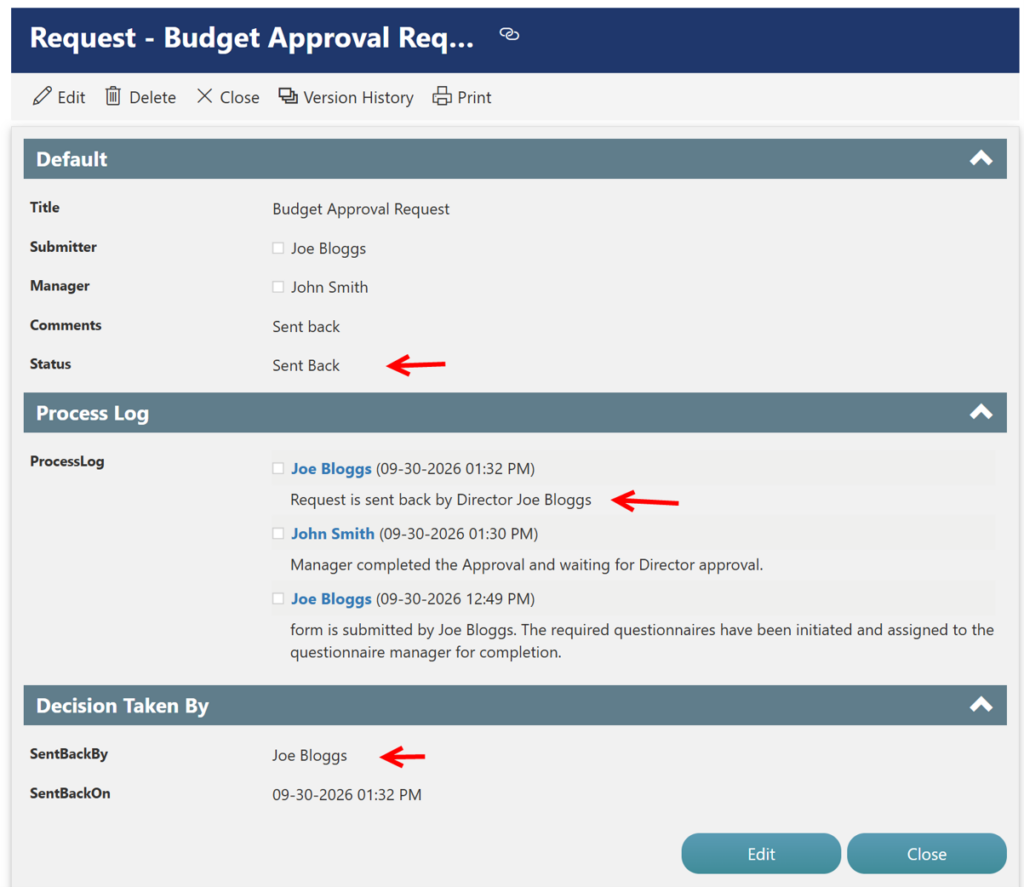
- Send Back: The request is returned to the Submitter for corrections or additional information, and the Status changes to Sent Back.
- Director reviews the request after Manager approval:
- Approve: The request is approved, and the approval process is completed.
- Deny: The request is denied, and the approval process is completed.
- Send Back: The request is returned to the Submitter for corrections or additional information, and the Status changes to Sent Back.
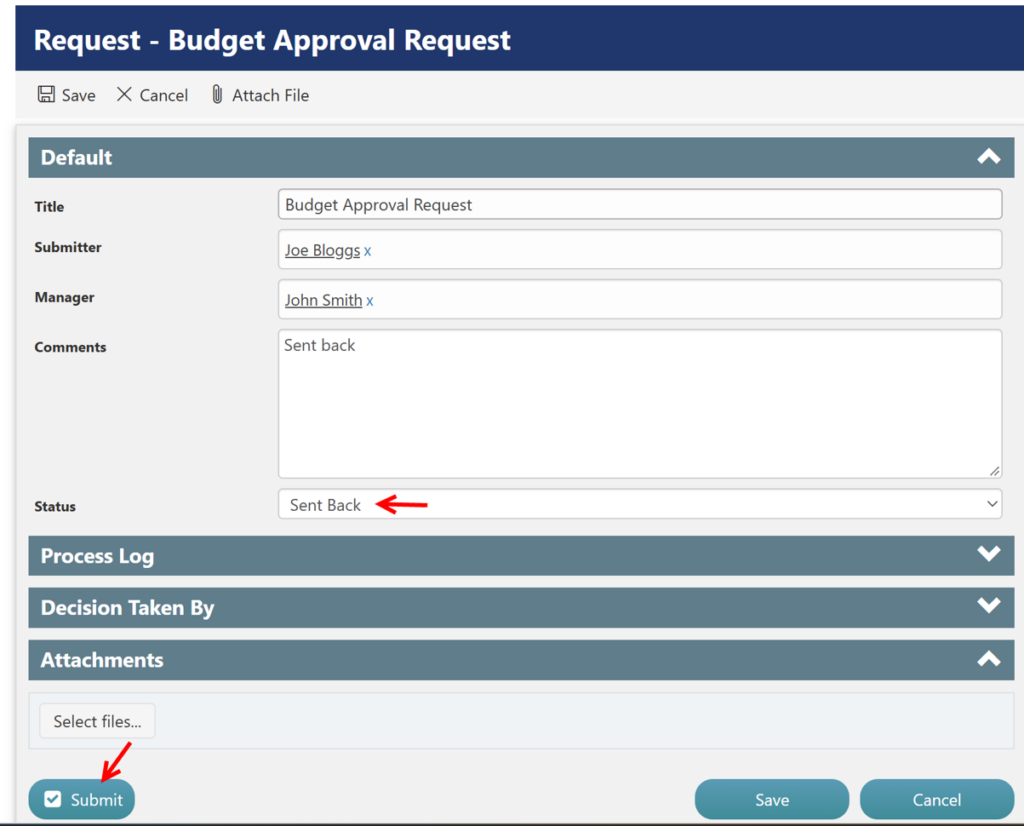
- On Send Back:
- Submitter reviews the Manager’s comments and updates the request.
- Submitter re-submits the request for approval.
- The request is routed back to the Manager for review.
- On Approve:
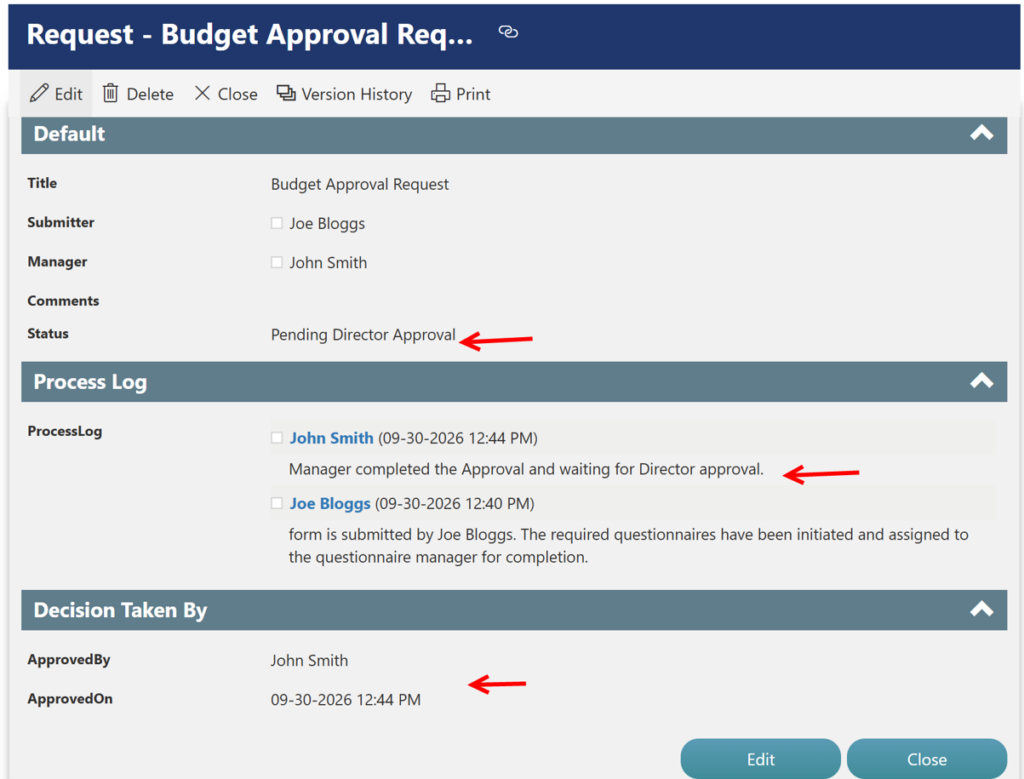
- After the Manager approves, the request moves to Pending Director Approval.
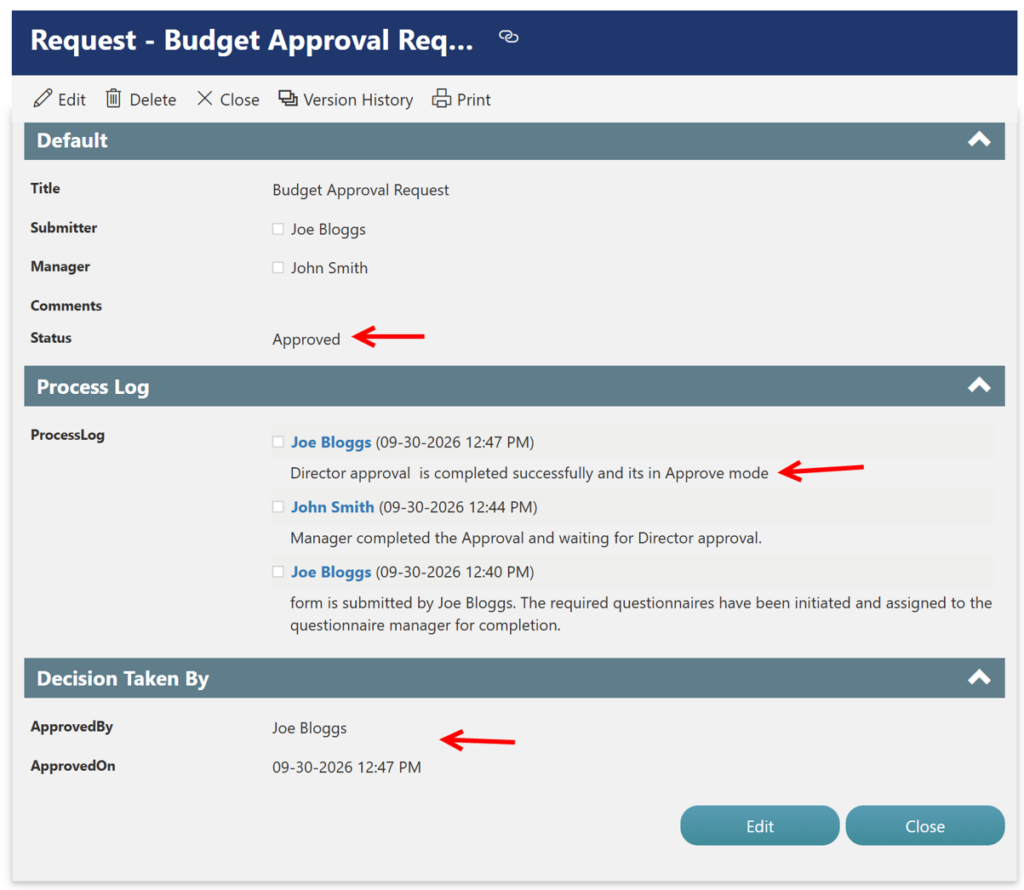
- After the Director approves, the Status is updated to Approved.
- The Submitter can view the approved request.
- On Deny:
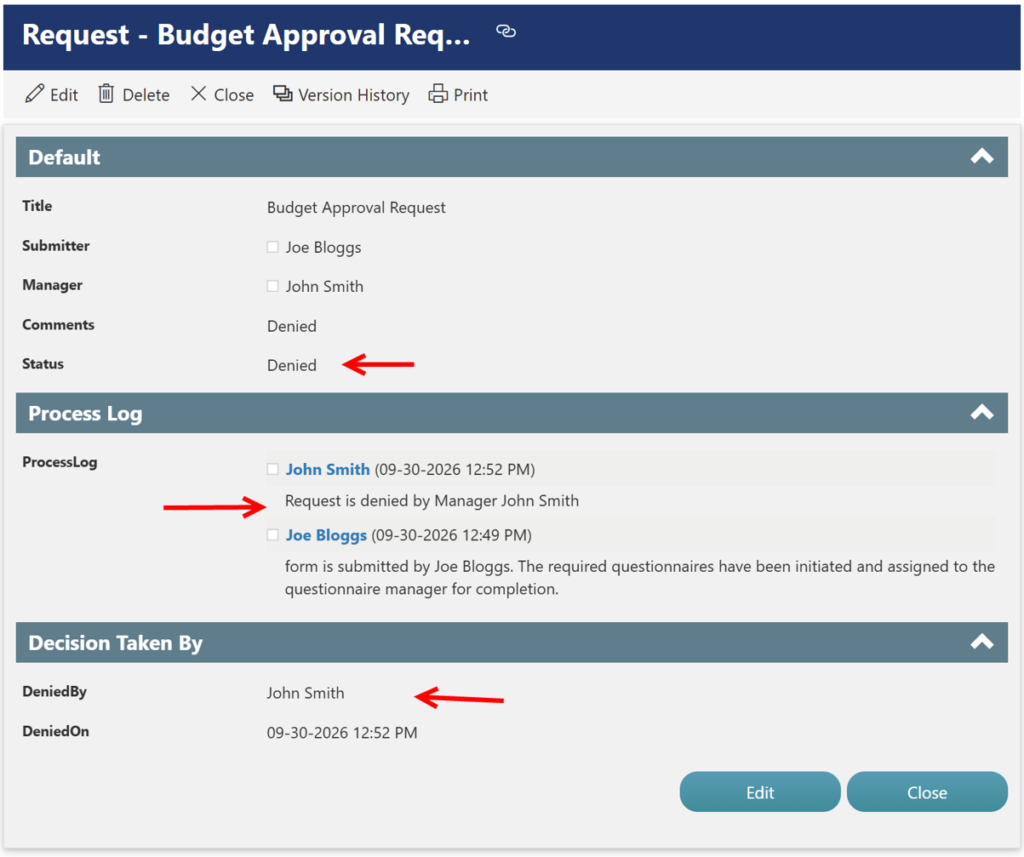
- If either the Manager or Director denies the request, the Status is updated to Denied.
- The Submitter can view the denied request and the comments provided by the approver.
Directors Configuration
We have created a SharePoint group named “Directors”, which is used to identify the Director approvers.
To create a SharePoint group, follow the steps below:
Navigate to NITRO Studio → Site Permissions → Directors.

If the required Director SharePoint Group does not exist, create or configure the group as required.
Note: The Approve, Deny, and Send Back buttons are configured based on the logged-in user. These buttons are visible to the Manager when the logged-in user matches the user specified in the Manager column on the Request form. They are visible to the Director when the logged-in user is a member of the configured Director SharePoint Group.
Summary of steps:
- List Schema
- NITRO Forms Configuration
- Approval Process Configuration
- Notifications
- Sequential Approval – Process Flow and Status Changes
List Schema
Please refer Single Level Approval Process – Crow Canyon Software Support for configurating list schema.
Use the same Requests list and columns configured for the Single-Level Approval Process, except for the values configured in the Status column.
For the Sequential Approval Process, configure the Status column with the following values:
| Column | Column Values |
| Status | Pending Submission Pending Manager Approval Pending Director Approval Approved Denied Sent Back |
NITRO Forms Configuration
- Configure NITRO forms with all the columns.
Navigate to List -> List Settings -> Crow Canyon NITRO Forms -> Add Columns.
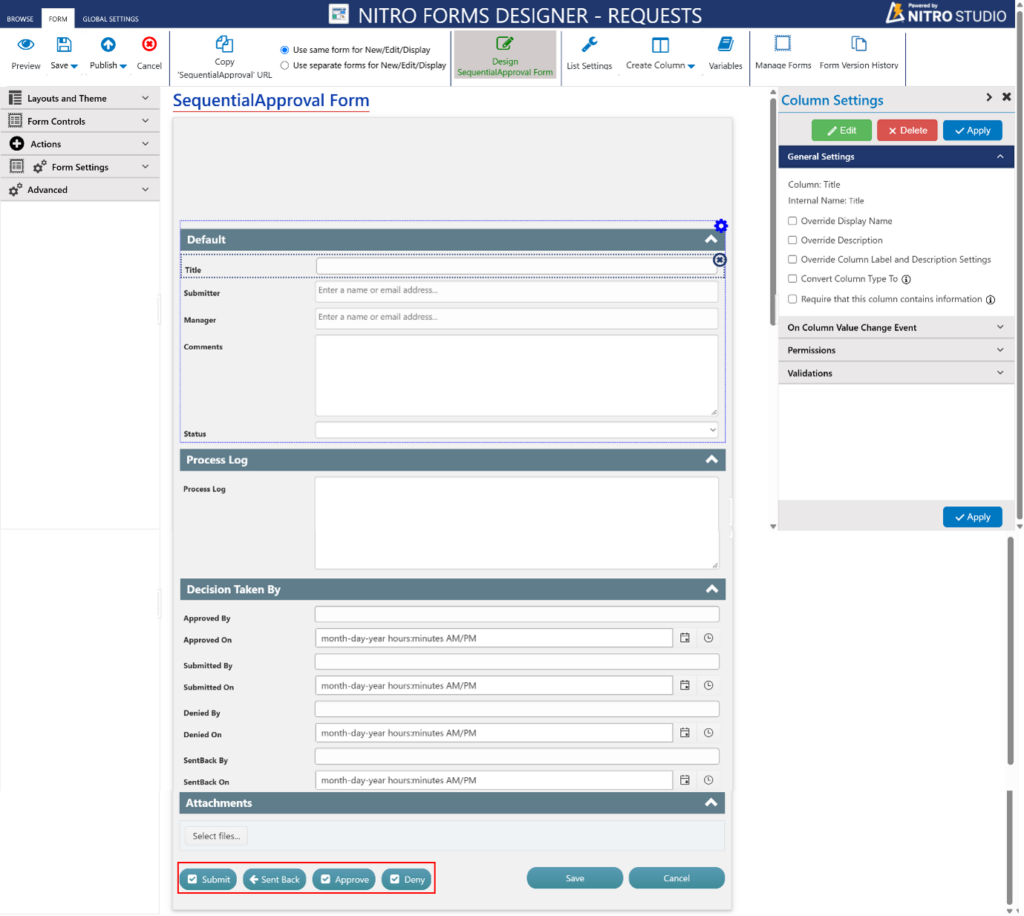
Refer to the Single-Level Approval – NITRO Form Configuration section for configuring columns, buttons, permissions, and validations.
The configurations that differ from the Single-Level Approval process are described below.
Form Configurations:
Columns Permission
- “Approved By” and “Approved On” columns
- Hide for all
- Read when status is “Approved” or “Pending Director Approval”
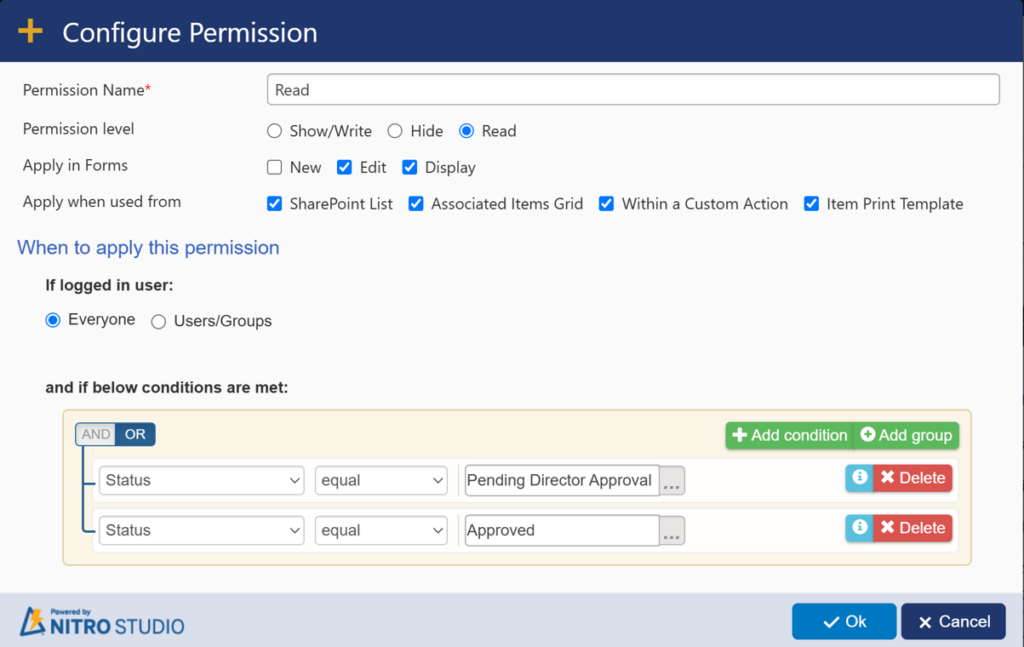
Similarly, configure the permissions for the Denied By, Denied On, Sent Back By, and Sent Back On columns by referring Single-Level Approval Column permissions.
Approval Process Configuration
The approval process is configured using submit action buttons in NITRO forms. We can drag and drop the submit action buttons on the form.
Below, we have described the action buttons and the script used to update the status of the request.
Action Button: Save
- This is the default save button on the form. This will save the Item in the Requests list.
Action Button: Submit
- This action button will set the status to “Pending Manager Approval”
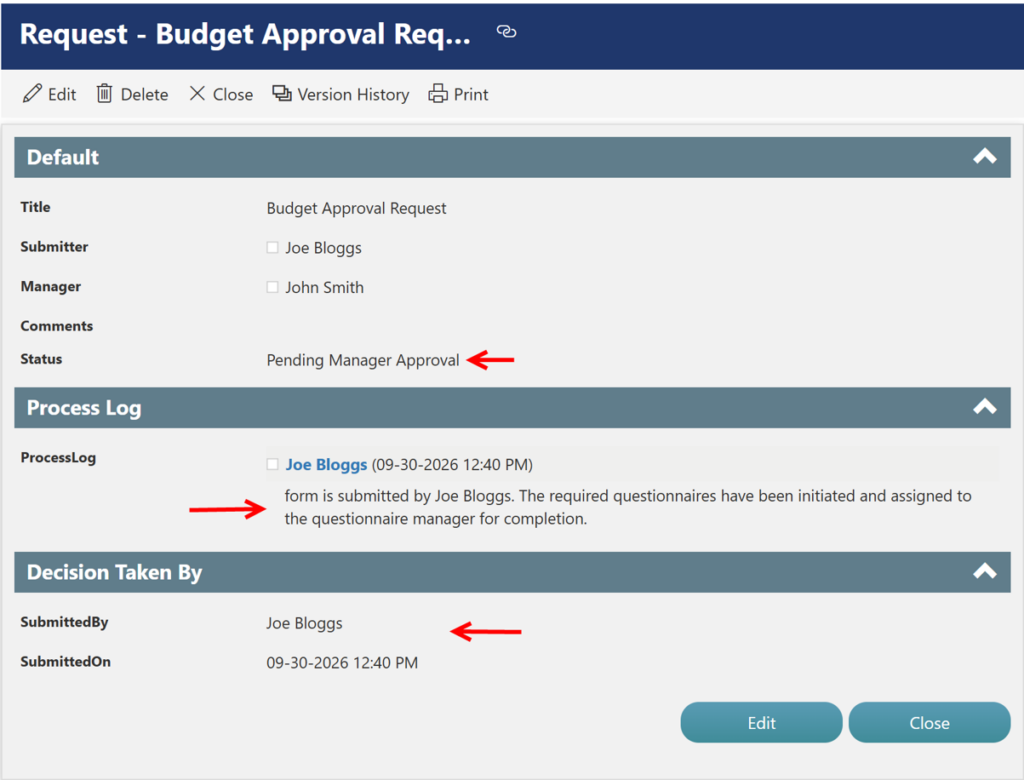
- Updates the Process Log
- Captures the “Submitted By” and “Submitted On”
Note: When the request is in Sent Back status, the Submit button is available to allow the Submitter to resubmit the request. Upon resubmission, the Status changes to Pending Manager Approval
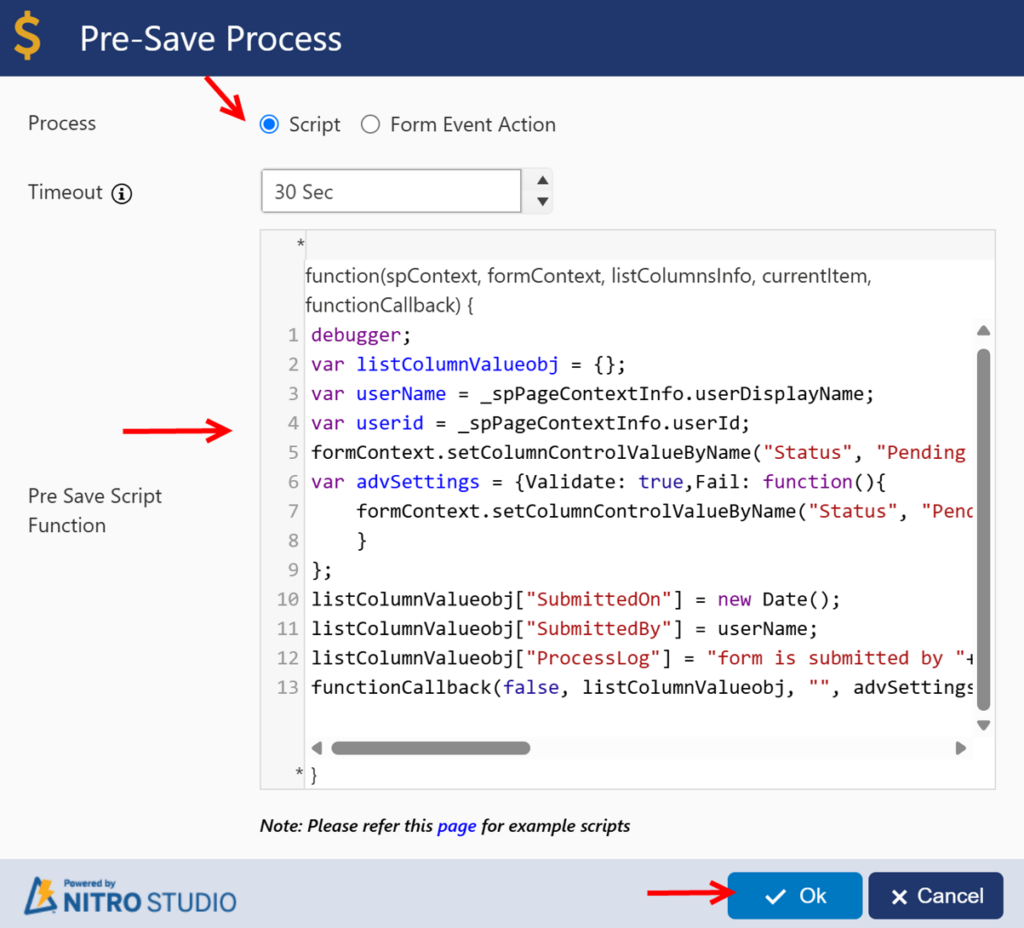
Script used:
debugger;
var listColumnValueobj = {};
var userName = _spPageContextInfo.userDisplayName;
var userid = _spPageContextInfo.userId;
formContext.setColumnControlValueByName("Status", "Pending Manager Approval");
var advSettings = {Validate: true,Fail: function(){
    formContext.setColumnControlValueByName("Status", "Pending Submission");
    }
};
listColumnValueobj["SubmittedOn"] = new Date();
listColumnValueobj["SubmittedBy"] = userName;
listColumnValueobj["ProcessLog"] = "form is submitted by "+ userName+". The required questionnaires have been initiated and assigned to the questionnaire manager for completion.";
functionCallback(false, listColumnValueobj, "", advSettings);
Script Explanation
| Script | Explanation |
| var listColumnValueobj = {}; | Creates an object to store the list column values that need to be updated. |
| _spPageContextInfo.userDisplayName | Gets the display name of the currently logged-in user. |
| _spPageContextInfo.userId | Gets the ID of the currently logged-in user. |
| setColumnControlValueByName(“Status”, “Pending Manager Approval”) | Changes the request status to Pending Manager Approval. |
| advSettings | Defines validation and what should happen if the update fails. |
| Fail: function() | If the operation fails, the Status is changed back to Pending Submission. |
| SubmittedDate = new Date() | Stores the current date and time when the request is submitted. |
| SubmittedBy = userid | Stores the ID of the user who submitted the request. |
| ProcessLog | Records who submitted the request and that it has been assigned to the Manager. |
| functionCallback(…) | Saves the specified values and completes the Custom Action/Form Event operation. |
Permissions:
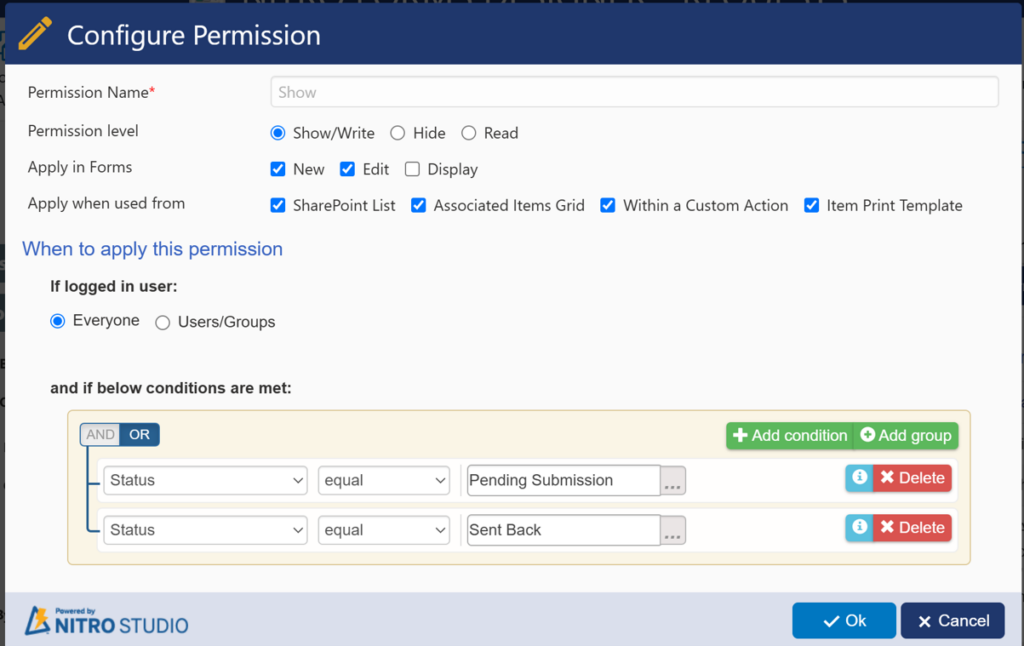
- Configure permissions to show this action button only when status is “Pending Submission” or “Sent Back”
- Hide for all
- Show to Submitter when status is “Pending Submission” or “Sent Back” in new and edit forms.
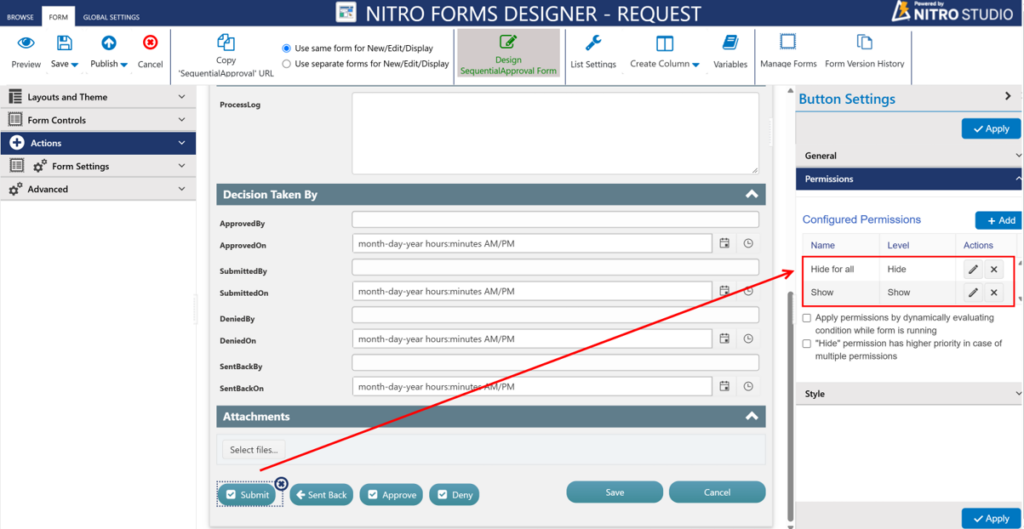
Hide for all Permission:
Note: Configure this permission for all action buttons in the same way as shown below.
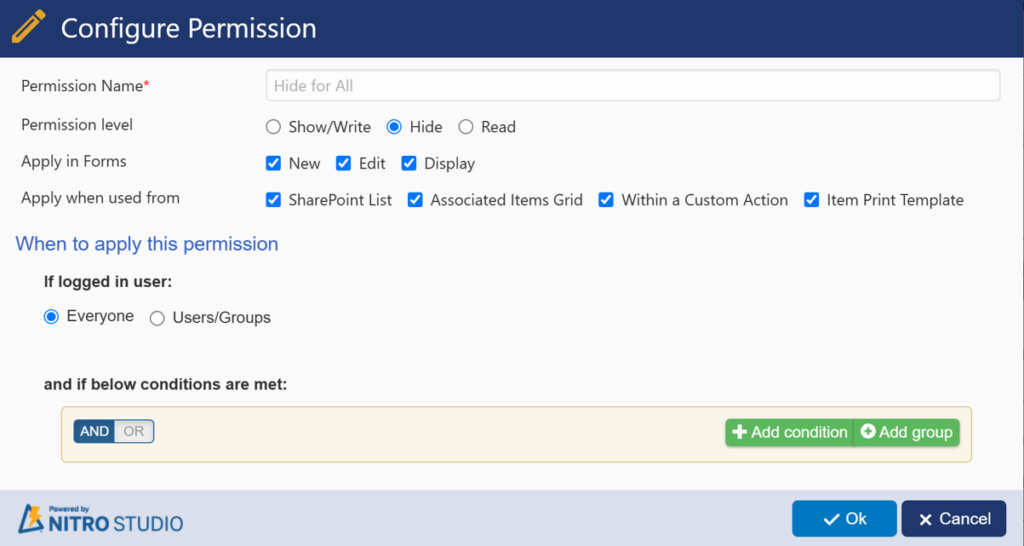
Show Permission:
Action Button: Approve
When the current Approver clicks Approve, the request moves to the next approval level.
- Manager Approval: Status changes from Pending Manager Approval to Pending Director Approval, and the Director is notified.
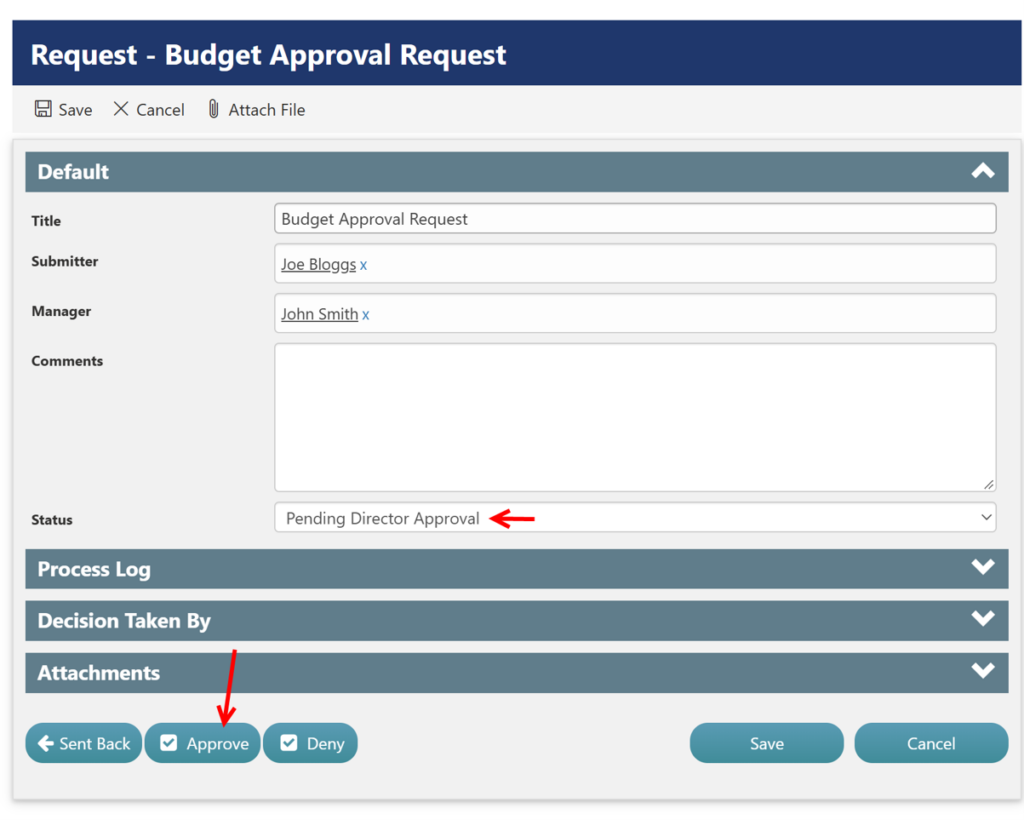
- Director Approval: Status changes from Pending Director Approval to Approved, and the approval process is completed.
- Updates the Process Log
- Captures the approver details like Approved By and Approved On
Therefore, the approval cannot skip the Manager stage. The request must first reach Pending Director Approval before the Director can approve it.
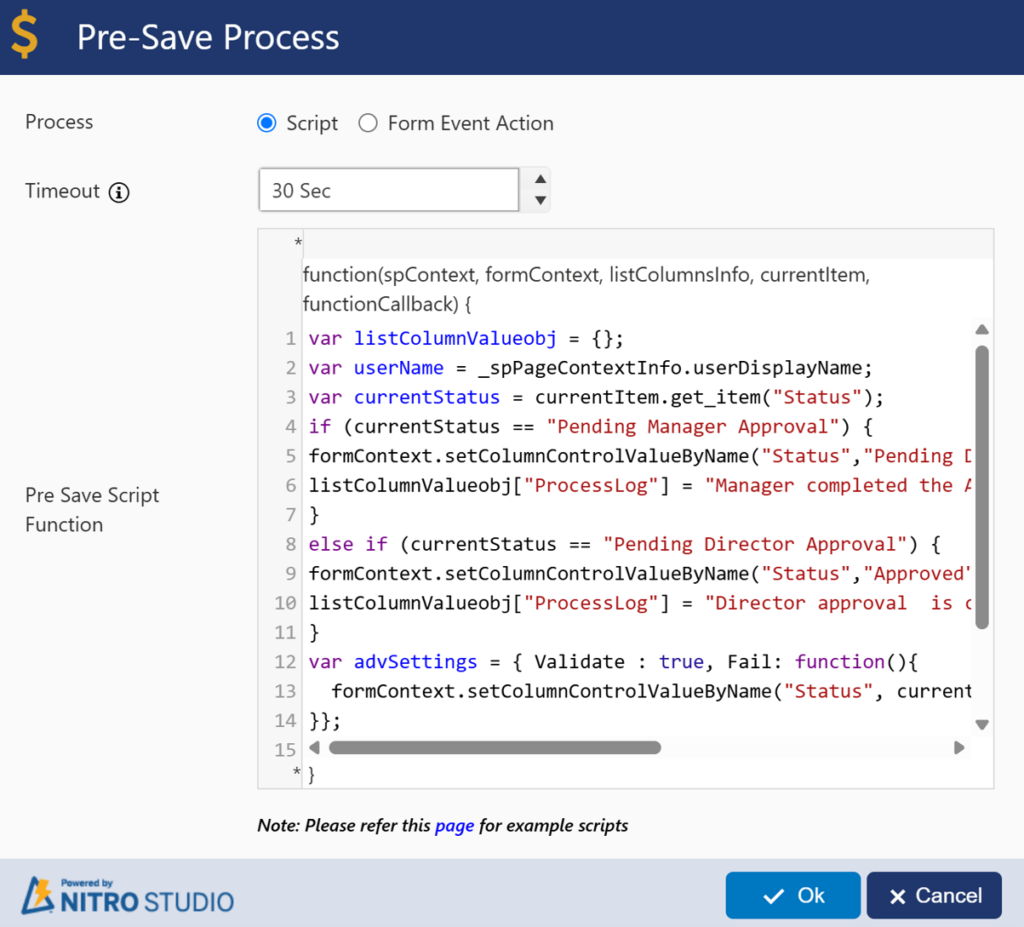
Script used:
var listColumnValueobj = {};
var userName = _spPageContextInfo.userDisplayName;
var currentStatus = currentItem.get_item("Status");
if (currentStatus == "Pending Manager Approval") {
formContext.setColumnControlValueByName("Status","Pending Director Approval");
listColumnValueobj["ProcessLog"] = "Manager completed the Approval and waiting for Director approval.";
}
else if (currentStatus == "Pending Director Approval") {
formContext.setColumnControlValueByName("Status","Approved");
listColumnValueobj["ProcessLog"] = "Director approval  is completed successfully and its in Approve mode";
}
var advSettings = { Validate : true, Fail: function(){
  formContext.setColumnControlValueByName("Status", currentStatus);
}};
listColumnValueobj["ApprovedOn"] = new Date();
listColumnValueobj["ApprovedBy"] = userName;
functionCallback(false,listColumnValueobj,"",advSettings);
Script Explanation
| Script | Explanation |
| var listColumnValueobj = {}; | Creates an object for the values that will be updated. |
| currentItem.get_item(“Status”) | Gets the current Status of the request before the approval action is performed. |
| if (currentStatus == “Pending Manager Approval”) | Checks whether the request is currently waiting for Manager approval. |
| Status = “Pending Director Approval” | After Manager approval, moves the request to the next approval stage. |
| ProcessLog | Records that the Manager completed the approval and the request is now waiting for Director approval. |
| else if (currentStatus == “Pending Director Approval”) | Checks whether the request is currently waiting for Director approval. |
| Status = “Approved” | After Director approval, changes the request status to Approved. |
| ProcessLog | Records that the Director completed the approval. |
| advSettings | Provides validation and failure handling. |
| Fail | If the operation fails, the Status is restored to the status it had before the approval action. |
| functionCallback(…) | Saves the changes and completes the action. |
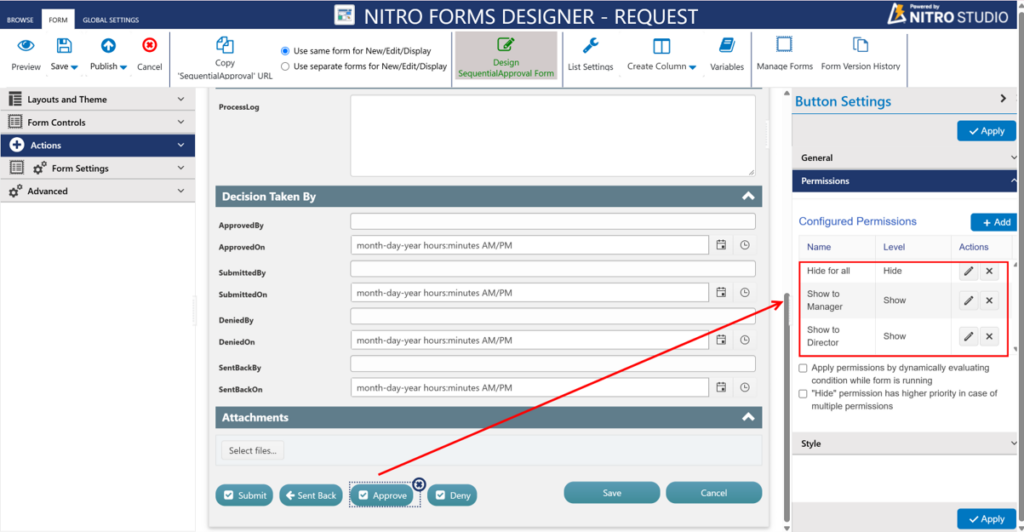
Permissions:
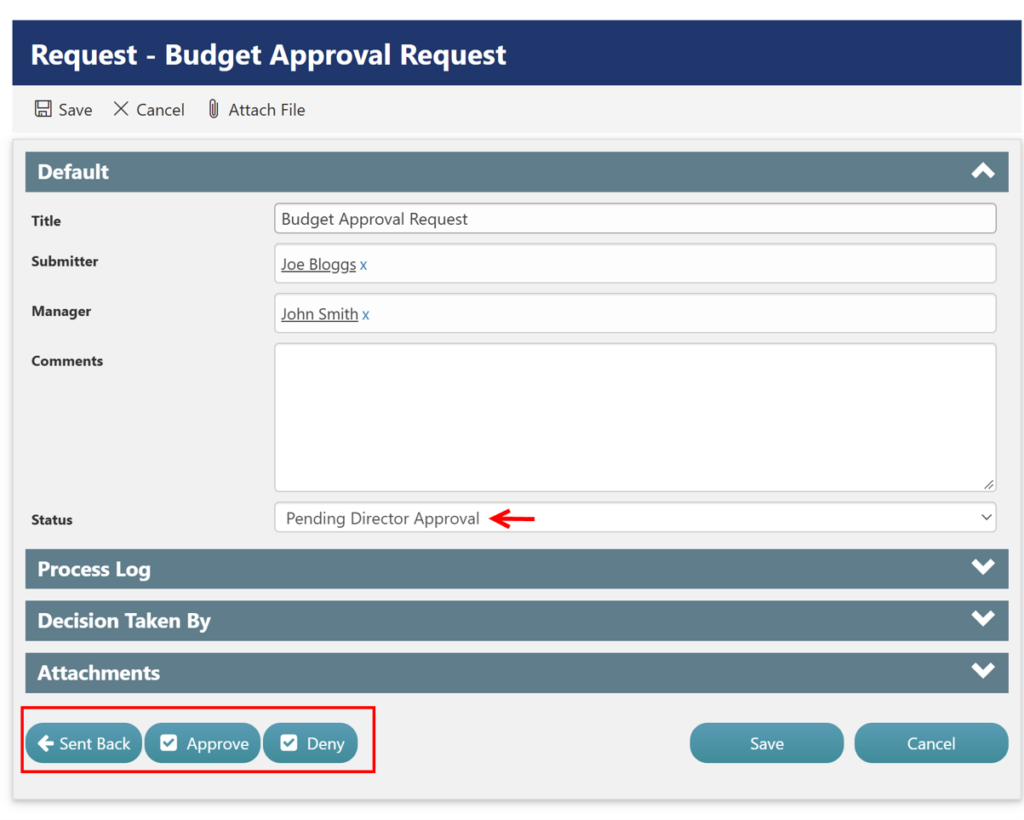
- The Approve button is used by both the Manager and Director. The button is displayed based on the current approval stage and the logged-in user’s role.
- Hide for all — configured as the default permission.
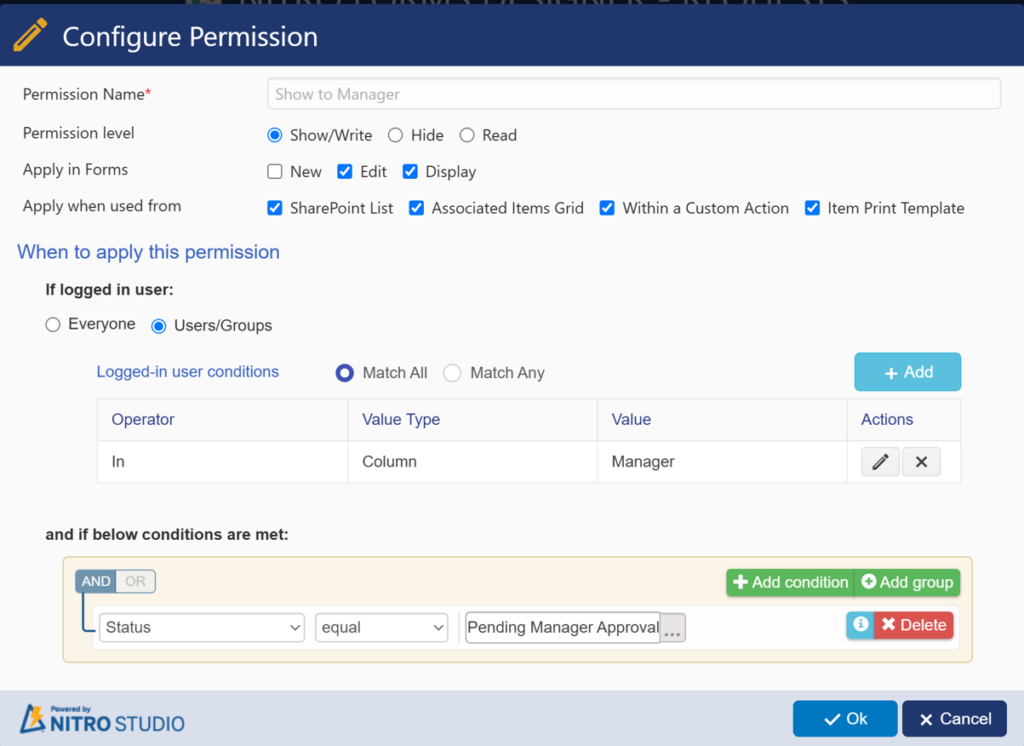
- Show to Manager when:
- The logged-in user is the Manager.
- Status = Pending Manager Approval.
- Show to Director when:
- The logged-in user is in the configured Directors SharePoint Group.
- Status = Pending Director Approval.
Permission: Show to Manager
Permission: Show To Director
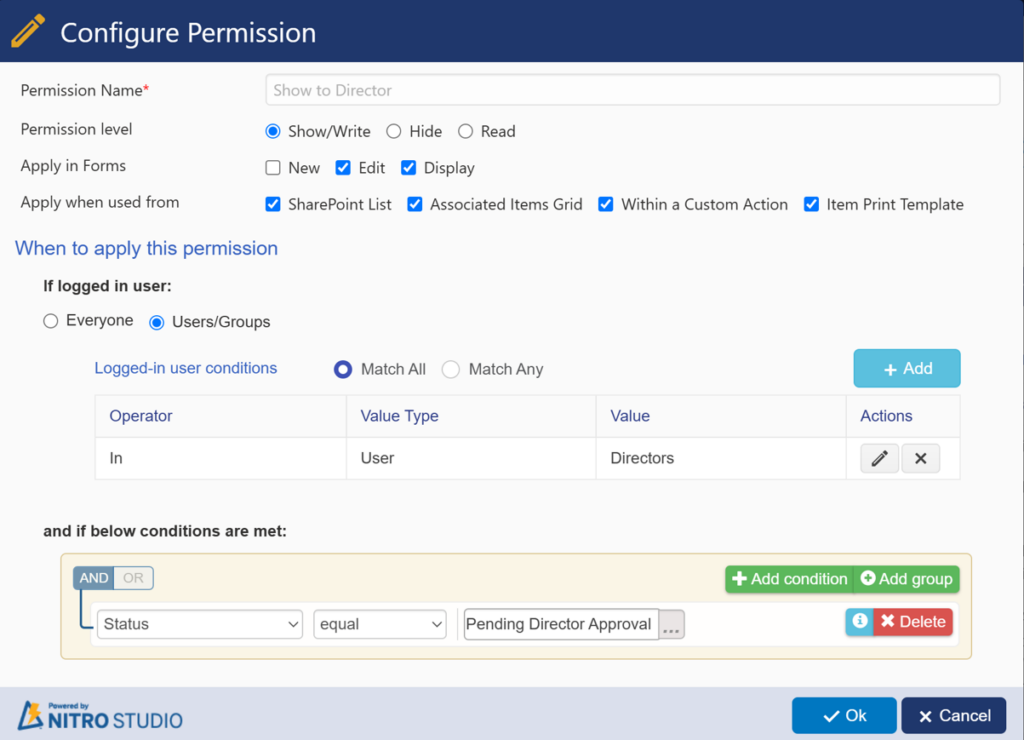
Similarly, configure permissions for Deny and Sent Back buttons
This ensures that users who belong to the Directors SharePoint Group can see the Approve button when the request reaches Pending Director Approval.
Note: The script itself does not check whether the user is a Manager or Director. The Manager/Director access is controlled through the button’s Show Permission configuration.
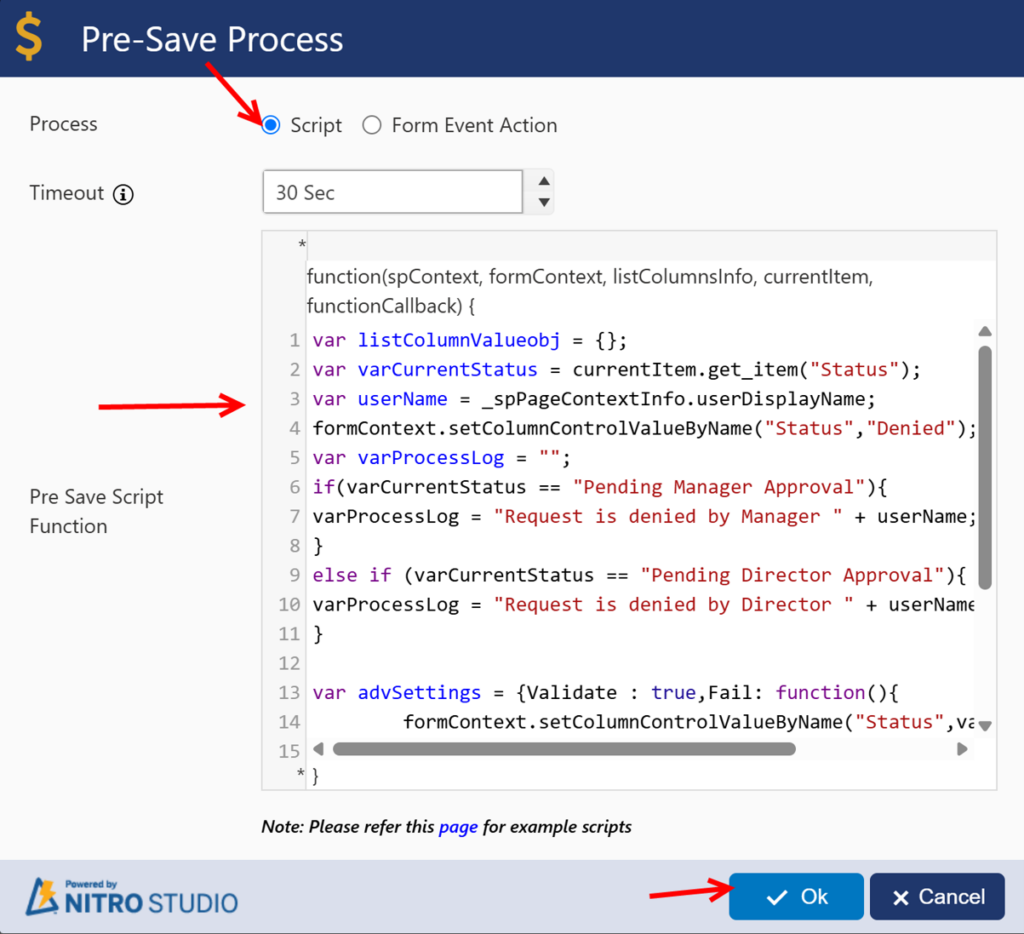
Action Button: Deny
- This action button will be shown to the Manager when status is “Pending Manager Approval”
- This action button will be shown to the Director when status is “Pending Director Approval”
- This will set the Request status to “Denied”. This is the terminal state of the Request.
- Captures the approver details like Denied By and Denied On
- Updates the Process Log
Script used:
var listColumnValueobj = {};
var varCurrentStatus = currentItem.get_item("Status");
var userName = _spPageContextInfo.userDisplayName;
formContext.setColumnControlValueByName("Status","Denied");
var varProcessLog = "";
if(varCurrentStatus == "Pending Manager Approval"){
varProcessLog = "Request is denied by Manager " + userName;
}
else if (varCurrentStatus == "Pending Director Approval"){
varProcessLog = "Request is denied by Director " + userName;
}

var advSettings = {Validate : true,Fail: function(){
        formContext.setColumnControlValueByName("Status",varCurrentStatus);
    }
};
listColumnValueobj["DeniedOn"] = new Date();
listColumnValueobj["DeniedBy"] = userName;
listColumnValueobj["ProcessLog"] = varProcessLog;
functionCallback(false, listColumnValueobj, "", advSettings);
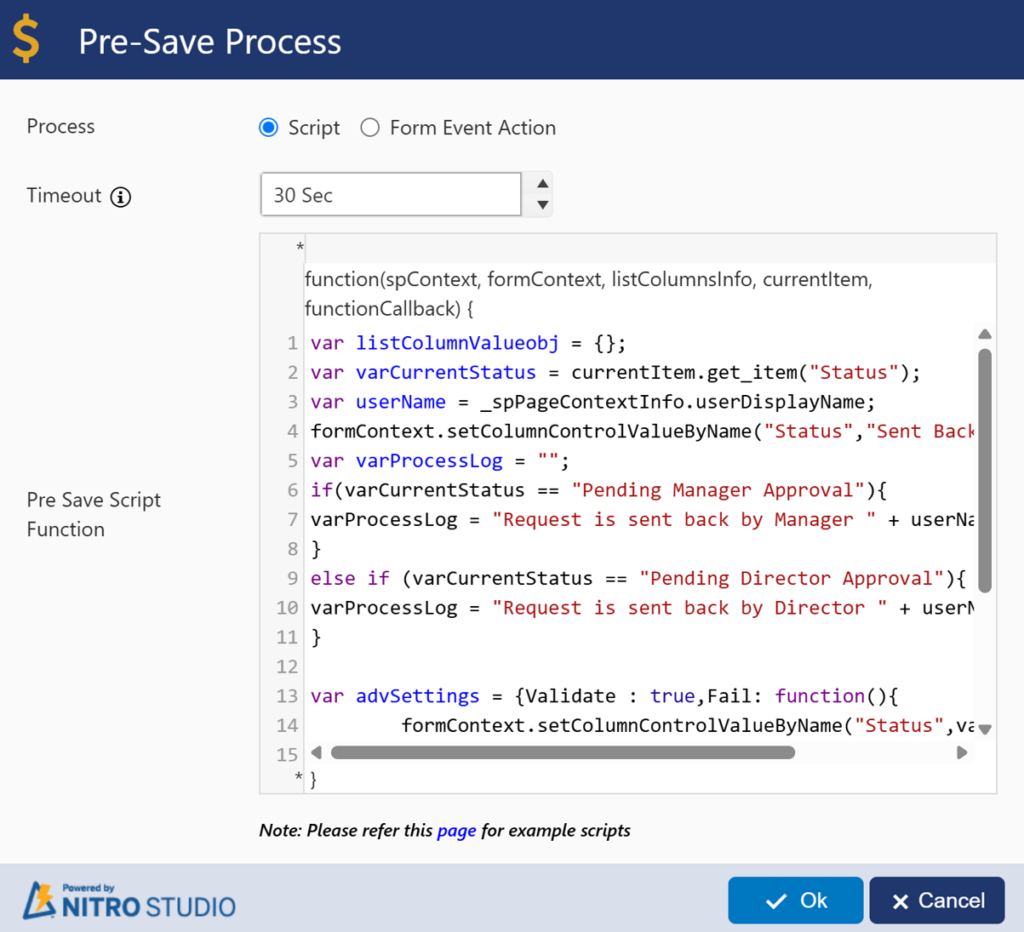
Action Button: Sent Back
- This action button will be shown to the Manager when status is “Pending Manager Approval”
- This action button will be shown to the Director when status is “Pending Director Approval”.
- This will set the Request status to “Sent Back”. This is the terminal state of the Request.
- Captures the approver details like Sent Back By and Sent Back On
- Updates the Process Log
Script used:
var listColumnValueobj = {};
var varCurrentStatus = currentItem.get_item("Status");
var userName = _spPageContextInfo.userDisplayName;
formContext.setColumnControlValueByName("Status","Sent Back");
var varProcessLog = "";
if(varCurrentStatus == "Pending Manager Approval"){
varProcessLog = "Request is sent back by Manager " + userName;
}
else if (varCurrentStatus == "Pending Director Approval"){
varProcessLog = "Request is sent back by Director " + userName;
}

var advSettings = {Validate : true,Fail: function(){
        formContext.setColumnControlValueByName("Status",varCurrentStatus);
    }
};
listColumnValueobj["ProcessLog"] = varProcessLog;
listColumnValueobj["SentBackOn"] = new Date();
listColumnValueobj["SentBackBy"] = userName;
functionCallback(false, listColumnValueobj, "", advSettings);
Notifications
Refer Single-Level Approval Notifications section in Single Level Approval Process – Crow Canyon Software Support to configure this.
Sequential Approval – Process Flow and Status Changes
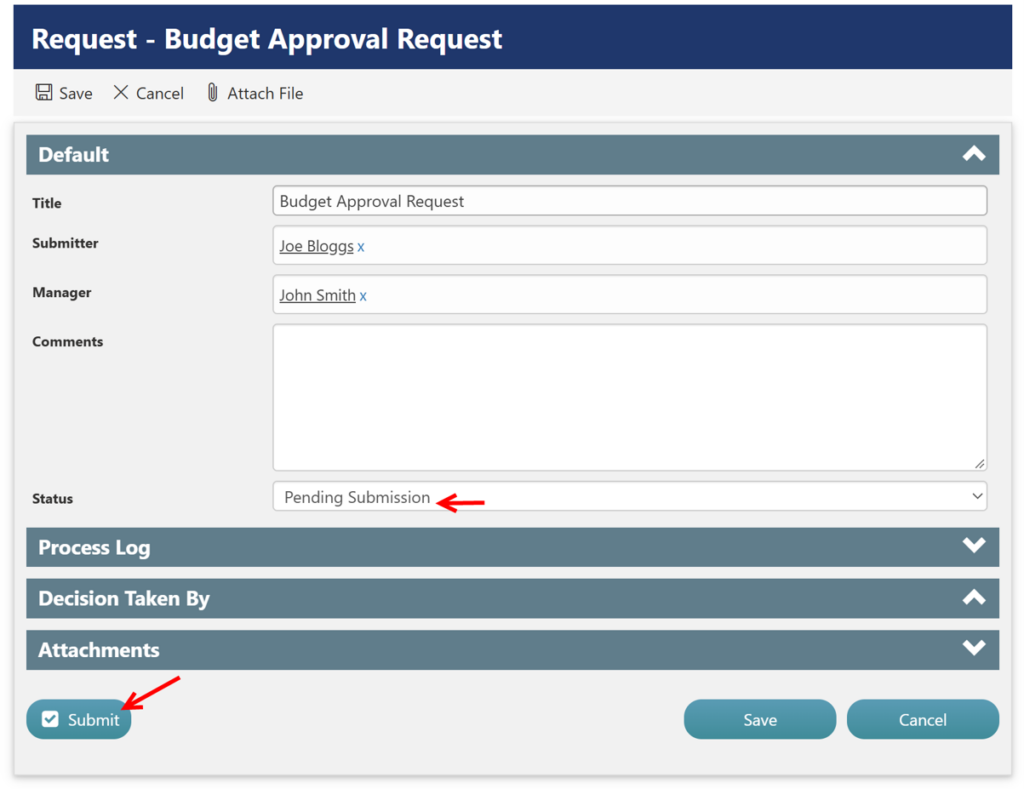
- Create Request
Submitter creates and saves/submit the request. Status: Pending Submission
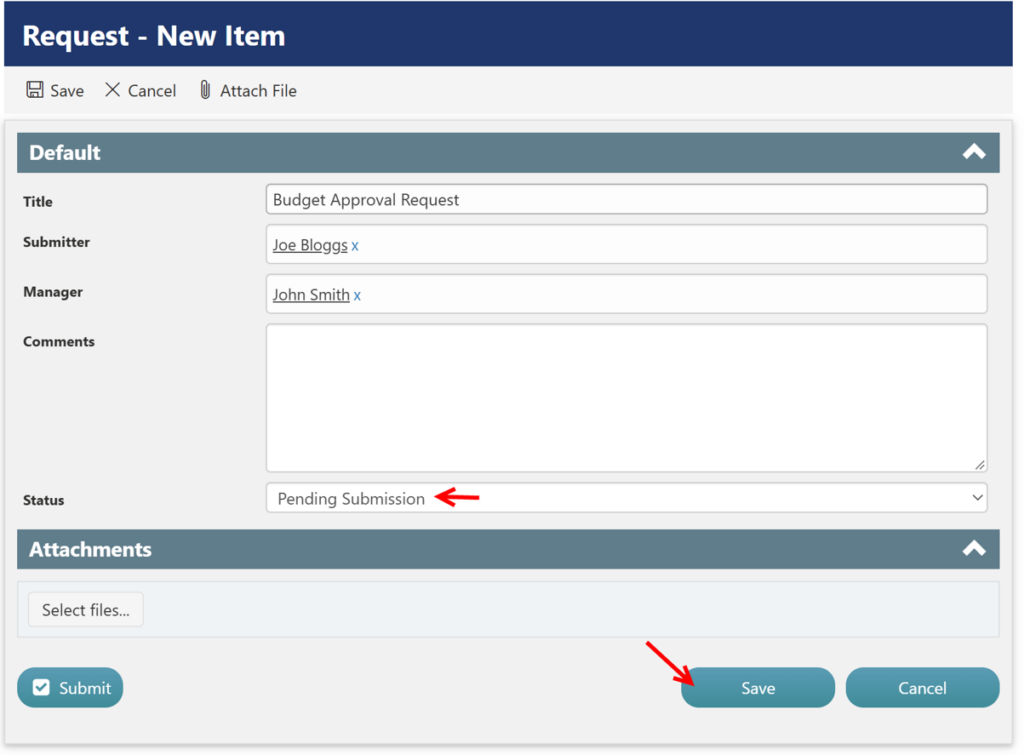
2. Submit Request
Submitter submits the request for approval. Status: Pending Manager Approval
3. Manager Approval Decision
Manager selects Approve, Deny, or Send Back.
4. Manager Approves
Manager clicks Approve, and the request moves to the Director. Status: Pending Director Approval
5. Director Approval Decision
Director selects Approve, Deny, or Send Back.
6. Director Approves
Director clicks Approve, completing all approval levels. Status: Approved
Alternate Approval Outcomes
Manager/Director Denies → Status: Denied → Approval Process Ends
Manager/Director Sends Back → Status: Sent Back → Submitter Updates Request → Re-submits → Status: Pending Manager Approval