Applies To: SharePoint Online and On-Premises
Description
The Parallel Approval process allows multiple approvers to review and approve the request independently. The Manager and Director can approve the request in any order, and neither approval needs to wait for the other.
The overall flow is:
Pending Submission → Pending Approval → Manager + Director Approve Independently → Approved
The request is marked Approved only after both the Manager and Director have approved it.
- Submitter creates and submits the request.
- The Submitter enters all required information in the NITRO Form.
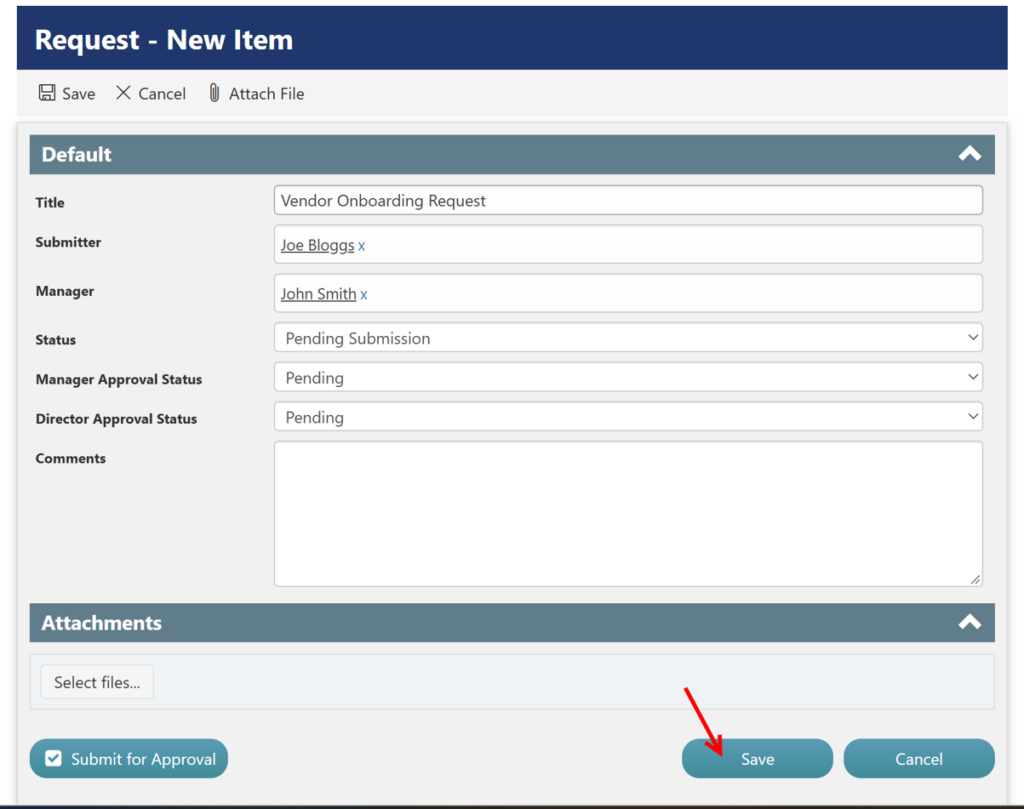
- The Submitter can save the request or submit it for approval.
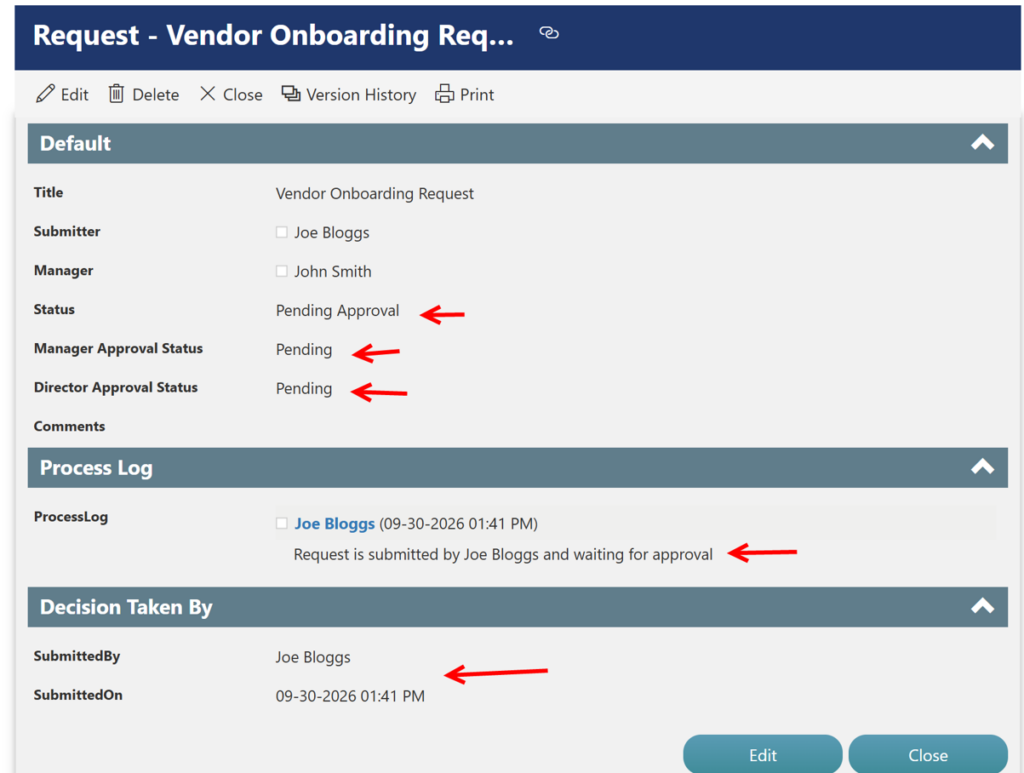
- When submitted, the Status changes to Pending Approval.
- The request becomes available for both the Manager and Director to review.
- Manager and Director review the request independently.
- Either the Manager or Director can approve first.
- Approve: The respective approval status is updated to Approved.
- The overall Status remains Pending Approval until the other approver completes their approval.
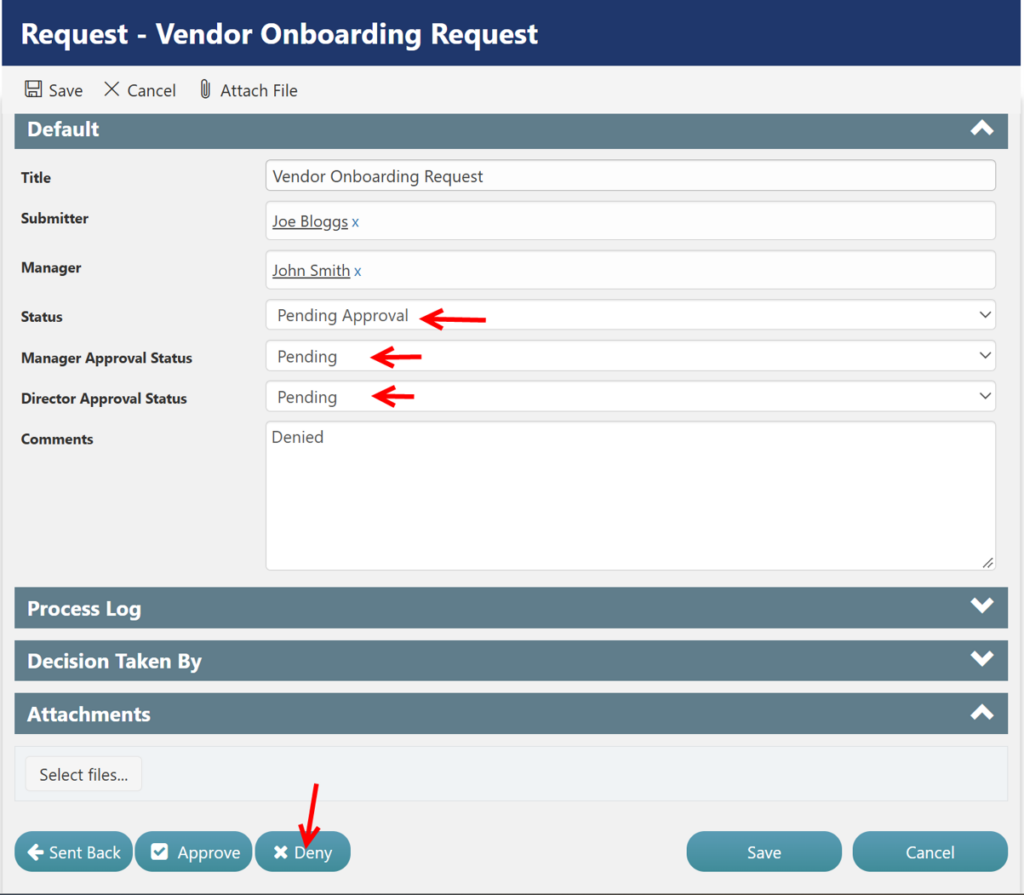
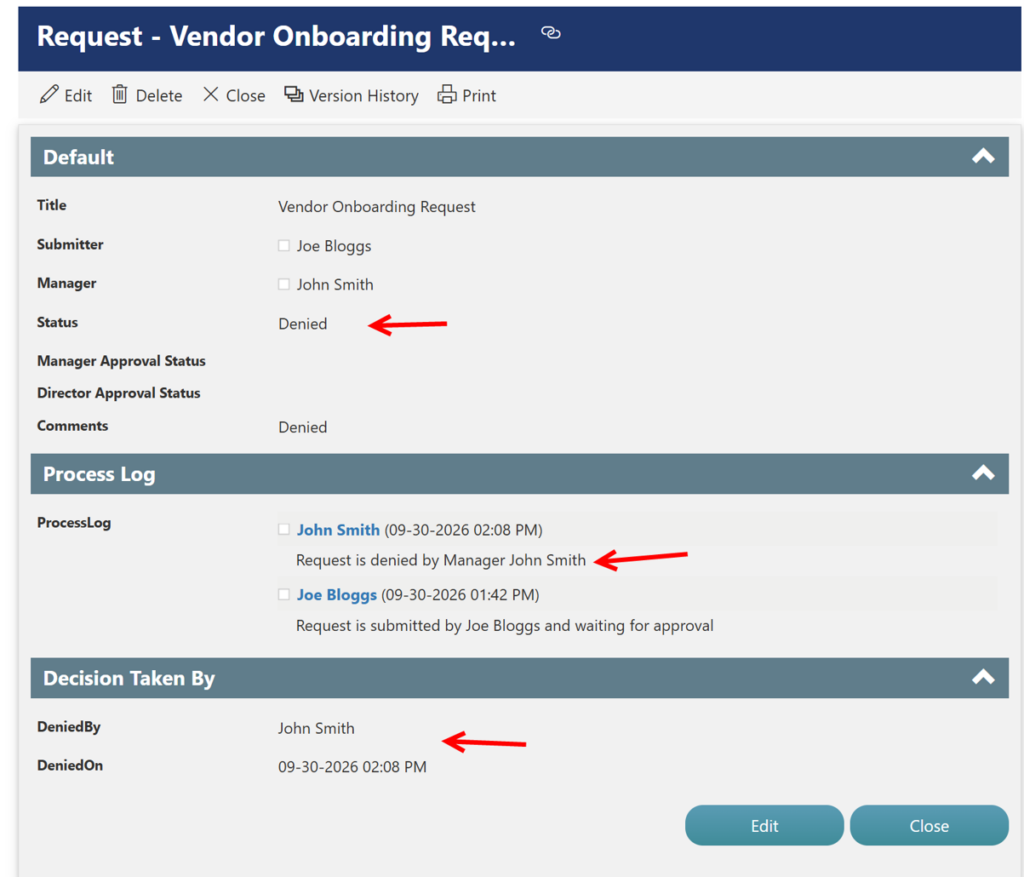
- Deny: The overall Status changes to Denied, and the approval process is completed.
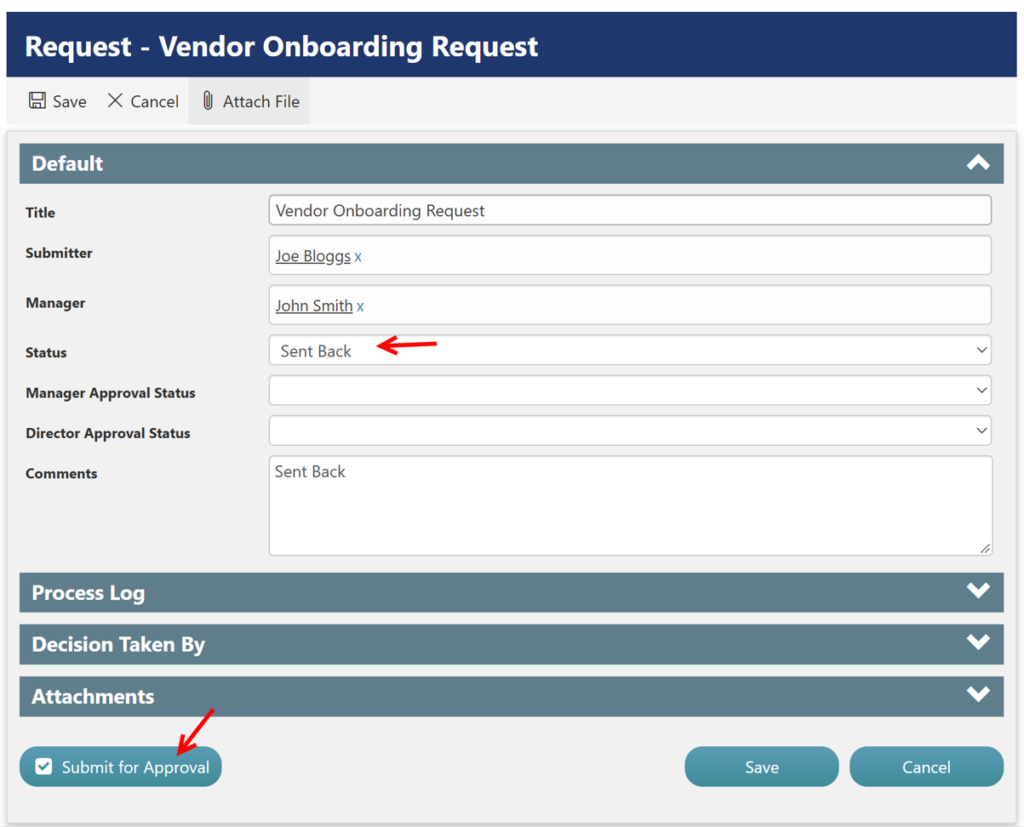
- Send Back: The overall Status changes to Sent Back, and the request is returned to the Submitter for corrections.
- When one approver approves first:
- The request remains in Pending Approval.
- The completed approver’s approval status is set to Approved.
- The other approver can still review and approve the request independently.
- When both approvers approve:
- The Manager Approval Status and Director Approval Status are both set to Approved.
- The overall Status changes to Approved.
- The Submitter can view the approved request.
- On Send Back:
- The Submitter reviews the comments provided by the Manager or Director.
- The Submitter makes the necessary changes to the request.
- The Submitter re-submits the request for approval.
- The Status changes back to Pending Approval, and both approval statuses are reset to Pending.
- On Deny:
- If either the Manager or Director denies the request, the overall Status changes to Denied.
- The Submitter can view the denied request and the comments provided by the approver.
Director Configuration
The Director is identified through a SharePoint Group named “Directors.”
Go to NITRO Studio → Site Permissions → Directors
If the Directors group does not exist, create and configure the SharePoint Group.

Note: The Approve, Deny, and Sent Back buttons are configured based on the logged-in user. These buttons are visible to the Manager when the logged-in user matches the user specified in the Manager column on the Request form. They are visible to the Director when the logged-in user is a member of the configured Directors SharePoint Group.
Refer to the table below to understand how the Status changes based on the Manager’s and Director’s decisions.
| Manager Approval | Director Approval | Overall Status |
| Pending | Pending | Pending Approval |
| Approved | Pending | Pending Approval |
| Pending | Approved | Pending Approval |
| Approved | Approved | Approved |
| Denied | Pending/Approved | Denied |
| Pending/Approved | Denied | Denied |
| Sent Back | Pending/Approved | Sent Back |
| Pending/Approved | Sent Back | Sent Back |
Summary of steps:
- List Schema
- NITRO Forms Configuration
- Approval Process Configuration
- Notifications
- Parallel Approval – Process Flow and Status Changes
List Schema
Refer Single Level Approval Process – Crow Canyon Software Support for list schema.
Use the same Requests list and columns configured for the Single-Level Approval Process, except for the values configured in the Status column and the two additional columns added to the Requests list.
| Column | Purpose | Column Values |
| Status | Tracks the overall status of the request | Pending Submission Pending Approval Approved Denied Sent Back |
In addition, add the following two columns to track the individual approval status of the Manager and Director:
| Column | Column Values | Purpose |
| Manager Approval Status | Pending, Approved | Tracks the Manager’s approval |
| Director Approval Status | Pending, Approved | Tracks the Director’s approval |
NITRO Forms Configuration
To configure NITRO Forms
Navigate to List Settings → Crow Canyon NITRO Forms → Add Columns.
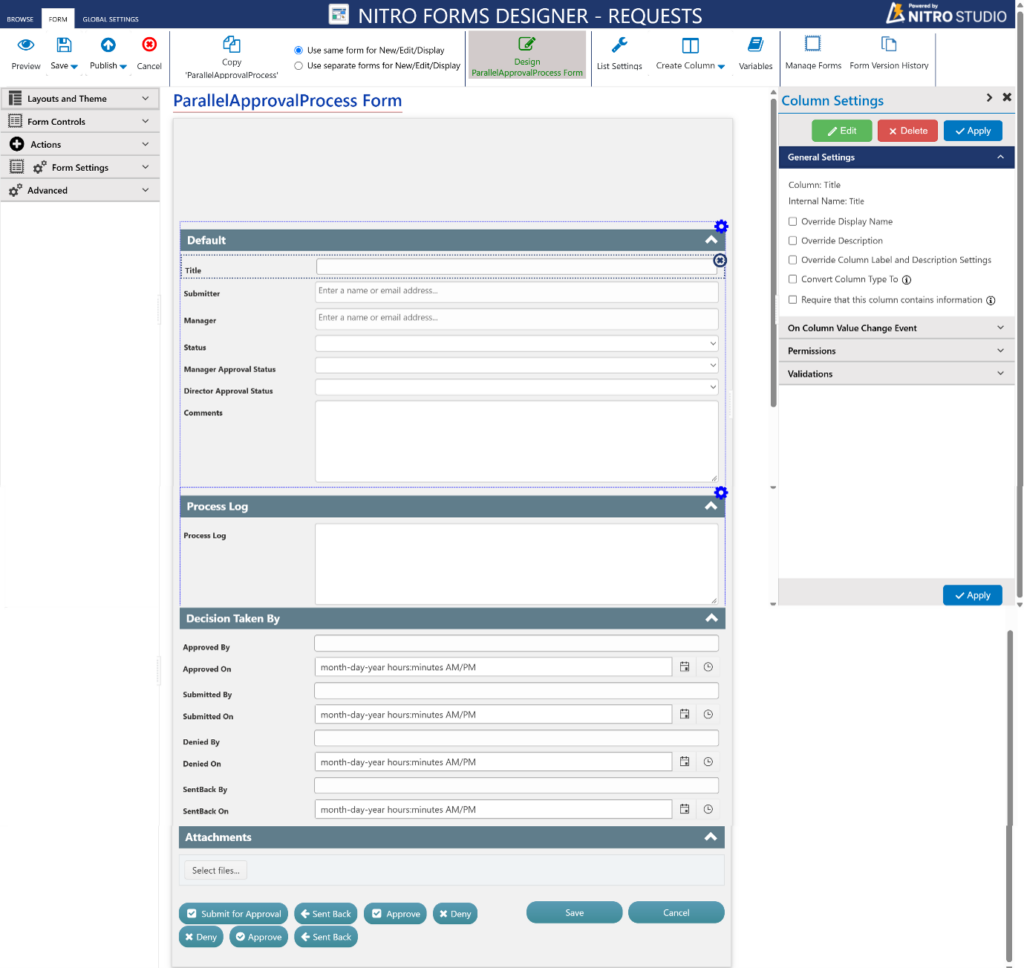
Form Configurations:
Action Button Permissions
| Button | Default | Show Condition | Who Can See It |
| Submit for Approval | Hide for all | Status = Pending Submission or Sent Back | Submitter |
| Approve | Hide for all | Status = Pending Approval AND Manager Approval Status = Pending | Manager |
| Deny | Hide for all | Manager Approval Status = Pending | Manager |
| Sent Back | Hide for all | Manager Approval Status = Pending | Manager |
| Approve | Hide for all | Status = Pending Approval AND Director Approval Status = Pending | Director |
| Deny | Hide for all | Director Approval Status = Pending | Director |
| Sent Back | Hide for all | Director Approval Status = Pending | Director |
Refer to the Single-Level Approval NITRO Form Configuration section in Single Level Approval Process – Crow Canyon Software Support for configuring columns, buttons, permissions, and validations.
Approval Process Configuration
The approval process is configured using submit action buttons in NITRO forms. We can drag and drop the submit action buttons on the form.
Below, we have described the action buttons and the script used to update the status of the request.
Action Button: Save
- This is the default save button on the form. This will save the Item in the Requests list.
Role: Submitter
Action Button: Submit for Approval
- This action button will set the status to “Pending Approval”
- Set the Manager Approval Status to Pending
- Set the Director Approval Status to Pending
- Updates the Process Log
- Captures the “Submitted By” and “Submitted On”
Note: When the request is in Sent Back status, the Submit button is available to allow the Submitter to resubmit the request. Upon resubmission, the Status changes to Pending Manager Approval.
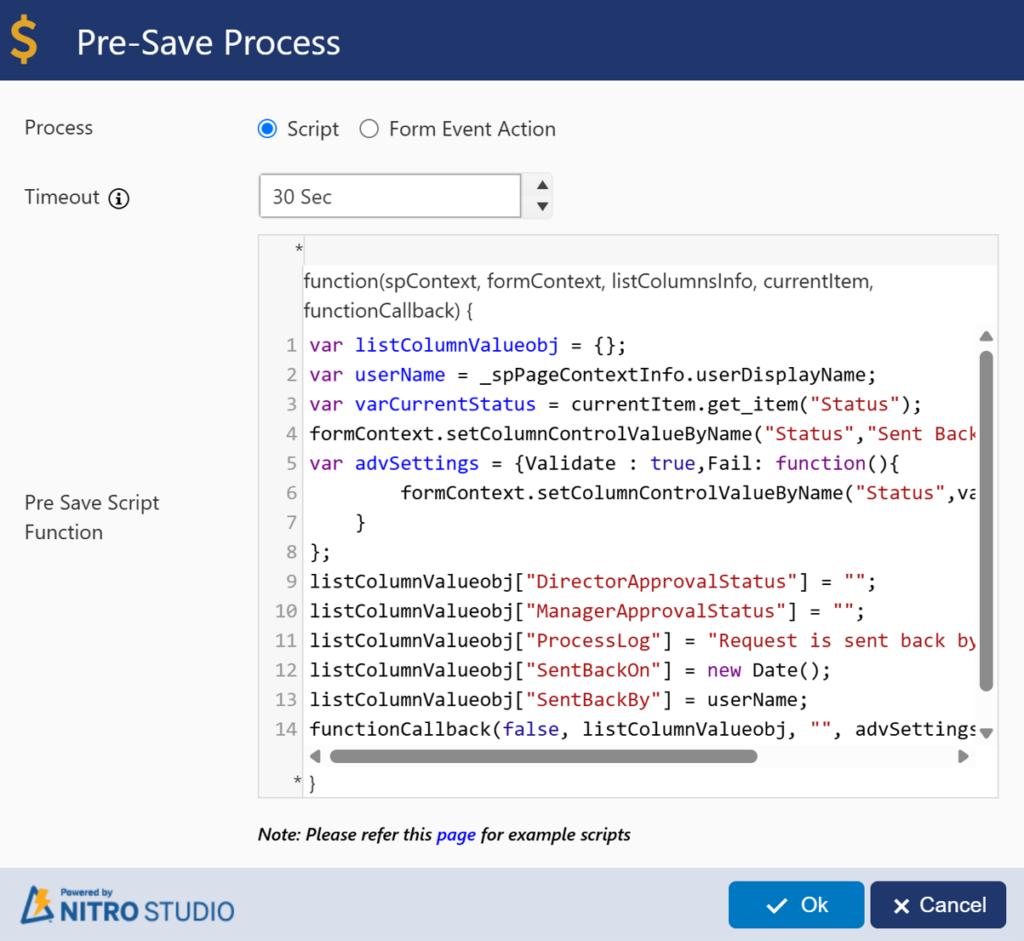
Script used:
var listColumnValueobj = {};
var userName = _spPageContextInfo.userDisplayName;
formContext.setColumnControlValueByName("Status","Pending Approval");
var advSettings = {Validate : true,Fail: function(){
        formContext.setColumnControlValueByName("Status","Pending Submission");
    }
};
listColumnValueobj["ManagerApprovalStatus"] = "Pending";
listColumnValueobj["DirectorApprovalStatus"] = "Pending";
listColumnValueobj["ProcessLog"] = "Request is submitted by " + userName + " and waiting for approval";

listColumnValueobj["SubmittedOn"] = new Date();
listColumnValueobj["SubmittedBy"] = userName;
functionCallback(false, listColumnValueobj, "", advSettings);
Script Explanation
| Script | Explanation |
| userName = _spPageContextInfo.userDisplayName | Gets the logged-in user’s display name. |
| Status = “Pending Approval” | Changes the overall request status to Pending Approval. |
| ManagerApprovalStatus = “Pending” | Initializes Manager approval. |
| DirectorApprovalStatus = “Pending” | Initializes Director approval. |
| SubmittedOn = new Date() | Records the submission date and time. |
| SubmittedBy = userName | Records the person who submitted the request. |
| ProcessLog | Records that the request was submitted and is waiting for approval. |
| Fail | If the operation fails, the Status is returned to Pending Submission. |
| functionCallback() | Saves the values to the item. |
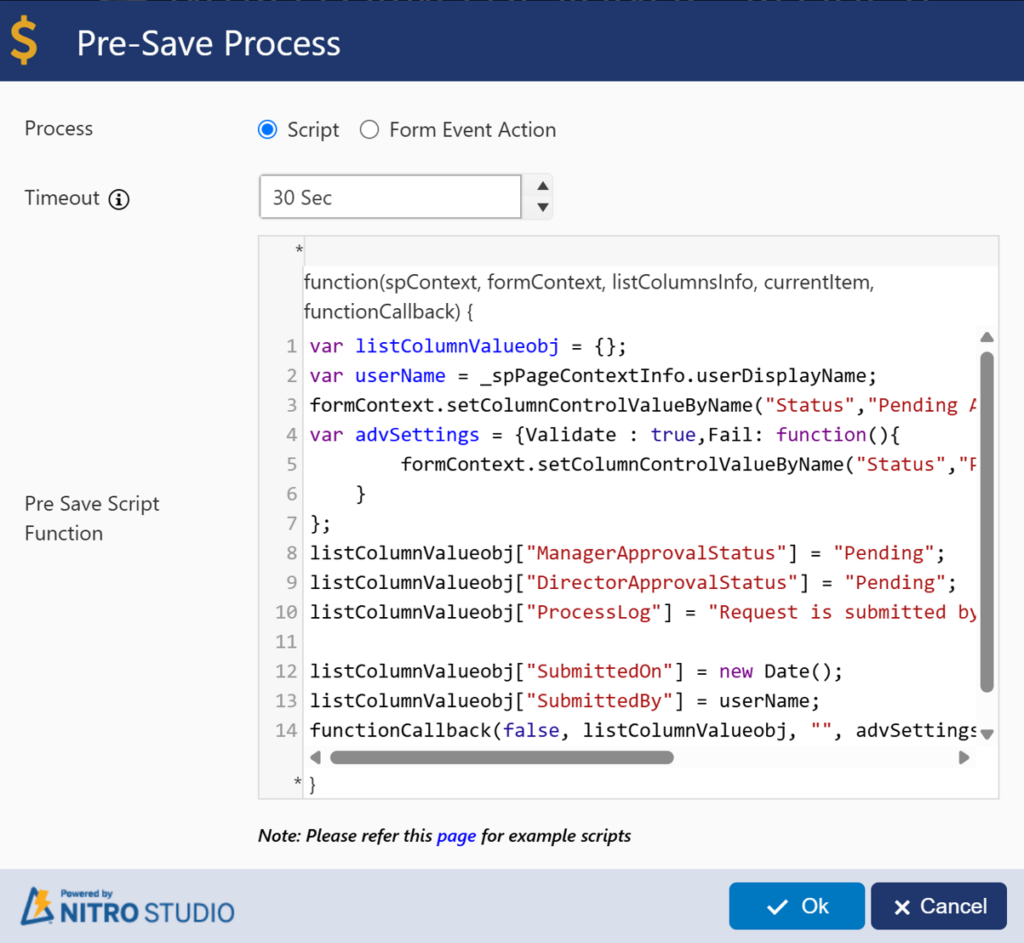
Role: Manager
Action Button: Approve
- This action button will be shown to the Manager when status is “Pending Approval” and Manager Approval Status is “Pending”.
- Updates the Process Log
- Captures the approver details like Approved By and Approved On
Script used:
var listColumnValueobj = {};
var userName = _spPageContextInfo.userDisplayName;
var varDirectorApproval = formContext.fetchColumnValueUI("DirectorApprovalStatus");
var varProcessLog = "";
formContext.setColumnControlValueByName("ManagerApprovalStatus","Approved");

if(varDirectorApproval == "Approved"){
formContext.setColumnControlValueByName("Status","Approved");
varProcessLog = "Request is approved by the Manager: " + userName;
}
else{
varProcessLog = "Request is approved by the Manager: " + userName + " and waiting for director approval";

}
var advSettings = {Validate : true,Fail: function(){
        formContext.setColumnControlValueByName("ManagerApprovalStatus","Pending");
		formContext.setColumnControlValueByName("Status","Pending Approval");

    }
};
 listColumnValueobj["ApprovedOn"] = new Date();
listColumnValueobj["ApprovedBy"] = userName;
listColumnValueobj["ProcessLog"] = varProcessLog;
functionCallback(false, listColumnValueobj, "", advSettings);
Script Explanation
| Script | Explanation |
| userName | Gets the logged-in Manager’s name. |
| fetchColumnValueUI(“DirectorApprovalStatus”) | Gets the current Director approval status. |
| currentItem.get_item(“Status”) | Stores the current overall Status so it can be restored if the operation fails. |
| ManagerApprovalStatus = “Approved” | Marks the Manager approval as completed. |
| if (varDirectorApproval == “Approved”) | Checks whether the Director has already approved. |
| Status = “Approved” | If both approvals are now complete, changes the overall Status to Approved. |
| else | If the Director has not approved yet, the overall Status remains Pending Approval. |
| ApprovedOn = new Date() | Records when the approval occurred. |
| ApprovedBy = userName | Records who performed the approval. |
| ProcessLog | Records the Manager approval activity. |
| Fail | Restores the previous Manager Approval Status and overall Status if saving fails. |
Action Button: Deny
- This action button will be shown to the Manager when status is “Pending Approval” and Manager Approval Status is “Pending”.
- Updates the Process Log
- Captures the approver details like Denied By and Denied On
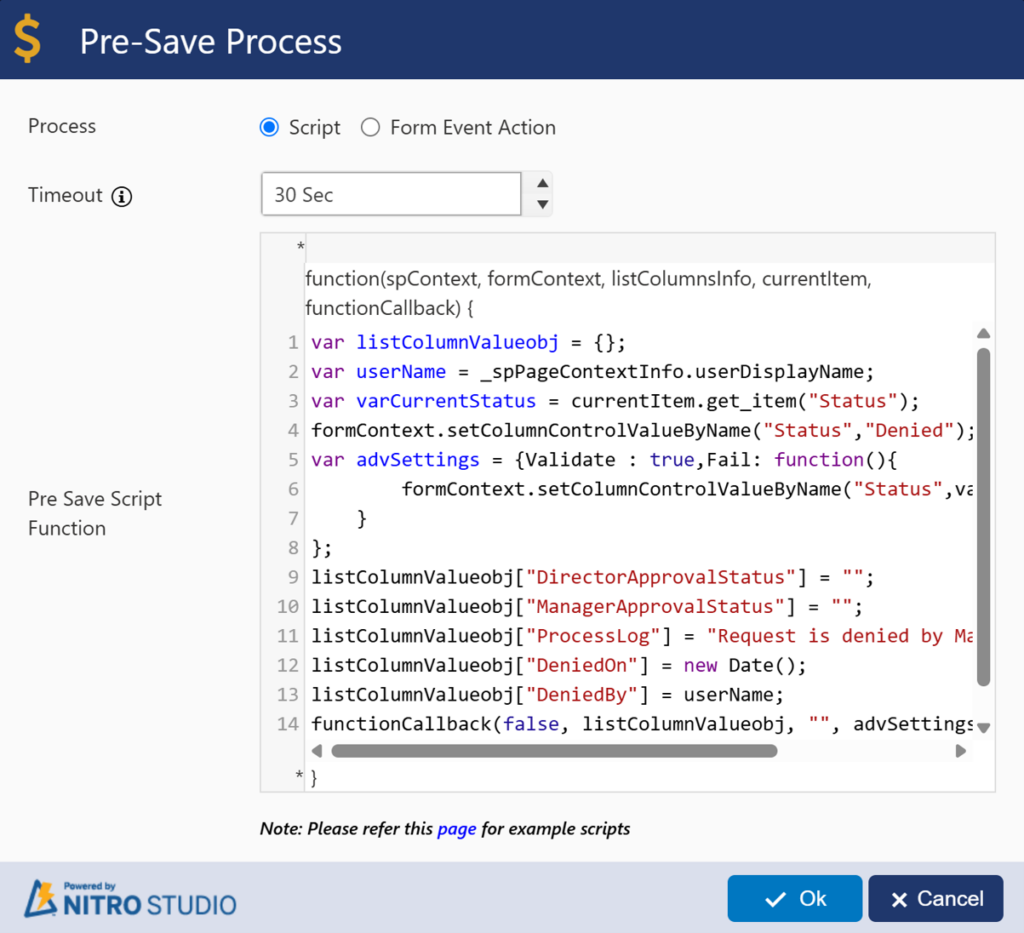
Script used:
var listColumnValueobj = {};
var userName = _spPageContextInfo.userDisplayName;
var varCurrentStatus = currentItem.get_item("Status");
formContext.setColumnControlValueByName("Status","Denied");
var advSettings = {Validate : true,Fail: function(){
        formContext.setColumnControlValueByName("Status",varCurrentStatus);
    }
};
listColumnValueobj["DirectorApprovalStatus"] = "";
listColumnValueobj["ManagerApprovalStatus"] = "";
listColumnValueobj["ProcessLog"] = "Request is denied by Manager " + userName;
listColumnValueobj["DeniedOn"] = new Date();
listColumnValueobj["DeniedBy"] = userName;
functionCallback(false, listColumnValueobj, "", advSettings);
Action Button: Sent Back
- This action button will be shown to the Manager when status is “Pending Approval” and Manager Approval Status is “Pending”.
- Updates the Process Log
- Captures the approver details like SentBack By and SentBack On
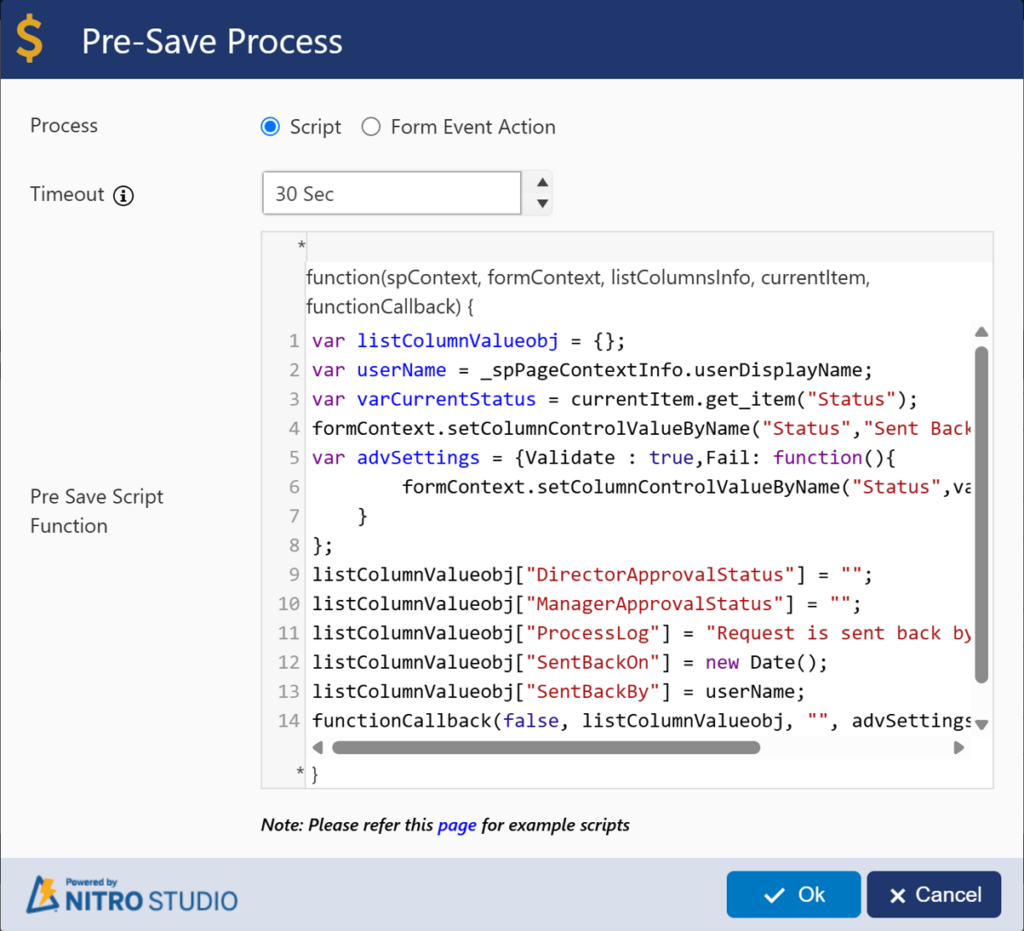
Script used:
var listColumnValueobj = {};
var userName = _spPageContextInfo.userDisplayName;
var varCurrentStatus = currentItem.get_item("Status");
formContext.setColumnControlValueByName("Status","Sent Back");
var advSettings = {Validate : true,Fail: function(){
        formContext.setColumnControlValueByName("Status",varCurrentStatus);
    }
};
listColumnValueobj["DirectorApprovalStatus"] = "";
listColumnValueobj["ManagerApprovalStatus"] = "";
listColumnValueobj["ProcessLog"] = "Request is sent back by Manager " + userName;
listColumnValueobj["SentBackOn"] = new Date();
listColumnValueobj["SentBackBy"] = userName;
functionCallback(false, listColumnValueobj, "", advSettings);
Role: Director
Action Button: Approve
- This action button will be shown to the Director when status is “Pending Approval” and Director Approval Status is “Pending”.
- Updates the Process Log
- Captures the approver details like Approved By and Approved On
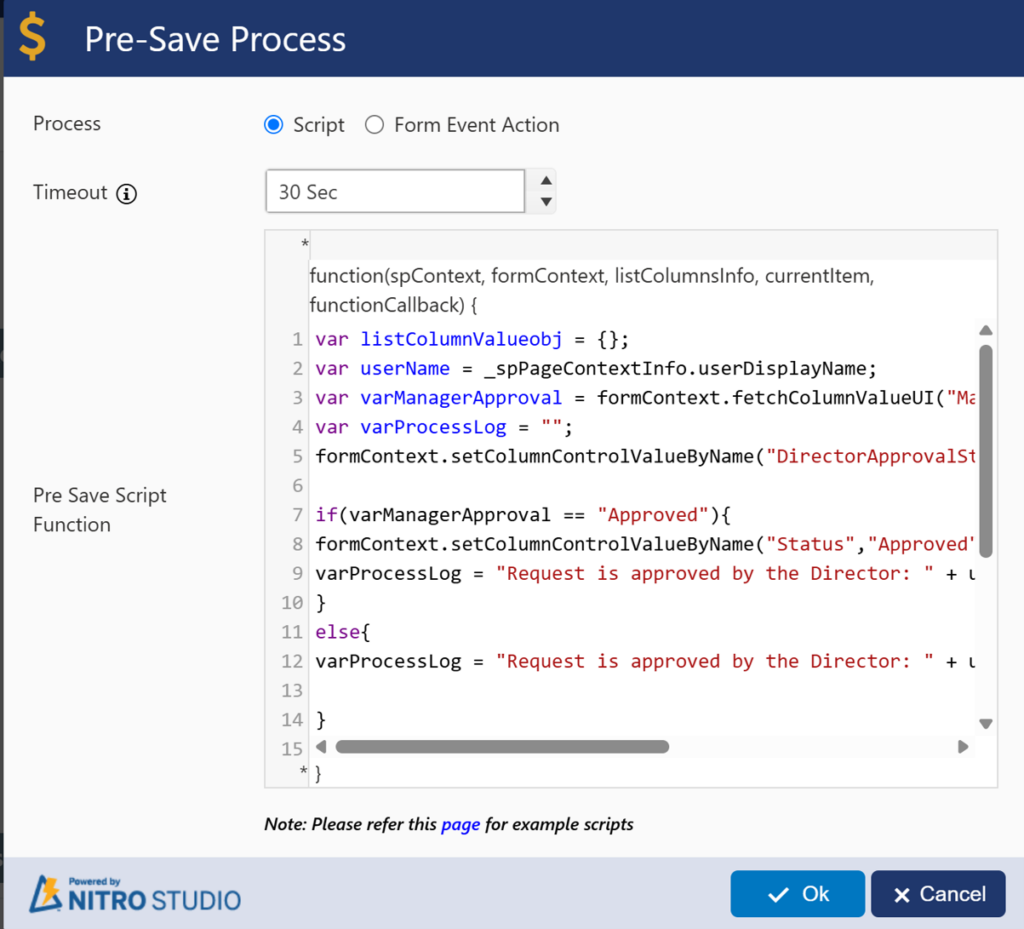
Script used:
var listColumnValueobj = {};
var userName = _spPageContextInfo.userDisplayName;
var varManagerApproval = formContext.fetchColumnValueUI("ManagerApprovalStatus");
var varProcessLog = "";
formContext.setColumnControlValueByName("DirectorApprovalStatus","Approved");

if(varManagerApproval == "Approved"){
formContext.setColumnControlValueByName("Status","Approved");
varProcessLog = "Request is approved by the Director: " + userName;
}
else{
varProcessLog = "Request is approved by the Director: " + userName + " and waiting for manager approval";

}
var advSettings = {Validate : true,Fail: function(){
        formContext.setColumnControlValueByName("DirectorApprovalStatus","Pending");
		formContext.setColumnControlValueByName("Status","Pending Approval");
    }
};
listColumnValueobj["ApprovedOn"] = new Date();
listColumnValueobj["ApprovedBy"] = userName;
listColumnValueobj["ProcessLog"] = varProcessLog;
functionCallback(false, listColumnValueobj, "", advSettings);
Action Button: Deny
- This action button will be shown to the Director when status is “Pending Approval” and Director Approval Status is “Pending”.
- Updates the Process Log
- Captures the approver details like Denied By and Denied On
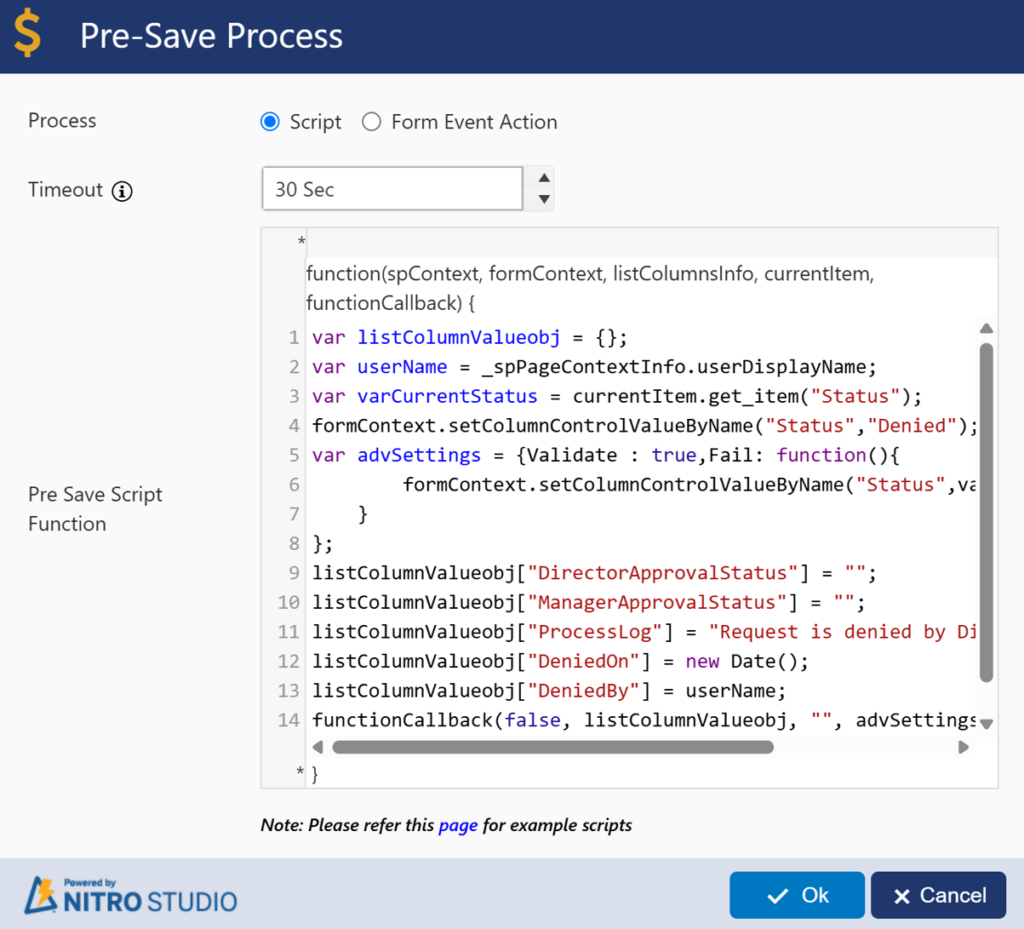
Script used:
var listColumnValueobj = {};
var userName = _spPageContextInfo.userDisplayName;
var varCurrentStatus = currentItem.get_item("Status");
formContext.setColumnControlValueByName("Status","Denied");
var advSettings = {Validate : true,Fail: function(){
        formContext.setColumnControlValueByName("Status",varCurrentStatus);
    }
};
listColumnValueobj["DirectorApprovalStatus"] = "";
listColumnValueobj["ManagerApprovalStatus"] = "";
listColumnValueobj["ProcessLog"] = "Request is denied by Director " + userName;
listColumnValueobj["DeniedOn"] = new Date();
listColumnValueobj["DeniedBy"] = userName;
functionCallback(false, listColumnValueobj, "", advSettings);
Action Button: Sent Back
- This action button will be shown to the Director when status is “Pending Approval” and Director Approval Status is “Pending”.
- Updates the Process Log
- Captures the approver details like SentBack By and SentBack On
Script used:
var listColumnValueobj = {};
var userName = _spPageContextInfo.userDisplayName;
var varCurrentStatus = currentItem.get_item("Status");
formContext.setColumnControlValueByName("Status","Sent Back");
var advSettings = {Validate : true,Fail: function(){
        formContext.setColumnControlValueByName("Status",varCurrentStatus);
    }
};
listColumnValueobj["DirectorApprovalStatus"] = "";
listColumnValueobj["ManagerApprovalStatus"] = "";
listColumnValueobj["ProcessLog"] = "Request is sent back by Director " + userName;
listColumnValueobj["SentBackOn"] = new Date();
listColumnValueobj["SentBackBy"] = userName;
functionCallback(false, listColumnValueobj, "", advSettings);
Notifications
Refer Single-Level Approval Notifications section in Single Level Approval Process – Crow Canyon Software Support to configure this.
Parallel Approval – Process Flow and Status Changes
- Create Request
Submitter creates and saves or submit the request. Status: Pending Submission
2. Submit Request
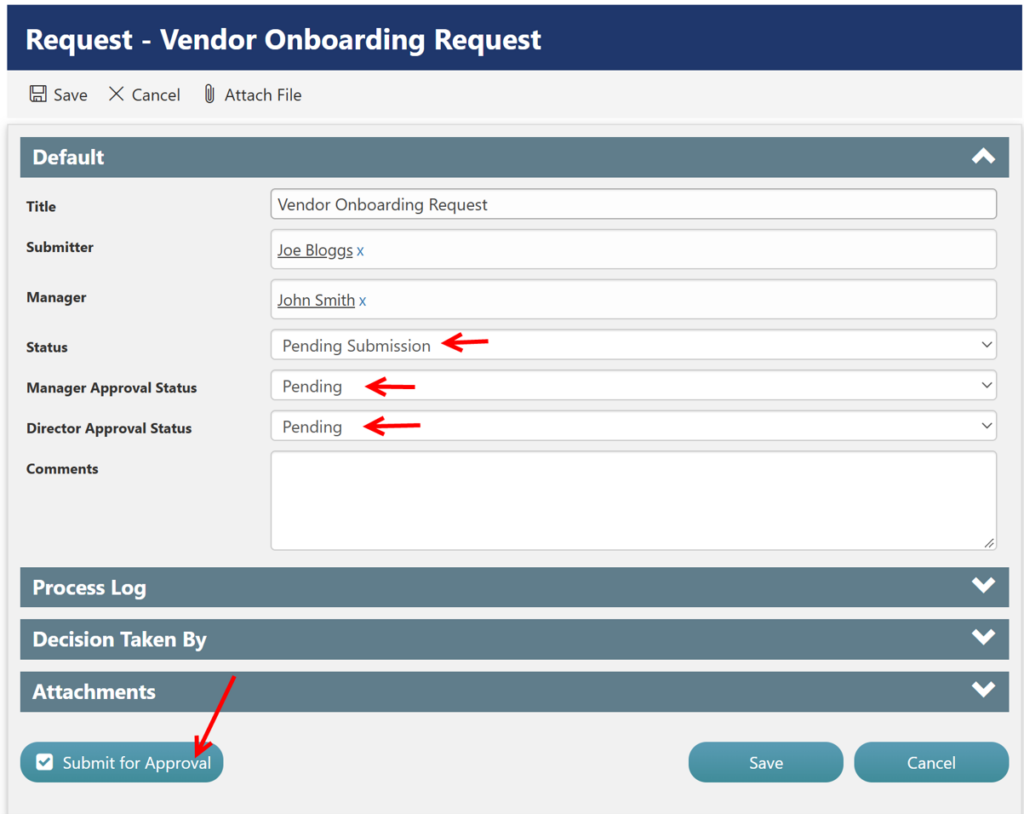
Submitter submits the request for approval. Status: Pending Approval. Both Manager Approval Status and Director Approval Status are set to Pending.
3. Manager and Director Approve Independently
The Manager and Director can approve the request independently. Each approval changes the corresponding approval status to Approved, while the overall Status remains Pending Approval until both approvals are completed.
Director Approve the Request first:
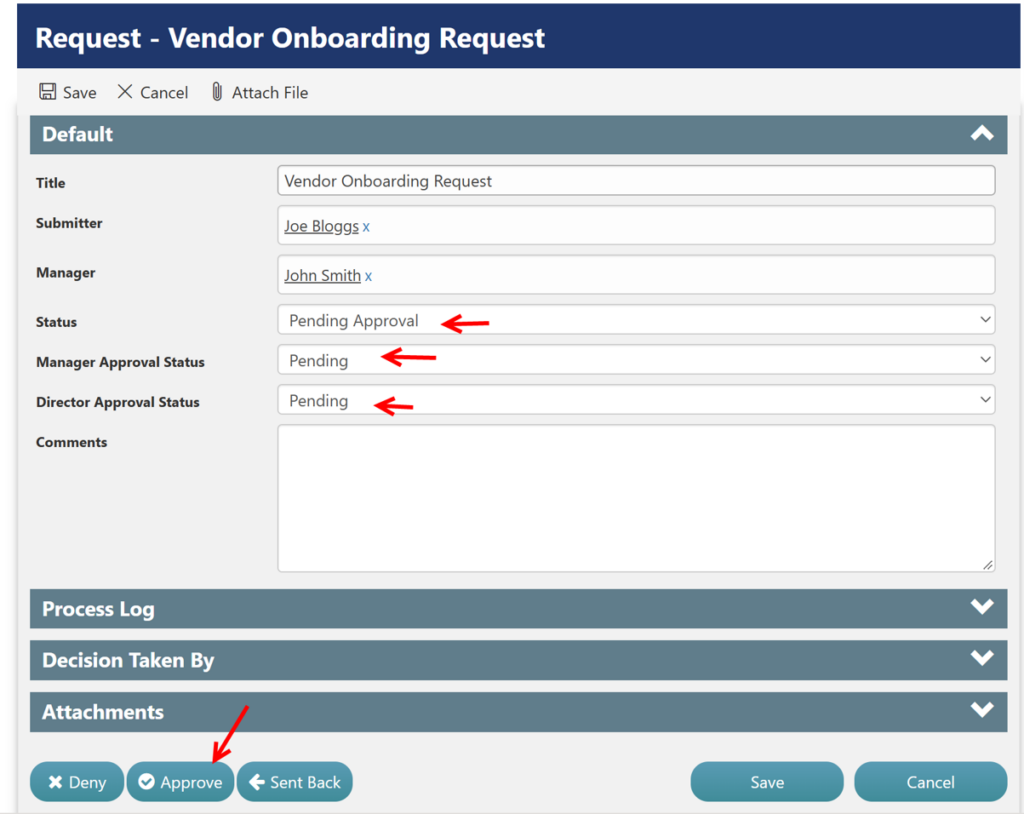
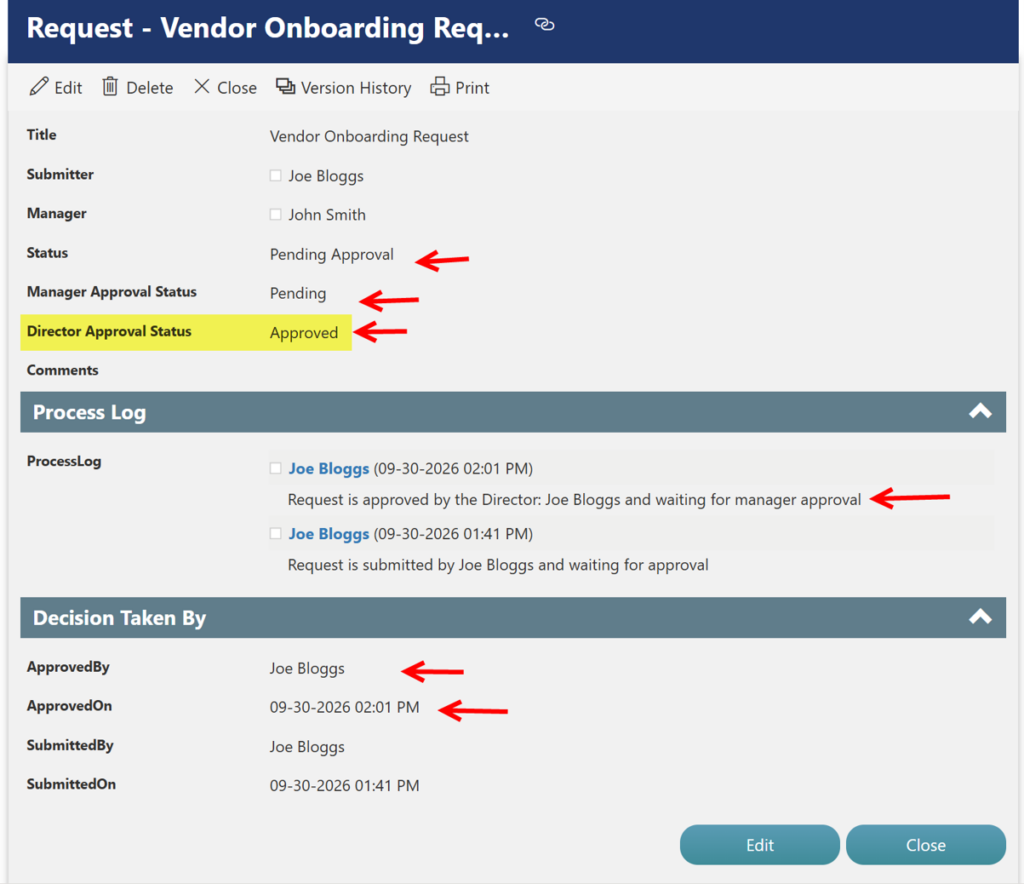
Then Manager Approves the Request
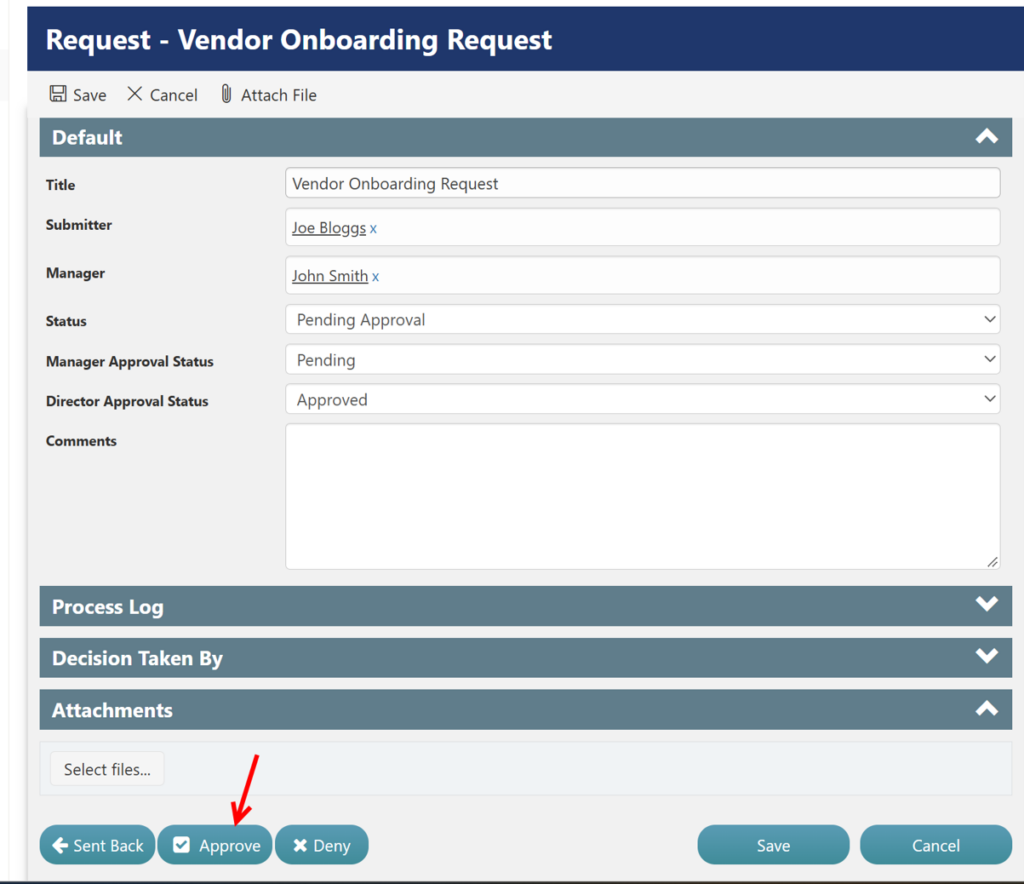
4. Both Approvals Completed
Once both the Manager and Director have approved the request, the overall Status changes to Approved.
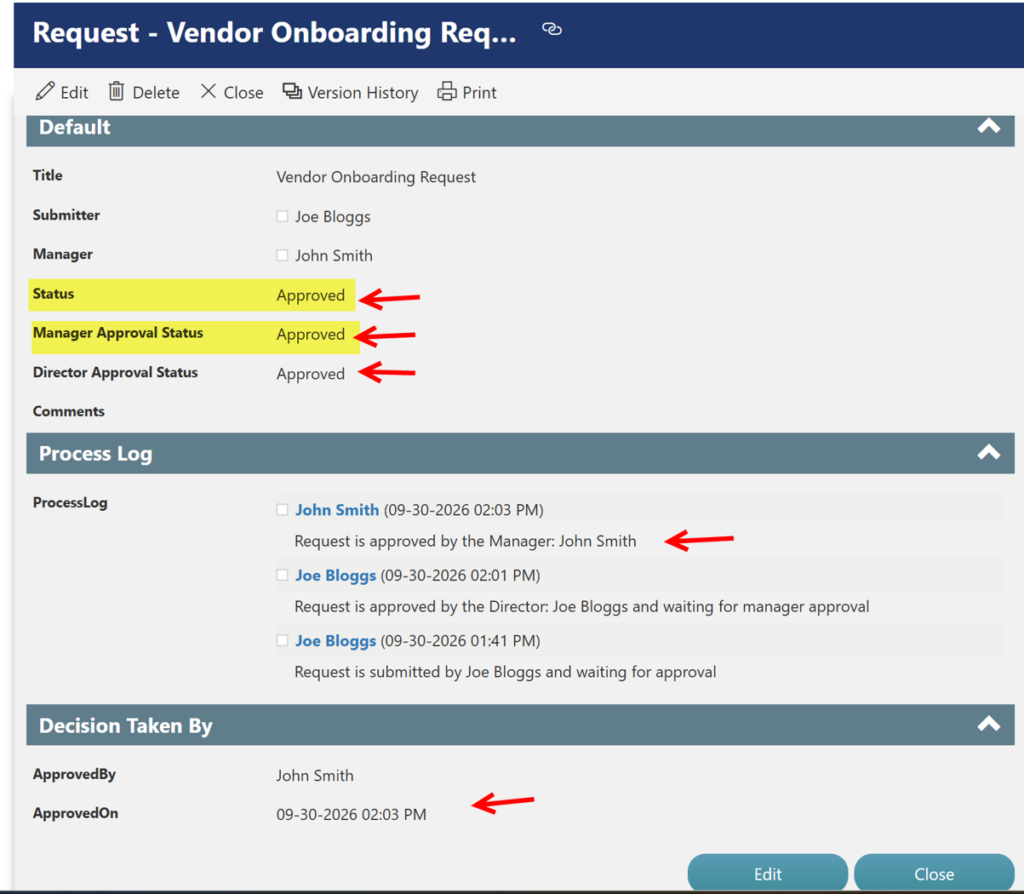
Note: In the parallel approval process, either the Manager or Director can approve the request first. The other approver can then approve the request independently. The request is marked Approved only after both the Manager and Director have approved it.
Alternate Approval Outcomes
Manager/Director Denies → Overall Status: Denied → Approval Process Ends
Manager/Director Sends Back → Overall Status: Sent Back → Submitter Updates Request → Re-submits → Status: Pending Approval
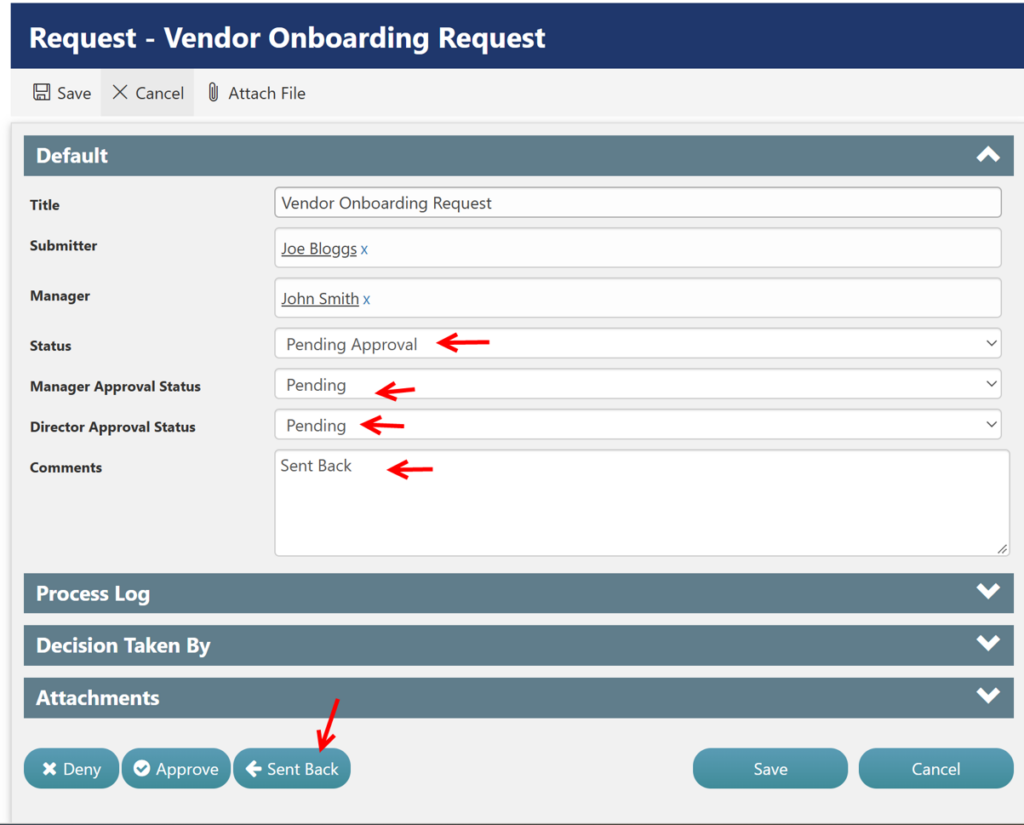
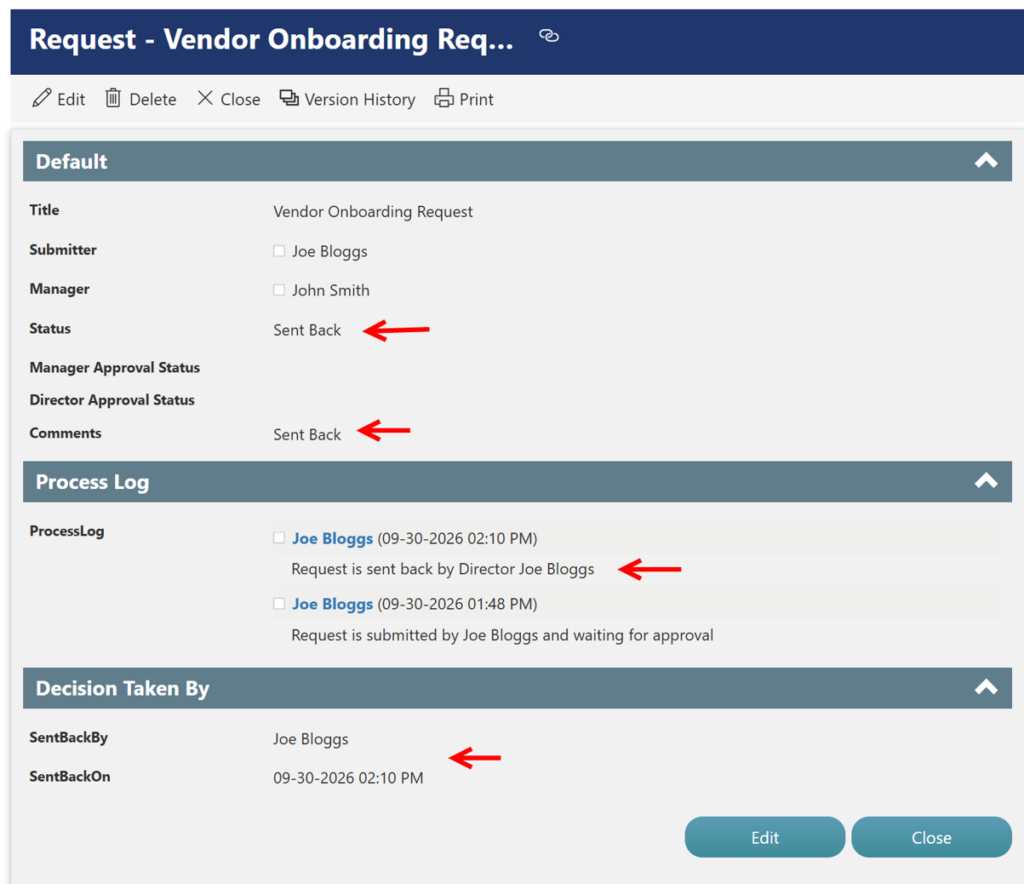
When the request is Sent Back, the Submitter can make the necessary changes and re-submit the request for approval.